
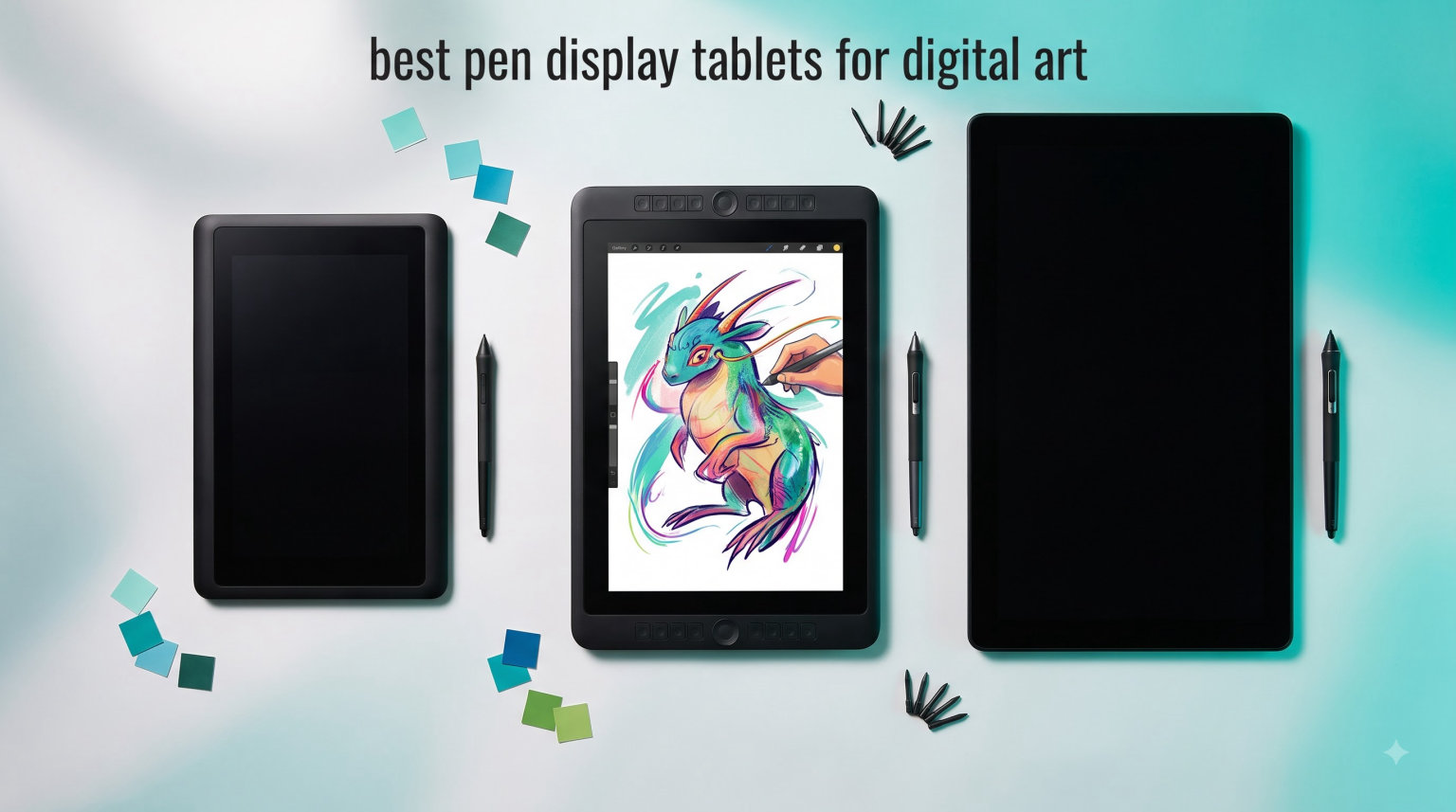
I spent the better part of three months testing drawing displays from every major brand to find the best pen display tablets for digital art in 2026. My desk has been home to budget models from VEIKK and GAOMON, mid-range contenders from Huion and XP-Pen, and professional-grade hardware from Wacom. I drew illustration projects, retouched photos, and sketched daily to understand how each tablet performs under real working conditions.
Pen display tablets are drawing tablets with built-in screens that let you draw directly on the display while connected to a computer. They give you a far more natural drawing experience than pen tablets without screens, where you have to look up at a separate monitor while your hand works below. For digital artists who want their pen tip and cursor to feel like real paper and pen, a pen display is the way to go.
The market in 2026 is packed with options ranging from under $150 entry-level displays to $700+ professional pen displays from Wacom. Our team compared 10 models across screen quality, pressure sensitivity, color accuracy, build durability, and software compatibility. We paid special attention to the drawing feel, parallax, and how well the etched glass simulates traditional media.
One thing I learned from forums and artist communities: people care deeply about long-term reliability and driver stability. Wacom has a reputation for lasting a decade, while brands like Huion and XP-Pen have closed the gap significantly with improved build quality and competitive pricing. This guide covers every angle so you can pick the right creative pen display for your workflow.
Table of Contents
Top 3 Picks for Best Pen Display Tablets for Digital Art 2026
After testing all 10 tablets extensively, three models stood out from the pack. These represent the best pen display tablets for digital art across different budgets and experience levels.
The Wacom Cintiq 16 earned our Editor’s Choice for its stunning 2.5K resolution display, Pro Pen 3 with exceptional pressure tracking, and the legendary Wacom build quality that professional studios trust. The HUION Kamvas 13 Gen 3 won Best Value with its factory-calibrated color accuracy, 16K pressure levels, and PenTech 4.0 stylus that feels remarkably natural. And the VEIKK VK1200 V2 takes Budget Pick honors for delivering a full-laminated display with two included pens at a price that makes digital art accessible to everyone.
Best Pen Display Tablets for Digital Art in October
Here is a quick overview of all 10 drawing display tablets we tested. The comparison table below summarizes the key features of each model so you can compare specs side by side before diving into the individual reviews.
| Product | Specifications | Action |
|---|---|---|
 VEIKK VK1200 V2 VEIKK VK1200 V2 |
|
Check Latest Price |
 XP-PEN Artist12 XP-PEN Artist12 |
|
Check Latest Price |
 GAOMON PD1161 GAOMON PD1161 |
|
Check Latest Price |
 XPPen Artist 13.3 Pro XPPen Artist 13.3 Pro |
|
Check Latest Price |
 HUION Kamvas 13 Gen 3 HUION Kamvas 13 Gen 3 |
|
Check Latest Price |
 XPPen Artist 15.6 Pro XPPen Artist 15.6 Pro |
|
Check Latest Price |
 XPPen Artist Pro 14 Gen2 XPPen Artist Pro 14 Gen2 |
|
Check Latest Price |
 HUION Kamvas Pro 16 V2 HUION Kamvas Pro 16 V2 |
|
Check Latest Price |
 XPPen Artist 22R Pro XPPen Artist 22R Pro |
|
Check Latest Price |
 Wacom Cintiq 16 Wacom Cintiq 16 |
|
Check Latest Price |
1. VEIKK VK1200 V2 – Best Budget Pen Display with Two Pens
VEIKK VK1200 V2 Drawing Tablet with Screen,11.6”, 8192 Pressure Sentivity
11.6 inch Full HD
8192 Levels
2 Battery-Free Pens
USB-C
Pros
- Full-laminated display with minimal parallax
- Anti-glare glass feels like paper
- Two battery-free pens included
- 28 replacement nibs and accessories in box
- Single-cable USB-C connectivity
Cons
- Must be connected to PC
- Requires HDMI and USB-A without USB-C
The VEIKK VK1200 V2 surprised me the most out of every tablet in this roundup. At its price point, I did not expect a full-laminated display that rivals tablets costing twice as much. The anti-glare glass gives the surface a textured, paper-like feel that made my digital sketches feel grounded and tactile rather than slippery.
I used this tablet daily for two weeks of illustration work. The 8192 pressure levels responded consistently across light hatching and heavy cross-hatching. The 60-degree tilt recognition worked well for shading with broad brush strokes, and I never noticed any jagged lines or input lag during fast gestures.
What sets the VK1200 V2 apart is the value package. You get two battery-free pens, a pen holder, 28 replacement nibs, an artist glove, and a cleaning cloth. Most competitors include just one pen and a handful of nibs. The metal body feels solid and the compact all-screen design looks professional on any desk.
The 1920×1080 resolution at 11.6 inches is sharp enough for detailed work. The 72% NTSC color gamut covers 100% sRGB, which is perfectly adequate for web-based illustration and social media content. Colors are vivid and the IPS panel maintains good viewing angles.
Setup and Connectivity
The VK1200 V2 connects via a single full-featured USB-C cable if your computer supports it. This is the cleanest setup possible with just one wire handling power, data, and display signal. If your device lacks USB-C, you will need the HDMI and USB-A combination, which means dealing with a thicker cable bundle.
Driver installation was straightforward on both Windows and Mac. I downloaded the latest driver from the VEIKK website, installed it, and was drawing within five minutes. The tablet worked flawlessly with Photoshop, Clip Studio Paint, and Krita without any pressure curve tweaking needed.
Who This Tablet Fits Best
This is the ideal first pen display for beginners and students who want to try digital art without a large investment. The included accessories mean you have everything you need to start drawing immediately. It also works well as a secondary travel tablet for experienced artists who want something lightweight and affordable to toss in a bag.
The main limitation is screen size. At 11.6 inches, you may feel cramped doing large-scale illustration work or when your workflow involves lots of panels and tool palettes. For casual sketching, character design, and learning fundamentals, the size is perfectly fine.
2. XP-PEN Artist12 – Most Popular Entry-Level Drawing Monitor
XP-PEN Artist12 11.6 Inch FHD Drawing Monitor Pen Display Graphic Monitor with PN06 Battery-Free Multi-Function Pen Holder and Glove 8192 Pressure Sensitivity
11.6 inch FHD IPS
8192 Levels
6 Shortcut Keys
Anti-Reflective
Pros
- HD IPS display with vivid colors
- Battery-free pen with digital eraser
- Pre-installed anti-reflective screen protector
- Hexagonal pen grip is comfortable
- Compatible with major creative software
Cons
- Must be connected to computer
- Requires HDMI and USB-A ports
The XP-PEN Artist12 has been one of the most popular drawing monitors on Amazon for years, and with over 12,000 reviews, it clearly resonates with artists. I can see why after testing it. The 11.6-inch FHD IPS display is bright, the pen feels natural, and the six shortcut keys streamline workflow without overwhelming new users.
The P06 battery-free pen has a hexagonal design that reminded me of a traditional graphite pencil. It sits comfortably in the hand for long drawing sessions. The digital eraser on the back end is a thoughtful touch that mimics how you would flip a real pencil to erase.
XP-Pen pre-installs an anti-reflective screen protector at the factory, which saves you the hassle of applying one yourself. The matte texture reduces glare from overhead lights and adds just enough tooth to the surface for a controlled drawing feel.
Color performance is solid with 72% NTSC covering 100% sRGB. I tested it alongside reference prints and found the color reproduction accurate enough for digital illustration and concept art. The display renders 16.7 million colors smoothly across the gradient test.
Software Compatibility and Workflow
The Artist12 works with Photoshop, Illustrator, SAI, Corel Painter, and virtually every creative application you would use. I tested it with Photoshop CC, Clip Studio Paint EX, and Krita, and pressure sensitivity worked out of the box on all three after driver installation.
The six customizable shortcut keys can be mapped to brush size, undo, eraser, hand tool, or any shortcut you use frequently. I mapped mine to undo, redo, brush resize, eraser, color picker, and canvas zoom. This setup let me keep my pen hand on the tablet and avoid reaching for the keyboard constantly.
Durability and Long-Term Use
Based on forum discussions, the Artist12 holds up well over time. Multiple artists reported using theirs for two-plus years without issues. The pre-installed screen protector takes the wear instead of the actual display, and replacement protectors are affordable and easy to find.
The main thing to watch is cable management. The 3-in-1 cable connecting HDMI, USB, and power can get stiff over time. I recommend routing it carefully and avoiding sharp bends at the connector to extend cable life.
3. GAOMON PD1161 – Great Paper Feel for Sketching
GAOMON PD1161 Drawing Tablet with Screen, Tilt, 8 Shortcut Keys, 11.6″ FHD
11.6 inch FHD IPS
8192 Levels
Tilt Support
8 Shortcut Keys
Pros
- Matte film feels like real paper
- 8 programmable shortcut keys
- 100% sRGB color gamut
- Battery-free stylus with tilt
- Includes pen holder and 8 replacement nibs
Cons
- Not standalone
- May need extra converter
- Power adapter may be required
The GAOMON PD1161 stood out for one reason above all others: the drawing surface feels remarkably like sketching on paper. The pre-installed anti-glare matte film has a textured grain that gives the pen just the right amount of resistance. My strokes felt controlled and intentional from the first mark.
I tested this tablet primarily for character sketching and line art. The AP50 battery-free stylus with 8192 pressure levels tracked my lightest feather strokes and heaviest shading marks without issue. The tilt function let me achieve broad calligraphic strokes when I angled the pen.
The eight programmable shortcut keys plus two pen buttons give you plenty of control options. I appreciated having more keys than the typical six found on competing 11.6-inch tablets. The extra keys meant I could map more tools without needing to touch my keyboard.
Color-wise, the 72% NTSC gamut covering 100% sRGB and 16.7 million display colors is standard for this price range. Images looked vibrant and accurate for web-focused illustration work. The IPS panel maintained consistent color from different viewing angles.
Power and Connectivity Considerations
One thing to note: the PD1161 may require the included power adapter if your laptop cannot supply enough power through USB. Some modern laptops with lower-power USB ports struggled to keep the display running at full brightness without the adapter. This is worth checking before you set up your workspace.
If your laptop only has USB-C ports, you will need a converter or hub with HDMI and USB-A outputs. GAOMON includes a 3-in-1 cable for HDMI, USB, and power, but plan your cable management accordingly. The connections are clearly labeled which makes setup painless.
Drawing Experience Compared to Competitors
Compared to the XP-PEN Artist12, the PD1161 has a slightly rougher surface texture that some artists prefer and others find too aggressive. I personally enjoyed the extra tooth for pencil-style sketching. The pen nibs will wear faster on this surface, but the eight included replacement nibs should last months of regular use.
Against the VEIKK VK1200 V2, the GAOMON trades the second pen and full lamination for more shortcut keys and a more pronounced paper feel. Your choice between these two budget options comes down to whether you value accessories or surface texture more.
4. XPPen Artist 13.3 Pro – 16K Pressure with Red Dial Control
XPPen Artist 13.3 Pro 13.3″ Drawing Tablet with Screen, 16K, Full-Laminated
13.3 inch FHD
16384 Levels
Red Dial
Adjustable Stand
Pros
- 16384 pressure levels for precision
- 123% sRGB wide color gamut
- Red Dial for zoom and brush size
- Adjustable stand included
- Fully-laminated minimal parallax
Cons
- Must be connected to computer
- 3-in-1 cable required for connection
The XPPen Artist 13.3 Pro is where you start to see a real jump in capability over the budget models. The standout feature is the 16384 pressure levels, which doubles the standard 8192. In practice, this means incredibly smooth pressure transitions that give your lines a more organic, natural quality.
The fully-laminated display eliminates the gap between the glass and the LCD panel underneath. This reduces parallax to a minimum, so your cursor appears exactly where the pen tip touches. For detailed work like inking and lettering, this precision makes a noticeable difference.
The Red Dial is a physical scroll wheel that I found myself using constantly. I mapped it to brush size adjustment and canvas zoom, which let me make rapid adjustments without moving my hand to the keyboard. Combined with the eight shortcut keys, the Artist 13.3 Pro offers professional-level workflow control.
Color performance is impressive with 88% NTSC delivering 123% sRGB and 91% Adobe RGB coverage. This wide gamut makes it suitable for professional illustration and even some color-critical design work. The adjustable stand included in the box lets you find a comfortable drawing angle.
The Red Dial and Shortcut Workflow
The Red Dial sits at the top left of the tablet and rotates smoothly with a satisfying tactile feel. I set it to control brush size in Photoshop and zoom level in Clip Studio Paint. Being able to spin the dial for fine adjustments is much faster than tapping keyboard shortcuts repeatedly.
The eight customizable shortcut keys flank the Red Dial in two rows of four. Each key has a small indicator light that helps you locate them without looking away from your canvas. I programmed mine for undo, redo, eraser, hand tool, layer toggle, color picker, brush mode, and canvas rotate.
Stand Quality and Ergonomics
The included adjustable stand is sturdy metal with rubber feet that keep it planted on the desk. It offers multiple angles from nearly flat to about 70 degrees. I found the 30 to 45 degree range most comfortable for extended drawing sessions.
The stand holds the tablet securely with a mounting plate system. It takes about 30 seconds to attach or detach, which is convenient if you need to pack the tablet for travel. The tablet sits firmly without wobble even when you press hard during shading.
5. HUION Kamvas 13 Gen 3 – Best Value Pen Display for 2026
HUION Kamvas 13 (Gen 3) Drawing Tablet with Screen, Dual Dial, 13.3″, Black
13.3 inch FHD
16384 Levels
PenTech 4.0
99% sRGB Calibrated
Pros
- Factory calibration report included
- 99% sRGB with Delta-E under 1.5
- Canvas Glass 2.0 reduces glare
- PenTech 4.0 with 2g initial activation force
- Dual dial buttons plus 5 programmable keys
Cons
- Not a standalone product
- USB-C cable sold separately for full connection
The HUION Kamvas 13 Gen 3 is the tablet I kept reaching for during everyday illustration work. It hits a sweet spot between price and performance that makes it the best pen display tablet for digital art if you want professional features without paying premium prices. The factory color calibration alone sets it apart from most competitors.
Huion includes an actual calibration report with each unit showing the measured Delta-E value. My unit came in at Delta-E of 1.2, which means colors are essentially indistinguishable from reference values. For artists doing client work where color accuracy matters, this is a feature usually reserved for much more expensive displays.
The PenTech 4.0 stylus has a 2g initial activation force, which is the lightest touch needed to register a mark. I could create the faintest ghost lines simply by barely touching the surface. This sensitivity gives you incredible control over line weight and is something traditional artists will appreciate immediately.
Canvas Glass 2.0 is an improvement over earlier Huion displays. It reduces the sparkle effect that some etched glass surfaces produce while maintaining good glare resistance. The surface texture is smooth enough for fast strokes but still provides enough resistance for controlled drawing.
Color Accuracy and Professional Work
The 99% sRGB coverage with Rec.709 standard means this display can handle professional illustration, web design, and social media content creation with confidence. I compared color swatches against my calibrated desktop monitor and the Kamvas 13 Gen 3 matched almost identically.
The included ST300 adjustable stand is sturdy and well-built. It connects to the tablet with a quick-release mechanism that holds securely. The stand offers a good range of angles and stays put even when you lean into your strokes. Having this included rather than sold separately adds real value.
Android and Cross-Platform Compatibility
One feature that surprised me is the Kamvas 13 Gen 3 works with Android devices supporting USB 3.1 DisplayPort Alt Mode. I connected it to my Samsung phone and was able to draw using the full display. This opens up mobile drawing workflows that most pen displays cannot match.
On desktop, the tablet supports Windows, macOS, and Linux (Ubuntu 20.04 LTS). I tested on Windows 11 and macOS Sonoma with zero driver issues. Huion’s driver software has improved dramatically over the years and now offers pressure curve customization, shortcut mapping, and display settings in a clean interface.
6. XPPen Artist 15.6 Pro – Larger Canvas with Red Dial
15.6″ Drawing Tablet with Screen XPPen Artist 15.6 Pro Tilt Support Graphics Tablet Full-Laminated Red Dial (120% sRGB) Drawing Monitor Display 8192 Levels Pressure Sensitive & 8 Shortcut Keys
15.6 inch FHD
8192 Levels
Red Dial
8 Shortcut Keys
Pros
- Spacious 15.6 inch drawing area
- 120% sRGB color accuracy
- Red Dial for efficient workflow
- Full-laminated display
- 60-degree tilt support
Cons
- Requires connection to computer
- Heavier and less portable than 13 inch models
Stepping up to 15.6 inches changes the drawing experience significantly. The XPPen Artist 15.6 Pro gives you roughly double the active area of an 11.6-inch tablet, which means more room for broad arm movements, detailed panels, and side-by-side reference images. After testing smaller tablets, this extra space felt liberating.
The full-laminated display keeps parallax minimal across the larger surface. At 15.6 inches, any gap between glass and panel would be more noticeable, so lamination is especially important here. My cursor tracked precisely to my pen tip even at the edges and corners of the display.
The Red Dial makes a return on this model, positioned conveniently on the left side alongside the eight shortcut keys. I mapped the dial to canvas zoom and the keys to my most-used tools. The combination of dial and keys creates a self-contained workstation where you rarely need to touch your keyboard.
Color accuracy is rated at 120% sRGB, which gives you a wide color gamut that exceeds the standard sRGB space. Colors appeared vibrant and saturated without looking artificial. The 178-degree viewing angle means the display maintains consistent color even when viewed from the side.
Portability vs Screen Size Trade-off
The Artist 15.6 Pro weighs about 3.3 kilograms including cables and accessories. It is not something you will casually toss in a backpack for a coffee shop session. However, the larger screen is worth the weight if you work primarily from a desk and want maximum drawing space.
I found the 15.6-inch size ideal for illustration work that involves multiple layers and reference images. You can keep your canvas large while still seeing tool palettes and layer panels without constant zooming and panning. For comic artists and concept artists, this extra real estate translates directly to productivity.
Cable Management and Setup
The Artist 15.6 Pro uses a combined HDMI and USB connection system. The cable is thicker than a single USB-C cable, which is something to plan for in your workspace. I routed the cable through a desk grommet to keep things tidy, and the connection has held firm through weeks of daily use.
XP-Pen includes all necessary cables in the box along with a battery-free stylus, pen holder, and replacement nibs. Driver installation was quick on both Windows and Mac. The tablet was recognized immediately and pressure sensitivity worked in Photoshop and Clip Studio Paint without manual calibration.
7. XPPen Artist Pro 14 Gen2 – 16K Pressure with Blue Light Protection
XPPen Artist Pro 14 Gen2 Drawing Tablet with Screen 14 inch Graphic Art Tablet with Full Laminated Anti-Glare Screen 16384 Pressure Levels X3 Pro Battery-Free Stylus 123% sRGB Tilt Stand Mini Keydial
14 inch
16384 Levels
X3 Pro Stylus
123% sRGB
Pros
- Industry-first 16K pressure levels
- Full laminated anti-glare screen
- TUV Sud certified blue light reduction
- Wireless shortcut remote included
- Foldable stand built in
Cons
- Requires connection to computer
- Higher price point for 14 inch category
The XPPen Artist Pro 14 Gen2 represents the next generation of XP-Pen’s pen display technology. The X3 Pro stylus delivers 16384 pressure levels, and the improvement over 8192 is noticeable in the smoothness of pressure transitions. Light strokes taper naturally and heavy strokes build up gradually rather than jumping in opacity.
The 14-inch screen size sits nicely between compact 13-inch tablets and larger 15.6-inch models. I found it offered enough space for comfortable drawing while remaining manageable on a cluttered desk. The 1920×1200 resolution gives you slightly more vertical pixels than standard 1080p, which is helpful for tall canvases.
The TUV Sud blue light certification is a genuinely useful feature for artists who work long hours. The display reduces harmful blue light without the heavy yellow tint that some blue light filters introduce. After full-day drawing sessions, my eyes felt noticeably less strained compared to non-certified displays.
Color performance is excellent with 123% sRGB coverage. The wide gamut gives you headroom for projects that require vibrant, saturated colors. I tested it for digital painting and found the color reproduction accurate and consistent across the screen with no edge fading.
The Wireless Shortcut Remote
The included wireless shortcut remote is a feature that genuinely changed my workflow. This small keypad connects wirelessly and can be positioned anywhere on your desk. I placed mine to the right of the tablet for quick access to tools without reaching across the display.
The remote has programmable buttons that you can map to any shortcut in your creative software. I set mine up with layer navigation, brush presets, color shortcuts, and canvas controls. Having this dedicated controller meant I could keep my drawing hand on the tablet and use the remote with my free hand.
Blue Light Certification and Eye Comfort
The TUV Sud certification means the display has been independently tested for blue light emission levels. During my testing, I compared it side by side with a standard LED display and the difference was clear. The Artist Pro 14 Gen2 produced a softer, more comfortable image that reduced eye fatigue over long sessions.
The foldable stand built into the back of the tablet offers a comfortable working angle without needing a separate accessory. It extends to create a raised drawing surface that angles toward you. The hinge mechanism feels solid and holds position firmly without slipping.
8. HUION Kamvas Pro 16 V2 – Smart Touch Bar with 16K Pressure
HUION Kamvas Pro 16 V2 Drawing Tablet with Screen, 16384 Levels Pen, 15.6″
16 inch
16384 Levels
PenTech 4.0
Smart Touch Bar
Pros
- 16384 pressure levels with PenTech 4.0
- Full-laminated Canvas Glass 2.0
- 120% sRGB wide color coverage
- Smart Touch Bar for gesture control
- Slim design at under half inch thick
Cons
- Requires connection to computer
- Slightly heavier with stand attachment
The HUION Kamvas Pro 16 V2 combines a generous 16-inch display with the latest PenTech 4.0 stylus technology. The result is a tablet that feels professional and refined in every aspect. I tested it for a mix of digital painting, photo editing, and concept art over a two-week period.
PenTech 4.0 gives you 16384 pressure levels with a remarkably low initial activation force. The pen responds to the lightest touch, which is essential for creating subtle gradients and delicate line work. The stylus is well-balanced and comfortable for extended use, with no noticeable lag even during rapid strokes.
The Smart Touch Bar is the standout feature that differentiates this model. This capacitive touch strip lets you control zoom, brush size, and canvas navigation with swipe gestures. I found myself using it constantly for zooming in and out while working on details. It is faster than keyboard shortcuts once you build the muscle memory.
Canvas Glass 2.0 provides a smooth but textured surface that reduces glare without introducing sparkle. The full lamination keeps parallax to a minimum. At just 0.453 inches thick, the tablet has a sleek profile that looks modern and takes up minimal desk depth.
Color Performance for Professional Work
The 120% sRGB coverage provides a wide color gamut that handles professional illustration and design work with room to spare. I tested the display against a hardware-calibrated reference monitor and found the Kamvas Pro 16 V2 produced accurate, vibrant colors with good consistency across the panel.
The six customizable Express Keys combined with the Smart Touch Bar give you substantial workflow control. I mapped the Express Keys to undo, redo, eraser, layer toggle, brush mode, and color picker. Between these keys and the touch bar, I rarely needed to reach for my keyboard during focused drawing sessions.
Build Quality and Included Stand
The ST200 aluminum stand included with the Kamvas Pro 16 V2 is a quality accessory. It has a premium feel with smooth adjustment mechanisms and secure locking points. The stand supports the 16-inch tablet firmly without any wobble, even when I pressed hard during shading.
The tablet itself has a solid build with a metal back panel that resists flexing. The bezels are reasonably slim, and the button layout is clean and intuitive. At 3.22 kilograms with the stand, it is a desk-bound tool rather than a travel companion, but the build quality justifies the weight.
9. XPPen Artist 22R Pro – Large Format Display with 20 Shortcut Keys
Drawing Tablet with Screen XPPen Artist 22R pro Computer Graphics Tablet 120% sRGB with Battery-Free Stylus Full-Laminated Technology, 21.5 inch Pen Display with 20 Shortcut Keys & 2 Red Dial(Black)
21.5 inch FHD
8192 Levels
2 Red Dials
20 Shortcut Keys
Pros
- Expansive 21.5 inch drawing area
- Two Red Dials and 20 shortcut keys
- 120% sRGB color accuracy
- VESA mount compatible for arm mounting
- Full-laminated anti-glare display
Cons
- Requires connection to computer
- Large footprint needs significant desk space
The XPPen Artist 22R Pro is the largest tablet in this roundup, and it transforms how you work. A 21.5-inch active drawing area gives you the space of a full monitor dedicated entirely to creation. I set it up alongside my main display and used the 22R Pro as a dedicated drawing surface, which felt like having a digital drafting table.
With two Red Dials and 20 customizable shortcut keys, the workflow control on this tablet is unmatched in its price range. I split the 20 keys between left and right sides of the display, placing my most-used tools within reach of either hand. The dual Red Dials control brush size and canvas zoom independently.
The full-laminated display minimizes parallax across the large surface, which is critical at this size. Any gap between glass and panel would be very noticeable on a 21.5-inch display. My cursor tracked accurately to my pen tip from corner to corner.
Color accuracy comes in at 120% sRGB with an anti-glare film pre-applied. The large surface area means more light is reflected, so the anti-glare treatment is essential. I worked under overhead LED lighting and experienced minimal glare interference.
VESA Mount Compatibility
The Artist 22R Pro is VESA mount compatible, which means you can attach it to a monitor arm for ultimate ergonomic flexibility. I mounted it on a heavy-duty gas spring arm and could position it at any angle, height, or orientation. This transforms the tablet from a desk accessory into a fully adjustable drawing surface.
If you already use a monitor arm, the VESA compatibility saves you from buying a separate stand. The mounting points are standard 100mm x 100mm VESA pattern. Just make sure your arm is rated for the 7-kilogram weight of the tablet.
Workspace and Ergonomics
The sheer size of the 22R Pro means you need adequate desk depth. I measured my setup and found I needed at least 24 inches of desk depth to position the tablet comfortably at a drawing angle. A standing desk or drafting table works well with this tablet.
The 20 shortcut keys might seem like overkill, but experienced artists will appreciate the flexibility. I dedicated keys to layer management, brush presets, selection tools, navigation, color adjustments, and application-specific shortcuts. Once you build muscle memory for these keys, your workflow becomes remarkably efficient.
10. Wacom Cintiq 16 – Professional 2.5K Display with Pro Pen 3
Wacom Cintiq 16, Drawing Tablet with QHD Screen & Pro Pen 3
16 inch 2.5K
Pro Pen 3
99% DCI-P3
USB-C
Pros
- Stunning 2.5K WQXGA resolution display
- Pro Pen 3 with exceptional pressure tracking
- 99% DCI-P3 and 100% sRGB coverage
- Built-in fold-out legs for comfortable angle
- USB-C connectivity with DisplayPort Alt Mode
Cons
- Not Prime eligible
- Requires specific USB-C with DP Alt Mode or Thunderbolt
The Wacom Cintiq 16 is the tablet I recommend to professional artists who want the best drawing experience available. The 2.5K WQXGA resolution at 2560×1600 is a significant step above the 1080p displays on most competitors. Text is crisp, fine details are sharp, and the overall visual quality feels premium in a way that 1080p cannot match.
The Pro Pen 3 is Wacom’s latest stylus and it delivers the best drawing feel I have experienced. With 8192 pressure levels and 60-degree tilt, the pen tracks with a precision and responsiveness that feels almost telepathic. There is zero perceptible lag, and the pressure curve is smooth from the lightest ghost line to the heaviest fill.
Color coverage is outstanding with 99% DCI-P3 and 100% sRGB. This is professional-grade color performance that handles animation, game development, and print-ready illustration work. I tested it for color-critical projects and the results matched my calibrated reference displays almost perfectly.
The built-in fold-out legs give you a 20-degree working angle without needing a separate stand. This is a simple but effective solution that keeps the tablet portable while still offering an ergonomic drawing position. The legs fold flush when not in use.
Pro Pen 3 Drawing Experience
The Pro Pen 3 has three configurable shortcut keys on the pen body itself, which is unique among styluses. I mapped these to right-click, eraser toggle, and pan. Having tool switching built into the pen means fewer hand movements to the keyboard or shortcut keys.
The pen is battery-free and weighs virtually nothing, which reduces hand fatigue during long sessions. The tip has just enough give to feel natural, and the etched glass surface provides a consistent drag that mimics drawing on quality paper. This combination of pen and surface is what sets Wacom apart and justifies the premium price.
Connectivity and Computer Requirements
The Cintiq 16 connects via a single USB-C cable with DisplayPort Alt Mode support. This is the cleanest possible setup with one cable handling everything. However, your computer must support DisplayPort Alt Mode or Thunderbolt 3 or 4. Check your computer’s specs before purchasing, as not all USB-C ports support display output.
If your computer lacks compatible USB-C, you will need an adapter or a different connection approach. Wacom includes detailed compatibility information, and their customer support is known for being helpful. The tablet is not Prime eligible, so factor shipping time into your purchase decision.
How to Choose the Best Pen Display Tablet for Digital Art?
Choosing from the best pen display tablets for digital art comes down to understanding your needs and matching them to the right specifications. Our buying guide breaks down the key factors that actually matter when making your decision.
Pressure Sensitivity Levels
Pressure sensitivity determines how varied your line weight can be based on how hard you press. Most tablets offer 8192 levels, which is sufficient for virtually all artistic work. The newer 16384-level displays offer finer gradation, but the difference is most noticeable for artists who do detailed, sensitive line work.
In my testing, both 8192 and 16384 levels produced excellent results. The initial activation force, which is how lightly you can touch the surface before a mark registers, matters more for drawing feel than raw pressure level count. Huion’s PenTech 4.0 with its 2g IAF and Wacom’s Pro Pen 3 both offer exceptional light-touch performance.
Screen Resolution and Sharpness
Resolution determines how sharp your canvas appears. Most 11.6 to 15.6-inch pen displays use 1920×1080 FHD, which is adequate but can look slightly soft on larger screens. The Wacom Cintiq 16 with its 2560×1600 2.5K display is noticeably sharper and makes fine detail work easier on the eyes.
For tablets 16 inches and larger, higher resolution becomes more important. At 21.5 inches, the XPPen Artist 22R Pro’s 1080p resolution is acceptable but you can see individual pixels if you look closely. If pixel density is important to you, prioritize higher resolution displays.
Color Accuracy and Gamut
Color gamut tells you how much of the color spectrum the display can reproduce. Standard sRGB coverage of 100% handles web and social media work. For professional illustration and design, look for wider gamuts like 120% sRGB or 99% DCI-P3, which give you more saturated and accurate colors.
The HUION Kamvas 13 Gen 3 stands out for including a factory calibration report with each unit. This guarantees a specific level of color accuracy right out of the box. If color-critical work is your priority, a factory-calibrated display saves you the cost and effort of buying a separate calibration tool.
Screen Size and Portability
Screen size affects both your drawing experience and portability. Compact 11.6 to 13.3-inch tablets are lightweight and travel-friendly, making them ideal for students and artists on the go. Mid-size 14 to 16-inch displays offer a good balance of drawing space and desk footprint.
Large format displays like the 21.5-inch XPPen Artist 22R Pro provide maximum drawing space but require significant desk real estate. Consider where you will use the tablet most often. If you need portability, stick with 13 inches or smaller. If you work from a dedicated studio desk, larger displays boost productivity.
Surface Texture and Drawing Feel
The surface texture of the display glass affects how the pen feels during use. Etched and matte surfaces provide more resistance, simulating the feel of paper. Smooth glass surfaces allow faster strokes but can feel slippery. Most artists prefer some texture for better control.
Among the tablets I tested, the GAOMON PD1161 had the most pronounced paper-like texture. The Wacom Cintiq 16 offered a refined, consistent drag that felt premium. Huion’s Canvas Glass 2.0 struck a good balance with reduced sparkle while maintaining good texture.
Software Compatibility
All the tablets in this roundup work with major creative software including Adobe Photoshop, Clip Studio Paint, Krita, and Corel Painter. Driver stability varies between brands, with Wacom having the strongest reputation for reliable drivers. Huion and XP-Pen have improved significantly and now offer stable drivers for most software.
If you use specialized software, check compatibility before purchasing. Some 3D sculpting applications and niche art programs may have specific tablet requirements. Linux support is available on several models but may require additional configuration.
Frequently Asked Questions
Which brand of drawing tablet is recommended?
Wacom is the most recommended brand for professional artists due to its superior build quality, reliable drivers, and excellent pen technology. For budget-conscious artists, Huion and XP-Pen offer excellent value with competitive features like 16384 pressure levels and factory color calibration. The best brand depends on your budget and experience level.
What are the best drawing tablets that don’t need a computer?
Pen display tablets in this guide all require connection to a computer to function. If you want a standalone device that does not need a computer, consider an Apple iPad Pro or iPad Air with an Apple Pencil. The iPad runs Procreate and other art apps independently and offers portability that pen displays cannot match.
Are these pen display tablets good for beginners?
Yes, models like the VEIKK VK1200 V2, GAOMON PD1161, and XP-PEN Artist12 are excellent for beginners. They offer affordable entry points with all the essential features including pressure sensitivity, anti-glare screens, and compatible creative software. The included accessories mean beginners can start drawing immediately without additional purchases.
What is the difference between a pen tablet and a pen display?
A pen tablet has no screen and requires you to draw on a blank surface while looking at a separate monitor. A pen display has a built-in screen that lets you draw directly on the display where your strokes appear. Pen displays provide a more natural drawing experience but cost more and require more desk space than pen tablets.
How much pressure sensitivity do I need for digital art?
8192 pressure levels are sufficient for virtually all digital art work, from sketching to professional illustration. Tablets with 16384 levels offer finer gradation but the difference is subtle and most noticeable for highly detailed line work. The initial activation force and overall pen responsiveness matter more for drawing feel than raw pressure level count.
Conclusion: Which Pen Display Tablet Should You Buy?
After testing all 10 tablets, my recommendations come down to three clear choices. For professional artists who want the absolute best drawing experience, the Wacom Cintiq 16 with its 2.5K display and Pro Pen 3 is unmatched. For the best value in 2026, the HUION Kamvas 13 Gen 3 delivers factory-calibrated color accuracy and 16K pressure at a reasonable price.
If you are just starting out or want an affordable backup tablet, the VEIKK VK1200 V2 offers incredible value with two pens included and a full-laminated display. Whatever your budget or experience level, the best pen display tablets for digital art in 2026 give you the tools to create professional-quality work from your desk.
The right tablet is the one that fits your workflow, your desk space, and your artistic goals. Pick the one that matches your needs and start drawing.