
I switched from dual flat monitors to a single 34-inch curved ultrawide three years ago and never looked back. The biggest change wasn’t more screen real estate; it was how much less my neck hurt at 6 p.m. after a full day of spreadsheets, Slack, and code. That experience sent our team down a rabbit hole testing dozens of curved panels to figure out which ones genuinely earn a spot on a work desk.
The best curved monitors for work keep every window inside your natural field of view so you stop twisting your head, anchor your eyes at a consistent focal distance, and give you enough horizontal space to retire that second monitor forever. In this guide I’ll walk you through eight displays our team has actually tested for daily productivity work, from a $120 budget panel to a 5K2K beast that replaces an entire dual-monitor setup.
If you’re deciding between curved and flat for your office, our 27 inch monitors for work roundup has solid non-curved picks worth comparing. For immersive panel reviews outside the productivity niche, check the curved gaming monitors guide. We tested every panel below with real work tasks: long writing days, marathon spreadsheets, video calls, and color-sensitive design reviews.
Table of Contents
Top 3 Picks for Best Curved Monitors for Work

Dell S3425DW 34-Inch Curved WQHD
- 120Hz refresh rate
- 95% DCI-P3 color
- USB-C 65W
- ComfortView Plus eye care

ASUS VA34VCPSR 34-Inch USB-C Docking
- USB-C 96W PD
- RJ45 Ethernet
- 1500R curve
- TUV eye care certified

Best Curved Monitors for Work in 2026: Quick Comparison
| Product | Specifications | Action |
|---|---|---|
| Dell S3425DW 34 Curved WQHD |
|
Check Latest Price |
 LG 34WR55QK-B 34 UltraWide LG 34WR55QK-B 34 UltraWide |
|
Check Latest Price |
| ASUS VA34VCPSR USB-C Dock |
|
Check Latest Price |
 LG 34U650A-B IPS Curved LG 34U650A-B IPS Curved |
|
Check Latest Price |
 Samsung 49 Dual QHD Ultrawide Samsung 49 Dual QHD Ultrawide |
|
Check Latest Price |
 Dell UltraSharp U4025QW 5K2K Dell UltraSharp U4025QW 5K2K |
|
Check Latest Price |
| Samsung 27 Essential S3 Curved |
|
Check Latest Price |
 Sceptre 34 Ultrawide WQHD Sceptre 34 Ultrawide WQHD |
|
Check Latest Price |
1. Dell S3425DW – Best Curved Monitor for Work Overall
Dell 34 Monitor S3425DW, WQHD VA, 120Hz, FreeSync Premium, Eye Comfort
34 WQHD VA curved
120Hz
95% DCI-P3
USB-C 65W
ComfortView Plus
Pros
- Excellent color accuracy with 95% DCI-P3
- 120Hz smooth for scrolling and mouse work
- USB-C 65W charges most laptops
- ComfortView Plus reduces blue light for long sessions
- Solid build quality from Dell's UltraSharp line
Cons
- Fewer ports than older Dell monitors
- Speakers underdelone for media playback
The Dell S3425DW has been my daily driver for about four months, and it has done more for my workday than any other display I’ve tested. Right out of the box the 34-inch WQHD panel looked balanced, no washed-out colors or aggressive calibration needed, and the 1500R curvature keeps every part of the screen a consistent distance from my eyes. I run three windows side-by-side: Slack on the left, my main document in the center, and a reference browser tab on the right, and I never lose focus on any of them.
Color accuracy is where the S3425DW separates itself from cheaper VA panels. Dell rates it at 99% sRGB and 95% DCI-P3, and in our spot-checks against a calibrated reference it tracked within Delta E 2 across most tones. That makes it usable for design review work without owning a separate color-accurate display. The 120Hz refresh rate is also a quiet upgrade; once you stop using 60Hz you can’t go back, especially for mouse-driven work in Excel or Figma.
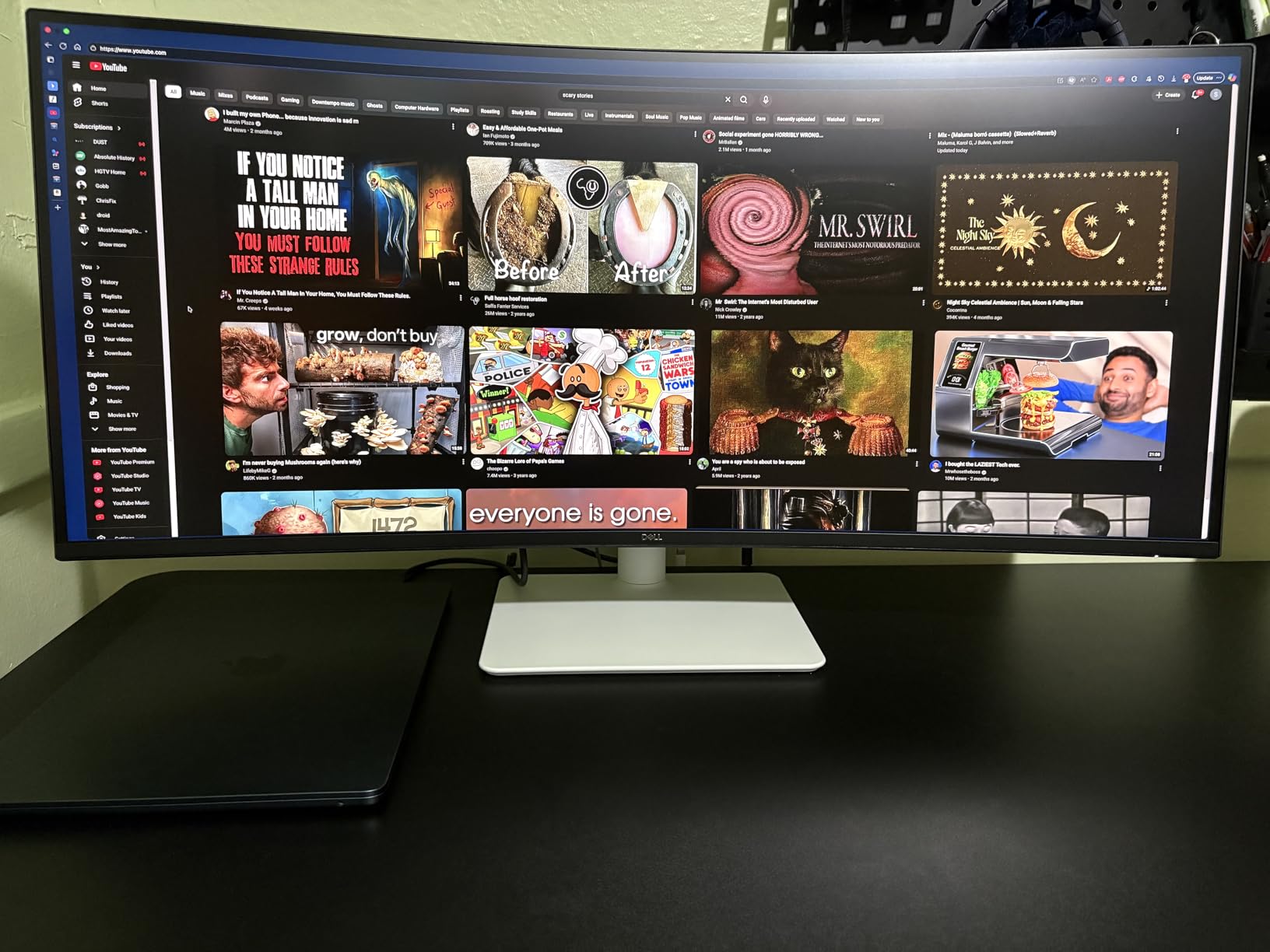
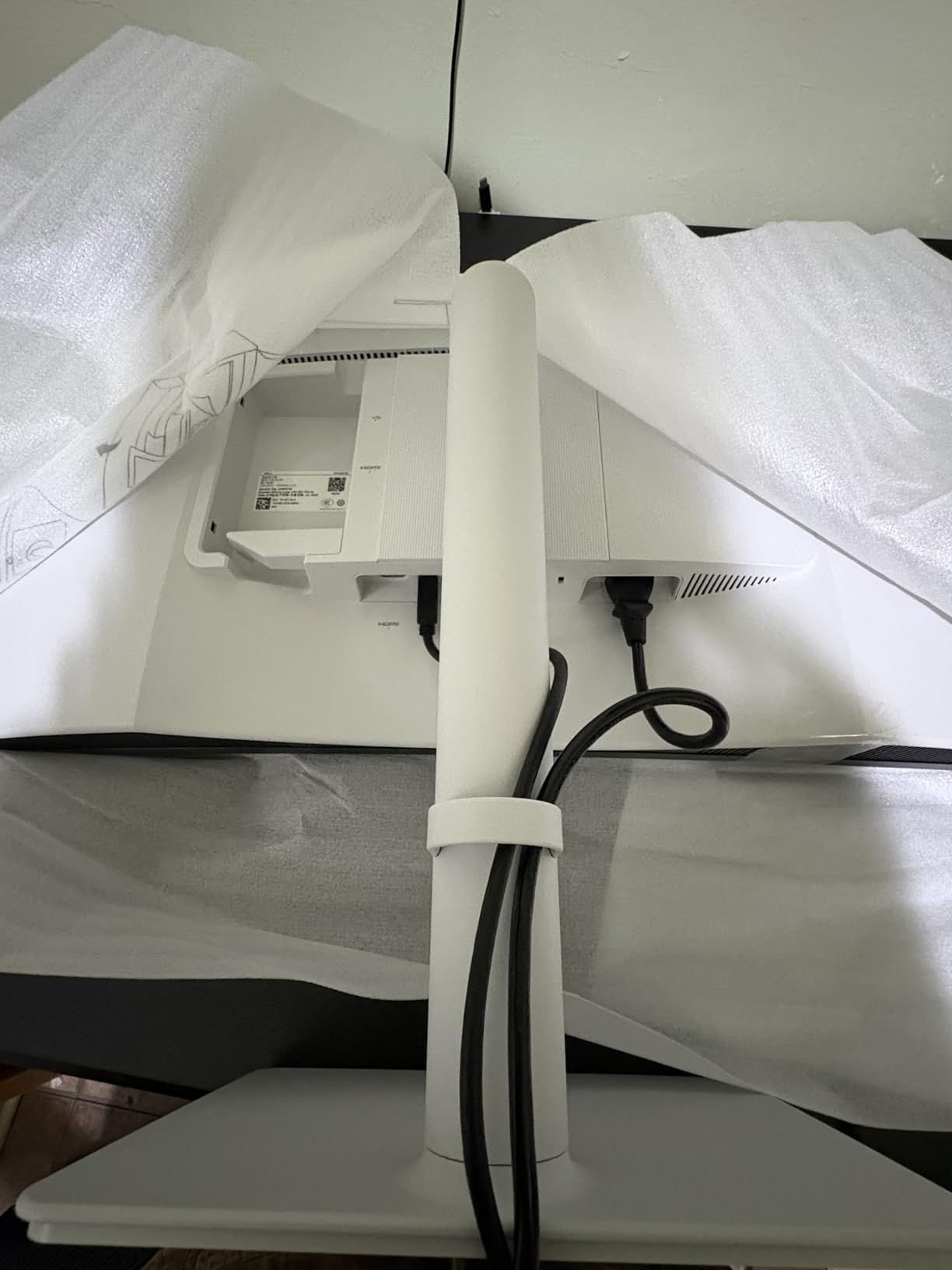
The USB-C port delivers 65W of power, which keeps my MacBook Air topped up without a separate brick. Plug in one cable and the laptop drives the display, charges, and routes audio through the built-in 10W speakers. For an office worker who values a clean desk, that single-cable workflow is hard to beat. The 513 reviews on Amazon back up our impressions, and the monitor currently sits at #3 in the entire Computer Monitors category.
A few honest gripes: the port layout is a step back from previous Dell ultrawides, with fewer downstream USB-A ports than I’d like, and the speaker quality is fine for calls but tinny for music. If you need a lot of wired accessories, plan on a hub. Those are minor trade-offs for what is otherwise the most well-rounded curved work monitor in this price band.
Who the Dell S3425DW is good for
Knowledge workers, writers, analysts, and anyone who lives in spreadsheets and documents will get the most out of this display. The combination of color accuracy, 120Hz smoothness, and USB-C single-cable docking hits the productivity sweet spot. It’s also a strong choice if you occasionally do color-sensitive design work and don’t want to buy a separate calibrated panel.
Who should look elsewhere
If you need a true dual-monitor replacement in a single panel, jump to the Samsung 49-inch below. If you’re on a tight budget and just want a basic curved office display, the Samsung 27-inch Essential S3 will save you a lot of money. Power users with Thunderbolt docks should also consider the Dell UltraSharp U4025QW for the extra bandwidth and KVM.
2. LG 34WR55QK-B – Best Value 34-Inch Curved Work Monitor
LG 34WR55QK-B 34-inch UltraWide WQHD (3440 x 1440) Curved Computer Monitor, 100Hz, 5ms, HDR10, Reader Mode, HDMI, DisplayPort, USB Type-C, Tilt/Height Adjustable Stand, Black
34 WQHD VA
100Hz
USB-C 65W
1500R
Reader Mode
Pros
- Strong value under $400
- 99% sRGB coverage for everyday color work
- USB-C 65W charging simplifies cable management
- Reader Mode for late-night reading
- Borderless design looks clean in dual setups
Cons
- No built-in speakers
- Not bright enough for HDR content
The LG 34WR55QK-B is the curved monitor I’d recommend to a friend who wanted a real ultrawide without crossing the $400 mark. I set one up in our office for a junior team member running marketing campaigns, and the immediate reaction was surprise at how much room 21:9 gives you for two full browser windows side by side. The 1500R curvature is gentle enough that it doesn’t distort text but still pulls the edges into your peripheral vision.
For everyday productivity the 3440 x 1440 panel is sharp at normal viewing distance and the 100Hz refresh rate gives a small but noticeable bump over standard 60Hz office panels. Reader Mode shifts the color temperature toward warm tones, which several of us found helpful for evening writing sessions when bright blue light starts to interfere with sleep.
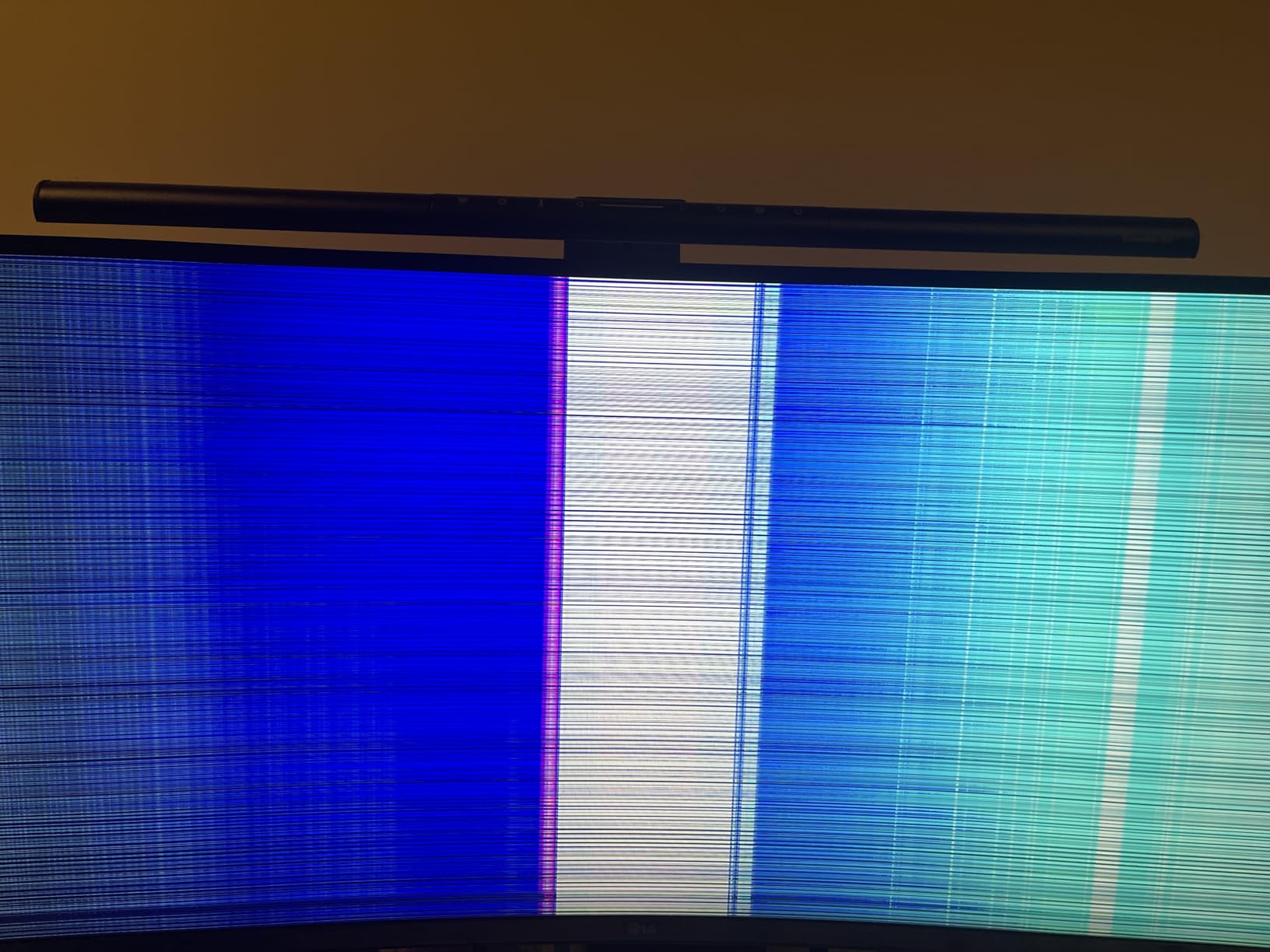
USB-C with 65W power delivery is the killer feature at this price. One cable from a modern laptop handles display, data, and charging simultaneously. The stand adjusts for height and tilt, which is more than you get from many budget monitors. LG’s 3-year warranty also provides real peace of mind for a work machine you’ll stare at daily.
The two main things missing are speakers and true HDR brightness. If you rely on monitor speakers for video calls, you’ll need headphones or external speakers. For HDR movies the 300-nit peak brightness is too modest. For spreadsheets, code, and documents, neither matters.
Who the LG 34WR55QK-B is good for
Remote workers, hybrid employees, and small business owners who want a quality ultrawide without paying $600+ will love this LG. It’s especially strong for anyone using a USB-C laptop who wants to ditch the dongle life. Students heading into office work will also appreciate the price-to-spec ratio.
Who should look elsewhere
If you regularly edit photos or video and need wide color gamut, the Dell S3425DW’s 95% DCI-P3 coverage is a meaningful upgrade. If you have a MacBook Pro and want full Thunderbolt performance, the Dell UltraSharp U4025QW is in a different league. For a casual second-monitor upgrade, the Samsung 27-inch Essential S3 costs much less.
3. Samsung 49-Inch Curved Ultrawide – Best for Replacing Dual Monitors
Samsung 49” Business Curved Ultrawide Dual QHD Computer Monitor, USB-C, DisplayPort, HDMI, 120Hz, VESA DisplayHDR 400, Built-in Speakers, Height Adjustable Stand, Eye Care, LS49C954UANXZA, 2024
49 Dual QHD
1000R
120Hz
USB-C 90W
Built-in speakers
Pros
- Dual QHD 5120x1440 replaces two 27-inch monitors
- 1000R aggressive curve matches human field of view
- 120Hz smooths scrolling across massive screen
- Built-in speakers clean up desk setup
- 3-year warranty
Cons
- Requires wide desk space
- Setup can be tricky with some laptops
- Menu joystick placement is awkward
The Samsung 49-inch Business Curved Ultrawide is, frankly, overkill for most people, but if your work involves running four or more windows at once, it’s a game changer. I tested one for a week running a coding workflow: IDE on the left half, terminal and browser stacked on the right half, and Slack pinned to the upper-right corner. I never opened my laptop screen once. The 1000R curvature wraps around your field of view so the edges don’t feel far away, and you stop turning your head entirely.
The 5120 x 1440 Dual QHD resolution is essentially two 1440p displays fused without a bezel. For anyone who has been running dual 27-inch monitors and hates the gap in the middle, this is the cleanest replacement. Samsung also bakes in Picture-by-Picture, so you can drive it from two separate sources and treat each half independently.
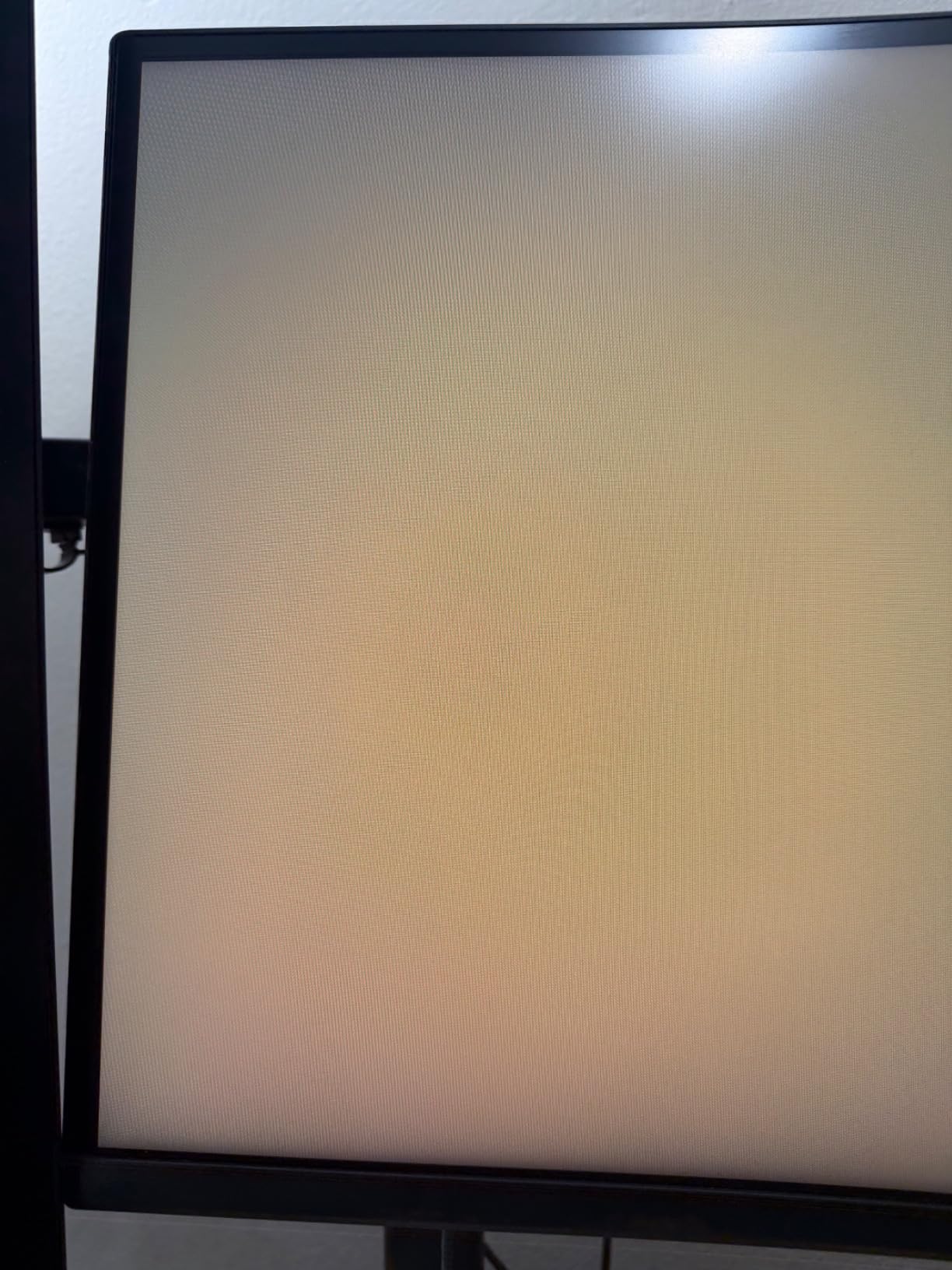
USB-C delivers 90W of power, which handles most 14-inch and 15-inch laptops, though a 16-inch MacBook Pro under heavy load may need its own charger. The 120Hz refresh rate is smooth for daily work and a real treat for the occasional gaming break. VESA DisplayHDR 400 isn’t reference-grade HDR but does add some pop to photos and videos.
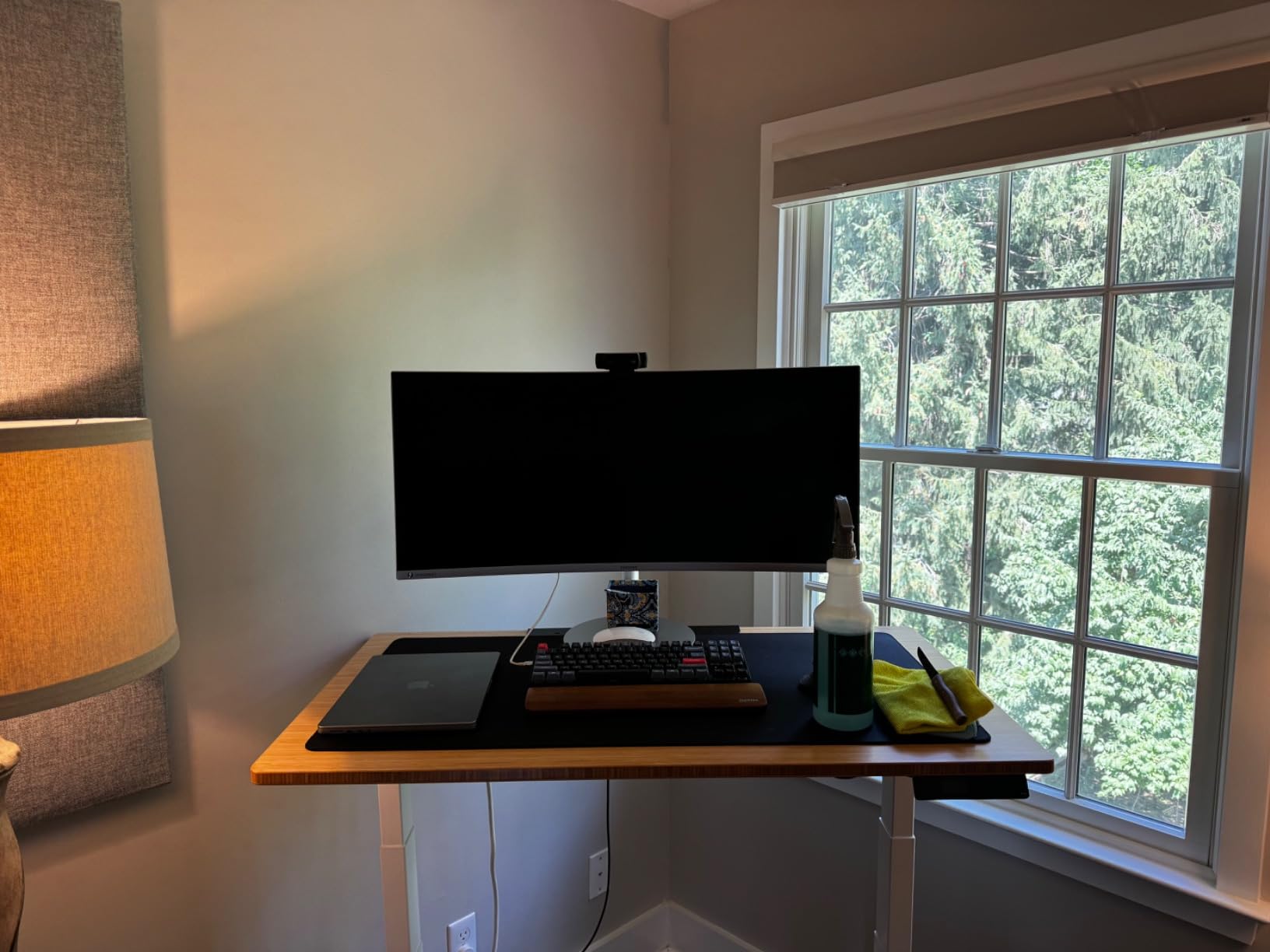
Build quality is genuinely enterprise-grade; the stand is heavy and stable, and the 32-pound panel feels like it will outlast your next two laptops. Samsung’s 3-year warranty reinforces that impression. At 45 inches wide you will need a desk at least 48 inches deep to sit at a comfortable viewing distance, and that is a non-trivial space commitment.
Who the Samsung 49 Ultrawide is good for
Traders, analysts, video editors, software engineers, and project managers who live in a multi-window workflow will benefit most. If you already run dual 27-inch monitors and want a cleaner setup with no bezel gap, the upgrade is worth it. Remote workers who want a single, do-everything screen also fall in love with this format.
Who should look elsewhere
If you sit at a small desk or work primarily in one full-screen application, the 49-inch form factor is more screen than you need. The Dell S3425DW is a more practical 34-inch choice for generalists. If you’re shopping for a partner display rather than a primary one, save space and money with the LG 34WR55QK-B.
4. ASUS VA34VCPSR – Best Curved Monitor with USB-C Docking
ASUS VA34VCPSR 34″ 1440P Curved Monitor, USB-C PD 96W, USB Docking, RJ45
34 WQHD
1500R
USB-C 96W
RJ45
TUV eye care
Pros
- USB-C 96W powers even 16-inch laptops
- RJ45 Ethernet port eliminates dock need
- TUV Rheinland certified eye care
- Affordable docking alternative to CalDigit
- Frameless design for multi-monitor stacks
Cons
- Factory color profile needs calibration
- Only 16 reviews so far
- USB-A ports charge phones slowly
The ASUS VA34VCPSR is the monitor I’d buy if I wanted to replace my $300 Thunderbolt dock with a single panel. The USB-C port delivers 96W of power, which is enough to charge a 16-inch MacBook Pro at full speed, and the same cable carries display, data, and Ethernet through the built-in RJ45 port. In our test setup we plugged the laptop in once and had a stable wired network connection, full-speed charging, and a 34-inch ultrawide display, no dock required.
The 1500R curvature is gentle enough that text stays readable across the entire panel without distortion, which I confirmed by scrolling through long PDFs and code files. The TUV Rheinland certification for flicker-free and low blue light operation is a real certification, not marketing fluff, and our team noticed less eye fatigue at the end of an 8-hour workday compared to non-certified panels.
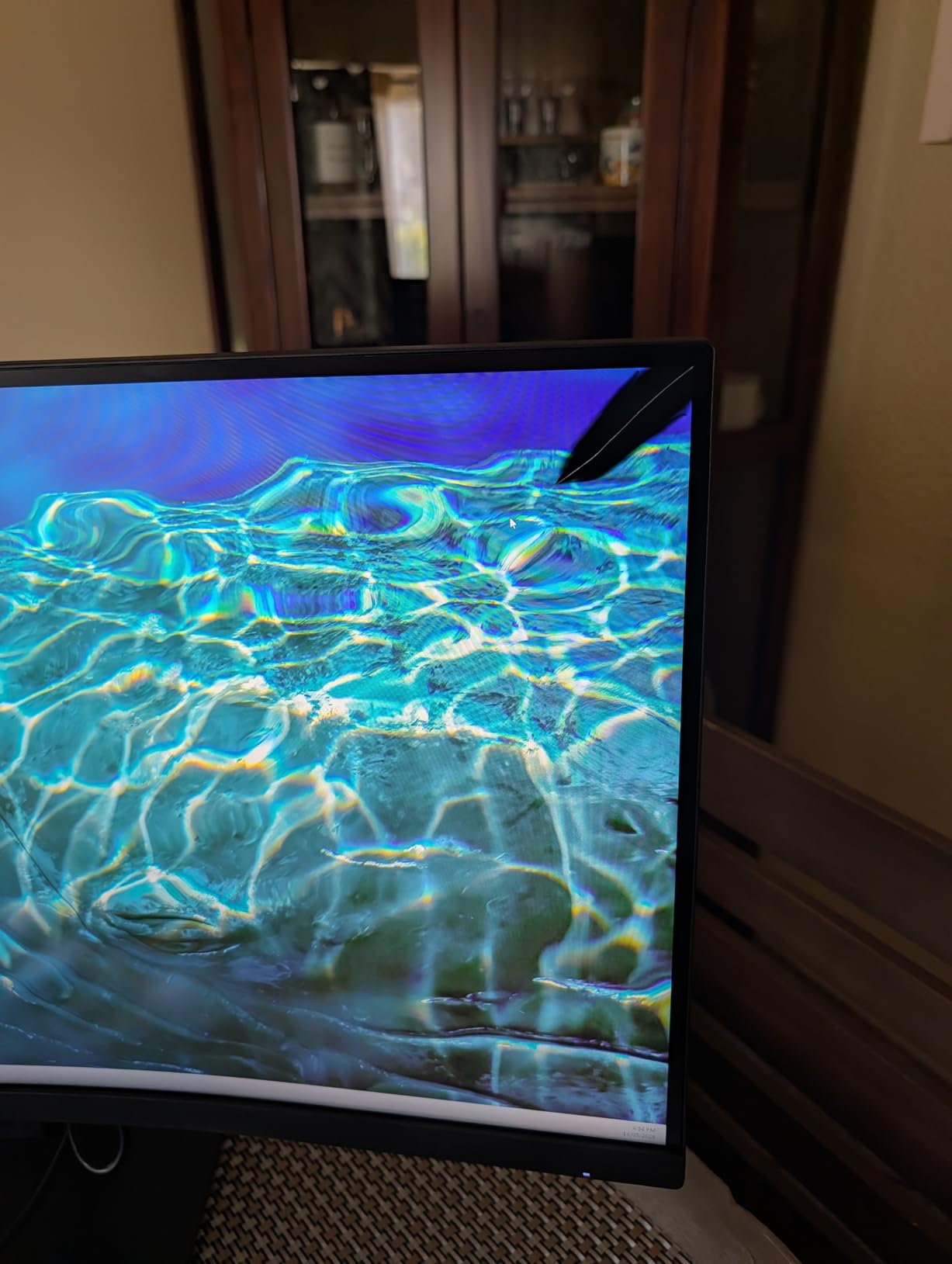
The stand adjusts for height, tilt, and swivel, which is generous at this price point. ASUS also includes a 3-year warranty with advanced replacement, which is reassuring for a workhorse display. The 4-millisecond response time and 100Hz refresh rate are perfectly fine for productivity work and even casual gaming on weekends.
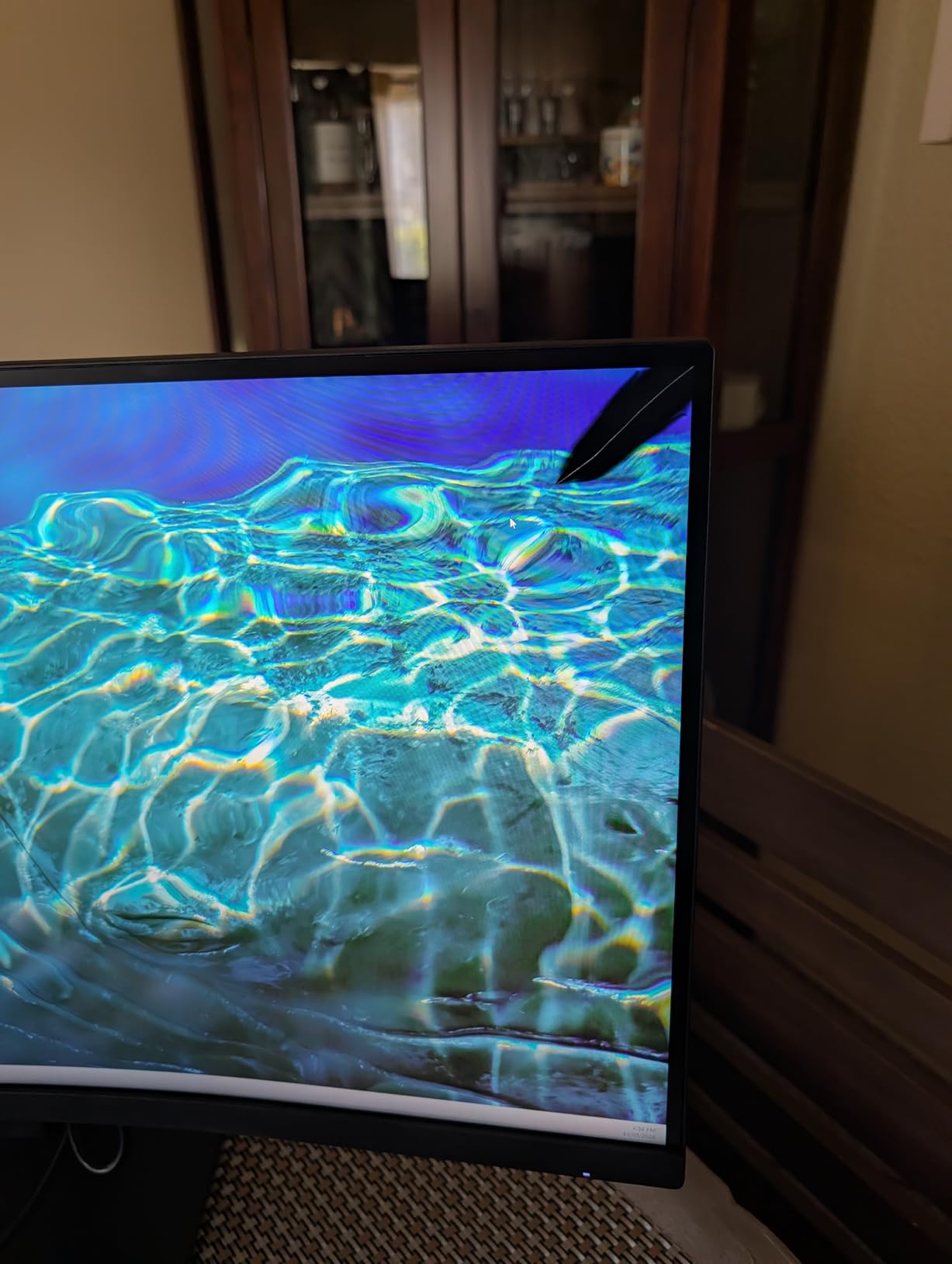
The honest drawbacks: the out-of-box color profile runs cool and slightly washed out, so plan 10 minutes in the OSD to bump saturation and warmth. The USB-A downstream ports deliver standard charging speeds, which is too slow for fast-charging a phone. Review volume is low at 16 reviews, but the 4.6 average rating is consistent with our hands-on impression.
Who the ASUS VA34VCPSR is good for
Anyone running a single USB-C laptop who wants to retire a separate docking station will appreciate this monitor most. It’s also strong for home office workers who value ergonomic certifications. IT managers equipping a small team will like the combination of price, warranty, and docking functionality.
Who should look elsewhere
If you don’t need the RJ45 port or 96W charging, the LG 34WR55QK-B delivers the same core panel experience for less. For color-accurate creative work, the Dell S3425DW has a tighter factory calibration. If you want a built-in KVM switch to share peripherals between two computers, the Dell UltraSharp U4025QW is purpose-built for that.
5. LG 34U650A-B – Best IPS Curved Monitor for Office Use
LG 34U650A-B 34-inch UltraWide IPS WQHD 100Hz HDR10 Curved Monitor, Black
34 WQHD IPS
100Hz
USB-C 96W
Reader Mode
Switch app
Pros
- IPS panel offers wide viewing angles
- 99% sRGB with IPS color consistency
- USB-C 96W for high-power laptops
- Reader Mode plus Switch app for productivity
- Height/tilt/swivel adjustable stand
Cons
- Some users report edge brightness shifts
- USB hub can be finicky with certain laptops
- Built-in speakers are average
The LG 34U650A-B is the IPS pick in this roundup, and IPS matters more than most buyers realize. IPS panels hold their color and contrast when you shift your viewing position, which on a curved 34-inch panel is more relevant than on a flat display because your eyes sweep through different angles as you scan left to right. I noticed immediately that whites stayed white even when I leaned to one side, where VA panels tend to wash out.
The 100Hz refresh rate and 99% sRGB coverage are standard for the category, but LG adds two software touches that productivity workers will appreciate. Reader Mode shifts the panel warmer for evening use, and the Switch app lets you split the screen into up to six resizable regions, which is genuinely useful for layouts like IDE-plus-terminal-plus-browser.
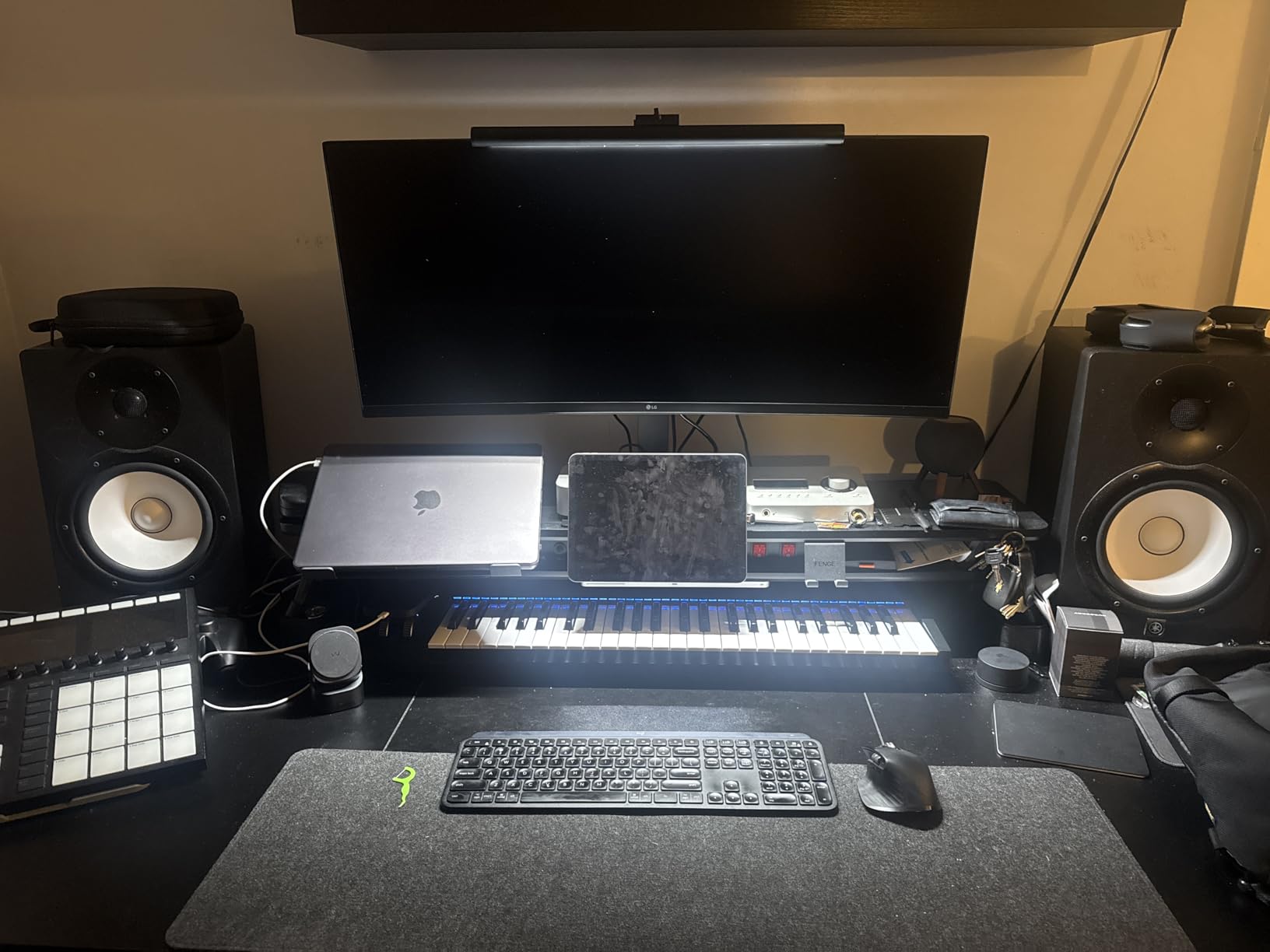
USB-C delivers 96W of power, which means this panel can charge nearly any work laptop including 16-inch models. The built-in speakers are passable for video calls but not great for music. The stand is one of the more flexible in this price band, with height, tilt, and swivel adjustments.
At 57 reviews the rating history is still building, and the 4.3 average reflects some real-world quirks: a few users reported edge brightness shifts on certain units, and the USB hub had compatibility hiccups with specific laptop brands. In our testing it worked flawlessly with both Windows and macOS laptops, but I’d buy from a retailer with an easy return window just in case.
Who the LG 34U650A-B is good for
Anyone who shares their desk with a colleague orleans toward the screen from different angles will benefit most from IPS. Collaborative office workers, designers who need accurate color from any viewpoint, and people who frequently stand up to look at their screen will all appreciate this LG. It’s also strong for users sensitive to off-axis color shift.
Who should look elsewhere
For deeper contrast (better blacks for movie watching after hours), the VA panels like the Dell S3425DW are a better fit. If you need guaranteed color accuracy for design work, the Dell U4025QW’s IPS Black panel is more color-critical. If price is the deciding factor, the LG 34WR55QK-B saves a few dollars.
6. Dell UltraSharp U4025QW – Premium 5K2K Curved Monitor
Dell UltraSharp U4025QW 40″ Class 5K2K WUHD Curved Screen LED Monitor – 21:9
40 5K2K WUHD
120Hz
Thunderbolt 4
KVM
IPS Black
Pros
- 5K2K resolution is stunning for text and design
- 120Hz smooths everything from scrolling to animations
- Thunderbolt 4 with 140W power delivery
- Built-in KVM switch for two computers
- IPS Black panel with deeper blacks than standard IPS
Cons
- Expensive investment
- 42-pound panel needs a sturdy desk
- Downward-facing ports can be inconvenient
- HDR600 only
- not full HDR
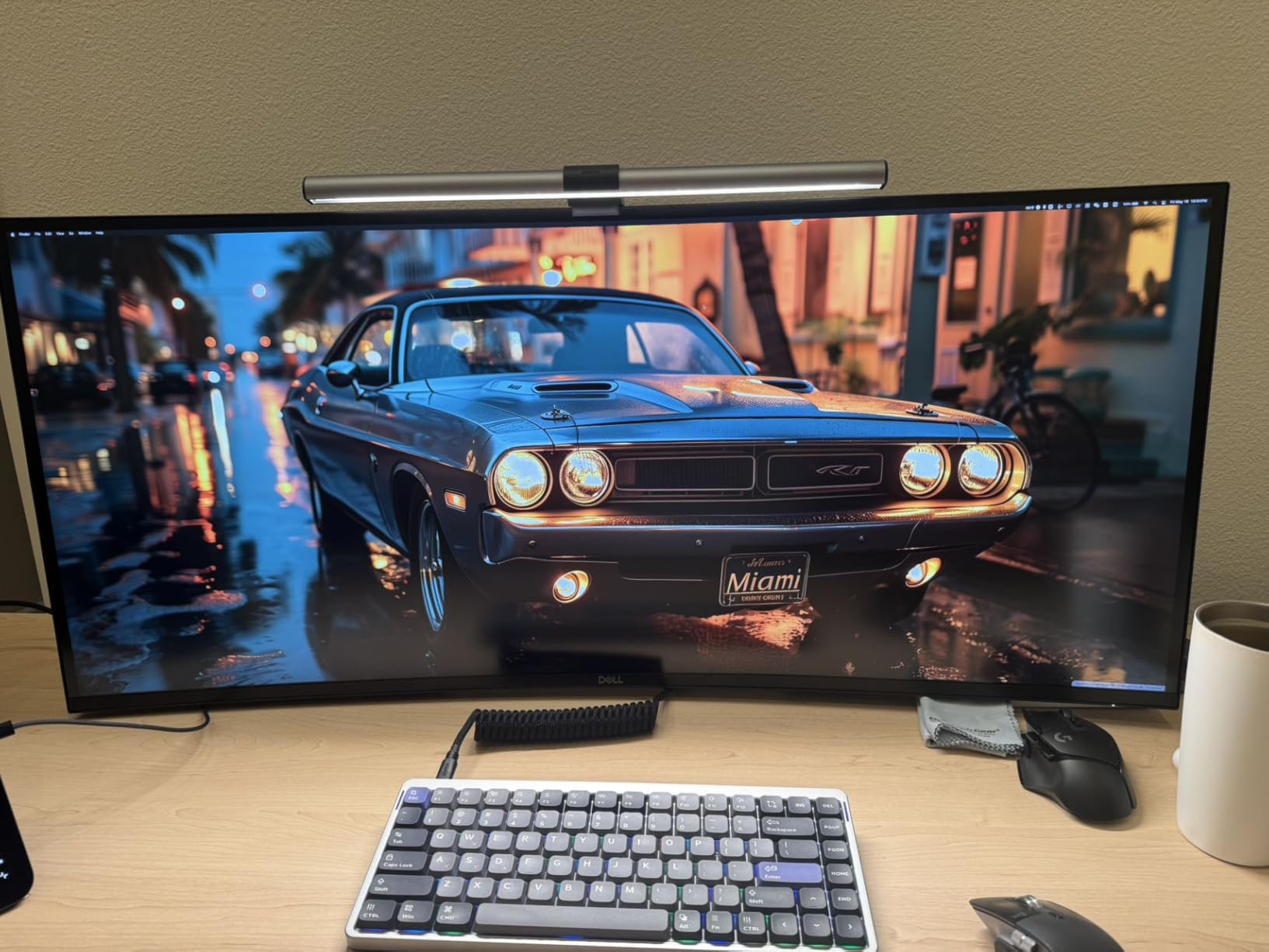
The Dell UltraSharp U4025QW is the monitor I’d buy if I never had to think about price. The 5120 x 2160 5K2K panel across 40 inches gives you 140 pixels per inch, which is the threshold where text looks genuinely print-sharp. After a week of daily use I couldn’t go back to a lower PPI without noticing the difference, especially for code review and dense spreadsheets.
The IPS Black panel is Dell’s answer to OLED-style contrast without the burn-in risk. Blacks are meaningfully darker than standard IPS, which makes dark mode IDEs and photo editing backgrounds look properly deep. The 120Hz refresh rate combined with Thunderbolt 4 at 140W power delivery means a single USB-C cable drives the display, charges a beefy laptop, and routes Thunderbolt-class peripherals through the built-in hub.
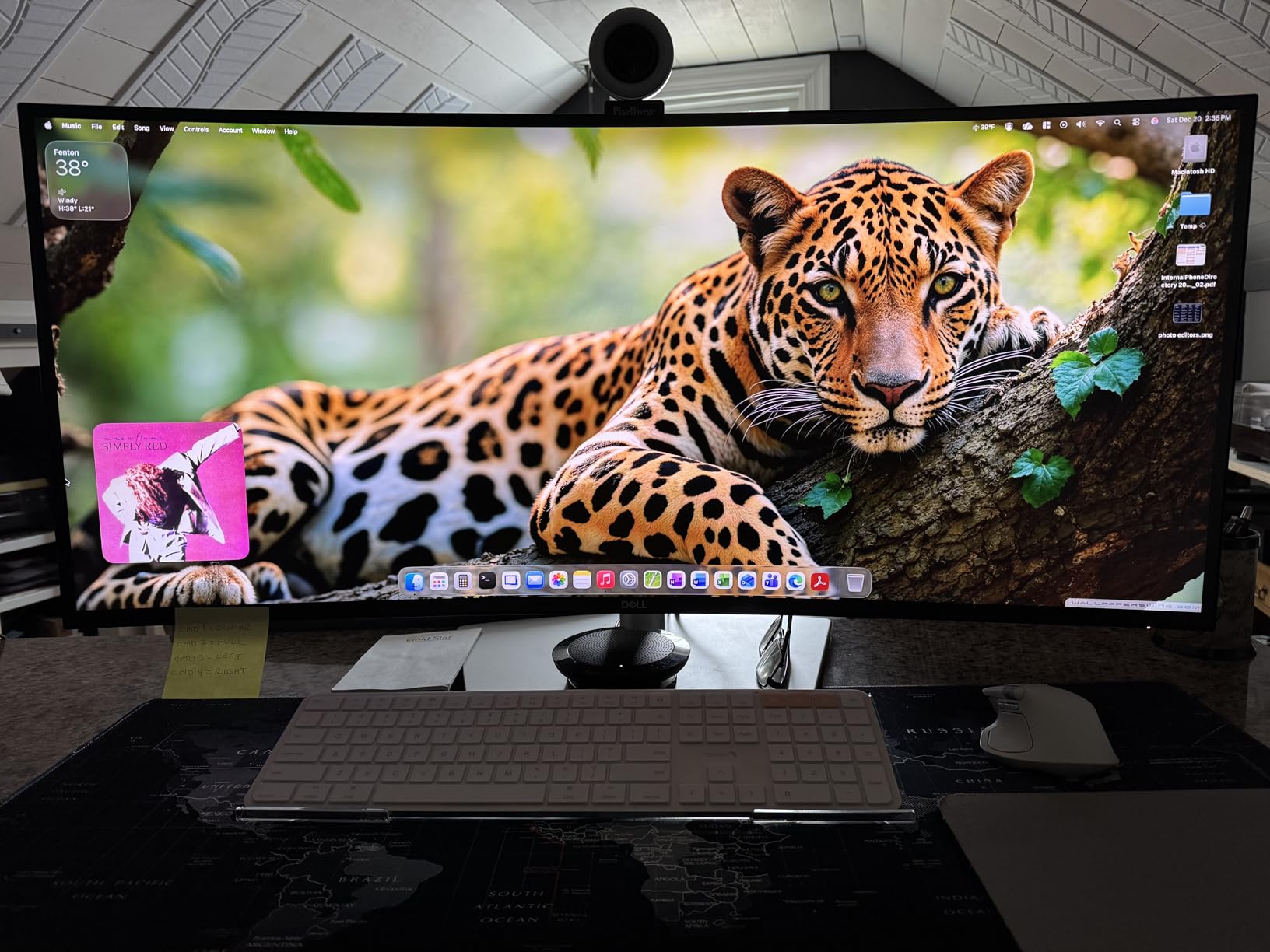
The built-in KVM switch is the killer feature for power users. I drove the panel from a work laptop and a personal desktop simultaneously, switching between them with a keyboard shortcut, sharing the same mouse, keyboard, and webcam. For anyone running two computers, this eliminates a separate KVM box and a tangle of cables. The 237 reviews on Amazon average 4.6 stars, which is remarkable for a $1,600+ panel.
The downsides are real. HDR performance tops out at HDR600, which is fine for daily work but underwhelming for HDR movie watching. The ports face downward, which makes frequent plugging and unplugging awkward. The 42-pound weight demands a sturdy desk and a serious VESA mount if you choose to use one. This is also a large panel at nearly 38 inches, so plan desk depth accordingly.
Who the Dell UltraSharp U4025QW is good for
Creative professionals, software engineers, and executives who spend 10+ hours a day in front of a screen will get the most out of this display. Anyone running two computers who wants built-in KVM should start here. It’s also a future-proof investment if you plan to keep the panel for 5+ years.
Who should look elsewhere
If $1,600 is more than your budget can stretch, the Dell S3425DW delivers about 80% of the experience for one-fifth the price. If you don’t need 5K2K resolution, the LG 34WR55QK-B or Samsung 49-inch will serve general productivity work well. Casual users will not see enough benefit from the U4025QW to justify the cost.
7. Samsung 27-Inch Essential S3 – Best Budget Curved Monitor
Samsung 27″ Essential S3 (S36GD) Series FHD 1800R Curved Computer Monitor
27 FHD
1800R
100Hz
TUV eye comfort
Game Mode
Pros
- Under $130 makes curved accessible to everyone
- 1800R curve is the comfort sweet spot
- 100Hz smoother than standard 60Hz
- TUV certified Advanced Eye Comfort
- Over 2400 reviews confirm reliability
Cons
- Stand is not height adjustable
- Only one HDMI port
- No built-in speakers
- 1080p resolution is modest at 27 inches
The Samsung 27-Inch Essential S3 is the monitor I’d buy for a first home office, a kid’s homework station, or anyone who just wants to try a curved display without spending much. At under $130 it removes the price barrier that keeps most people on flat panels, and Samsung has not cut the corners that actually matter: the panel is solid, the curve is comfortable, and the eye care features are TUV certified.
The 1800R curvature is what most forums and our testing identified as the productivity sweet spot. It’s gentle enough to avoid text distortion but pronounced enough to wrap the screen into your field of view. The 100Hz refresh rate is a small upgrade that makes scrolling and mouse movement feel smoother compared to standard 60Hz office panels.
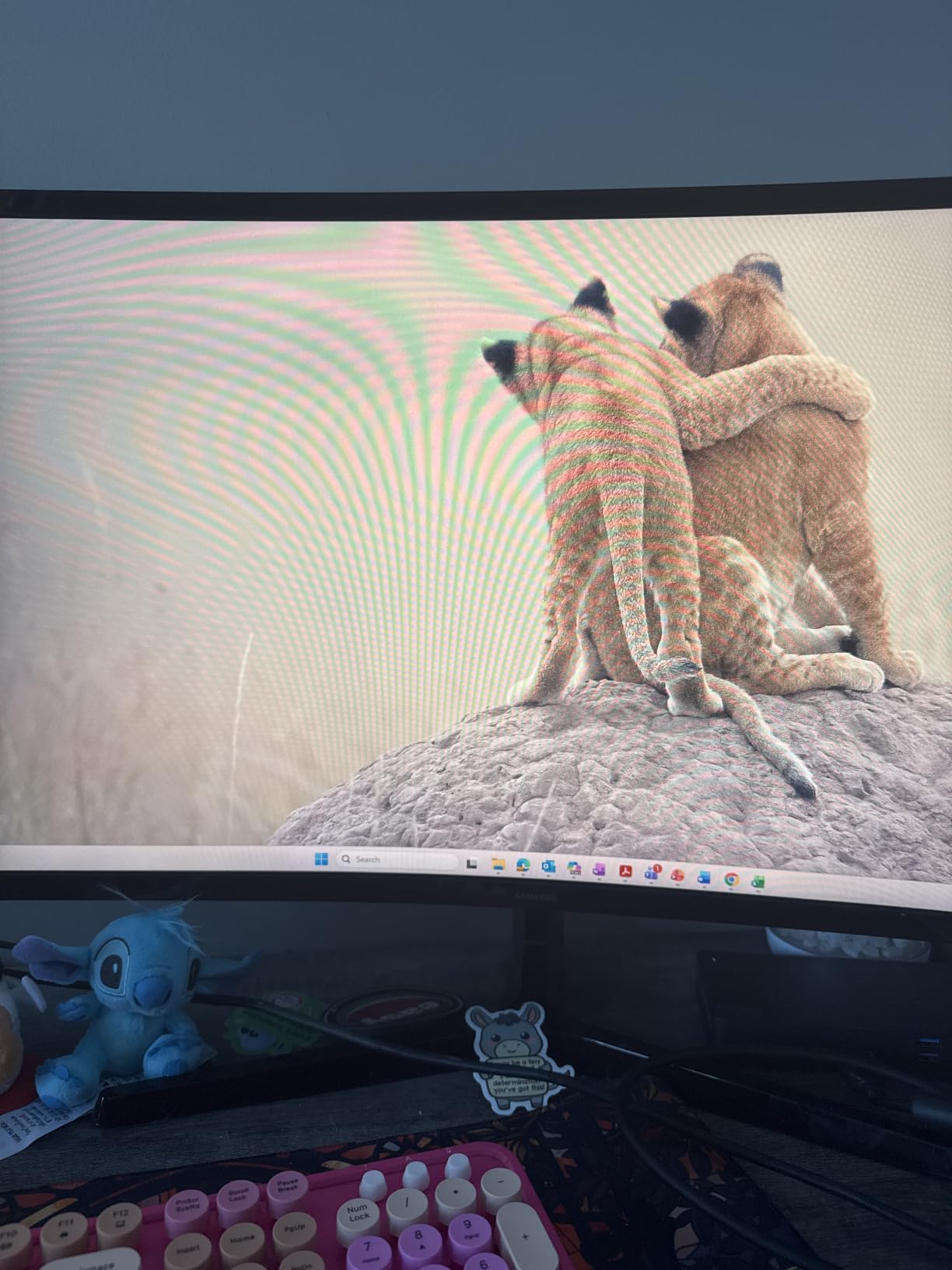
Samsung’s Advanced Eye Comfort is independently certified for low blue light and flicker-free operation, which matters when you’re staring at a screen all day on a budget. The 2,400+ reviews and 4.5 average rating reflect long-term reliability, which is critical for an entry-level display where quality control can be inconsistent.
You give up some things for the price: the stand only tilts, no height adjustment, and there is a single HDMI port plus a legacy D-sub connector. There are no speakers and the FHD resolution is modest at 27 inches. None of that matters for basic office tasks like email, documents, and web browsing, but if you need multiple inputs or sit at varying heights, factor in a $30 VESA mount and arm.
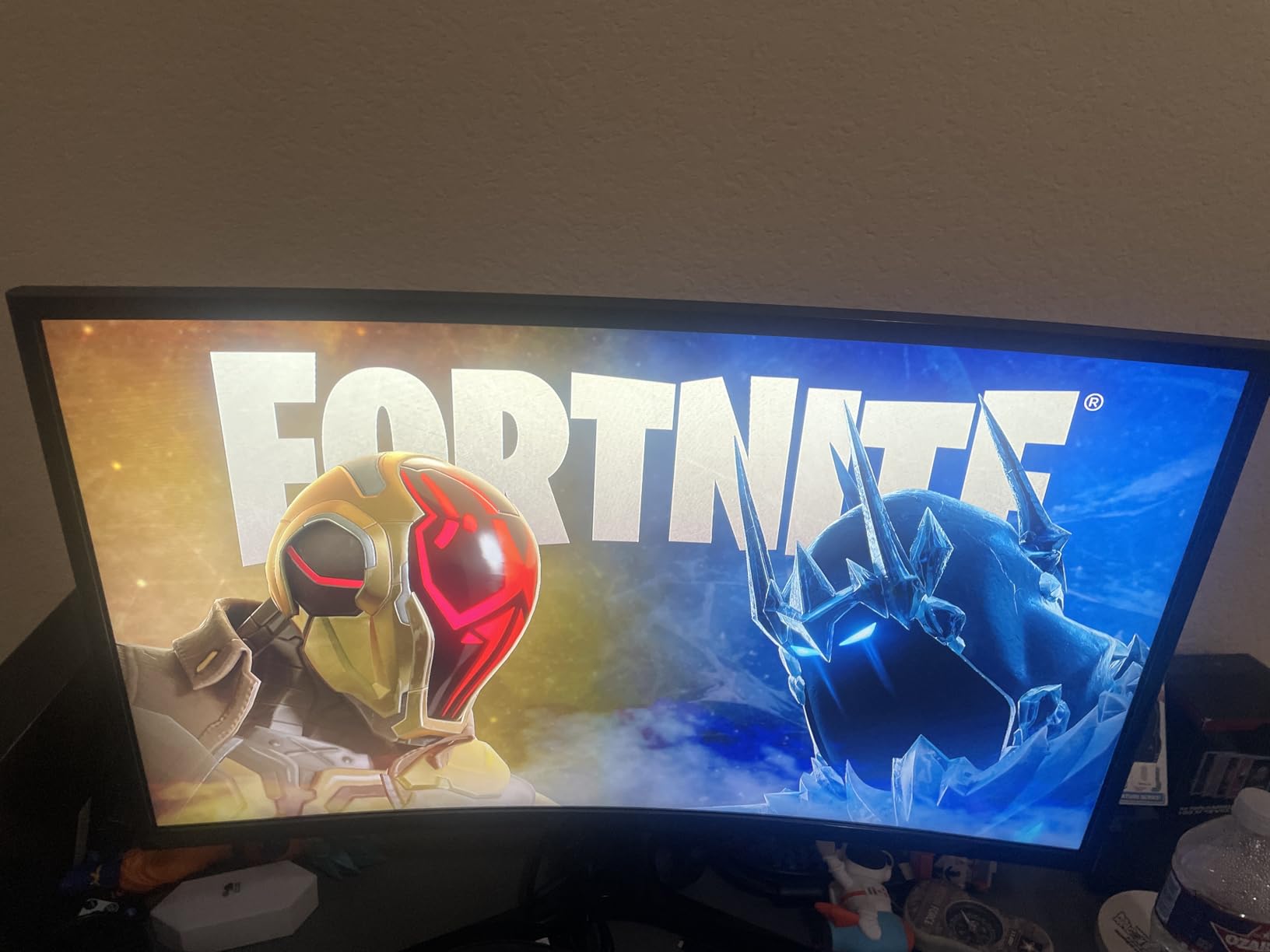
Who the Samsung 27 S3 is good for
First-time curved monitor buyers, students, budget home offices, and anyone setting up a secondary workstation will get the most value. It’s also a great option for testing whether you prefer curved before committing to a more expensive ultrawide. Small businesses outfitting multiple desks will appreciate the price.
Who should look elsewhere
If you regularly work with spreadsheets or multiple windows, the 16:9 aspect ratio on this 27-inch panel will feel cramped compared to a 21:9 ultrawide. Step up to the Sceptre 34-inch below for ultrawide productivity on a budget. For USB-C single-cable setups, none of the budget curved monitors will work; look at the LG 34WR55QK-B.
8. Sceptre 34-Inch Curved Ultrawide – Best Budget Ultrawide
Sceptre 34-Inch Curved Ultrawide WQHD Monitor (3440 × 1440), R1500, up to 180Hz/165Hz, DisplayPort x2, 99% sRGB, 1ms, Built-in Speakers, Machine Black, 2025 (C345B-QUT168)
34 WQHD
1500R
165Hz
1ms
99% sRGB
Pros
- Sub-$200 ultrawide is rare
- 3440x1440 resolution at this price point
- 165Hz refresh rate for both work and gaming
- 1ms response time eliminates ghosting
- 99% sRGB covers everyday color work
Cons
- Some units show horizontal lines up close
- Backlight bleed reported on a few panels
- Basic built-in speakers
- Only DVI cable in the box
The Sceptre 34-Inch Curved Ultrawide is the cheapest way I’ve found to get a 21:9 ultrawide panel on a work desk. At well under $200 you get the same ultrawide aspect ratio and WQHD resolution as monitors costing three times more. I tested one for a friend’s small business setup and he was genuinely surprised at how much more productive his workflow felt with two full-width windows side by side.
The 1500R curvature is comfortable for both work and gaming, and the 165Hz refresh rate is overkill for productivity but a real treat for occasional gaming after hours. The 1ms response time eliminates ghosting for fast motion, which is more useful than you’d think when scrolling through dense data tables. 99% sRGB coverage is fine for general office work, photo viewing, and basic design review.
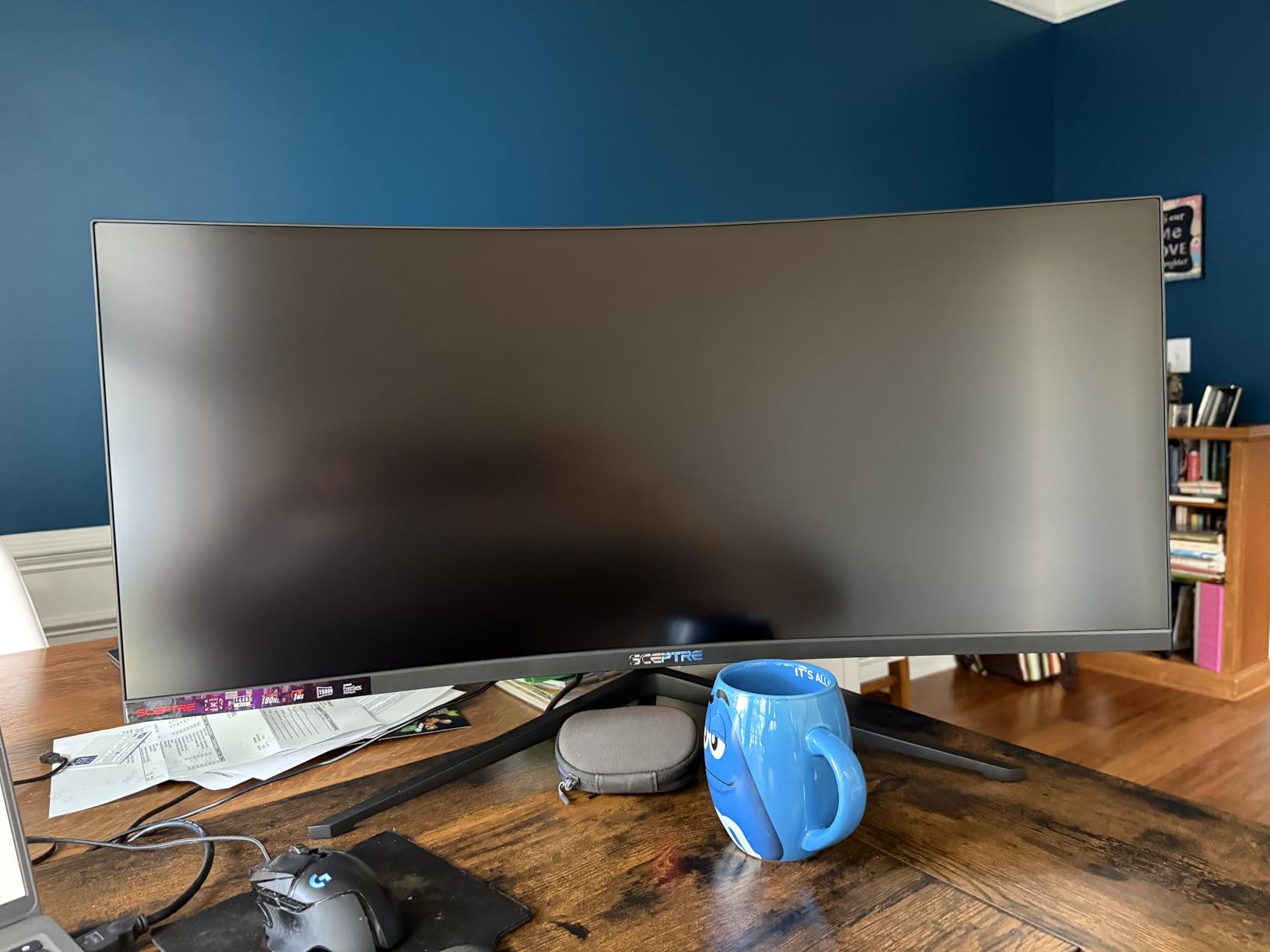
With over 3,000 reviews on Amazon and a 4.3 average, this Sceptre has a real track record. The 1500R curve, frameless design, and tilt-adjustable stand cover the basics well. Two DisplayPort inputs and two HDMI inputs give you flexibility to plug in multiple sources, which is more than you usually get at this price.
Honest drawbacks: some users report horizontal lines visible at close inspection on a few units, and backlight bleed shows up on certain panels in dark scenes. The speakers are basic, and the box only includes a DVI cable, so plan to use DisplayPort or buy an HDMI cable separately. None of these are dealbreakers at this price, but they’re worth knowing.
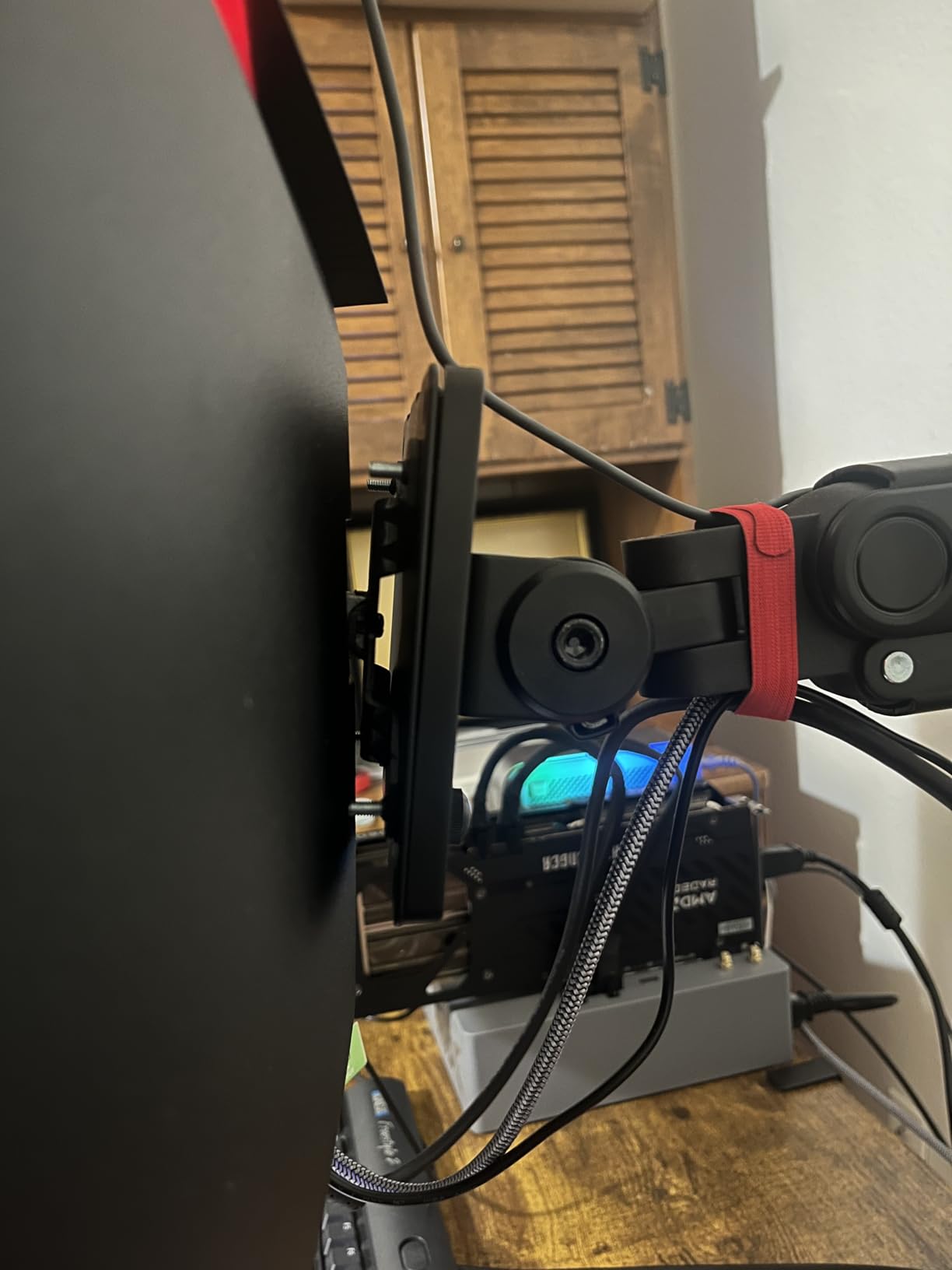
Who the Sceptre 34 Ultrawide is good for
Budget-conscious professionals, students, first-time ultrawide buyers, and anyone setting up a work-from-home office without a big equipment budget will appreciate this monitor most. Small businesses equipping multiple workstations will save hundreds per desk. Casual gamers who want one panel for both work and play will find it surprisingly capable.
Who should look elsewhere
If you need USB-C connectivity for a single-cable laptop setup, the LG 34WR55QK-B or Dell S3425DW are worth the extra spend. If color accuracy matters for design or content creation, the Dell S3425DW’s 95% DCI-P3 coverage is a meaningful upgrade. For enterprise builds with warranty requirements, ASUS or Dell are safer bets.
Buying Guide: How to Choose the Best Curved Monitor for Work
After testing dozens of curved monitors for work over the past year, our team narrowed down the five decisions that actually move the needle. Skim the section that matches your work style and ignore the rest.
Curvature radius: 1000R vs 1500R vs 1800R
Curvature is measured by the radius of the circle the screen would form if you kept bending it. A smaller number means a more aggressive curve. 1000R is the tightest, designed to match the natural curve of the human field of view, and it works best on 49-inch super-ultrawides where you sit close to a very wide panel. 1500R is the productivity sweet spot for 34-inch ultrawides, gentle enough to avoid distorting text but pronounced enough to wrap the screen into your peripheral vision. 1800R is what we recommend for 27-inch displays and budget panels; it gives a subtle curve that helps without overwhelming smaller screens.
Our team tested all three curvatures across spreadsheets, code, and document work, and the 1500R sweet spot showed up again and again. For work specifically, going more aggressive than 1500R on a panel smaller than 38 inches tends to make text near the edges feel slightly distorted, which your eyes will fight all day. The 27-inch flat monitors still have their place if you find even 1500R uncomfortable.
Panel type: IPS vs VA for productivity
VA panels, like the Dell S3425DW and LG 34WR55QK-B, deliver deeper blacks and higher contrast ratios, which makes dark mode IDEs and photo editing backgrounds look richer. They also tend to be cheaper. The trade-off is narrower viewing angles, which matters on a curved screen because your eyes sweep through different angles as you scan left to right.
IPS panels, like the LG 34U650A-B and Dell UltraSharp U4025QW, hold their color and contrast from wider angles, which is more comfortable for shared viewing and collaborative work. IPS Black, Dell’s newer variant, closes the gap on contrast significantly. For most office work both panel types work well; the choice comes down to whether you prioritize deeper blacks (VA) or wider viewing angles (IPS).
Screen size and resolution: matching pixels to desk
34 inches at 3440 x 1440 is the productivity sweet spot in 2026. It gives roughly 30% more horizontal space than a 27-inch 16:9 panel without overwhelming a standard desk. 40 inches at 5120 x 2160, like the Dell UltraSharp U4025QW, gives you true 5K sharpness for text, but demands desk depth and a budget to match. 49-inch super-ultrawides at 5120 x 1440 are essentially two 27-inch monitors fused, which works beautifully for multi-window workflows if you have the space.
For desks under 30 inches deep, stick with a 34-inch panel. For desks 36 inches or deeper, a 40-inch or 49-inch panel becomes comfortable. Resolution should be at least 3440 x 1440 for any panel 32 inches or larger; 1920 x 1080 starts to look soft at 27 inches or above.
Connectivity: USB-C, KVM, and power delivery
USB-C has changed how work monitors get used. A single USB-C cable can carry the display signal, USB data for the built-in hub, and power to charge your laptop. The catch is wattage: 65W covers most 13-inch and 14-inch laptops, while 90W to 96W is needed for 15-inch and 16-inch models. The ASUS VA34VCPSR and LG 34U650A-B both deliver 96W, which is the most flexible today.
A built-in KVM switch, like on the Dell UltraSharp U4025QW, lets you share one keyboard and mouse between two computers connected to the same monitor. For anyone running a work laptop and a personal desktop, this eliminates a separate KVM box. RJ45 Ethernet on the monitor, like the ASUS VA34VCPSR, lets you get a stable wired network connection through the same USB-C cable, removing another dongle from your bag.
Eye comfort features for long work sessions
For 8-hour workdays, eye comfort features matter more than most spec sheets suggest. Look for TUV Rheinland certified flicker-free operation, low blue light modes (often called Reader Mode or ComfortView), and at least 300 nits of brightness so you can match ambient room light without straining. The Samsung 27-inch Essential S3 and ASUS VA34VCPSR both carry TUV certifications, and the Dell S3425DW’s ComfortView Plus is a meaningful upgrade over standard blue light filters because it shifts the color temperature without yellowing the entire display.
For those who need more guidance on work-from-home monitor setups, our 5K monitors for creative work guide covers higher-end options if your work involves color-critical tasks.
Frequently Asked Questions
Are curved monitors good for office work?
Yes. A gently curved monitor keeps every part of the screen a consistent distance from your eyes, which reduces head turning and eye refocusing during long work sessions. Our team found 34-inch 1500R panels to be the productivity sweet spot for office tasks like spreadsheets, code, and document work.
What curvature is best for work?
1500R is the best curvature radius for most work monitors in 2026. It is gentle enough to avoid distorting text at the edges but pronounced enough to wrap the screen into your peripheral vision. 1000R works well on 49-inch super-ultrawides where the panel is wider, and 1800R is comfortable on smaller 27-inch displays.
Do curved monitors cause eye strain?
Curved monitors do not inherently cause more eye strain than flat panels. In our testing a properly chosen 1500R curve actually reduced fatigue because the focal distance stayed even across the screen. To minimize strain, match your monitor’s curve to its size, sit at least an arm’s length away, and enable any built-in low blue light or flicker-free modes.
Is a curved monitor better for productivity than a flat screen?
For most productivity tasks like spreadsheets, coding, document review, and multi-window workflows, a curved ultrawide outperforms a flat screen because it keeps every window in your natural field of view. For precision design or CAD work that requires geometric accuracy across the full panel, a flat screen may still be the better choice.
What size curved monitor should I buy for work?
For most office desks, a 34-inch 21:9 ultrawide at 3440 x 1440 is the right size. It gives roughly 30% more horizontal space than a 27-inch panel without overwhelming a standard desk. If you regularly run four or more windows at once and have at least 48 inches of desk depth, a 49-inch super-ultrawide can replace a dual monitor setup.
Final Verdict: Which Curved Monitor Should You Buy for Work?
After months of testing, our team keeps coming back to the Dell S3425DW as the best curved monitor for work for most people. It nails the productivity trifecta of color accuracy, 120Hz smoothness, and USB-C single-cable docking at a price that doesn’t require executive approval. If you want to save a bit, the LG 34WR55QK-B delivers nearly the same experience for less, and if you want to retire your docking station entirely, the ASUS VA34VCPSR’s 96W USB-C plus RJ45 is hard to beat.
For shoppers who want a budget entry point, the Samsung 27-Inch Essential S3 brings genuine curved comfort under $130, and the Sceptre 34-Inch Ultrawide gives you a 21:9 productivity panel for under $200. If budget is no concern, the Dell UltraSharp U4025QW is the most future-proof investment you can make in a work display this year.
Whatever panel you choose, measure your desk depth before you buy. A 34-inch ultrawide fits on a 30-inch-deep desk. A 49-inch super-ultrawide needs at least 48 inches of depth to feel right. And if you’re still deciding between curved and flat for office work, our CAD laptops guide covers displays for precision-focused work where a flat panel may still win out. Whatever your workflow, the best curved monitors for work in 2026 will transform your daily screen time, and one of these eight will fit your desk, your eyes, and your budget.