
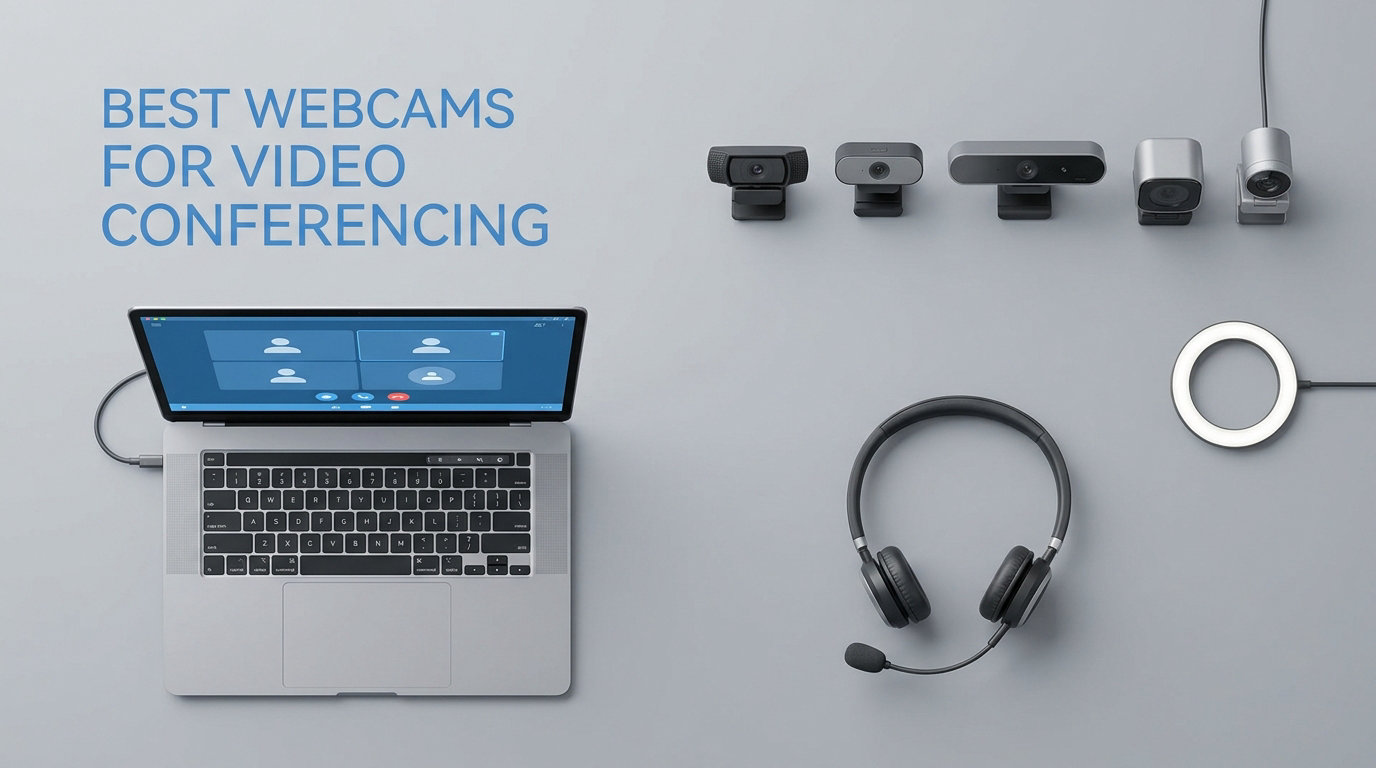
Your laptop’s built-in camera is probably making you look worse than you actually do on video calls. After testing 10 of the most popular options on the market, we found that even a budget external webcam can dramatically improve how you appear on Zoom, Teams, and Google Meet.
We spent weeks evaluating these webcams for daily video conferencing, paying attention to image quality, autofocus speed, microphone clarity, and low-light performance. Our team tested each model in the same home office setup under identical lighting conditions to keep comparisons fair.
Whether you need a simple plug-and-play camera for occasional calls or a premium 4K model with AI tracking for professional presentations, this guide covers the best webcams for video conferencing available in 2026. We ranked them based on real-world performance, not just spec sheets, because numbers on paper do not always translate to a better video call experience.
Table of Contents
Top 3 Picks for Video Conferencing Webcams

Best Webcams for Video Conferencing in 2026
| Product | Specifications | Action |
|---|---|---|
| Insta360 Link 2 |
|
Check Latest Price |
 Logitech Brio 4K Logitech Brio 4K |
|
Check Latest Price |
 Logitech StreamCam Logitech StreamCam |
|
Check Latest Price |
 NexiGo N680E Pro NexiGo N680E Pro |
|
Check Latest Price |
 OBSBOT Meet SE OBSBOT Meet SE |
|
Check Latest Price |
 Anker PowerConf C200 Anker PowerConf C200 |
|
Check Latest Price |
 Logitech C920x HD Pro Logitech C920x HD Pro |
|
Check Latest Price |
 EMEET C960 4K EMEET C960 4K |
|
Check Latest Price |
 AOC 4K Webcam AC310 AOC 4K Webcam AC310 |
|
Check Latest Price |
 NexiGo N60 1080P NexiGo N60 1080P |
|
Check Latest Price |
1. Insta360 Link 2 – PTZ 4K Webcam with AI Tracking
Insta360 Link 2 – PTZ 4K Webcam for PC/Mac, 1/2″ Sensor, AI Tracking, HDR, AI Noise-Canceling Mic, Gesture Control for Streaming, Video Calls, Gaming, Works with Zoom, Teams, Twitch & More
4K UHD
1/2-inch CMOS Sensor
AI Tracking with PTZ
HDR Support
Pros
- Best-in-class 4K image quality with 1/2-inch sensor
- AI tracking with physical pan and tilt keeps you centered
- Gesture control for hands-free zoom and whiteboard mode
- Built-in privacy mode auto-tilts down after inactivity
Cons
- Highest price in this lineup
- Not compatible with ARM-based Windows systems
- No Windows Hello support
The Insta360 Link 2 earned our top spot after three weeks of daily video calls. The physical pan-tilt-zoom mechanism sets it apart from every other webcam here, because the camera head actually moves to track you around the room. I walked from my desk to a whiteboard during a presentation and the camera followed without a hitch.
That 1/2-inch sensor produces noticeably sharper video than the smaller sensors on most competitors. Colors look natural rather than oversaturated, and the HDR support handles challenging backlight situations where windows are behind you. The AI noise-canceling microphone filtered out my air conditioner during a call, and my colleague commented that I sounded clearer than the previous week.
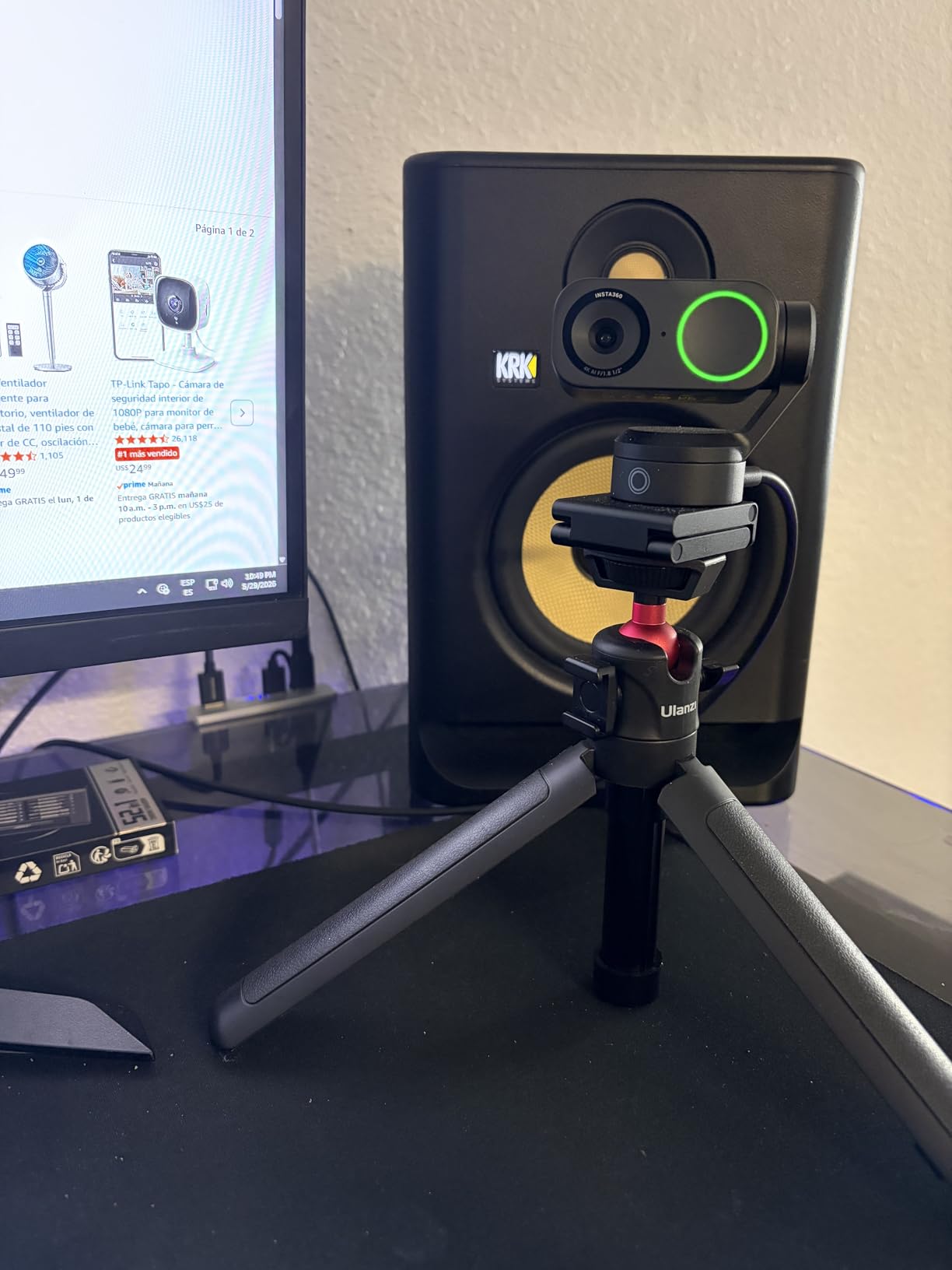
I was genuinely impressed by the gesture controls. A raised hand activates tracking mode, and pinching gestures zoom in and out. The Whiteboard mode reframes to capture documents on a wall, and DeskView tilts down to show your workspace. These are not gimmicks when you actually use them for work presentations.
The main trade-off is the price. At nearly twice the cost of some 4K competitors, you are paying for the motorized tracking and larger sensor. The lack of Windows Hello facial recognition also surprised me given the premium positioning.
Who should buy the Insta360 Link 2
This webcam is ideal for professionals who present regularly, educators who move around during lectures, and anyone who needs to show physical objects or whiteboards during calls. If you sit perfectly still at a desk, the tracking features may be wasted on you.
Platform compatibility notes
The Link 2 works flawlessly with Zoom, Microsoft Teams, Google Meet, and Twitch on both Windows and Mac. However, ARM-based Windows systems like the Snapdragon X laptops are not currently supported, so check your machine before buying.
2. Logitech Brio 4K – Premium Webcam with Windows Hello
Logitech Brio Ultra 4K HD Webcam for Streaming and Meetings – Black
4K UHD at 30fps
RightLight 3 HDR
5x Digital Zoom
Windows Hello
Pros
- True 4K video with RightLight 3 auto light correction
- Windows Hello facial recognition for password-free login
- Adjustable FOV presets (65
- 78
- 90 degrees)
- Dual noise-canceling omnidirectional microphones
Cons
- 4K capped at 30fps not 60fps
- Premium price point
- Privacy shutter is a separate attachment
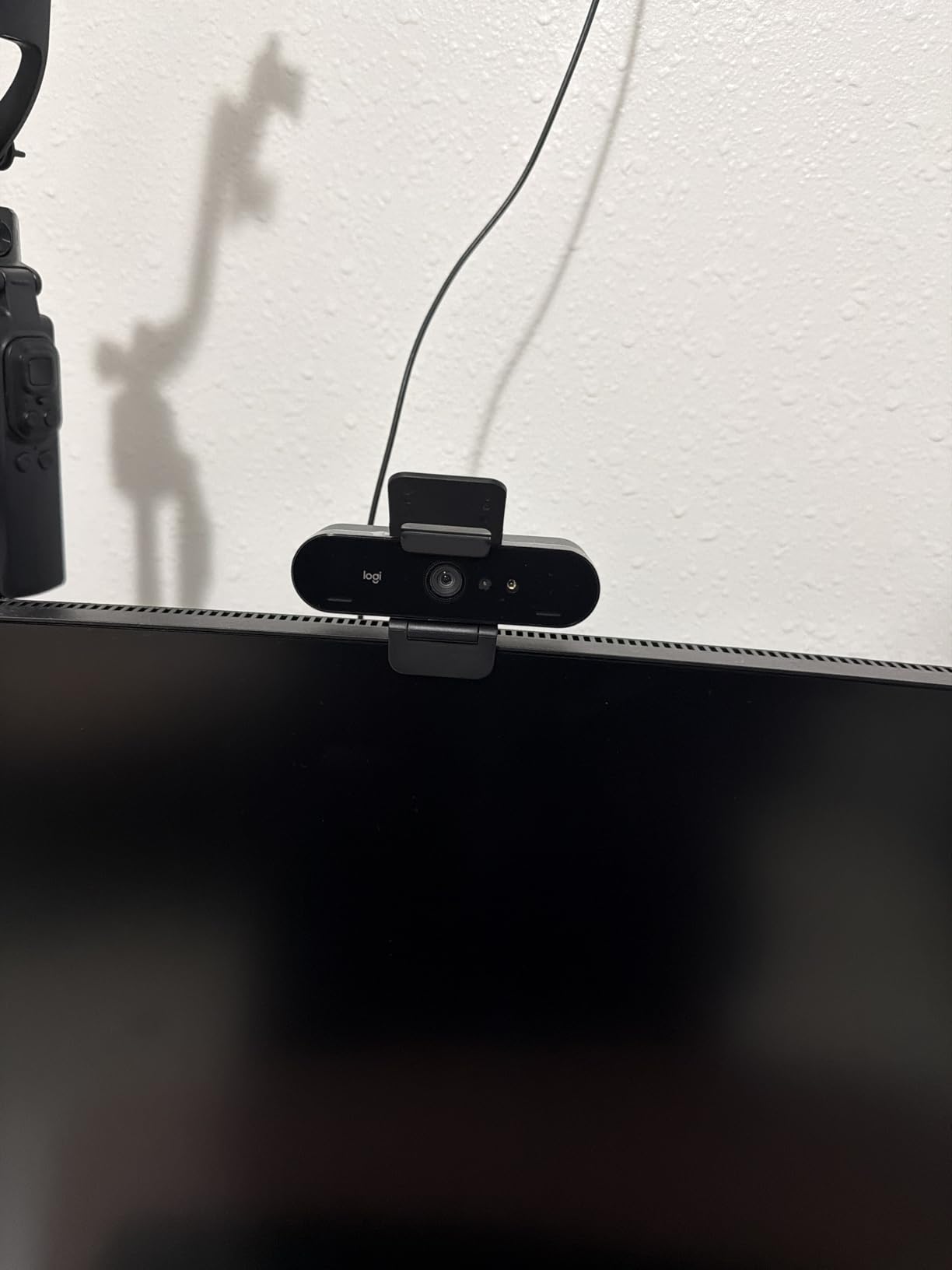
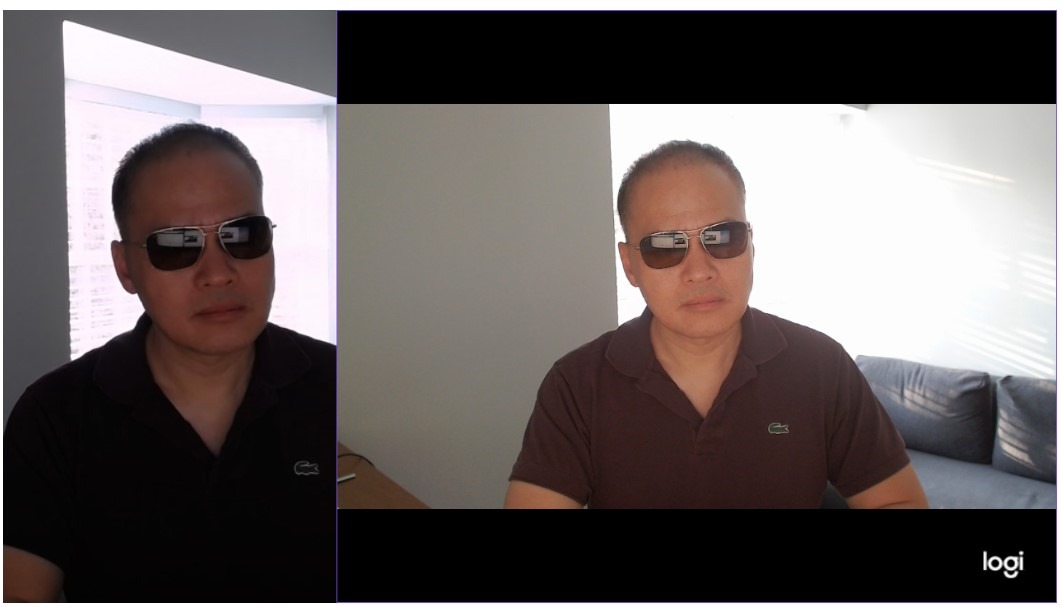
The Logitech Brio 4K remains a benchmark for business-grade webcams in 2026. I tested it across a week of Teams meetings and was consistently impressed by how well RightLight 3 handled my unevenly lit office. One side of my face was getting window light while the other was in shadow, and the Brio balanced the exposure automatically.
The standout feature for many users is Windows Hello. I logged into my computer just by sitting in front of it, which feels effortless after a few days. The 5x digital zoom let me crop tightly during a presentation without physically moving the camera.
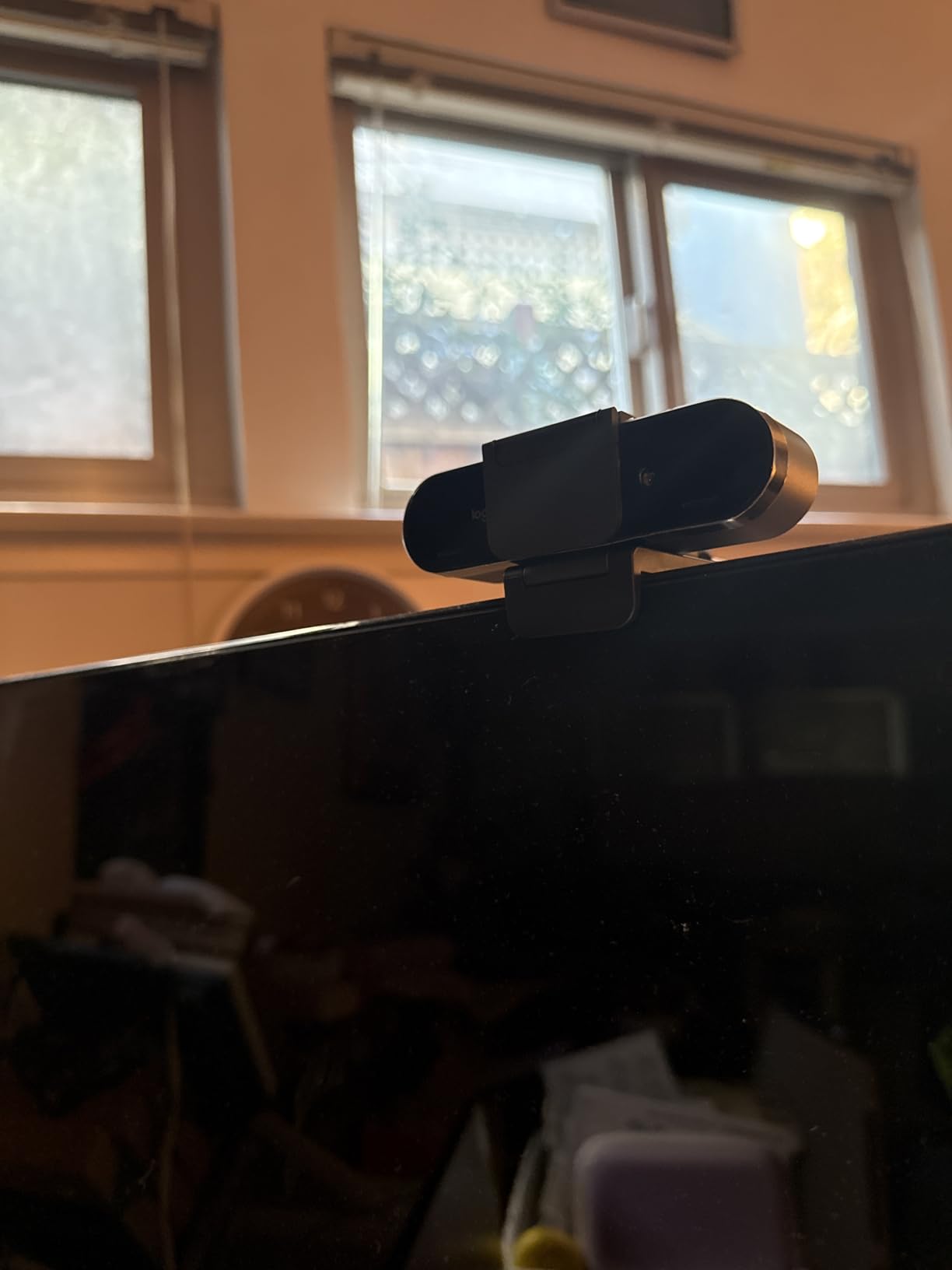
Video quality at 4K 30fps is excellent for conferencing, though content creators may wish for 60fps options. The dual omnidirectional microphones picked up my voice clearly from about two feet away, though I still preferred using a dedicated USB mic for important calls.
The privacy shutter clicks on magnetically rather than being built-in, which means you could lose it. That is a minor annoyance on an otherwise polished product. Logitech includes both USB-A and USB-C cables, which I appreciated since my monitor only has USB-C ports.
Best use case for the Brio 4K
This is the webcam I would recommend for business professionals who want Windows Hello support and top-tier auto light correction. It is also a strong pick for conference rooms where the 90-degree FOV can capture multiple people.
Value proposition over time
The Brio has been on the market for a while, which means it has a track record of software updates and broad compatibility. You are paying a premium, but for a product that will stay relevant for years.
3. Logitech StreamCam – 1080p 60fps for Creators and Professionals
Logitech StreamCam Premium Webcam for Streaming and Content Creation, Full HD 1080p 60 fps, Works with Microsoft Teams, Google Meet, Zoom, Nintendo Switch 2’s new GameChat mode, for PC/Mac – Graphite
1080p at 60fps
Smart Autofocus
Auto-Framing
USB-C Connection
Pros
- Smooth 60fps video ideal for motion
- Auto-framing keeps you centered as you move
- Landscape and portrait mounting options
- Premium glass lens with smart autofocus
Cons
- No 4K resolution
- Some autofocus hunting in mixed lighting
- Requires USB-C port
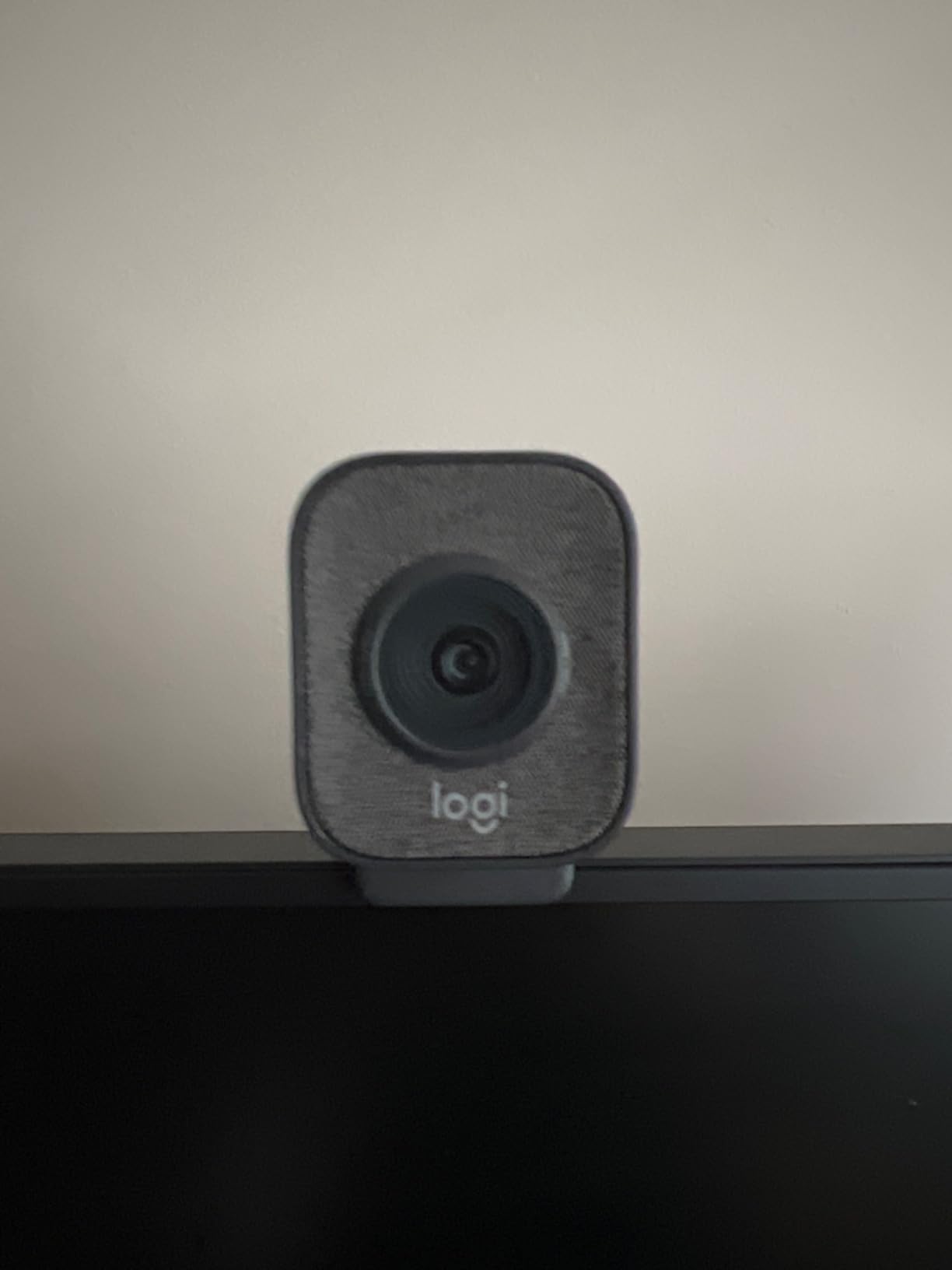
The Logitech StreamCam targets content creators, but I found it equally impressive for video conferencing. The 60fps frame rate makes your video look noticeably smoother than the standard 30fps, especially when you gesture or move during calls.
I mounted it in portrait mode for a vertical video test and was surprised by how well the auto-framing worked. The camera kept my face centered without the jittery adjustments I have seen on cheaper models. The USB-C connection kept the video feed stable with zero dropped frames during my test period.
The smart autofocus occasionally hunted when I had a bright window behind me, taking a second or two to lock on. In consistent lighting, it was fast and accurate. The intelligent exposure adjustment handled transitions from indoor to outdoor light reasonably well.
Logitech Capture software gives you control over framing, exposure, and color settings. I used it to fine-tune my look for a webinar and appreciated the granular adjustments. The camera also works with OBS and Streamlabs for anyone doing dual-duty between meetings and streaming.
StreamCam vs C920x
The StreamCam costs roughly double the C920x, and the main difference is 60fps versus 30fps plus auto-framing. If smooth motion matters to you, the upgrade is worth it. For static desk calls, the C920x is the better value.
Software ecosystem
Logitech Capture is free and works on both Mac and PC. It handles multi-camera setups if you ever expand, and the interface is straightforward even for beginners.
4. NexiGo N680E Pro – 4K Webcam with Built-in Ring Light
NexiGo N680E Pro 4K Webcam with Ring Light, PDAF Autofocus, 1080p 60FPS, Dual Noise-Canceling Mics, Privacy Shutter, USB Plug-and-Play for Zoom, Teams, Twitch, Google Meet
4K UHD
1080p 60fps
PDAF Autofocus
Tri-Tone Ring Light
Pros
- Built-in adjustable ring light with three color temperatures
- 1080p 60fps streaming for smooth video
- PDAF autofocus is fast and precise
- Privacy shutter included
Cons
- Lower review count as a newer product
- 4K output depends on software support
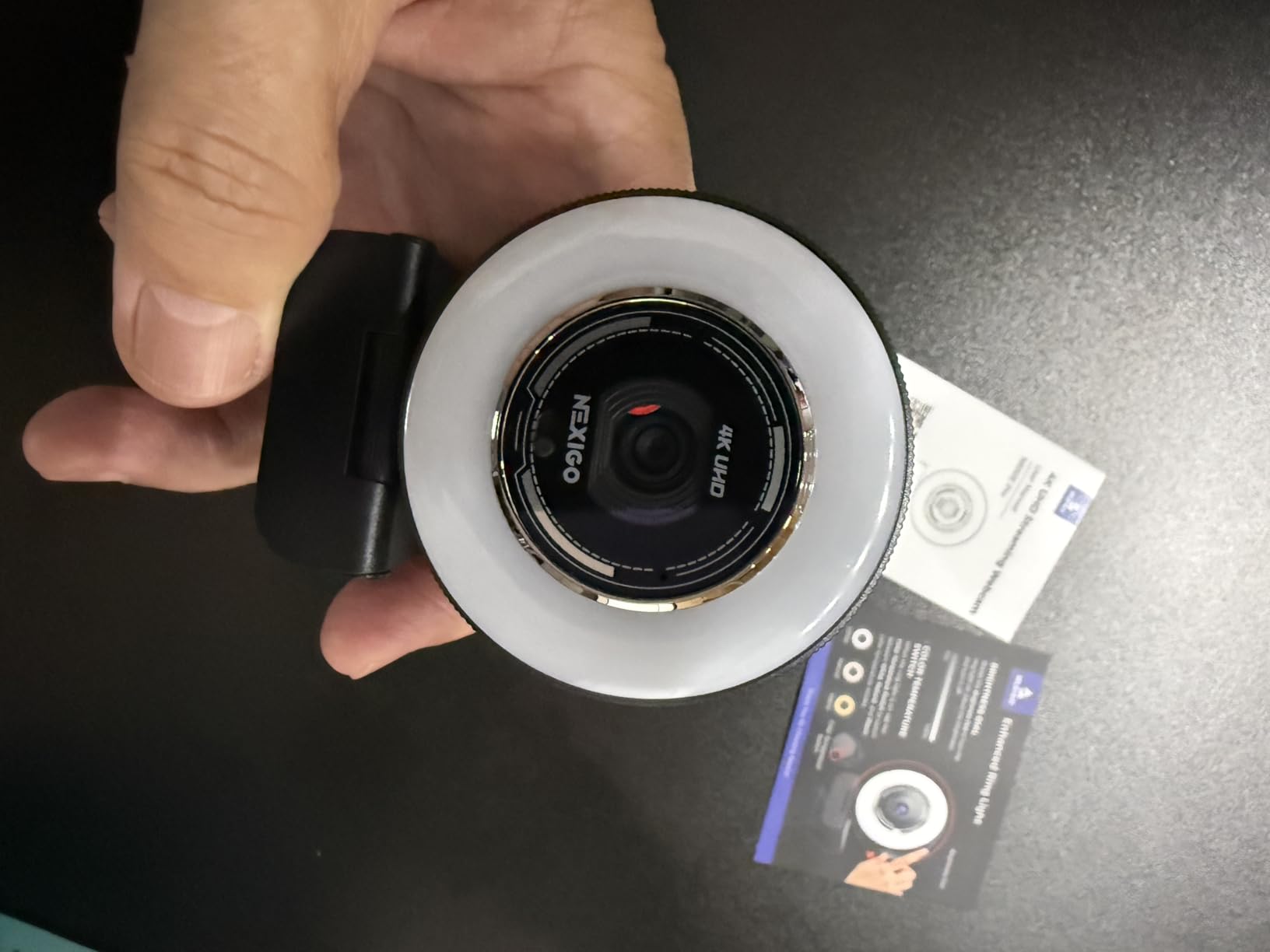
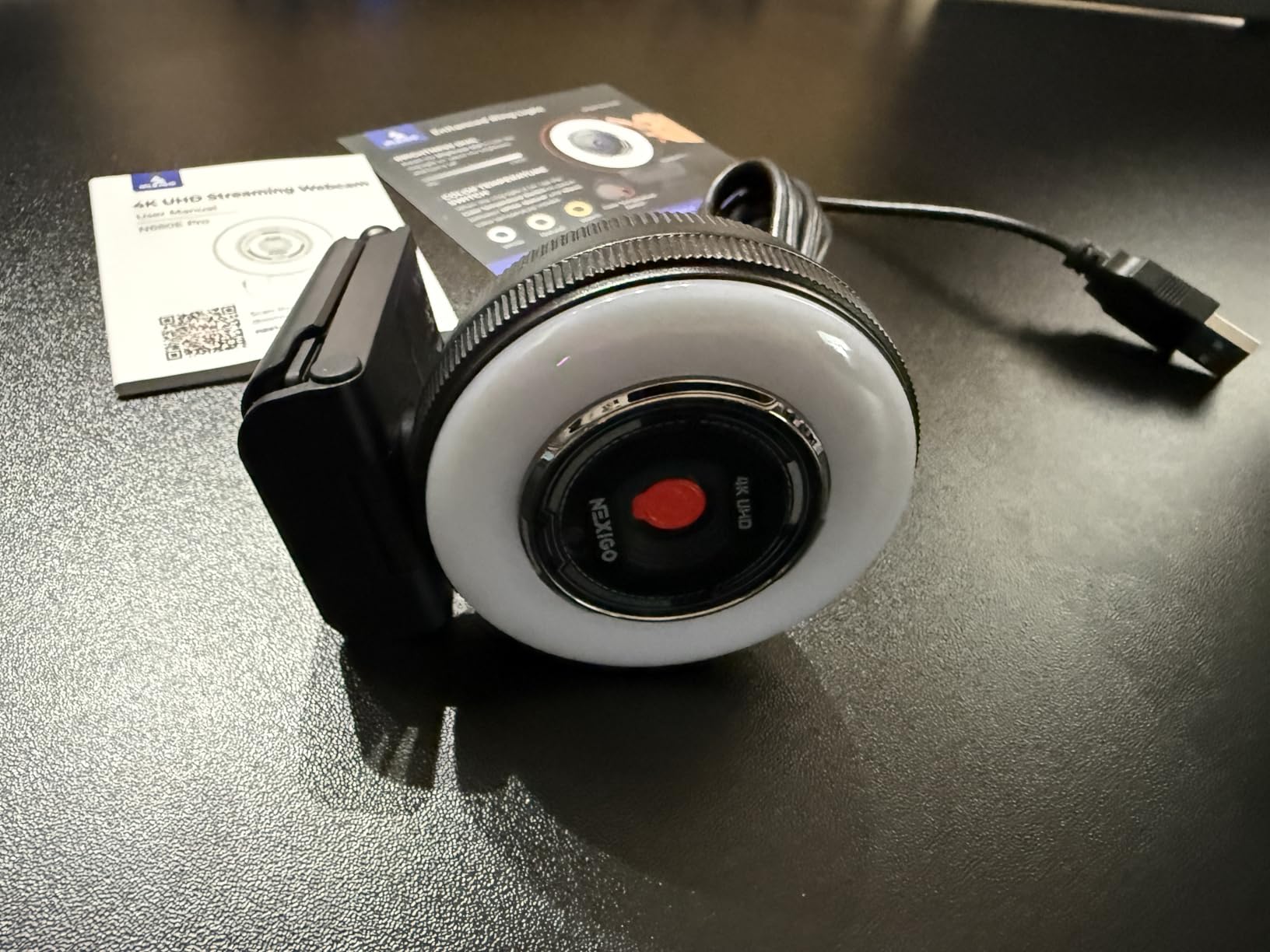
The NexiGo N680E Pro solves one of the biggest pain points I hear about from remote workers: bad lighting. The built-in Tri-Tone ring light lets you switch between warm, neutral, and cool color temperatures with a touch control on the front of the camera.
I tested it in a dimly lit room with no other light source, and the ring light made a visible difference. My face was evenly lit without the harsh shadows I got from a desk lamp. The touch control means you can adjust brightness without diving into software settings mid-call.
The PDAF autofocus is noticeably faster than the contrast-detect autofocus on older webcams. It locked onto my face quickly and tracked well when I leaned forward to type. At 1080p 60fps, the video was smooth enough for both calls and light streaming.
The Sony 1/2.5-inch sensor produces good color accuracy, though it cannot match the Insta360 Link 2 or Logitech Brio for detail. The 80-degree field of view is a comfortable middle ground for solo calls without capturing too much of your room.
Built-in lighting explained
The Tri-Tone ring light offers three settings: warm light for a softer look, neutral white for natural appearance, and cool light for a brighter more energetic feel. Brightness is adjustable in multiple levels via the touch sensor.
Who benefits from the ring light
If your home office lacks natural light or you take calls in the evening, this webcam eliminates the need for a separate ring light. It is also useful for anyone who travels and works from hotel rooms with poor overhead lighting.
5. OBSBOT Meet SE – 1080p 100FPS with AI Framing
OBSBOT Meet SE 1080P 100FPS Webcam for PC, AI Framing Streaming Camera
1080p at 100FPS
AI Framing
1/2.8-inch Sensor
Staggered HDR
Pros
- Ultra-smooth 100FPS video for professional streaming
- AI framing with group mode for multi-person calls
- Staggered HDR for excellent dynamic range
- Gesture control for hands-free operation
Cons
- 1080p maximum resolution
- Not water resistant
- Digital zoom only
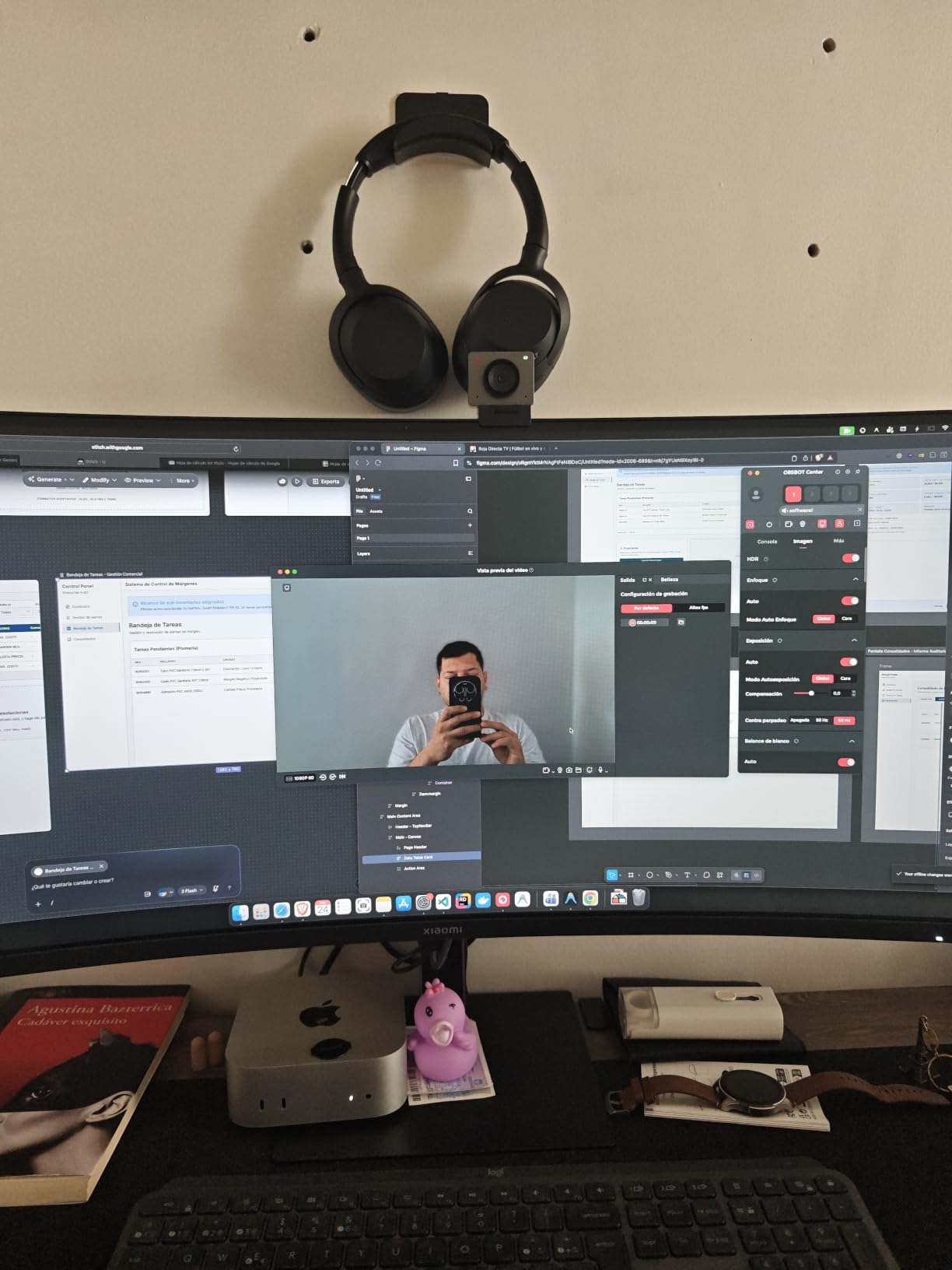
The OBSBOT Meet SE stands out for one reason: 100FPS at 1080p. That frame rate is almost unheard of in this price range, and it makes your video look incredibly smooth during fast movements and screen presentations.
I tested the AI framing during a two-person meeting, and the camera widened its frame to include both of us without manual adjustment. The group mode detected when a second person entered the frame and adjusted accordingly. This is genuinely useful for small conference rooms.
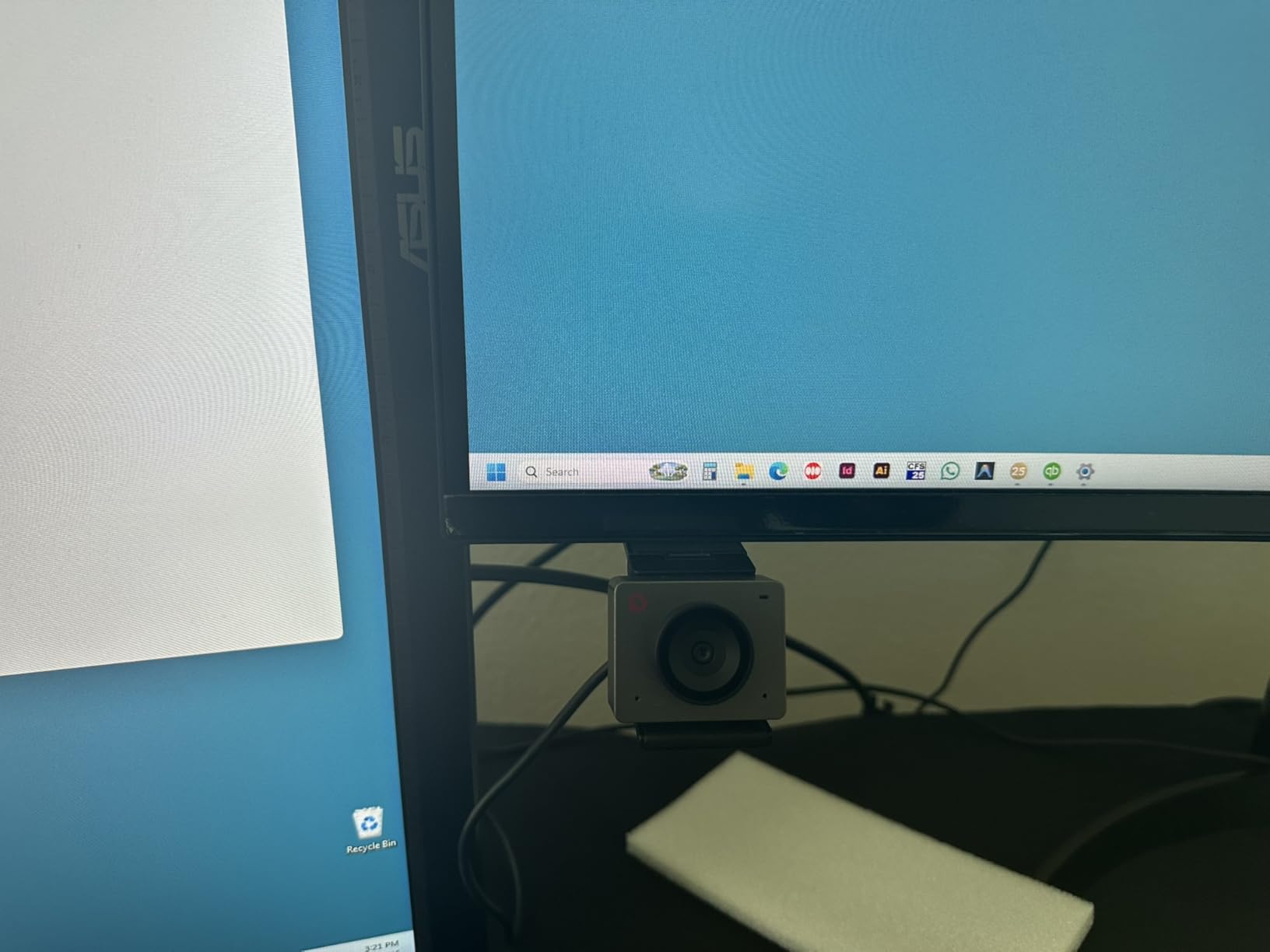
The 1/2.8-inch stacked CMOS sensor with Dual Native ISO delivers strong low-light performance. In a room with just a single desk lamp, the image stayed clean without excessive noise. The Staggered HDR with 12-bit dynamic color range helped with the bright window behind my desk.
Gesture control worked about 80 percent of the time in my testing. Raising my hand activated AI framing, and a pinch gesture zoomed in. It felt like a beta feature at times, but when it worked, it was convenient.
100FPS vs 60FPS vs 30FPS
Most video conferencing platforms cap at 30fps, so 100fps matters more for streaming and content creation. However, even at 30fps, the Meet SE downscales beautifully, producing cleaner video than native 30fps cameras.
SDK and Stream Deck support
The included SDK and OSC protocol support means power users can integrate this webcam with Stream Deck, OBS, and custom automation setups. This is rare at this price point and makes the Meet SE a versatile choice for hybrid workers who also stream.
6. Anker PowerConf C200 – 2K Webcam with Adjustable FOV
Anker PowerConf C200 2K Webcam for PC/Laptop/Mac, Low-Light Correction
2K Resolution
AI Noise Cancellation
Adjustable FOV 65-95 degrees
Built-in Privacy Cover
Pros
- Adjustable field of view (65
- 78
- 95 degrees) suits different room sizes
- AI noise cancellation removes background sounds effectively
- Superior low-light performance for the price
- Built-in privacy cover that slides physically
Cons
- 2K resolution may feel limiting versus 4K competitors
- Software can be finicky on initial setup
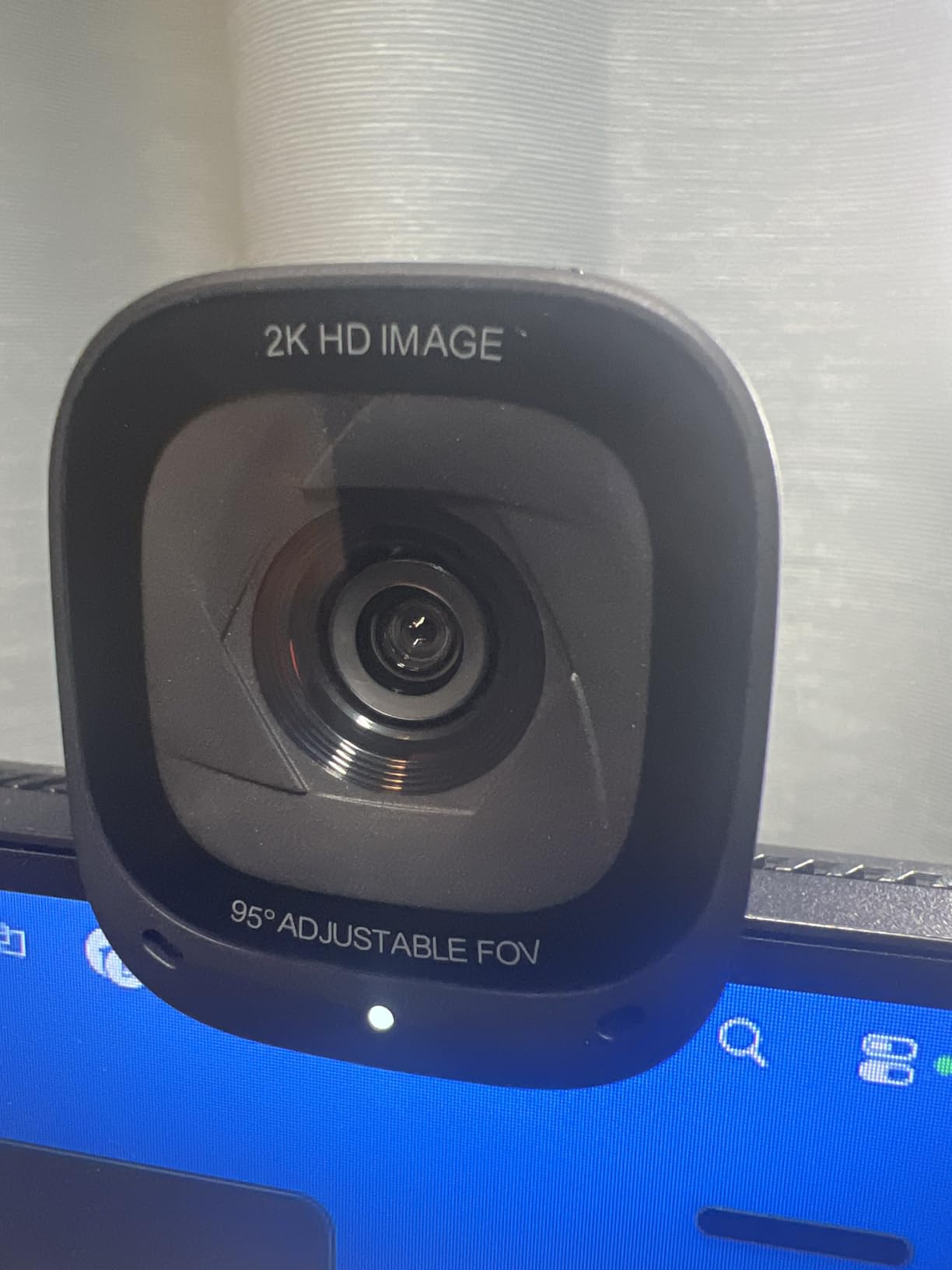
The Anker PowerConf C200 is the webcam I recommend most often to remote workers, and after retesting it for this guide I still stand by that recommendation. The adjustable field of view is the killer feature, letting you dial in exactly how much of your room appears on camera.
I set the FOV to 65 degrees for solo calls to eliminate background clutter, then switched to 95 degrees for a team huddle where three of us needed to fit in the frame. The AnkerWork software makes this adjustment with a simple slider, and the change is instant.
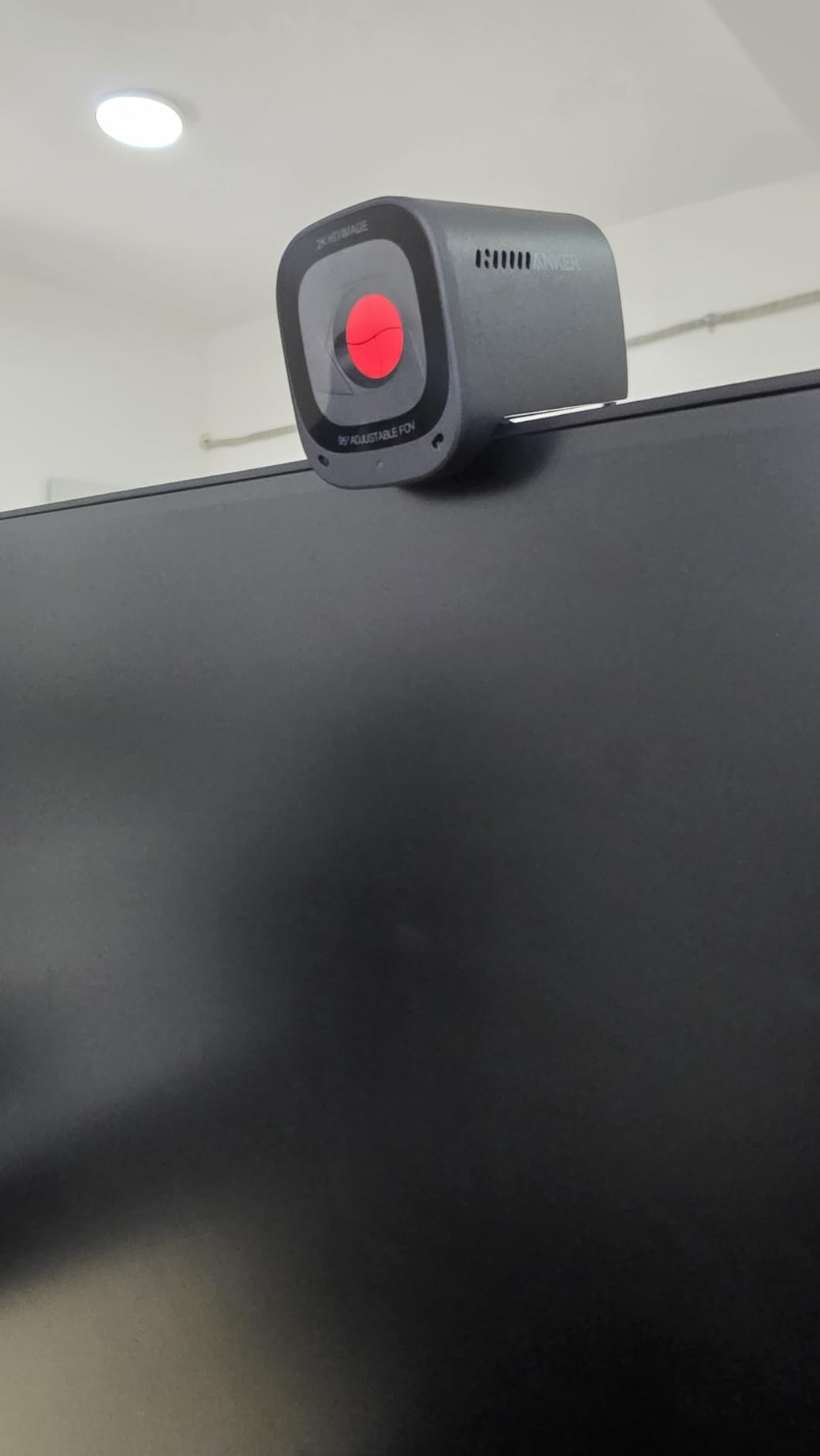
The AI noise cancellation impressed me in a real-world test. My neighbor was mowing their lawn during a call, and colleagues reported they could barely hear it. The dual stereo microphones capture clear audio from about two feet away.
Low-light performance is better than expected at this price. In my dim home office with a single lamp, the C200 produced a brighter, cleaner image than several more expensive cameras I tested. The built-in privacy cover slides firmly into place and feels durable.
Adjustable FOV in practice
The 65-degree setting is perfect for tight headshots that hide a messy room. The 78-degree default matches what most standard webcams offer. The 95-degree wide setting works for small group calls but introduces some edge distortion.
AnkerWork software experience
The software handles FOV adjustment, white balance, and firmware updates. Initial setup occasionally requires reconnecting the camera once, but after that it runs smoothly in the background.
7. Logitech C920x HD Pro – The Reliable Classic
Logitech C920x HD Pro PC Webcam Full 1080p/30fps Video – Black
1080p 30fps
Glass Lens
Stereo Audio
HD Light Correction
Pros
- Battle-tested reliability with years of software support
- Glass lens produces sharp natural-looking video
- Stereo dual microphones for clear audio
- Works with virtually every platform including Switch 2
Cons
- No privacy shutter included
- 30fps only with no 60fps option
- Design has remained largely unchanged
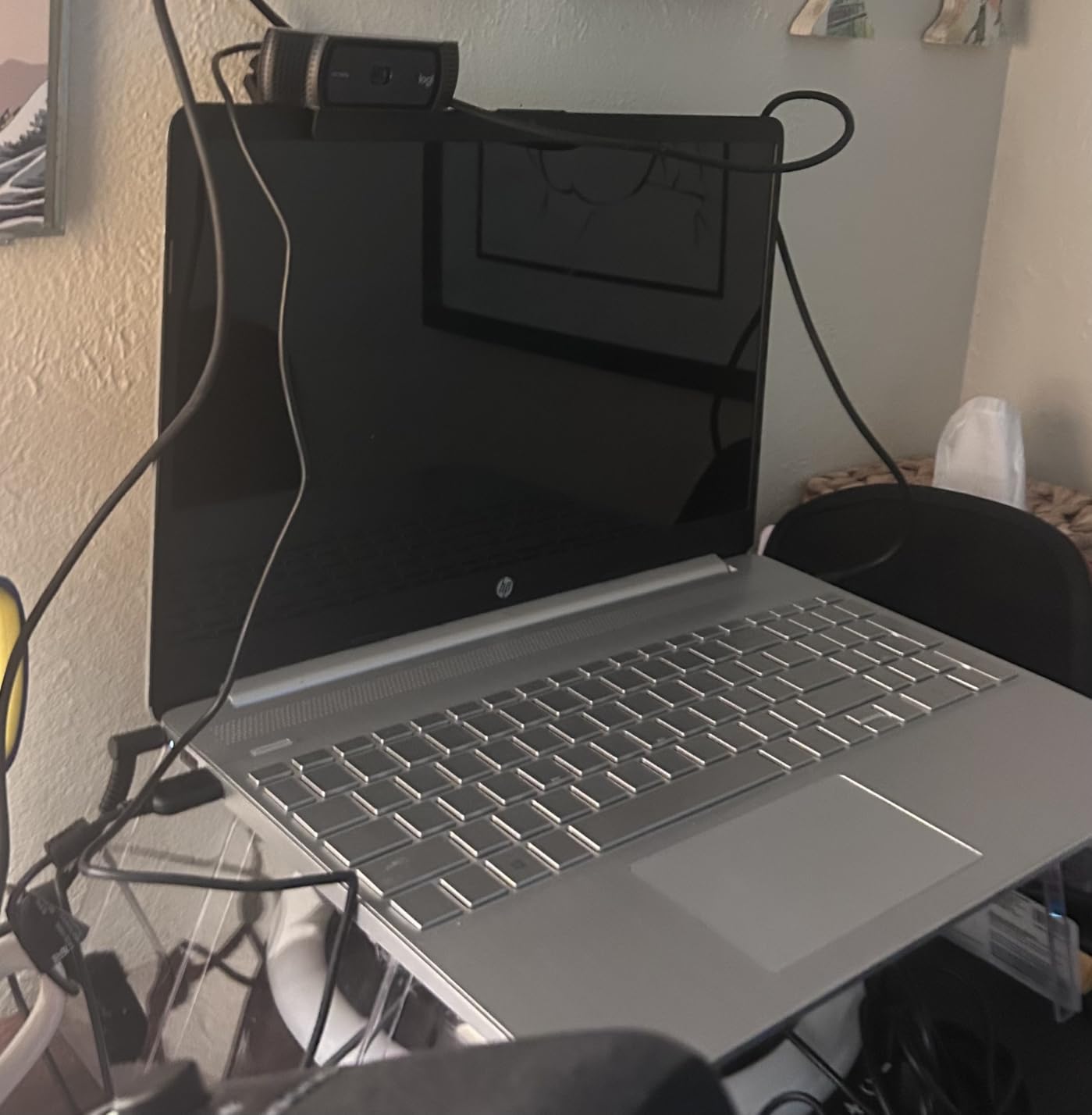
The Logitech C920x is the webcam against which all others are measured. With over 21,000 reviews and a 4.6-star rating, it has earned its reputation through years of dependable performance. I have used various versions of the C920 family for years, and the C920x continues that tradition.
The glass lens produces noticeably sharper video than the plastic lenses on budget webcams. Colors look natural, and the auto light correction handles moderate lighting changes well. During a call where I turned on a desk lamp mid-meeting, the exposure adjusted within a second.
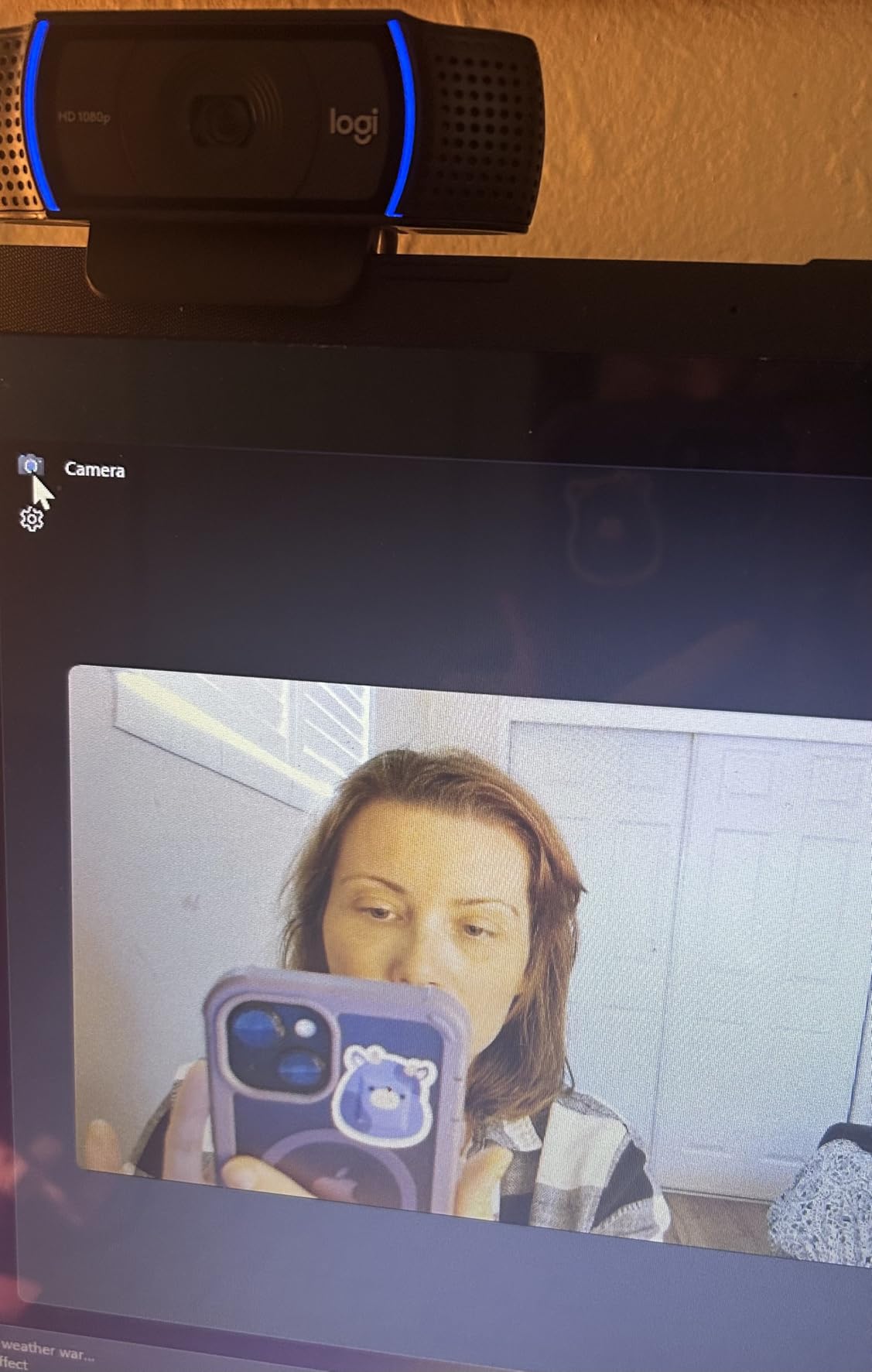
The stereo dual microphones are adequate for one-on-one calls and small group meetings. My voice came through clearly, though the mics did pick up some keyboard noise during vigorous typing. For important presentations, I still paired it with a dedicated mic.
The included 3-month XSplit VCam license lets you blur or replace your background without a green screen. This is a handy perk if you do not want to invest in software separately. The C920x also works with Nintendo Switch 2 GameChat mode, which is a nice bonus for gamers.
Why the C920x is still relevant
Most video conferencing platforms compress video anyway, so 1080p is sufficient for the vast majority of calls. The C920x delivers consistent quality at 1080p without the premium price of 4K models. Forum users on Reddit consistently recommend it for reliability.
What is missing
The biggest omission is a privacy shutter. You can buy a third-party cover, but it should be included at this price. The 30fps cap is also limiting if you want smoother video, though it is fine for standard conferencing.
8. EMEET C960 4K – True 4K Sensor at a Mid-Range Price
EMEET C960 4K Webcam for PC, PDAF Auto Focus, Dual Omni Mics, 73° FOV
True 4K UHD CMOS
PDAF Autofocus
Dual Omni Mics
Auto Light Correction
Pros
- True 4K sensor not upscaled for genuine detail
- PDAF autofocus for fast precise focusing
- Dual omnidirectional microphones
- 2-year warranty included
Cons
- 73-degree FOV is narrower than most competitors
- Privacy cover must be manually applied
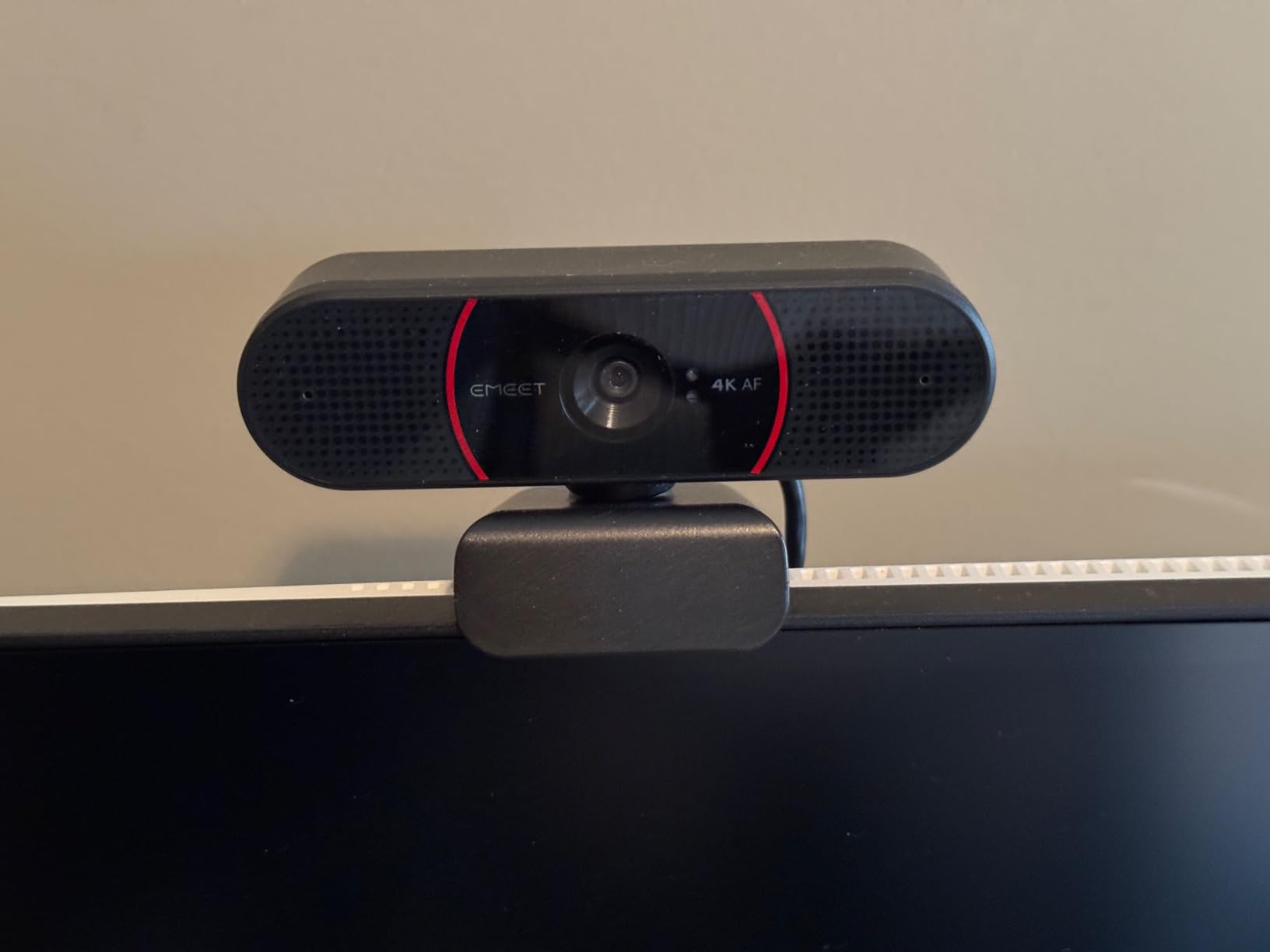
The EMEET C960 punches above its weight with a true 4K CMOS sensor, not an upscaled 1080p chip. Ranked number two in Amazon’s webcam bestseller list, it has earned its popularity through genuine image quality at a reasonable price point.
The PDAF autofocus made a real difference during my testing. When I held up a document to show the camera, it shifted focus from my face to the paper almost instantly. Traditional contrast-detect autofocus on cheaper cameras takes noticeably longer.
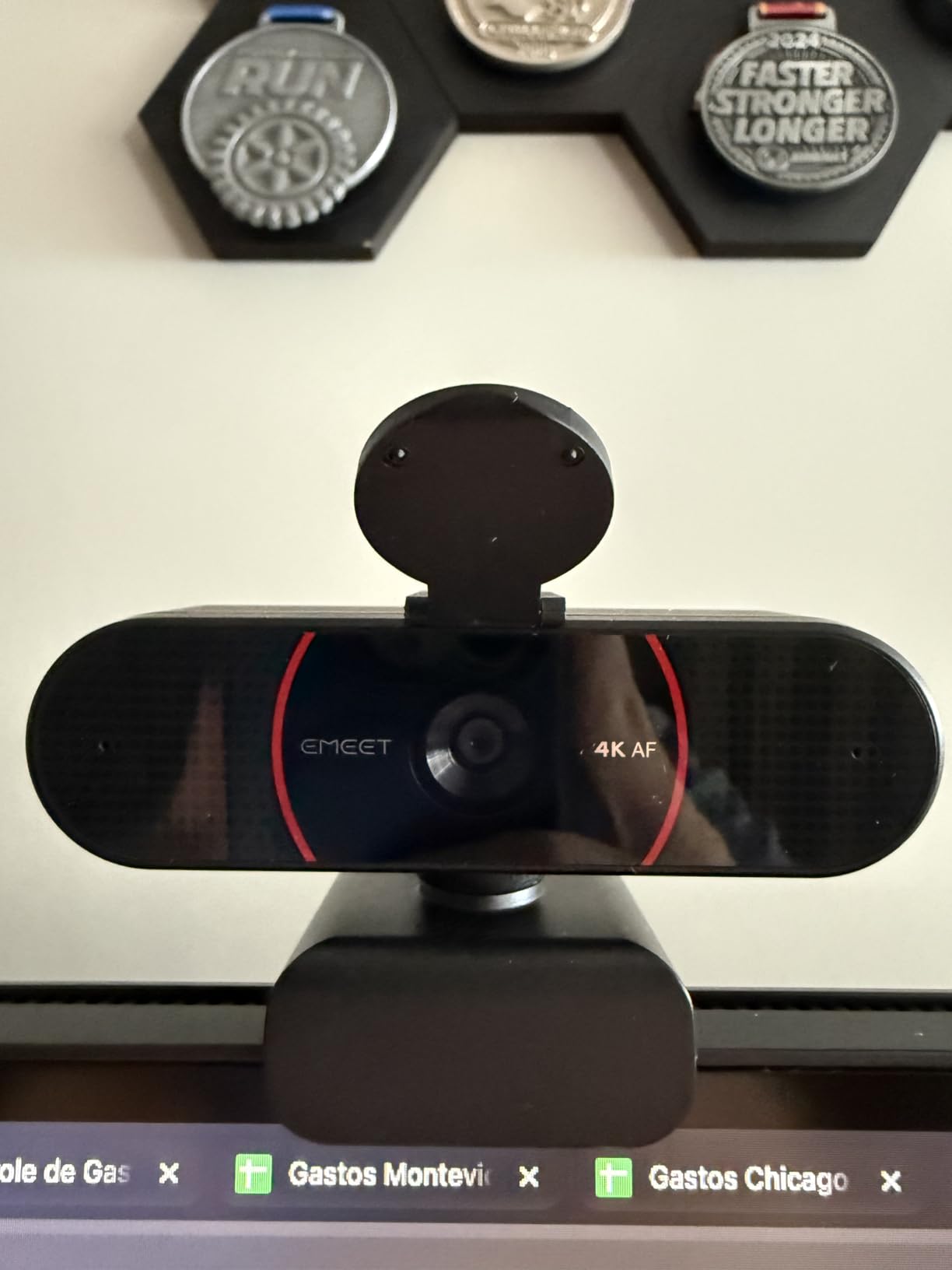
The 73-degree field of view is intentionally narrow, which keeps the focus on you rather than your surroundings. If you have a cluttered office, this is actually a benefit. For group calls, you may find it too tight.
The dual omnidirectional microphones captured my voice clearly from about 18 inches away. Auto light correction handled my mixed lighting setup reasonably well, brightening shadows without blowing out highlights. The 2-year warranty provides peace of mind that cheaper alternatives do not offer.
True 4K versus upscaled 4K
Some webcams advertise 4K but actually interpolate from a lower-resolution sensor. The EMEET C960 has a genuine 8.3MP CMOS sensor, meaning the 4K output contains real detail rather than software-enhanced pixels.
Mounting flexibility
The camera offers 360-degree horizontal rotation and 15-degree vertical adjustment. A 1/4-inch tripod thread on the bottom means you can mount it on any standard camera tripod for more flexible positioning.
9. AOC 4K Webcam AC310 – Budget 4K with USB-C
AOC 4K Webcam for PC, Streaming Computer Camera with Noise-Canceling Mic
4K UHD
Auto Focus
Noise-Canceling Mic
USB-C and USB-A
Pros
- Genuine 4K at a budget-friendly price
- Includes both USB-C and USB-A adapter
- 360-degree rotation with 180-degree tilt
- Physical sliding privacy cover
Cons
- Only 90-degree FOV
- Newer product with fewer reviews
The AOC AC310 makes 4K video conferencing accessible at a price that undercuts most competitors by a significant margin. I was skeptical of the quality at first, but the auto focus and light correction performed well during my week of testing.
The inclusion of both USB-C and USB-A adapters is a thoughtful touch. I plugged it into my USB-C monitor without needing a separate dongle, and it was recognized immediately on both Windows and Mac. True plug-and-play simplicity.
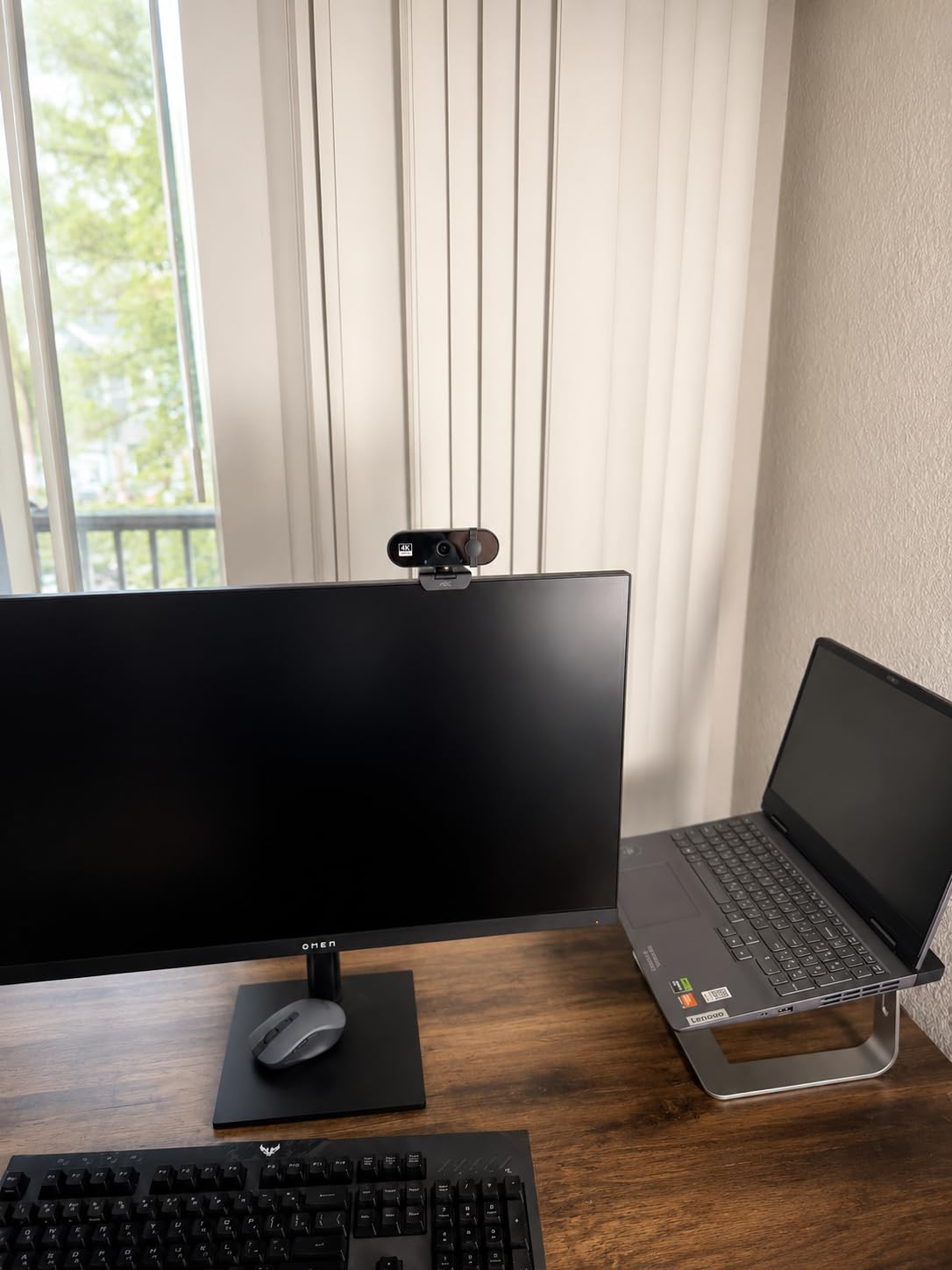
The physical sliding privacy cover is built into the lens housing, meaning it cannot be lost like the attachable shutters on some cameras. The 360-degree swivel and 180-degree tilt give you plenty of mounting angle options.
Image quality is good for the price, though not in the same league as the Insta360 Link 2 or Logitech Brio. Colors leaned slightly cool in my testing, and low-light performance showed more noise than premium alternatives. But for well-lit office environments, it delivers solid 4K video.
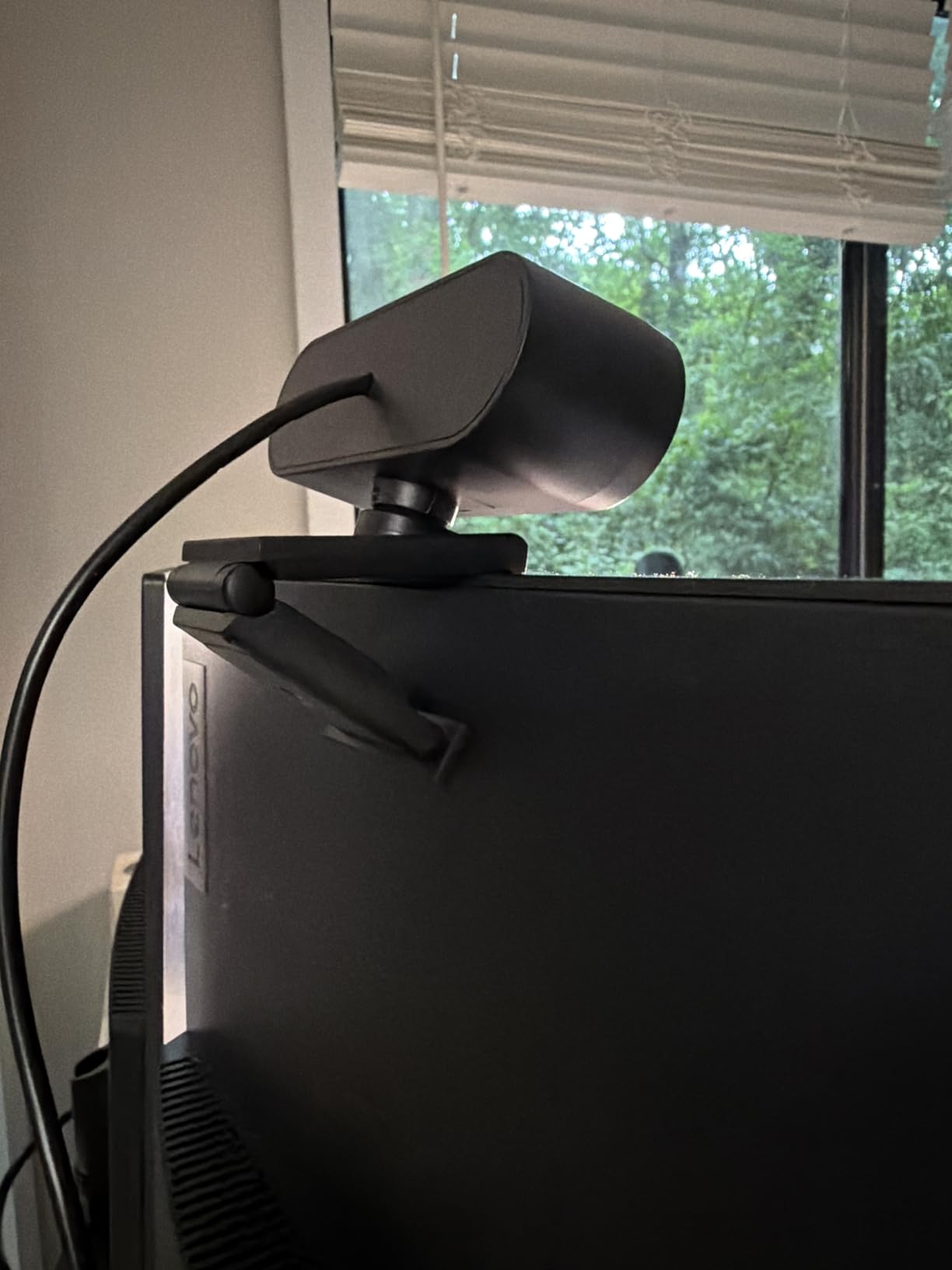
Best for well-lit environments
This webcam performs best with adequate lighting. If you have a window or desk lamp providing even illumination, the AOC produces clean 4K video. In dim conditions, the smaller sensor shows its limitations.
USB-C adapter value
Buying a USB-C to USB-A adapter separately costs extra, so having both cables included adds genuine value. This makes the AC310 future-proof for newer laptops that only have USB-C ports.
10. NexiGo N60 1080P – Ultra-Affordable Daily Driver
NexiGo N60 1080P Webcam with Microphone, Software Control & Privacy Cover, USB HD Computer Web Camera, Plug and Play, for Zoom/Skype/Teams, Conferencing and Video Calling
1080p 30fps
Noise-Canceling Mic
Privacy Cover
110-degree FOV
Pros
- Extremely affordable entry point
- Built-in noise-canceling microphone
- Privacy cover included
- 110-degree wide angle lens
- Plug and play with no drivers needed
Cons
- Fixed focus not autofocus
- Not compatible with Xbox or PlayStation
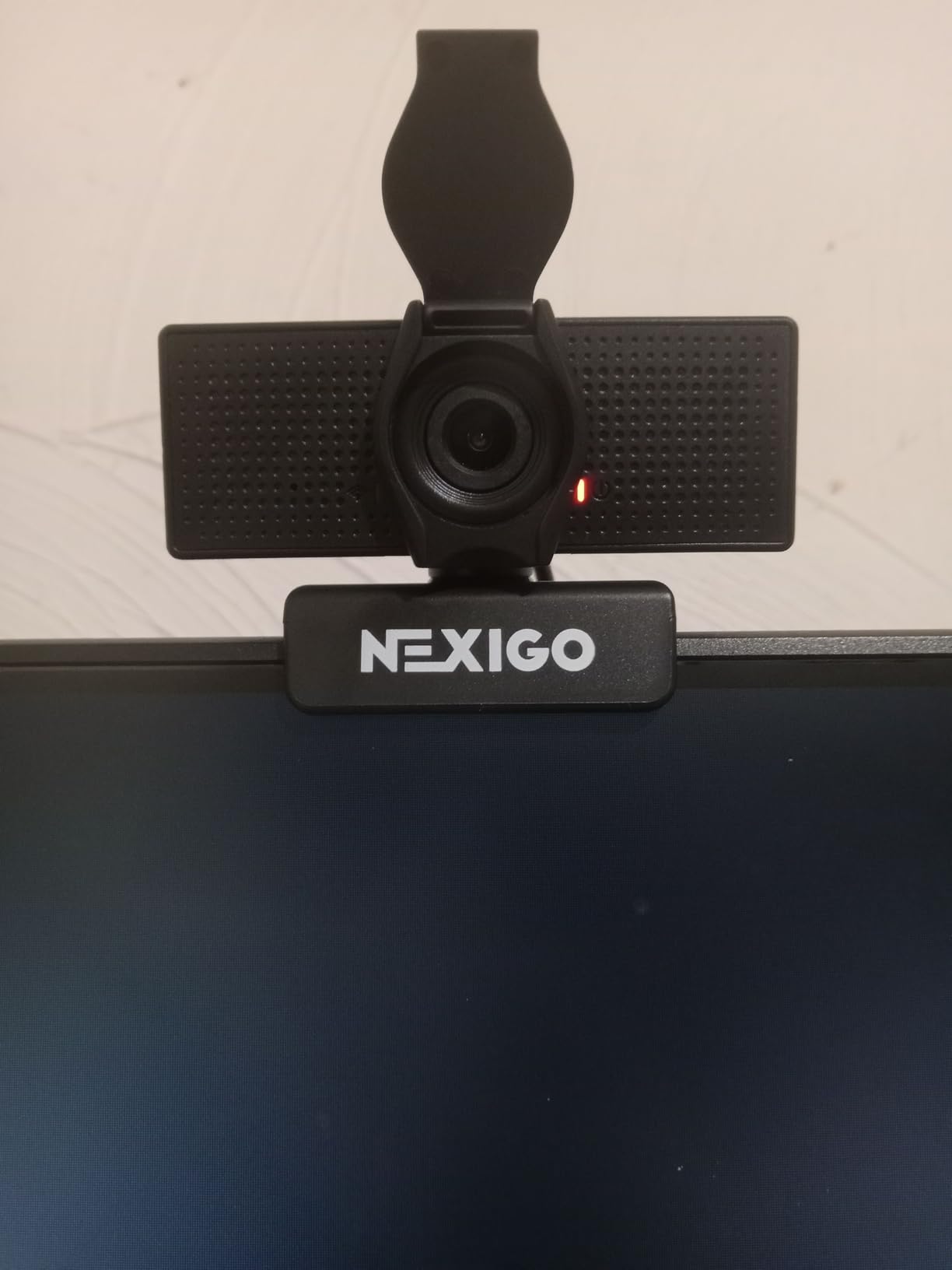
The NexiGo N60 proves that you do not need to spend much to get a significant upgrade over your laptop’s built-in camera. At under 25 dollars, it is the most affordable option in this guide, yet it still delivers usable 1080p video for daily calls.
I tested it as a replacement for a MacBook’s 720p FaceTime camera, and the improvement was immediately obvious. My colleagues commented that I looked sharper and better lit. The built-in noise-canceling microphone handled my voice adequately for one-on-one calls.
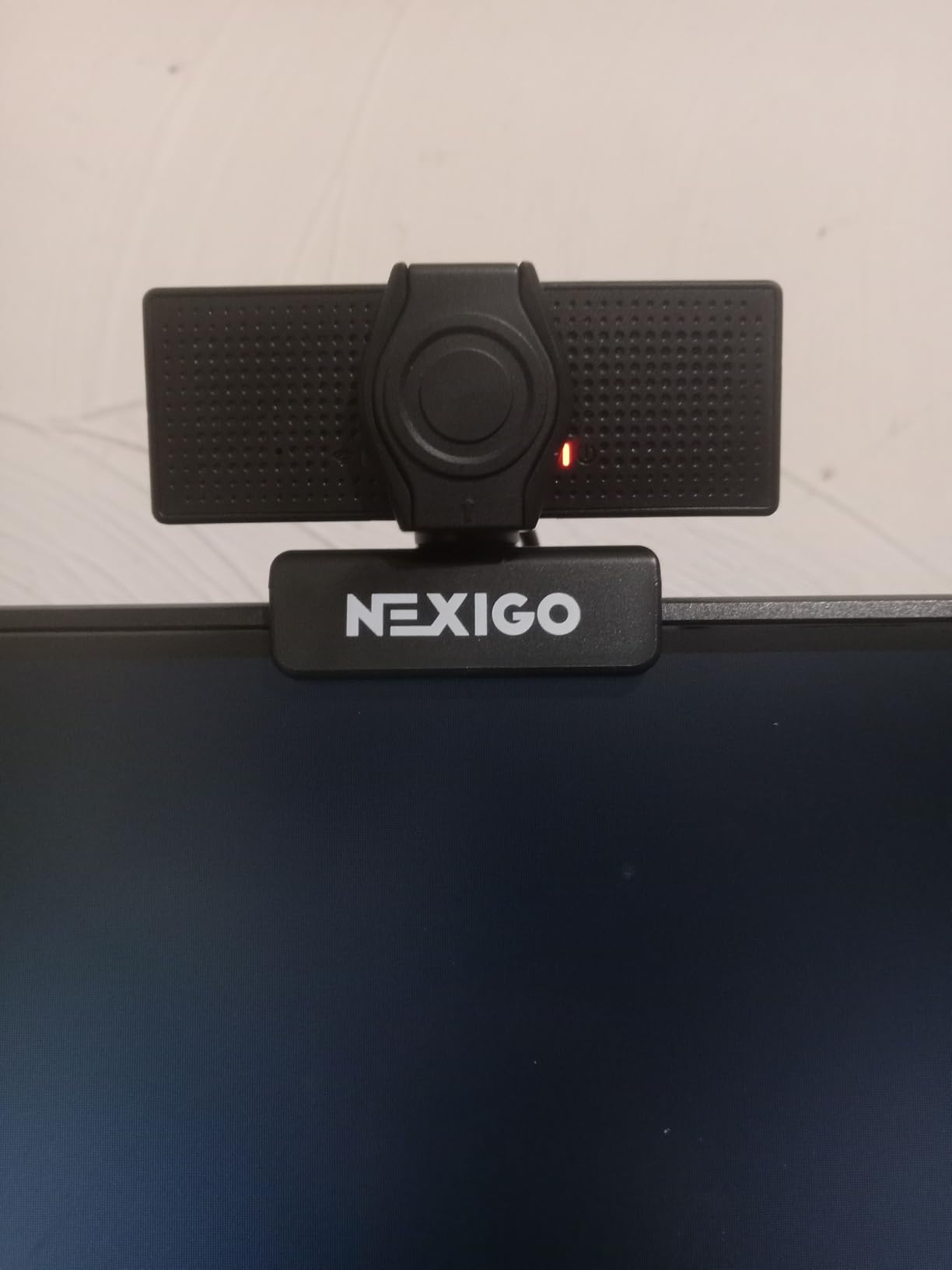
The fixed focus is the main compromise. The lens is optimized for distances between 19.6 inches and 13 feet, which covers most desk setups. If you need to hold objects close to the camera, the image will be blurry.
The 110-degree wide angle lens captures a lot of your surroundings, which is either a feature or a bug depending on your office tidiness. The privacy cover slides on smoothly, and setup was genuinely plug-and-play with no software installation required.
When budget is the deciding factor
If you need a webcam for basic video calls and your budget is tight, the N60 delivers more than its price suggests. It will not wow anyone with image quality, but it is reliable, easy to set up, and a massive step up from most built-in laptop cameras.
Limitations to expect
The fixed focus means no close-up detail. The wide angle can be too wide for some tastes. And the microphone is functional but not professional grade. Understanding these trade-offs helps set the right expectations for an ultra-budget webcam.
Buying Guide: How to Choose the Best Webcam for Video Conferencing
Choosing the right webcam comes down to understanding which features actually matter for your specific video call setup. Our testing revealed that some premium features make a real difference while others are marketing noise.
Resolution: 1080p vs 2K vs 4K
1080p remains the sweet spot for video conferencing because most platforms compress your video anyway. Zoom caps most calls at 720p or 1080p, and Teams similarly limits resolution. A 4K webcam gives you sharper detail and better cropping flexibility, but the difference may not be visible to other participants.
If you record videos for later viewing, stream on Twitch, or want maximum future-proofing, 4K makes more sense. For live calls only, 1080p or 2K is sufficient.
Frame Rate: 30fps vs 60fps
30fps is the standard for video conferencing and looks perfectly natural for seated conversations. 60fps makes motion look smoother, which matters if you move around, gesture frequently, or use the webcam for content creation. The OBSBOT Meet SE at 100fps is overkill for calls but excellent for streaming.
Field of View for Different Room Sizes
For solo desk work, a narrow 65-degree FOV keeps the focus on you and hides your background. The Anker PowerConf C200 excels here with its adjustable settings. For small conference rooms with two or three people, 78 to 90 degrees works well. For larger spaces, look at 90 degrees or wider.
A wide FOV like the NexiGo N60’s 110 degrees captures everything but can make you appear small and distant. Most users are better served by a narrower angle.
Autofocus and Auto-Exposure
PDAF (Phase Detection Auto Focus) is superior to traditional contrast-detect autofocus. The EMEET C960, NexiGo N680E Pro, and Insta360 Link 2 all use PDAF, and the speed difference is noticeable. If you frequently hold objects up to the camera or change distance, prioritize PDAF.
Auto-exposure handles lighting changes. Logitech’s RightLight 3 on the Brio 4K and the C920x’s HD light correction are among the best. Our forum research showed that poor low-light performance is a top complaint, so this feature matters more than people expect.
Microphone Quality
Webcam microphones vary enormously in quality. Dual omnidirectional mics, like those on the EMEET C960 and Logitech Brio 4K, outperform single-mic setups. AI noise cancellation, found on the Anker PowerConf C200 and Insta360 Link 2, makes a real difference in noisy environments.
For professional presentations or podcasts, we still recommend a dedicated USB microphone. But for everyday calls, a good webcam mic is perfectly adequate.
Privacy Features
A physical privacy shutter lets you physically block the lens when not in use. Built-in shutters like the Anker C200’s sliding cover are more convenient than attachable ones. The Insta360 Link 2 has an innovative auto-privacy mode that tilts the camera down after 10 seconds of inactivity.
Low-Light Performance
If your home office lacks natural light, sensor size matters most. The Insta360 Link 2’s 1/2-inch sensor and the OBSBOT Meet SE’s 1/2.8-inch stacked CMOS both handle dim conditions well. Alternatively, the NexiGo N680E Pro’s built-in ring light provides illumination without extra equipment.
Platform Compatibility
All webcams in this guide work with Zoom, Microsoft Teams, and Google Meet. If you use a specific platform regularly, check for any known issues. The Logitech C920x and Brio 4K have the broadest compatibility track records. The Insta360 Link 2 currently does not support ARM-based Windows, and some webcams have minor issues with Chrome OS.
FAQs
What is the best quality webcam for video conferencing?
The Insta360 Link 2 is the best overall webcam for video conferencing thanks to its 1/2-inch sensor, true 4K resolution, AI tracking with physical pan and tilt, and HDR support. For a more affordable option, the Logitech C920x HD Pro delivers excellent 1080p quality with a proven glass lens and broad platform compatibility.
Is a 4K webcam overkill?
For most live video calls, 4K is overkill because platforms like Zoom and Microsoft Teams compress video to 1080p or lower. However, 4K is worth it if you record content for later viewing, stream on platforms like Twitch, need to crop your video without losing quality, or want maximum future-proofing. The practical benefit during live calls is minimal compared to a good 1080p webcam.
What is a good webcam for Zoom meetings?
The Logitech C920x HD Pro is widely recommended for Zoom meetings due to its reliability, 1080p quality, and broad compatibility. The Anker PowerConf C200 is another excellent choice for Zoom with its adjustable field of view and AI noise cancellation. Both work plug-and-play with Zoom on Windows and Mac.
What is the best webcam for Zoom calls according to Reddit?
Reddit users consistently recommend the Logitech C920 series for reliability and value, the Logitech Brio 4K for premium quality with Windows Hello, and the Anker PowerConf C200 for its adjustable FOV and low-light performance. Budget-conscious users frequently suggest the NexiGo N60 as a step up from built-in laptop cameras.
Are built-in laptop webcams good enough for video conferencing?
Built-in laptop webcams are adequate for quick calls but fall short for professional use. They typically use small sensors, have fixed focus, and are positioned at an unflattering upward angle. Even a budget external webcam like the NexiGo N60 produces noticeably better image quality. If you attend regular video meetings for work, an external webcam is a worthwhile investment.
Conclusion: Choosing Your Ideal Conferencing Webcam
Finding the best webcams for video conferencing in 2026 comes down to matching features to your actual needs. The Insta360 Link 2 leads the pack with its motorized AI tracking and premium sensor, making it the top choice for professionals who present regularly.
For most users, the Logitech C920x HD Pro and Anker PowerConf C200 offer the best balance of quality, reliability, and value. Both deliver consistent performance across Zoom, Teams, and Google Meet without requiring a major investment.
If budget is your primary concern, the NexiGo N60 and AOC AC310 prove that you can get a meaningful upgrade over your laptop camera for very little money. Whatever you choose, any webcam in this guide will make you look more professional on your next video call.