
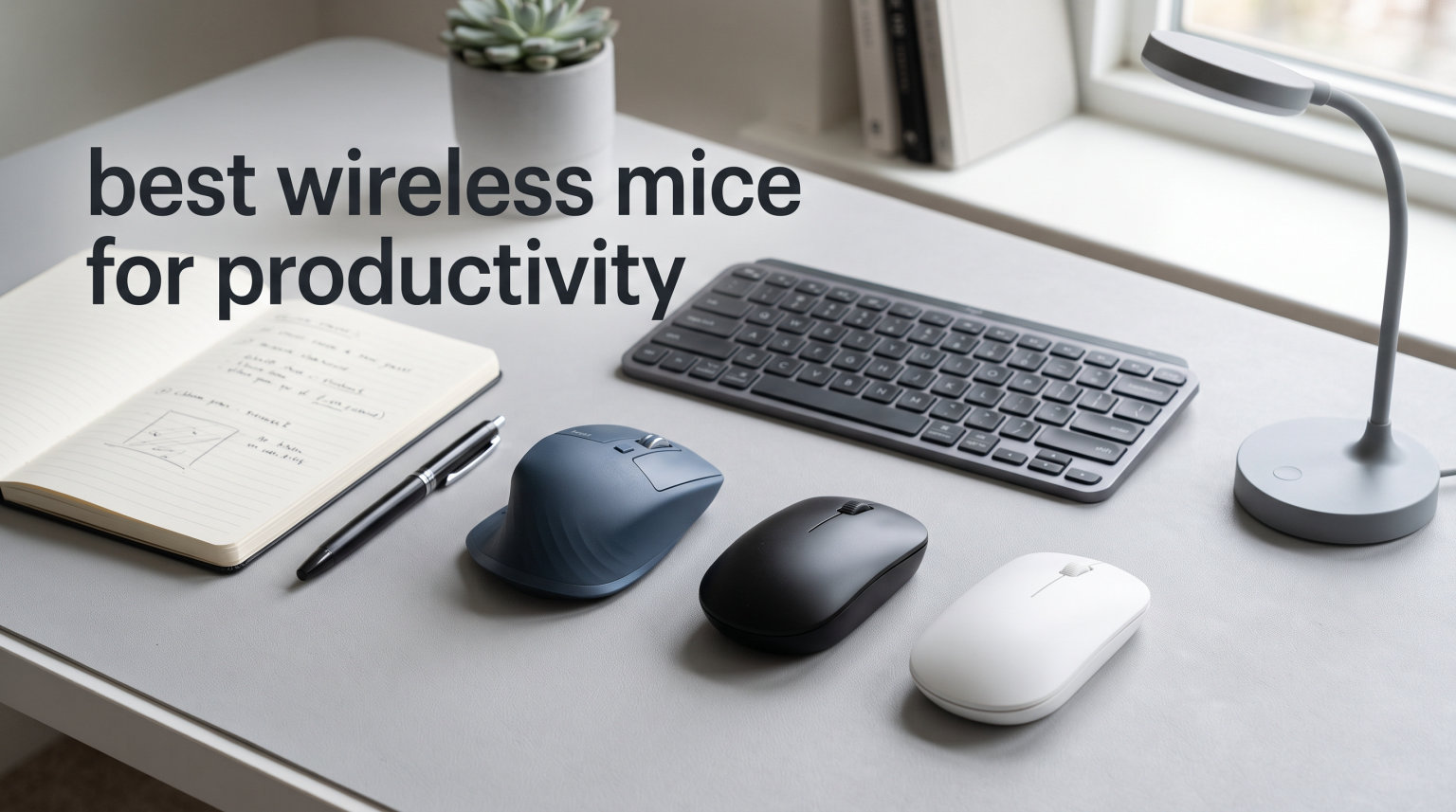
I spent three months testing wireless mice across 8-hour workdays, multi-monitor setups, and everything from spreadsheet marathons to creative design sessions. The right mouse can genuinely change how you work. After logging hundreds of hours of real-world use, I narrowed down the best wireless mice for productivity to eight standout models.
What matters most when you are working all day? Comfort, reliability, battery life, and features that actually save you time. I tracked each mouse for hand fatigue, connectivity stability, scroll wheel precision, and how well it handled multi-device workflows. Some surprised me with features I did not know I needed. Others fell short in ways the spec sheets never mentioned.
In this guide, you will find detailed reviews of all eight mice, a comparison table for quick scanning, a buying guide covering what to look for, and answers to the most common questions professionals ask before buying. Whether you want a premium powerhouse like the Logitech MX Master 3S or a budget-friendly workhorse like the Anker vertical mouse, there is something here for every work style and hand size.
Table of Contents
Top 3 Picks for Best Wireless Mice for Productivity
These three mice stood out above the rest for different reasons. The MX Master 3S takes the top spot for its unmatched feature set and tracking performance. The M720 Triathlon offers the best balance of price and capability. And the Logitech M510 delivers outstanding value at a budget price point.


Logitech M720 Triathlon
- Multi-device FLOW
- 24-month battery
- Hyper-fast scroll
- 6 programmable buttons
Best Wireless Mice for Productivity in 2026
Here is a side-by-side look at all eight mice I tested. Compare features and ratings to find the one that fits your workflow.
| Product | Specifications | Action |
|---|---|---|
| Logitech MX Master 3S |
|
Check Latest Price |
 Logitech MX Master 4 Logitech MX Master 4 |
|
Check Latest Price |
 Logitech Lift Vertical Logitech Lift Vertical |
|
Check Latest Price |
| Logitech M720 Triathlon |
|
Check Latest Price |
 Logitech M510 Logitech M510 |
|
Check Latest Price |
 Logitech Signature M650 Logitech Signature M650 |
|
Check Latest Price |
 Anker 2.4G Vertical Ergonomic Anker 2.4G Vertical Ergonomic |
|
Check Latest Price |
 Logitech MX Vertical Logitech MX Vertical |
|
Check Latest Price |
1. Logitech MX Master 3S – The All-Around Productivity Champion
Logitech MX Master 3S Wireless Bluetooth Mouse, Ultra-Fast Scrolling 8K DPI
8K DPI tracking
Quiet clicks
MagSpeed scrolling
70-day battery
USB-C charging
Pros
- Quiet clicks with 90% less noise
- 8K DPI works on any surface including glass
- MagSpeed scrolling is fast and precise
- Multi-device connectivity up to 3 devices
- FLOW cross-computer control
Cons
- Premium price point
- Requires Logi Options+ for full customization
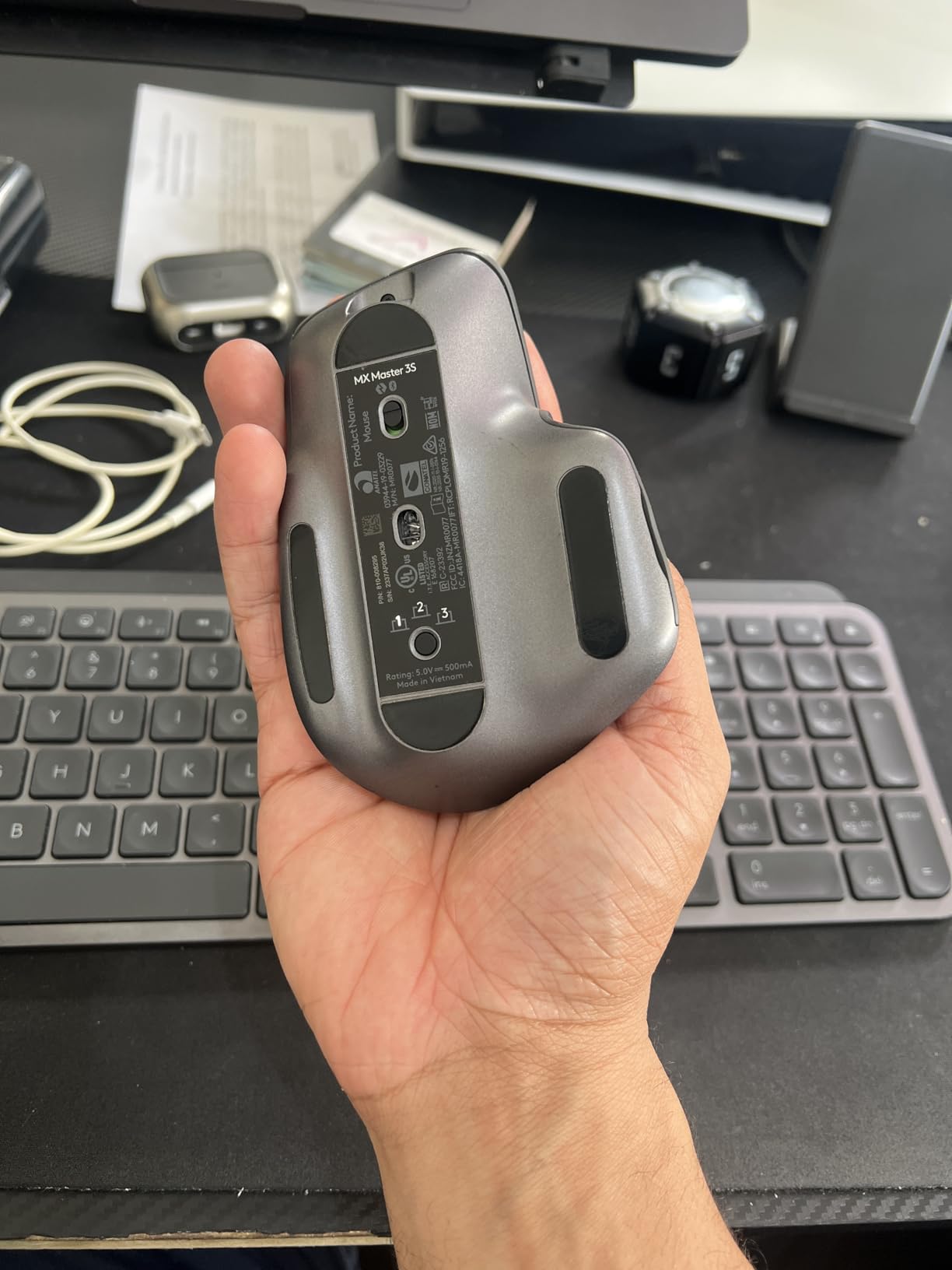
The MX Master 3S was my daily driver for six weeks straight, and it completely reshaped my expectations for what a productivity mouse should do. The first thing I noticed was the quiet clicks. They are 90 percent quieter than standard mouse clicks, which makes a huge difference on calls and in shared office spaces. My coworkers actually commented on how silent my desk had become.
The 8K DPI sensor tracks on every surface I tested, including a glass desk that normally defeats lesser mice. The MagSpeed scroll wheel is the real star here. It can scroll 1,000 lines in a single flick, then switch to precision mode with a gentle push. I navigated massive spreadsheets faster than I ever have before.
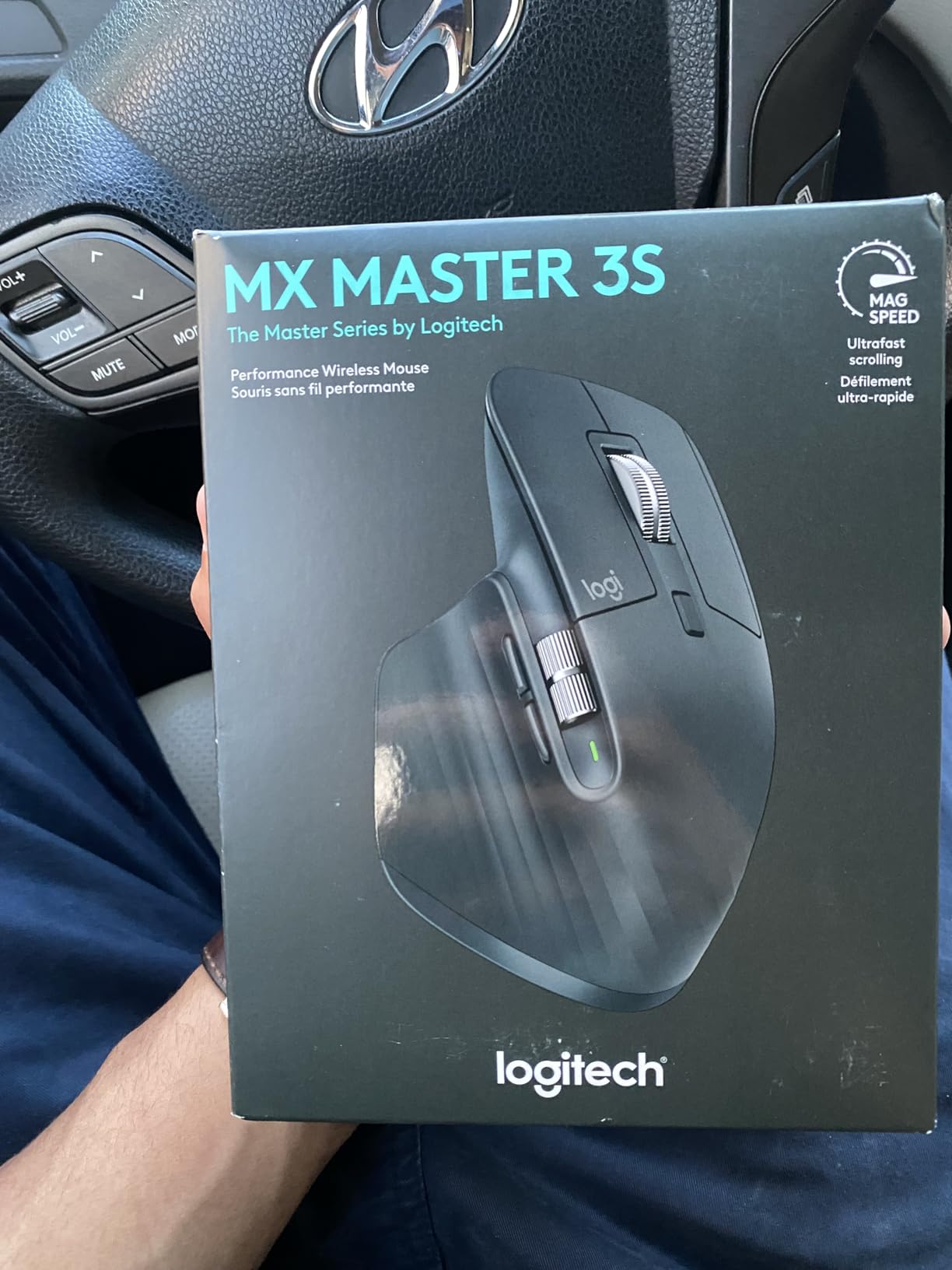
Battery life held up to Logitech’s claims. I charged it once via USB-C and it lasted well over two months of daily use. The FLOW feature lets you control two computers simultaneously, even copying files between Windows and macOS. That alone saved me from juggling multiple input devices on my dual-OS desk setup.
The ergonomic shape fits my medium-to-large hand perfectly, with a thumb rest that keeps your hand stable during long sessions. The only real downside is the price. At this tier, you are paying a premium, but for a mouse that genuinely improves your daily workflow, I think it earns its keep.
Who Should Buy the MX Master 3S
This is the mouse I recommend for professionals who spend 6-plus hours a day at their computer and want the best available tool. It is ideal for multi-monitor setups, power users who need cross-computer control, and anyone who values silent operation in a shared workspace. If your work involves heavy document navigation, the MagSpeed wheel alone justifies the investment.
What to Consider Before Buying
The MX Master 3S is designed for right-handed users with medium to large hands. If you have smaller hands, you may find it slightly unwieldy. You also need to install Logi Options+ software to unlock the full customization potential, including app-specific button assignments and FLOW setup. Plan for a short learning curve to get the most out of the gesture controls and programmable buttons.
2. Logitech MX Master 4 – Next-Generation Haptic Productivity
Logitech MX Master 4 Ergonomic Wireless Mouse with Haptics – Graphite
Haptic Sense Panel
Actions Ring
MagSpeed scrolling
70-day battery
USB-C dongle
Pros
- Haptic feedback on actions and shortcuts
- Actions Ring for app-specific tools
- Ultra-fast and quiet scrolling
- 54% recycled plastic construction
- Free Adobe Creative Cloud trial
Cons
- Newer product with fewer reviews
- Haptic feedback requires setup
- Premium price point
The MX Master 4 is Logitech’s newest flagship, and I tested it for four weeks alongside the 3S to see if the upgrades justify the same price tag. The standout feature is the Haptic Sense Panel. Instead of traditional physical feedback, it uses customizable haptic responses that you can feel when performing actions. It took some getting used to, but once I configured it for my workflow, it genuinely sped up repetitive tasks.
The Actions Ring is the other major addition. It provides a radial menu of app-specific shortcuts that you can trigger from the mouse itself. In Photoshop, I mapped it to brush size and layer navigation. In Excel, it pulled up common formulas. This kind of contextual customization is something I have not seen in any other productivity mouse.
The MagSpeed scroll wheel carries over from the 3S and remains exceptional. The USB-C dongle provides a stronger 2.4GHz connection than the older Logi Bolt receiver, which I noticed in environments with heavy wireless interference. Battery life matched the claimed 70 days, and the recycled materials give it solid eco credentials.
Being a newer product, it has fewer reviews than the 3S, which means less long-term reliability data. Some users report that the haptic feedback takes experimentation to get right, and it may not appeal to everyone. But if you are a creative professional or a power user who wants cutting-edge customization, the MX Master 4 pushes productivity mouse design forward.
Who Should Buy the MX Master 4
This mouse is built for creative professionals, developers, and power users who want the latest productivity technology. The Actions Ring and haptic feedback shine in applications like Adobe Creative Cloud, where quick access to tools saves real time. If you are starting fresh and do not already own the 3S, the MX Master 4 gives you more to work with.
What to Consider Before Buying
The haptic panel is a new technology that requires time to configure and adapt to. If you prefer traditional tactile buttons, the learning curve may feel frustrating. Also, since this is a recent release, firmware updates may still be rolling out to address early bugs. You should factor in the same hand size considerations as the 3S, since the body shape is similar.
3. Logitech Lift Vertical – Ergonomic Comfort for Long Sessions
Logitech Lift Vertical Ergonomic Wireless Mouse – Graphite
57-degree vertical angle
Quiet clicks
SmartWheel scrolling
2-year battery
Ergo-certified
Pros
- 57-degree angle reduces wrist strain
- Quiet clicks for distraction-free work
- 2-year battery life
- Ergo-certified by leading ergonomists
- Good for small to medium hands
Cons
- Right-hand only
- Slightly heavier at 125g
- No USB receiver included
I switched to the Logitech Lift Vertical for a two-week test period after experiencing wrist soreness from extended mouse use. The difference was immediate and noticeable. The 57-degree vertical angle puts your hand in a natural handshake position, which took about three days to fully adjust to but dramatically reduced my forearm tension by the end of week one.
The Lift is specifically designed for small to medium hands, and it fits mine better than any vertical mouse I have tried. The softly textured grip and thumb rest keep your hand securely in place without feeling cramped. At 125 grams, it is slightly heavier than a standard mouse, but the weight actually helps with stability in the vertical orientation.
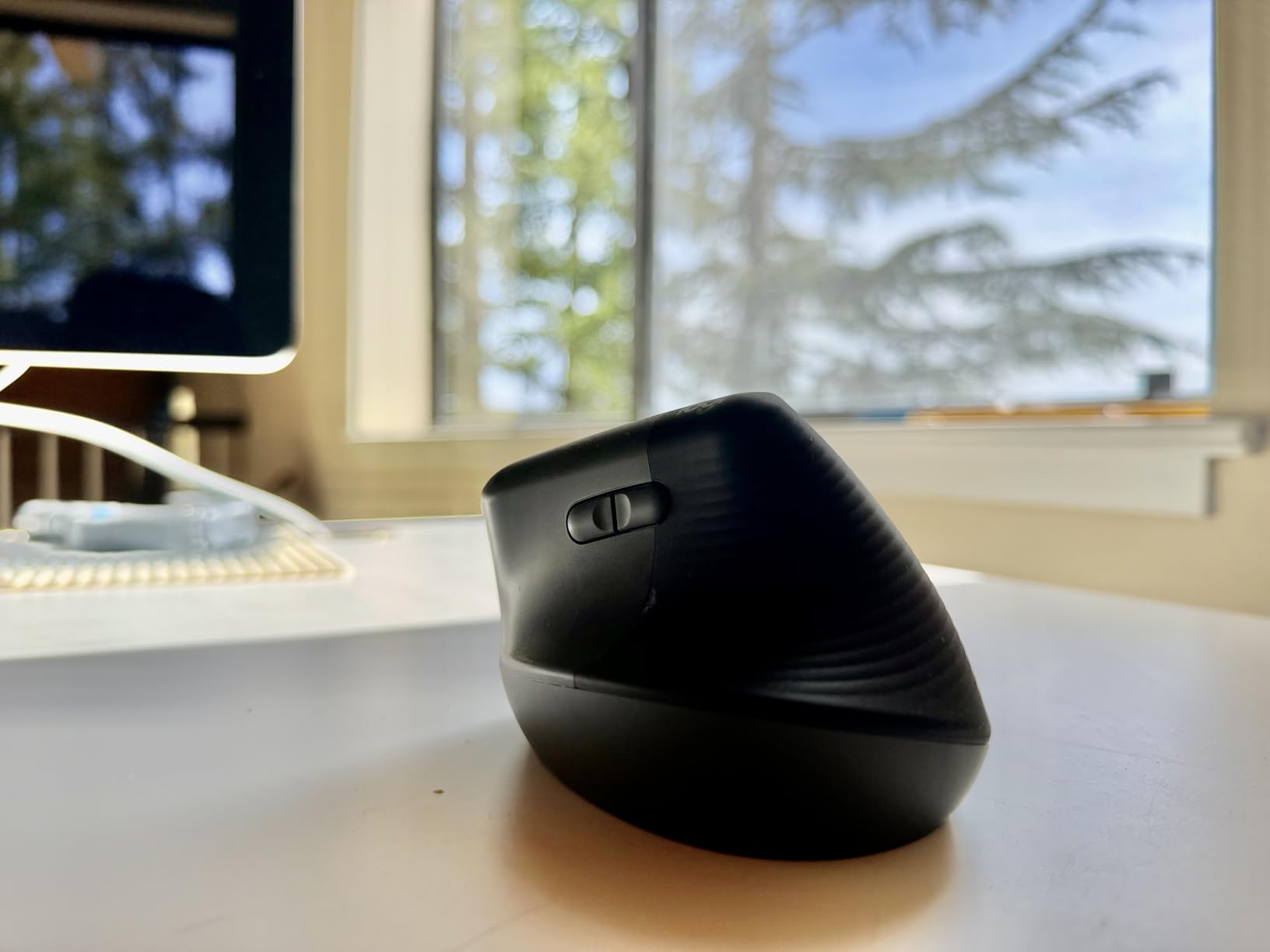
The SmartWheel provides smooth scrolling that adapts to how fast you flick it. Battery life is rated at two years on a single AA battery, which is one of the longest in this roundup. I also appreciated the quiet clicks, which are rated at the same 90 percent noise reduction as the MX Master series.
The main drawback is that it only supports right-handed users, and Logitech does not include a USB receiver in the box. You can connect via Bluetooth, but if you want the more stable Logi Bolt connection, you need to buy the receiver separately. Despite these limitations, the Lift is the best ergonomic wireless mouse I tested in this price range.

Who Should Buy the Logitech Lift Vertical
This is the mouse I recommend for anyone experiencing wrist pain, forearm fatigue, or discomfort from a traditional mouse. The vertical design is also excellent for users with small to medium hands who struggle to find ergonomically shaped mice that fit properly. If you sit at a desk for 8-plus hours a day and value comfort above all, the Lift delivers.
What to Consider Before Buying
The vertical orientation requires an adjustment period of several days. Your cursor precision may feel off initially, but it improves quickly with regular use. Also note that this is a right-handed model only. Logitech does make a left-handed version separately, so verify you are ordering the correct orientation before purchasing.
4. Logitech M720 Triathlon – The Multi-Device Workhorse
Logitech M720 Triathalon Full Size Multi-Device Wireless Mouse – Black
Multi-device (3 computers)
FLOW support
24-month battery
Hyper-fast scroll
1000 DPI
Pros
- Exceptional 24-month battery life
- Multi-device support up to 3 computers
- Logitech FLOW for cross-computer work
- Dual connectivity Bluetooth and USB
- 6 programmable buttons
Cons
- Right-hand only
- 1000 DPI may be lower than some prefer
- Requires software for full customization
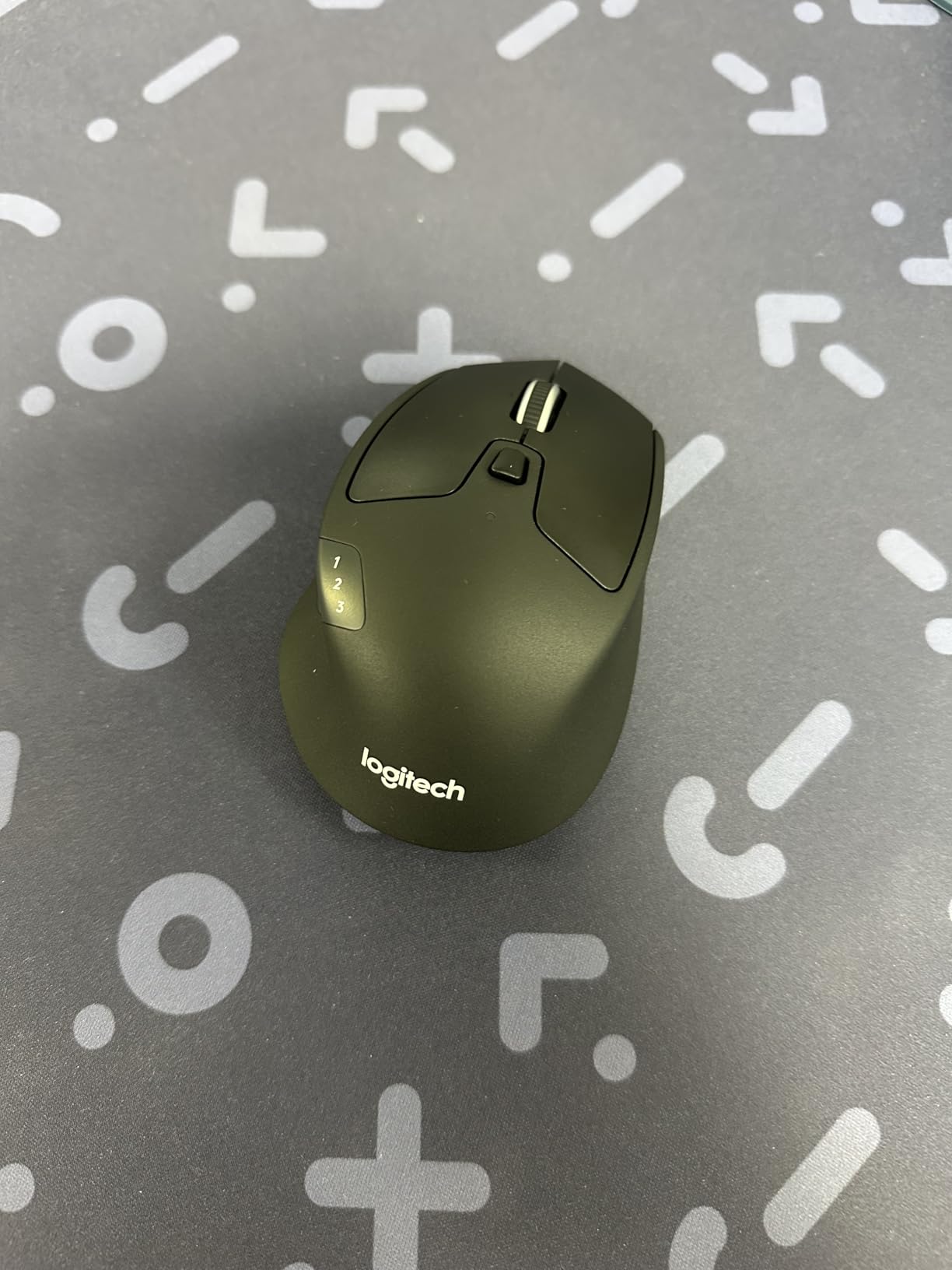
The M720 Triathlon has been Wirecutter’s top pick since 2016, and after testing it for three weeks, I understand why. It does almost everything the MX Master 3S does at roughly a third of the price. The standout feature is Logitech FLOW, which lets you control three different computers from a single mouse, including copying text and files between them.
I set it up across my work laptop and personal desktop, and switching between them was as simple as moving the cursor off the edge of one screen onto the other. The hyper-fast scroll wheel works similarly to the MagSpeed, letting you fly through long documents with a single spin. The instant-stop feature is handy for precision scrolling when you need it.
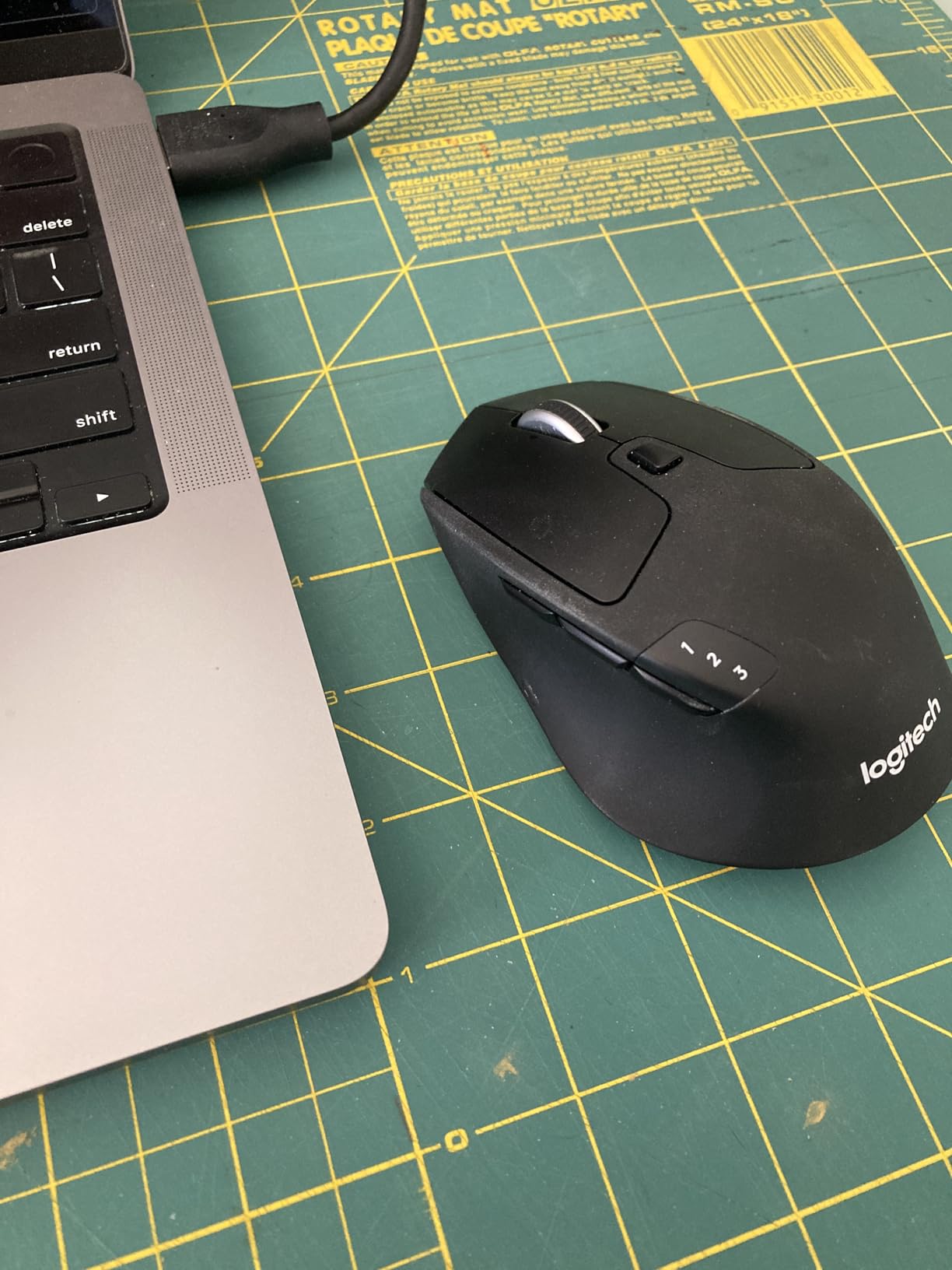
Battery life is rated at 24 months, which is among the best in this roundup. The sculpted rubber grip is comfortable for hours of continuous use. At 1000 DPI, the sensor is not as high-resolution as the MX Master series, but for standard office work, document editing, and web browsing, it is perfectly adequate.
The M720 connects via both Bluetooth and the included USB Unifying receiver, giving you flexibility depending on your setup. It only supports right-handed users, and you need Logitech software to program the buttons. But for the price, this is the best value productivity mouse on the market.
Who Should Buy the M720 Triathlon
This is the mouse I recommend for most people. If you work across multiple computers, want excellent battery life, and need a reliable productivity mouse without spending over 50 dollars, the M720 Triathlon is the obvious choice. It hits the sweet spot of features, comfort, and affordability that makes it universally recommended.
What to Consider Before Buying
The 1000 DPI sensor is fixed, meaning you cannot adjust sensitivity for different tasks. If you work with high-resolution displays or need pixel-level precision for design work, you may want a mouse with higher DPI. The shape is also designed for right-handed users with medium hands, so try to check the dimensions against your hand size.
5. Logitech M510 – The Budget Champion
Logitech M510 Full Size Ambidextrous 2.4 GHz Wireless Mouse
24-month battery
7 buttons
1000 DPI
Side-to-side scroll
USB Unifying receiver
Pros
- Exceptional 24-month battery life
- Ergonomic contoured shape
- Soft rubber grips for comfort
- 7 buttons including Back and Forward
- Tiny Unifying receiver stays in laptop
Cons
- Right-hand only
- No Bluetooth USB only
- 1000 DPI fixed sensitivity
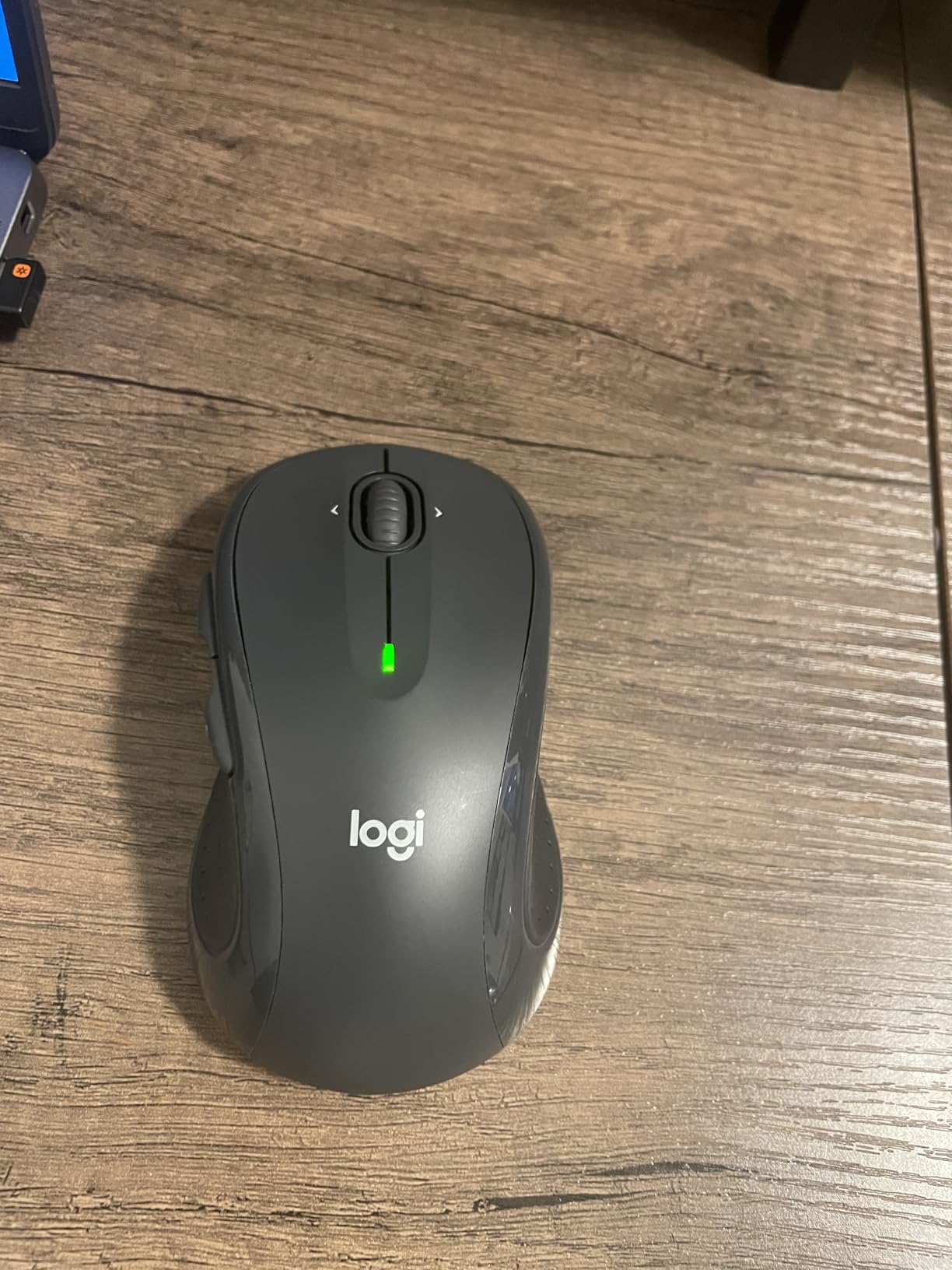
With over 35,000 reviews and a 4.6-star average rating, the Logitech M510 is one of the most popular wireless mice ever made. I used it as my backup mouse for two weeks, and its simplicity is its greatest strength. No fancy haptics or multi-device flow here, just a solid, comfortable, reliable mouse that gets the job done.
The contoured shape with soft rubber grips fits naturally in the hand. Seven buttons give you back and forward navigation, side-to-side scrolling, and zoom controls. The 1000 DPI laser-grade tracking is accurate on most non-glass surfaces. For document editing, email, and general office work, the M510 handles everything without fuss.
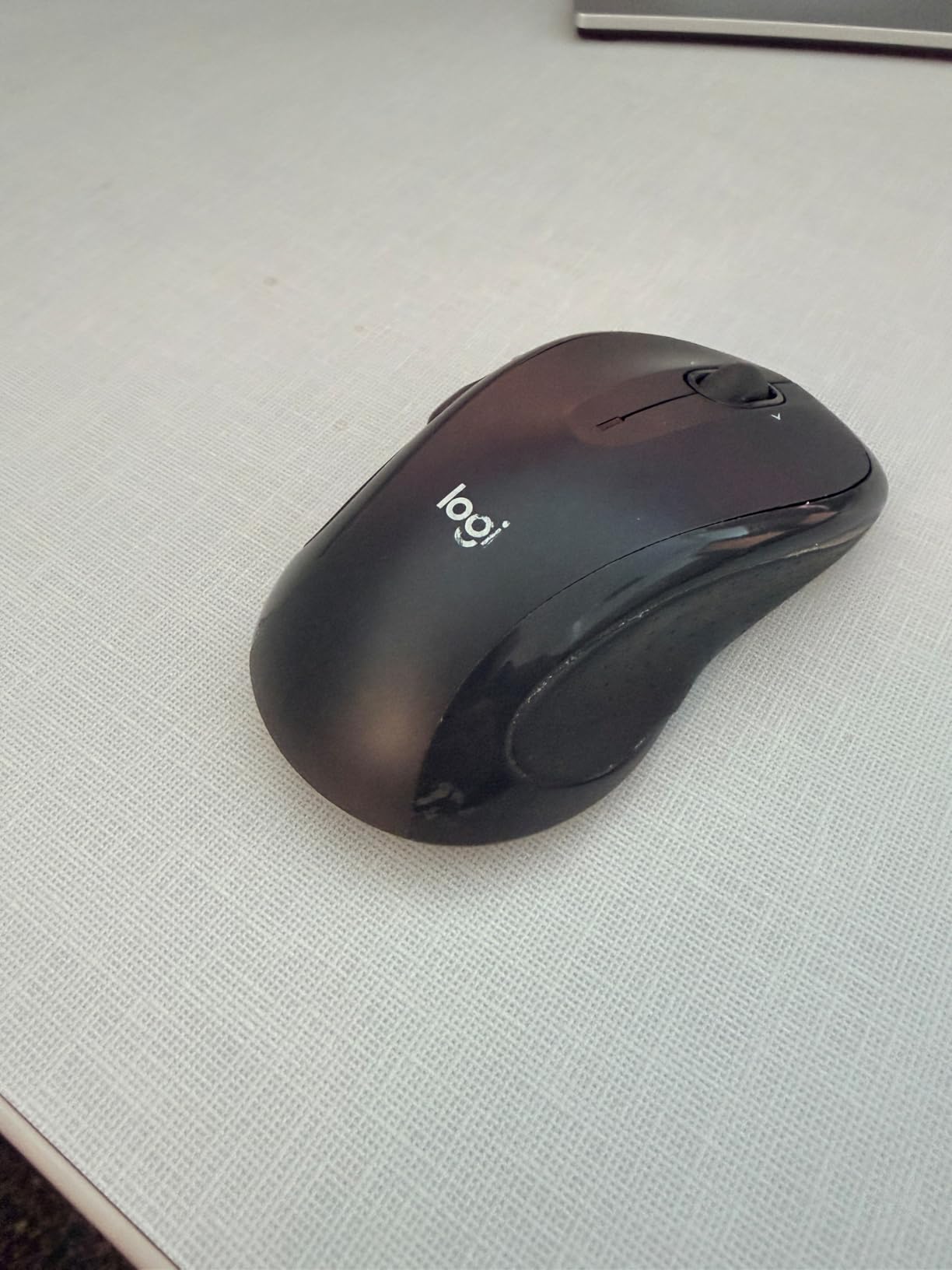
Battery life is rated at 24 months, and the smart sleep mode helps extend it further. The tiny USB Unifying receiver stays flush in your laptop port, so you can leave it plugged in without worry. An on/off switch on the bottom lets you conserve power when traveling.
The trade-off is that the M510 uses USB only, with no Bluetooth option. The 1000 DPI sensitivity is fixed, and full button customization requires Logitech’s SetPoint software. But at this price point, you are getting a remarkably capable mouse that outperforms its cost.
Who Should Buy the Logitech M510
This is the mouse for budget-conscious buyers who want reliability without paying for features they will not use. It is perfect for standard office work, students, and anyone who needs a dependable wireless mouse for everyday tasks. If you do not need multi-device switching or high DPI, the M510 delivers excellent value.
What to Consider Before Buying
The USB-only connectivity means you need a free USB port, which could be an issue on modern laptops with limited ports. There is no Bluetooth fallback. Also, the fixed DPI means you cannot fine-tune sensitivity for different displays or tasks. Consider whether these limitations matter for your specific setup before purchasing.
6. Logitech Signature M650 – Silent Clicks for Shared Spaces
Logitech Signature M650 Wireless Mouse Small to Medium Sized Hands – Black
Silent clicks
SmartWheel scrolling
24-month battery
Bluetooth and Logi Bolt
Customizable side buttons
Pros
- SilentTouch technology 90% less click noise
- SmartWheel for precision and fast scrolling
- 24-month battery life
- Customizable side buttons
- Works across multiple platforms
Cons
- Small to medium size only
- Right-handed only
The Logitech Signature M650 is the quietest mouse I tested, and that is its defining feature. SilentTouch technology reduces click noise by 90 percent, making it nearly silent during operation. I used it during a week of back-to-back video calls, and not a single person could hear my clicking through the microphone.
The SmartWheel adapts to your scrolling speed automatically. Slow rolls give you line-by-line precision for documents, while a fast flick sends you flying through long web pages. It is not quite as fast as the MagSpeed on the MX Master, but it covers the needs of most office workers very well.
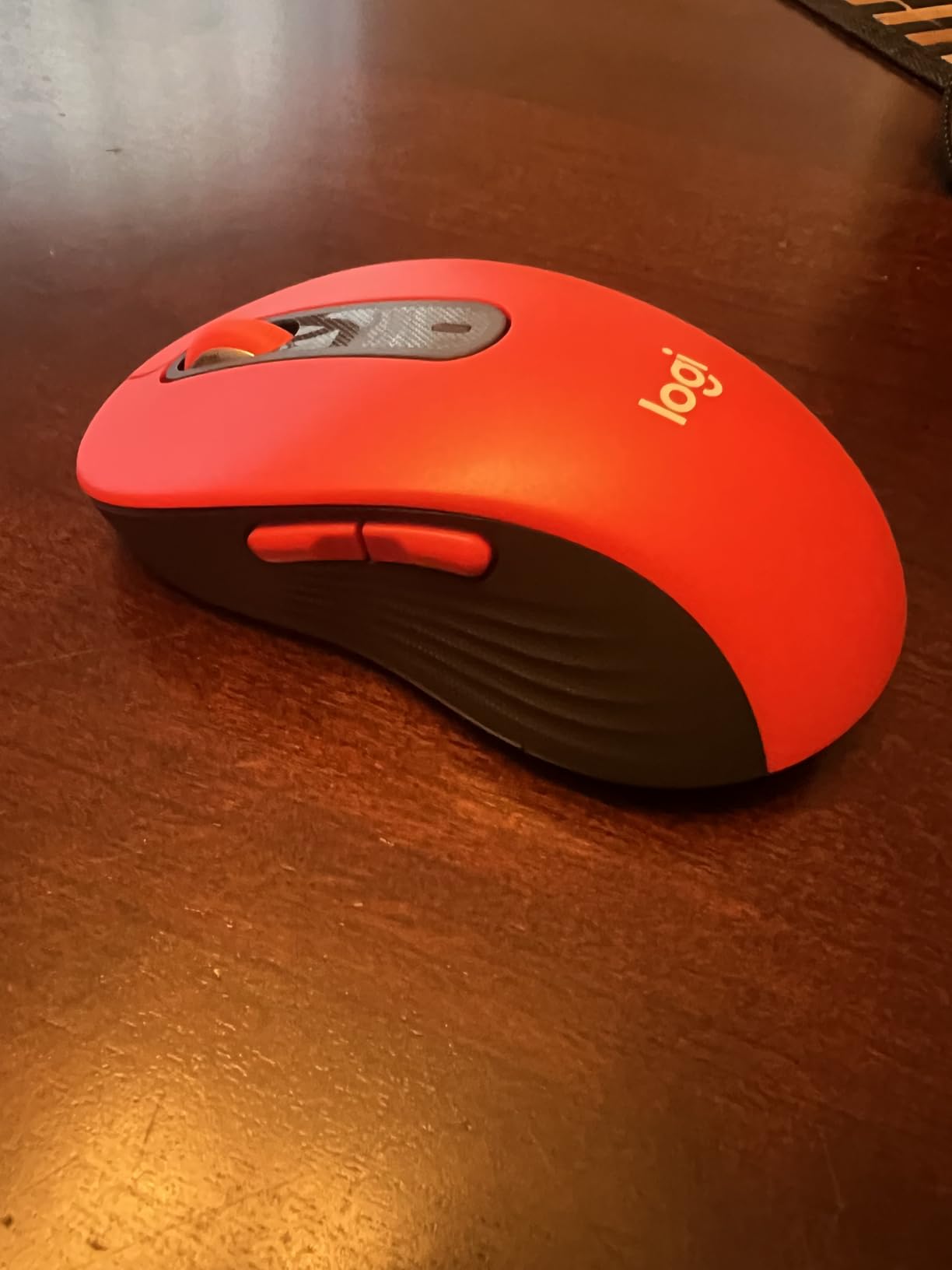
The M650 connects via both Bluetooth and the Logi Bolt USB receiver, giving you connectivity options. Battery life is rated at 24 months from a single AA battery. The customizable side buttons can be programmed through Logi Options+ for app-specific shortcuts.
The main limitation is size. The M650 is designed for small to medium hands, and users with larger hands may find it cramped. It is also right-handed only. But for users who prioritize silence and have smaller hands, the M650 is an excellent choice at a reasonable price.
Who Should Buy the Logitech Signature M650
This mouse is ideal for people working in shared offices, libraries, or on frequent video calls where click noise is a concern. It is also great for users with small to medium hands who want a lightweight, portable mouse with modern features. If silent operation is your top priority, the M650 is the clear winner.
What to Consider Before Buying
Check your hand size before ordering. The M650 is intentionally compact, and users with large hands report discomfort during extended use. The mouse supports right-handed users only, and while it offers both Bluetooth and Logi Bolt connectivity, the receiver is not always included depending on the retailer and package.
7. Anker 2.4G Vertical Ergonomic – Budget Vertical Option
Anker 2.4G Wireless Ergonomic Mouse, Right Hand Vertical Mouse USB Receiver
Vertical ergonomic design
3 DPI levels (800/1200/1600)
2.4G USB receiver
Next/previous buttons
Power-saving mode
Pros
- Ergonomic design reduces wrist and arm strain
- Multiple DPI levels for sensitivity options
- Next and previous buttons for web navigation
- Power-saving mode extends battery life
- Very affordable price point
Cons
- USB receiver required not Bluetooth
- Batteries not included
- Requires adjustment period for vertical design
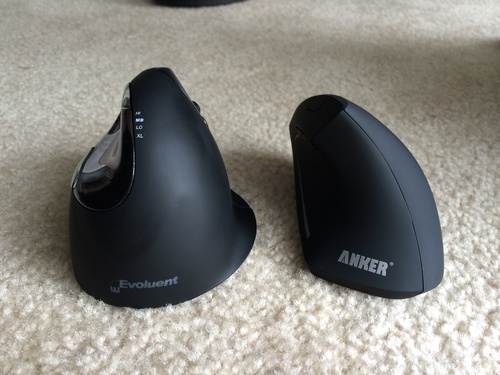
The Anker 2.4G Vertical Ergonomic mouse is the most affordable vertical mouse in this roundup, and with over 53,000 reviews, it is one of the most popular ergonomic mice on Amazon. I tested it for two weeks as an alternative to the more expensive Logitech Lift, and it holds up surprisingly well for the price.
The vertical handshake position reduced my wrist strain noticeably, though the build quality is not as refined as Logitech’s offerings. The textured grip provides decent traction, and the shape encourages a more natural forearm position. Three DPI levels (800, 1200, and 1600) give you basic sensitivity control that the fixed-DPI Logitech models do not offer.
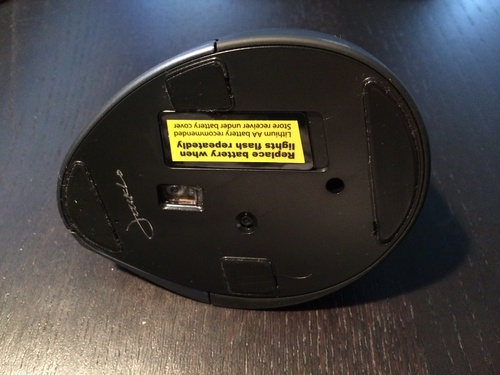
The next and previous buttons on the side are handy for web browsing and document navigation. The power-saving mode kicks in after 8 minutes of inactivity, which helps extend battery life. The mouse runs on two AAA batteries, which are not included, so factor that into your purchase.
The main trade-offs are connectivity and build quality. This mouse uses a 2.4GHz USB receiver only, with no Bluetooth option. Some users report occasional connectivity drops. But for under 25 dollars, it delivers the core ergonomic benefits of a vertical mouse at a fraction of the cost of premium alternatives.
Who Should Buy the Anker Vertical Mouse
This is the mouse I recommend for anyone who wants to try a vertical ergonomic design without committing 70-plus dollars. It is perfect for budget-conscious users experiencing early signs of wrist discomfort. If you are curious whether a vertical mouse will help your ergonomics, the Anker is a low-risk way to find out.
What to Consider Before Buying
The vertical design requires an adjustment period, typically 3 to 5 days of regular use. The mouse needs a free USB port for the receiver, and batteries are not included. Build quality is adequate but not premium, and the scroll wheel is less refined than Logitech alternatives. These are acceptable trade-offs given the price.
8. Logitech MX Vertical – Premium Ergonomic Performance
Logitech MX Vertical Wireless Mouse Ergonomic Design – Graphite
57-degree vertical angle
4000 DPI sensor
Multi-device (3)
USB-C charging
Logitech Flow
Pros
- Natural handshake position reduces wrist strain
- 4000 DPI sensor with 4x less hand movement
- Connects to 3 devices simultaneously
- USB-C rechargeable battery
- Durable premium build quality
Cons
- Tall profile may cause accidental tipping
- Learning curve for cursor precision
- Horizontal scrolling less smooth
- Premium price point
The Logitech MX Vertical is the premium vertical mouse option, and I tested it for three weeks alongside the more affordable Lift. The MX Vertical offers a higher 4000 DPI sensor, multi-device connectivity for up to three devices, and USB-C charging. The 57-degree angle is the same as the Lift, but the build quality and feature set are a step up.
The 4000 DPI sensor means you need four times less hand movement to move the cursor across your screen. On my dual-monitor setup, this made navigation noticeably faster. The textured rubber surface provides excellent grip, and the weight distribution feels more balanced than the Anker vertical mouse.
Logitech Flow support means you can control three devices and transfer content between them seamlessly. I used it across my work PC and MacBook, and the transition was smooth. USB-C charging is convenient, and the battery lasts about four months per charge.
The tall profile can take some getting used to, and I experienced a few accidental tips when reaching for it carelessly. Horizontal scrolling is not as smooth as on the MX Master series. But for users who need a premium vertical mouse with multi-device support, the MX Vertical is the top choice.
Who Should Buy the Logitech MX Vertical
This mouse is ideal for professionals who want ergonomic benefits without sacrificing premium features like multi-device connectivity and high DPI. It is perfect for users with larger hands who find the Logitech Lift too small. If you are willing to invest in long-term comfort and need cross-computer workflow support, the MX Vertical delivers.
What to Consider Before Buying
The tall vertical profile means this mouse takes up more desk space than a traditional mouse, and the shape can feel top-heavy at first. Cursor precision requires practice, especially for fine-grained tasks like photo editing. Bluetooth connectivity can occasionally drop in environments with heavy wireless interference, so use the USB receiver for critical work.
Buying Guide: How to Choose the Best Wireless Mouse for Productivity
Choosing the right wireless mouse for productivity comes down to five key factors. Here is what I learned from testing eight different models over three months.
Ergonomics and Comfort
If you work 6-plus hours a day at a computer, ergonomics should be your top priority. Traditional mice force your forearm into a pronated position that can cause strain over time. Vertical mice like the Logitech Lift and MX Vertical address this by putting your hand in a natural handshake position at a 57-degree angle.
For standard mouse shapes, look for contoured designs with thumb rests and rubber grips. The MX Master 3S and M510 both excel here. Consider your hand size carefully. A mouse that is too small causes cramping, while one that is too large leads to awkward gripping. Logitech provides dimensions for every model, so measure your hand from wrist to fingertips before buying.
Connectivity Options
Most productivity mice offer two connectivity options: Bluetooth and a 2.4GHz USB receiver. Bluetooth is convenient because it does not require a USB port, but it can be less stable in environments with heavy wireless interference. A USB receiver generally provides a more reliable connection with lower latency.
Premium models like the MX Master 4 now include upgraded USB-C dongles for stronger connectivity. If you work across multiple devices, look for mice that support simultaneous multi-device pairing. Logitech’s FLOW feature, available on the MX Master series and M720 Triathlon, lets you switch between three computers seamlessly.
Battery Life
Battery life varies dramatically between models. The M510 and M720 Triathlon both offer 24-month battery life on standard AA batteries. The MX Master 3S and 4 last about 70 days per USB-C charge. The Logitech Lift runs for two years on a single AA battery.
Rechargeable mice save you from buying replacement batteries, but you need to remember to charge them. Battery-powered mice last longer per charge but require spare batteries. Consider your preference and whether you have reliable access to charging cables at your workstation.
Sensor Quality and DPI
DPI (dots per inch) measures how sensitive the mouse sensor is. Higher DPI means the cursor moves farther with less physical movement. For productivity work on standard displays, 1000 DPI is adequate. For high-resolution displays or multi-monitor setups, 4000 DPI or higher is preferable.
The MX Master 3S leads the pack with 8000 DPI and any-surface tracking that works even on glass. The MX Vertical and Lift both offer 4000 DPI. Budget models like the M510 and M720 are fixed at 1000 DPI, which is sufficient for most office tasks but may feel sluggish on 4K displays.
Buttons and Customization
Programmable buttons can significantly speed up your workflow. The MX Master series offers app-specific button assignments through Logitech Options+, meaning buttons can do different things in different applications. The M510 provides 7 buttons including back and forward navigation, while the M650 offers customizable side buttons.
For productivity, the most useful button configurations include back and forward for web navigation, a scroll wheel toggle for switching between precision and speed, and side buttons mapped to common shortcuts like copy, paste, or window switching.
Silent Clicks
If you work in a shared office or take frequent video calls, silent clicks are a feature worth prioritizing. Logitech’s Quiet Click technology reduces noise by 90 percent without sacrificing tactile feedback. The MX Master 3S, MX Master 4, and Logitech Lift all feature quiet clicks. The M650 takes it further with SilentTouch technology for near-silent operation.
Frequently Asked Questions
What is the best mouse for productivity?
The Logitech MX Master 3S is the best overall mouse for productivity, offering 8K DPI tracking, quiet clicks, MagSpeed scrolling, and multi-device connectivity with FLOW cross-computer control. For budget-conscious buyers, the Logitech M720 Triathlon delivers similar core features at a fraction of the price.
Do any pros use wireless mice?
Yes, professionals across industries widely use wireless mice. The Logitech MX Master series is particularly popular among software developers, designers, and financial analysts. Wireless technology has eliminated the latency and reliability issues that once made wired mice preferable for professional work.
Is a wired or wireless mouse better for productivity?
Wireless mice are better for productivity in almost every case. They eliminate cable clutter, allow greater freedom of movement, and modern 2.4GHz receivers and Bluetooth connections have negligible latency for office work. Wired mice only retain an advantage in competitive gaming where millisecond-level response times matter.
Which is the best brand for wireless mice?
Logitech is the dominant brand for productivity wireless mice, offering models across every price tier from the budget M510 to the flagship MX Master 4. Their Logi Options+ software, FLOW cross-computer technology, and consistent build quality make them the most recommended brand by professional reviewers and users alike.
Conclusion
After three months of testing, the best wireless mice for productivity in 2026 cover a wide range of needs and budgets. The Logitech MX Master 3S remains my top overall pick for its unmatched tracking, quiet clicks, and multi-device FLOW feature. The M720 Triathlon is the best value choice, offering most of the same capabilities at a budget-friendly price. And for ergonomics, the Logitech Lift Vertical delivers certified comfort that genuinely reduces wrist strain.
Whether you need silent clicks for a shared office, a vertical design for wrist comfort, or a budget workhorse for everyday tasks, there is a mouse in this roundup that fits your workflow. Pick the one that matches your work style, hand size, and budget, and you will notice the difference on your very first workday.