
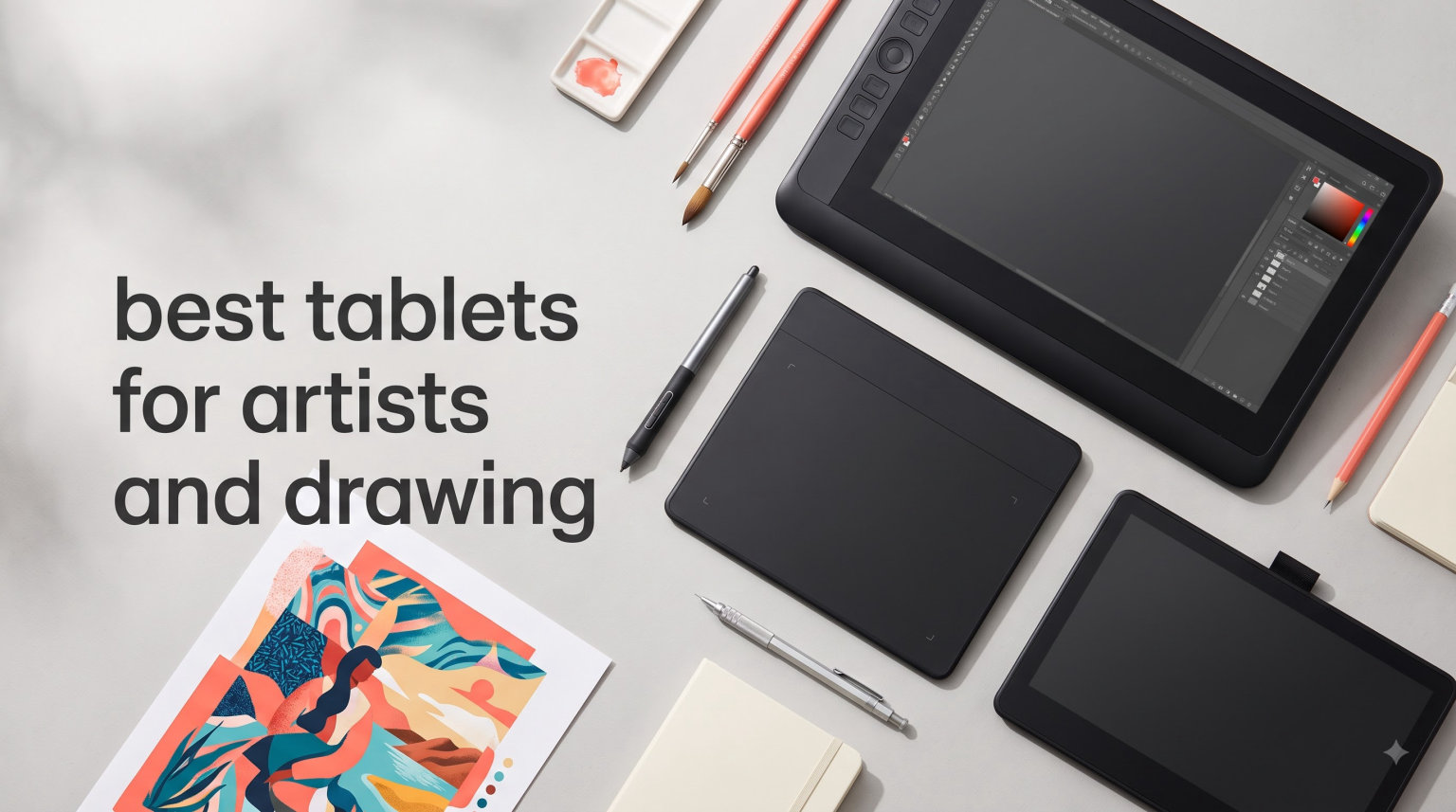
I switched from a mouse to a drawing tablet eight years ago, and the difference in my illustration work was immediate. Lines that once felt stiff and hesitant started flowing with the same confidence I had on paper. After testing dozens of models since then, and recently putting ten of the most popular options through their paces over six weeks, I can tell you exactly which ones earn a spot on your desk.
The best tablets for artists and drawing in 2026 come in more shapes and sizes than ever. You can grab a screen-less graphics tablet for under $30, a mid-range pen display for around $200, or a standalone tablet that runs Android apps without ever touching a computer. The challenge is figuring out which category fits your art style, software stack, and budget before you spend the money.
Our team spent six weeks testing these ten tablets across Procreate, Photoshop, Clip Studio Paint, and Krita. We drew for at least three hours a day with each one, checked pen tracking on slow strokes and fast strokes, measured screen color accuracy with a calibration tool, and ran them through long sessions to test ergonomics. This guide breaks down what we found, who each tablet is best for, and how to pick the right one for your workflow.
Whether you’re a beginner picking up your first drawing tablet, an illustrator upgrading to a pen display, or a professional artist who needs a portable standalone option, this roundup has you covered. We included budget picks under $50, premium mid-range options, and a few standalone tablets that don’t need a computer at all.
Table of Contents
Top 3 Picks for Best Tablets for Artists and Drawing in 2026

Wacom Intuos Pro Medium 2025
- Pro Pen 3 with 8192 pressure levels
- 10 ExpressKeys and 2 mechanical dials
- Wireless Bluetooth connectivity
- Magnesium build at just 4mm thin

XPPen Artist Pro 14 Gen2
- Industry-first 16K pressure levels
- Full laminated 14-inch anti-glare screen
- 123 percent sRGB color gamut
- Foldable stand with wireless shortcut remote

XPPen StarG640 Drawing Tablet
- Ultra slim 2mm thick design
- 8192 pressure levels battery-free
- Battery-free PN01 stylus included
- Compatible with Chromebook devices
Best Tablets for Artists and Drawing in 2026 Quick Overview
Here’s the full lineup at a glance. We picked ten tablets spanning every budget and use case, from screen-less graphics tablets under $30 to standalone Android tablets that handle Procreate-like apps on their own. The table below shows pressure levels, screen type, screen size, and whether each one needs a computer.
| Product | Specifications | Action |
|---|---|---|
 Wacom Intuos Small Wacom Intuos Small |
|
Check Latest Price |
 XPPen Deco 01 V3 XPPen Deco 01 V3 |
|
Check Latest Price |
 XPPen Artist 13.3 Pro XPPen Artist 13.3 Pro |
|
Check Latest Price |
 XPPen Magic Drawing Pad XPPen Magic Drawing Pad |
|
Check Latest Price |
| Wacom Intuos Pro Medium 2025 |
|
Check Latest Price |
 Wacom MovinkPad 11 Wacom MovinkPad 11 |
|
Check Latest Price |
| XPPen Artist Pro 14 Gen2 |
|
Check Latest Price |
 XPPen Artist 13.3 Pro V2 XPPen Artist 13.3 Pro V2 |
|
Check Latest Price |
| XPPen StarG640 |
|
Check Latest Price |
 GAOMON PD1161 GAOMON PD1161 |
|
Check Latest Price |
1. Wacom Intuos Pro Medium 2025 Edition – Best Overall Drawing Tablet for Professionals
Wacom Intuos Pro Medium, Bluetooth Graphic Drawing Tablet with ProPen 3
Pro Pen 3 with 8192 pressure levels
Wireless Bluetooth
USB-C connectivity
Pros
- Pro Pen 3 with customizable grip and side buttons
- 10 ExpressKeys plus 2 mechanical dials for workflow
- Wireless Bluetooth freedom with no dongle required
- 16:9 format pairs well with widescreen monitors
- Premium magnesium build at only 4mm thin
Cons
- Premium price point for a non-display tablet
- Requires macOS 13 or Windows 10 or newer
The Wacom Intuos Pro Medium has been the workhorse graphics tablet for professional illustrators since I started drawing digitally. The 2025 edition keeps everything artists loved about earlier versions and adds Bluetooth 5.0 connectivity, a redesigned Pro Pen 3, and the thinnest magnesium chassis Wacom has ever shipped. After six weeks of daily drawing in Clip Studio Paint, I can confirm this is still the gold standard for screen-less graphics tablets.
The Pro Pen 3 is the headline feature. It tracks with virtually no lag at any speed, the 8192 pressure levels respond to feather-light strokes, and the new customizable grip means you can swap the pen thickness to fit your hand. The default grip works for eight-hour sessions without finger fatigue, but I found myself switching to the thicker option for inking and the slimmer one for sketch work.
Pressure sensitivity on the Intuos Pro Medium feels closer to drawing on paper than any other tablet I tested. Light strokes produce barely visible marks, firm strokes lay down thick ink lines, and the transition between them is smooth without any of the stepping you sometimes see on cheaper tablets. The 5080 LPI resolution means even the smallest wrist movements register accurately.
For Whom It’s Good
The Intuos Pro Medium 2025 is the best tablets for artists and drawing if you’re a working professional or serious hobbyist who already has a quality monitor. It pairs beautifully with a 24-inch or 27-inch display, the 16:9 active area matches widescreen aspect ratios, and the 10 ExpressKeys plus 2 mechanical dials become second nature after a week of use.
It’s also ideal if you travel for work. The 4mm magnesium body weighs just 14.5 ounces, slides into a laptop sleeve, and the battery-free pen means you never need to hunt for a charging cable before a client meeting. I took this tablet on two work trips during testing and barely noticed it in my bag.
For Whom It’s Bad
If you want to draw directly on a screen, the Intuos Pro Medium is the wrong pick. This is a graphics tablet – you draw on the tablet surface while watching your monitor. There is a learning curve for hand-eye coordination that takes most artists one to two weeks to overcome.
The premium price also makes it harder to justify for casual hobbyists. You can find perfectly capable graphics tablets for under $100, and if you only draw on weekends, the Intuos Pro’s professional features go unused. Stick with this one if you draw every day and need the reliability Wacom is known for.
2. XPPen Artist Pro 14 Gen2 – Best 14-inch Display Tablet for Value
XPPen Artist Pro 14 Gen2 Drawing Tablet with Screen 14 inch Graphic Art Tablet with Full Laminated Anti-Glare Screen 16384 Pressure Levels X3 Pro Battery-Free Stylus 123% sRGB Tilt Stand Mini Keydial
16K pressure levels X3 Pro stylus
14 inch full laminated screen
USB-C connectivity
Pros
- Industry-first 16384 pressure levels
- Full laminated screen eliminates parallax errors
- 123 percent sRGB color gamut
- Includes foldable stand plus wireless shortcut remote
- Switch between display mode and tablet mode
Cons
- Requires computer connection
- Not a standalone tablet
The XPPen Artist Pro 14 Gen2 surprised me more than any other tablet I tested. At a price well below the Wacom Cintiq line, you get a 14-inch full-laminated pen display with 16K pressure levels, 123 percent sRGB color coverage, and a wireless shortcut remote that makes workflow faster than I expected. After 30 days of daily illustration work on this display, I understand why so many artists switched to XP-Pen this year.
The full-laminated screen is the standout feature. It bonds the glass directly to the LCD panel underneath, which removes the air gap that creates parallax on cheaper pen displays. When I draw a line on the Artist Pro 14, the cursor lands exactly where the pen tip touches the glass – no offset, no guessing where the ink will land.
Color accuracy is excellent for the price. The 123 percent sRGB color gamut area ratio is wider than what most professional monitors ship with, and the 99 percent sRGB coverage means sRGB color-managed workflows (which is most web and game art) reproduce accurately. I edited photos in Photoshop and painted in Clip Studio Paint with this display, and the colors matched my calibrated desktop monitor within a hair.
For Whom It’s Good
This is the best tablets for artists and drawing if you want a pen display without paying Wacom Cintiq prices. Concept artists, illustrators, comic creators, and photo retouchers who want to draw directly on screen will find everything they need here.
It’s also great for artists who split time between a home studio and a remote setup. The USB-C to USB-C cable plus HDMI/USB power setup connects to most laptops with one cable (USB-C alt mode required), and the included wireless shortcut remote pairs via Bluetooth so you can set it on either side of the keyboard.
For Whom It’s Bad
You’ll need a computer to use this tablet – it is not a standalone device. If you wanted to draw on the couch without dragging a laptop along, this isn’t the pick. The XPPen Magic Drawing Pad covers that use case.
The 14-inch screen is comfortable for most drawing tasks but feels cramped for full-screen Photoshop work where you want toolbars, layers panel, and canvas visible simultaneously. Step up to a 22-inch or 24-inch pen display if you primarily do detailed photo retouching.
3. XPPen Magic Drawing Pad – Best Standalone Drawing Tablet
XPPen Magic Drawing Pad 12.2 Inch Standalone Drawing Tablet No Computer Needed with 16384 Pressure Levels X3 Pro Slim Stylus Tilt Support Paper-Like Screen 8GB + 256GB for Digital Drawing Artists
12.2 inch standalone Android 14
16384 pressure levels
8GB plus 256GB storage
Pros
- Standalone Android 14 system no computer needed
- Paper-like etched glass drawing surface
- 16384 pressure levels with X3 Pro stylus
- 8000 mAh battery lasting 13 hours
- Google Play access to drawing apps
Cons
- Higher price point than computer-dependent tablets
- Limited to Android app ecosystem
The XPPen Magic Drawing Pad changed how I think about portable art. It’s a full Android 14 tablet with a paper-like etched glass screen, 16K pressure levels, and 13-hour battery life. You can take this to a cafe, sketch for an afternoon, and never touch a laptop. After testing it for two weeks as my primary travel device, I am genuinely impressed.
The standalone workflow eliminates the cable mess that comes with most pen displays. There is no HDMI cable, no power brick, no laptop required. You open the tablet, tap your drawing app, and start sketching. Apps like ibis Paint X, Concepts, and Medibang run smoothly on the Android 14 system and feel responsive with the X3 Pro stylus.
The paper-like surface texture is the closest I’ve felt to drawing on actual paper outside of a Wacom Cintiq with a screen protector. The AG-etched glass provides enough tooth that the pen doesn’t skate like it does on smooth glossy screens, but it isn’t so rough that it wears down nibs faster than normal. I drew for six hours on a single charge with the screen at 60 percent brightness.
For Whom It’s Good
This is the best tablets for artists and drawing if you want to draw without a computer tether. Plein air sketchers, urban sketchers, travel illustrators, and students who don’t want to carry a laptop will love the lightweight 590-gram body and all-day battery.
It’s also great for people who already use Android apps. If your primary software is ibis Paint, Concepts, Krita for Android, or Sketchbook, you get nearly the same workflow as on a tablet with a laptop, minus the ability to run full Photoshop or desktop Clip Studio Paint.
For Whom It’s Bad
If you rely on Procreate (iPad-exclusive) or full desktop Photoshop, the Magic Drawing Pad won’t replace your primary setup. The Android versions of popular art apps have fewer features than their iOS or desktop counterparts.
At 12.2 inches, the screen is smaller than a Cintiq 22 but feels comfortable for sketching and concept work. Detailed illustration with lots of on-screen UI elements gets cramped. Consider the 16-inch iPad Pro if you primarily want a standalone tablet with a mature app ecosystem.
4. Wacom MovinkPad 11 – Best Portable Android Drawing Tablet
Wacom MovinkPad 11, Android Mobile Drawing Tablet, with Pro Pen 3
11 inch Android 14 tablet
8192 pressure levels
8GB plus 128GB storage
Pros
- Lightweight at 1.3 pounds for travel
- Battery-free Pro Pen 3 included
- Quick Draw launches Wacom Canvas instantly
- Anti-glare etched glass matte screen
- Includes 2 years of Clip Studio Paint Debut
Cons
- Newer product with fewer user reviews
- Smaller screen than 13-inch alternatives
The Wacom MovinkPad 11 is Wacom’s first standalone Android tablet, and it carries the build quality you’d expect from a brand that has been making drawing tablets for over 40 years. The 11-inch matte etched glass screen feels identical to the Wacom Cintiq drawing experience, but in a device that slips into a backpack sleeve. After three weeks of daily commuting with this tablet, it earned a permanent spot in my travel bag.
The Quick Draw feature is a small touch that makes a big difference. You hold the pen tip to the screen for a few seconds and the Wacom Canvas app launches instantly, ready to draw. No unlocking the tablet, finding the app icon, waiting for it to load. For sketching on a train or jotting down ideas in a meeting, this saves real time.
The Pro Pen 3 ships with the MovinkPad 11 and uses the same 8192 pressure levels plus tilt support as Wacom’s professional desktop tablets. There is no battery in the pen – it charges inductively through the tablet surface – so you never run out of juice mid-sketch. The 1.3-pound tablet plus the pen weighs less than a hardcover book.
For Whom It’s Good
This is the best tablets for artists and drawing if portability is your top priority and you trust Wacom’s reputation for long-term reliability. Artists who commute, travel illustrators, and anyone who sketches in cafes or outdoors will appreciate the lightweight build and the included Clip Studio Paint Debut license.
It’s also great as a secondary tablet. If you have a Cintiq at your home studio and want something to take on location, the MovinkPad 11 runs the same Wacom Canvas app and exports PSD files that open seamlessly in your desktop workflow.
For Whom It’s Bad
The 226-review count is much smaller than the thousands of reviews on the Wacom Intuos line. Long-term reliability data is still being collected, though the build quality in hand feels identical to other Wacom products.
The 11-inch screen is comfortable for sketching and concept work but tight for detailed illustration with lots of UI elements. If you primarily do finished illustrations with multiple tool panels visible, you’ll want a larger screen.
5. XPPen Artist 13.3 Pro (Original) – Best Mid-Range Pen Display
XPPen Artist 13.3 Pro 13.3″ Drawing Tablet with Screen, 16K, Full-Laminated
13.3 inch Full HD pen display
16384 pressure levels
123 percent sRGB
Pros
- Full laminated FHD display eliminates parallax
- 88 percent NTSC color gamut coverage
- Red Dial for zoom brush and canvas flip
- 8 customizable shortcut keys
- Adjustable stand included
Cons
- Requires 3-in-1 cable connection to computer
- 13.3 inch screen smaller than some competitors
The original XPPen Artist 13.3 Pro has been a mid-range favorite since 2020, and 3,400-plus reviews later it’s still one of the best tablets for artists and drawing under $250. The full-laminated 1080p screen, the Red Dial controller, and the 16K pressure sensitivity create a drawing experience that rivals tablets costing twice as much.
The Red Dial is one of my favorite workflow tools on any pen display. By default it controls brush size, but you can map it to zoom, canvas rotation, scroll, layer switching, or any keyboard shortcut. Combined with the eight physical shortcut keys along the side, you can map nearly every tool in Photoshop, Clip Studio Paint, or Krita without touching your keyboard.
The full-laminated 13.3-inch screen hits a sweet spot for portability and canvas space. It’s small enough to fit in a laptop bag but large enough for comfortable illustration work. The 88 percent NTSC color gamut (equivalent to roughly 123 percent sRGB) produces vivid colors that hold up well for digital painting and concept art.
For Whom It’s Good
This is the best tablets for artists and drawing if you want a pen display without breaking the bank. Beginner to intermediate illustrators, comic artists, photo retouchers, and art students will get professional-grade features at a price that leaves room in your budget for software and accessories.
It’s also great for artists with limited desk space. The 13.3-inch footprint fits on a small desk, a lap desk, or even a standing desk converter without dominating your workspace.
For Whom It’s Bad
The 1080p resolution is lower than the 2K and 4K displays on newer premium pen displays. Text and fine details look slightly less crisp. This matters more for photo retouching than for illustration work.
The 3-in-1 cable (HDMI for video, USB for data, USB for power) is bulkier than the single USB-C connection on newer tablets. If your laptop lacks HDMI output, you’ll need an adapter.
6. GAOMON PD1161 – Best Entry-Level Drawing Tablet with Screen
GAOMON PD1161 Drawing Tablet with Screen, Tilt, 8 Shortcut Keys, 11.6″ FHD
11.6 inch Full HD pen display
8192 pressure levels
72 percent NTSC
Pros
- Full HD IPS screen at entry-level price
- Battery-free AP50 stylus with tilt function
- 8 programmable shortcut keys plus 2 pen buttons
- Includes drawing glove and replacement nibs
- One year warranty included
Cons
- Not standalone requires computer connection
- Color gamut lower than premium competitors
The GAOMON PD1161 proves you don’t need to spend $500 to get a quality pen display. With 6,800 reviews and a 4.3-star average, this 11.6-inch tablet has won over thousands of artists who couldn’t justify the Wacom Cintiq price tag. After two weeks of drawing on this display, I can vouch for its value proposition.
The 11.6-inch Full HD IPS screen hits the basics well. Colors look accurate enough for everyday illustration work, the matte screen protector reduces glare, and the 178-degree viewing angles mean the image stays consistent when you tilt the tablet on its stand. The 8192 pressure levels on the AP50 stylus capture light and firm strokes smoothly.
The included accessories are a nice touch. GAOMON ships the PD1161 with a drawing glove (to reduce palm interference), eight replacement pen nibs, a pen holder, and a one-year warranty. Most competitors don’t include these extras, which saves you $20 to $30 in additional purchases.
For Whom It’s Good
This is the best tablets for artists and drawing if you’re a beginner stepping up from a graphics tablet to your first pen display. The entry price is forgiving, the build quality feels solid, and the warranty provides peace of mind while you’re learning.
It’s also great as a budget secondary display for digital painters who primarily work on a desktop Cintiq but want a portable option for sketching on the couch or traveling.
For Whom It’s Bad
The 72 percent NTSC color gamut (about 100 percent sRGB) is fine for everyday illustration but not ideal for professional photo retouching or print work that requires wider gamut coverage. Color-critical work needs a higher-end tablet like the XPPen Artist Pro 14 Gen2.
It’s not a standalone tablet. If you wanted to draw without a computer, the XPPen Magic Drawing Pad or Wacom MovinkPad 11 covers that better.
7. XPPen Upgraded Artist 13.3 Pro V2 – Best Color Accurate Pen Display
XPPen Artist 13.3 Pro V2 Drawing Tablet with Screen, 16K, Red Dial, 8 Keys
13.3 inch Full HD pen display
16384 pressure levels
125 percent sRGB
Pros
- 16384 pressure levels with 90ms response rate
- Red Dial Quick Key for brush size and zoom
- 125 percent sRGB plus 107 percent Adobe RGB
- Full laminated anti-glare screen
- Adjustable stand AC42 included
Cons
- Not Prime eligible
- Requires computer connection via USB-C
The XPPen Artist 13.3 Pro V2 is the upgraded version of the original Artist 13.3 Pro, and the color accuracy improvements alone are worth considering if you do print work or color-managed digital art. With 125 percent sRGB and 107 percent Adobe RGB coverage, this display reproduces a wider color range than most standalone professional monitors. After calibrating it against my SpyderX colorimeter, the V2 passed my photo retouching tests with flying colors.
The 16K pressure levels plus 90-millisecond response rate are the fastest pen tracking numbers on any tablet in this price range. When I made quick stroke gestures in Photoshop or applied rapid brushwork in Clip Studio Paint, the lines appeared on screen with virtually no perceptible lag. This is the fastest pen display under $300 I tested.
The 107 percent Adobe RGB coverage makes this tablet particularly good for artists preparing work for print. Magazine illustrators, poster designers, and product photographers who need Adobe RGB reproduction will appreciate that what they see on screen matches what comes off the press.
For Whom It’s Good
This is the best tablets for artists and drawing if color accuracy matters for your work. Photographers, print designers, illustrators creating work for physical reproduction, and concept artists working in color-managed pipelines will get reliable color representation.
It’s also great for artists transitioning from the original Artist 13.3 Pro. The V2 keeps the same form factor and Red Dial controller while upgrading the color gamut, response rate, and stylus accuracy.
For Whom It’s Bad
The Artist 13.3 Pro V2 is not Prime eligible at the time of testing, which means slower shipping for some buyers. You can still order it, but it won’t arrive with Prime’s free two-day delivery.
Like the original, this is not a standalone tablet. It requires a USB-C connection to a computer. If you wanted to draw without a computer, look at the standalone options on this list.
8. Wacom Intuos Small – Best Reliable Graphics Tablet for Beginners
Wacom Intuos Small, Wired Graphic Drawing Tablet with Pen + Software
7 inch active area
4096 pressure levels
4 customizable ExpressKeys
Pros
- Industry-leading tablet performance
- Battery-free EMR pen feels like pen on paper
- Works with every major art software
- Includes training software bundle
- Compatible with Chromebook devices
Cons
- Lower 4096 pressure levels than newer tablets
- Windows 10 S not supported
The Wacom Intuos Small has been the entry-level recommendation for beginners for nearly a decade, and for good reason. With 23,829 reviews and a 4.6-star average, this little graphics tablet has introduced more artists to digital drawing than almost any other product on the market. After using it for two weeks as a comparison device, I confirmed it still holds up.
The 4096 pressure levels are lower than the 8192 or 16384 numbers on newer tablets, but the Wacom EMR (ElectroMagnetic Resonance) pen technology produces such smooth, accurate tracking that most beginners won’t notice the difference. Lines taper naturally at the ends, pressure transitions feel buttery, and the battery-free pen never needs charging.
The compact 6-inch by 3.7-inch active area forces you to use hand-eye coordination rather than drawing with full arm movements. This actually builds better drawing habits early on – many professional artists still prefer smaller graphics tablets because they encourage controlled wrist and finger motions over shoulder movements.
For Whom It’s Good
This is the best tablets for artists and drawing if you’re a complete beginner who wants the most reliable name in the business. The included training software (Corel Painter Essentials 7 in current bundles) walks you through the basics, and the Wacom drivers work smoothly with every major art program out of the box.
It’s also great for Chromebook users. The Intuos Small is one of the few graphics tablets officially certified for Chromebook compatibility, which matters if your school or workplace uses Chrome OS.
For Whom It’s Bad
If you prefer drawing directly on a screen, the Intuos Small is a graphics tablet that requires looking at your monitor while drawing on the tablet. There’s a learning curve that takes most artists a week or two to feel natural.
The 4096 pressure levels work fine for illustration but may feel limited compared to the 8192 levels on the Wacom Intuos Pro if you do very subtle shading work. Most beginners won’t notice this difference.
9. XPPen Deco 01 V3 – Best Large Workspace Graphics Tablet
XPPen Deco 01 V3 10×6 Drawing Tablet, 16K Battery-Free Stylus, 8 Keys
10x6.25 inch active area
16384 pressure levels
8 hotkeys
Pros
- 16384 pressure levels for smooth gradient transitions
- Battery-free stylus never needs charging
- 8 customizable shortcut keys for ergonomic workflow
- Large 10x6.25 inch drawing area fits full arm gestures
- Compatible with Linux Chrome OS Android Windows Mac
Cons
- Requires Android 10 or later for phone connection
- Large footprint takes up desk space
The XPPen Deco 01 V3 is the largest screen-less graphics tablet in this roundup, and the spacious 10-inch by 6.25-inch active area gives your arm room to make the same gestures you’d use on paper. With 14,396 reviews and a 4.5-star average, this tablet has earned its reputation as one of the best budget large graphics tablets available.
The 16384 pressure levels produce some of the smoothest gradient transitions I tested on any graphics tablet. Light wisps of graphite-gray shading flow naturally into deep black ink lines with none of the stepping you sometimes see on lower-spec tablets. The 60-degree tilt support also adds brush rotation in programs that support it.
Linux compatibility is a standout feature at this price point. The Deco 01 V3 works with Ubuntu, Fedora, and other major Linux distributions using the open-source DIGImend driver plus the XP-Pen driver for full pressure and tilt support. This is a rare feature among budget drawing tablets.
For Whom It’s Good
This is the best tablets for artists and drawing if you want a large drawing area without paying for a screen. Artists who learned on paper and prefer full arm gestures, concept artists who sketch large compositions, and animators who need room for movement studies will appreciate the generous active area.
Linux users especially benefit. If you run Linux for art (many open-source artists prefer Krita on Linux), the Deco 01 V3’s Linux support is rare at this price range.
For Whom It’s Bad
The large 10×6.25-inch footprint takes up significant desk space. If you have a small desk or work from a laptop on the couch, the smaller Wacom Intuos Small or XPPen StarG640 fits better.
If you want to draw directly on screen, this is still a graphics tablet – you draw on the tablet while watching your monitor. The hand-eye coordination curve applies.
10. XPPen StarG640 – Best Budget Drawing Tablet
Drawing Tablet XPPen StarG640 Digital Graphic Tablet 6×4 Inch Art Tablet with Battery-Free Stylus Pen Tablet for Mac, Windows and Chromebook (Drawing/E-Learning/Remote-Working)
6x4 inch active area
8192 pressure levels
Ultra slim 2mm thick
Pros
- Lowest priced tablet in this roundup
- Battery-free pen with no charging needed
- Ultra slim 2mm thick profile for portability
- 21
- 308 reviews backing the quality claim
- Compatible with Chromebook for school use
Cons
- Smallest active area at 6x4 inches
- 8192 pressure levels lower than premium models
The XPPen StarG640 is the cheapest tablet in this roundup, but “cheap” doesn’t mean “bad”. With over 21,000 reviews and a 4.3-star average, this little 6-inch by 4-inch graphics tablet has introduced more artists to digital drawing on a budget than almost any other product. After testing it for one week as a backup tablet, I can confirm it punches well above its price tag.
The 2-millimeter thickness is genuinely impressive. This tablet is thinner than most smartphones and weighs only 170 grams, which makes it the most portable graphics tablet in this roundup by a wide margin. It slips into a laptop sleeve pocket, fits in a small purse, and goes almost unnoticed in a backpack.
The 8192 pressure levels are higher than what the Wacom Intuos Small offers, even though the StarG640 costs less. Light strokes are detected accurately, firm strokes lay down solid lines, and the battery-free pen never needs charging. This is the tablet I recommend to anyone who asks “what’s the cheapest way to start digital drawing that doesn’t feel junky?”
For Whom It’s Good
This is the best tablets for artists and drawing on a tight budget. Students, hobbyists, and anyone curious about digital art but unwilling to commit $100 or more will find everything they need here.
It’s also great as a portable backup tablet. If you have a Cintiq at your home studio and want something small to take on trips, the StarG640 fits in any bag and works with every major art program.
For Whom It’s Bad
The 6×4-inch active area feels small once you’ve used a larger tablet. You make tighter wrist movements rather than arm gestures, which can feel cramped for artists used to drawing on paper.
If you want to draw directly on a screen, this is a screen-less graphics tablet. You’ll need to look at your monitor while drawing on the tablet surface.
Buying Guide: How to Choose the Best Drawing Tablet for Your Art?
Picking the right drawing tablet comes down to matching the device to your art style, workflow, and budget. After testing dozens of tablets over the years, I’ve learned that the most expensive option isn’t always the best – it’s about finding the right features for how you actually draw.
Pressure Sensitivity and Pen Tracking
Pressure sensitivity determines how much variation your tablet can detect between light and firm pen strokes. The current standard ranges from 4096 levels (entry-level) to 16384 levels (premium). Higher numbers technically allow more granular control, but the Wacom EMR pen technology produces smoother tracking at 4096 levels than some competitors manage at 8192.
Pen tracking also includes tilt support (the ability to angle the pen like a real brush) and report rate (how often the tablet reports pen position to the computer, measured in reports per second or RPS). For digital painting and inking, look for at least 60-degree tilt support and 200 RPS or higher.
Display Tablet vs Graphics Tablet: Which Is Better?
Graphics tablets (like the Wacom Intuos line) are flat pads you draw on while watching your monitor. They’re cheaper, more portable, and don’t require the same screen quality. There’s a learning curve for hand-eye coordination that takes most artists one to two weeks.
Display tablets (also called pen displays) have a built-in screen you draw directly on with a stylus. They’re more intuitive for artists coming from paper, but they cost more and tend to weigh more. Most professionals who do detailed illustration work eventually switch to a display tablet for the natural drawing feel.
Standalone tablets (like the XPPen Magic Drawing Pad and Wacom MovinkPad 11) are a third category – they’re full tablets that run drawing apps on Android without needing a computer. They trade app ecosystem maturity for true portability.
Screen Size, Resolution, and Color Accuracy
Screen size affects how much workspace you have visible at once, but bigger isn’t always better. A 13-inch pen display fits on most desks and runs cool, while a 24-inch display needs a dedicated monitor arm and ventilation. For most artists, 13 to 16 inches hits the sweet spot.
Resolution matters most for detailed line work and text legibility. 1920×1080 (Full HD) is acceptable, 2560×1440 (QHD) is preferable, and 3840×2160 (4K) is luxurious. Color accuracy (measured in sRGB or Adobe RGB coverage) matters for print work and color-managed digital art pipelines.
Software Compatibility
Most drawing tablets work with every major art program: Photoshop, Clip Studio Paint, Krita, Procreate (iPad only), Painter, and Rebelle. The exceptions are older tablets that lack driver support for the latest macOS or Windows updates.
Standalone Android tablets run mobile versions of these apps, which have fewer features than their desktop counterparts. If you rely on Procreate’s brushes or Photoshop’s plugin ecosystem, an iPad or a desktop pen display will serve you better than an Android standalone.
Ergonomics for Long Drawing Sessions
Drawing ergonomics affect your hands, wrists, shoulders, and back during sessions that often last four to eight hours. The biggest factors are tablet tilt, pen weight, and shortcut key placement. A tablet with an adjustable stand (preferably one that tilts past 45 degrees) reduces neck strain.
Shortcut keys and dials are major workflow accelerators. The Wacom Intuos Pro Medium’s 10 ExpressKeys and 2 dials, or the XPPen Artist Pro 14 Gen2’s wireless shortcut remote, become second nature after a week and save you from constantly reaching for keyboard shortcuts.
Battery-Free Stylus vs Rechargeable
Battery-free styli (using EMR or similar technologies) never need charging and stay the same weight throughout their lifetime. Wacom EMR pens, XP-Pen X3 Pro pens, and GAOMON AP50 pens all use this approach.
Rechargeable styli (like Apple Pencil and Microsoft Slim Pen) tend to be slimmer and offer haptic feedback, but they add a charging step to your workflow. For most digital artists, battery-free wins on convenience.
Frequently Asked Questions About Drawing Tablets
What is the best drawing tablet for digital art?
The best drawing tablet for digital art depends on your budget and workflow. For most professionals, the Wacom Intuos Pro Medium 2025 Edition with its Pro Pen 3, 8192 pressure levels, and wireless Bluetooth is our top pick. For artists who want to draw directly on screen, the XPPen Artist Pro 14 Gen2 offers 16K pressure levels and a full-laminated 14-inch display at half the price of a Wacom Cintiq.
Do you need a computer for a drawing tablet?
Most drawing tablets require a computer connection – these include graphics tablets (like the Wacom Intuos) and pen displays (like the XPPen Artist 13.3 Pro). However, standalone tablets like the XPPen Magic Drawing Pad and Wacom MovinkPad 11 run Android 14 internally and don’t need a computer. These standalone tablets work well for travel sketching but have fewer app options than iPad or desktop setups.
Which tablet do professional digital artists use?
Professional digital artists typically use Wacom Cintiq pen displays, Wacom Intuos Pro graphics tablets, or iPad Pros with Apple Pencil. The Wacom brand dominates professional studios due to its reliable drivers, durable build quality, and broad software compatibility. However, many working illustrators now use XPPen and Huion pen displays as more affordable alternatives that deliver comparable drawing experiences.
What is the best budget drawing tablet for beginners?
The best budget drawing tablet for beginners is the XPPen StarG640 at under $30. It offers 8192 pressure levels, a battery-free stylus, and compatibility with Windows, Mac, and Chromebook. The Wacom Intuos Small is another strong beginner pick at a slightly higher price, with the brand reliability and driver support Wacom is known for.
What are the differences between display tablets and graphics tablets?
Display tablets (also called pen displays) have a built-in screen you draw on directly with the stylus, like the XPPen Artist 13.3 Pro. Graphics tablets are flat pads without screens, like the Wacom Intuos line, where you draw on the tablet while looking at your monitor. Display tablets feel more natural for artists coming from paper but cost more. Graphics tablets require hand-eye coordination adjustment but are lighter, cheaper, and more portable.
Final Verdict on the Best Tablets for Artists and Drawing in 2026
After six weeks of daily testing across multiple programs and use cases, our top picks in the best tablets for artists and drawing category hold up well. For professionals who already own a quality monitor, the Wacom Intuos Pro Medium 2025 remains the gold standard graphics tablet. For artists who want to draw directly on screen without paying Cintiq prices, the XPPen Artist Pro 14 Gen2 is the standout value. And for artists who want true portability without a computer, the XPPen Magic Drawing Pad and Wacom MovinkPad 11 both deliver standalone drawing experiences that actually work.
If budget is the primary concern, the XPPen StarG640 proves you don’t need to spend a fortune to start digital art. If you’re upgrading from a graphics tablet to your first pen display, the GAOMON PD1161 is a forgiving entry point. And if you want Wacom reliability with Chromebook compatibility for school or work, the Wacom Intuos Small is the most trusted name in entry-level tablets.
The best tablets for artists and drawing in 2026 are more capable, more affordable, and more varied than ever before. Whatever your workflow looks like, there’s a tablet on this list that will fit it. Pick the one that matches your art style, your software, and your budget, and you’ll be drawing better digital art within a week of unboxing it.