
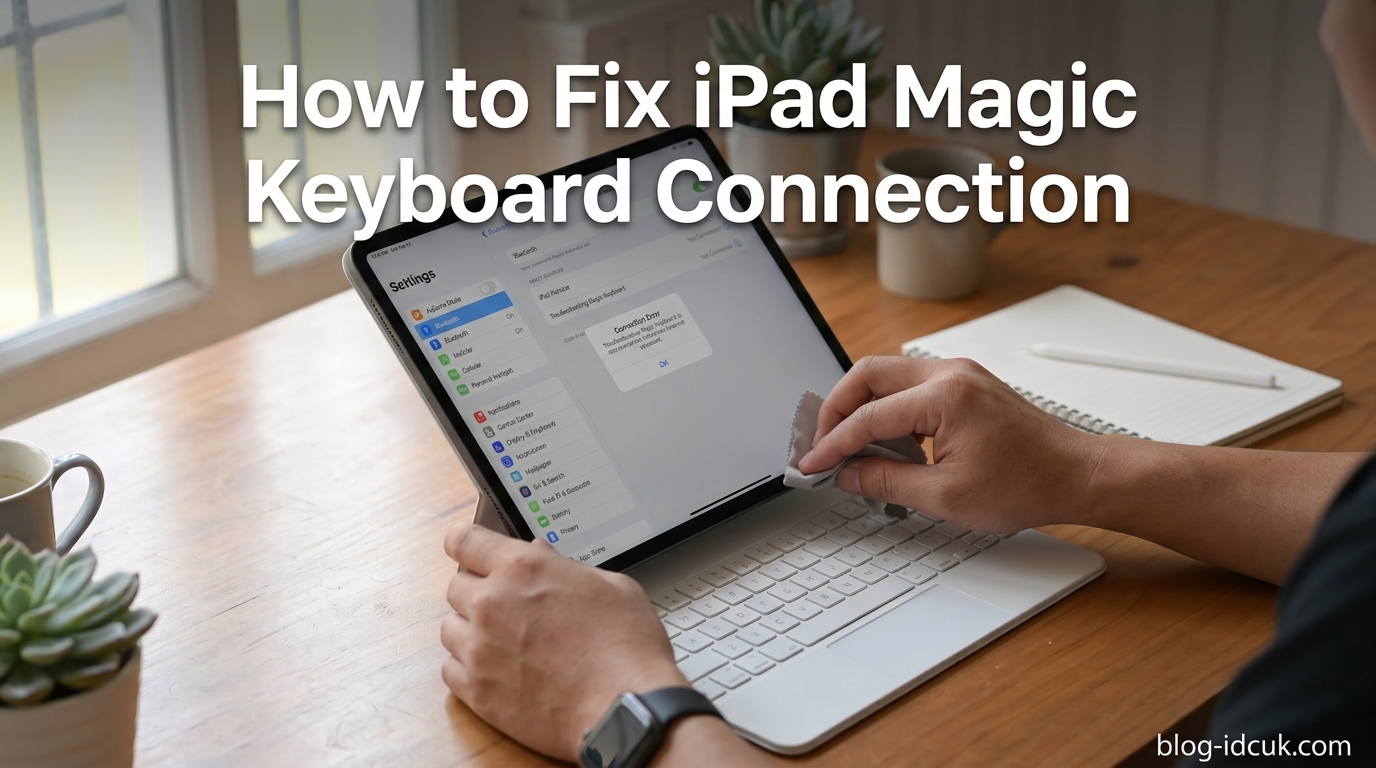
A Magic Keyboard that suddenly refuses to connect to your iPad can bring a productive work session to a halt. I have helped dozens of iPad users troubleshoot this exact problem, and in nearly every case the fix takes under five minutes. This guide walks through how to fix an iPad that won’t connect to its Magic Keyboard, ordered from the simplest solution to the most advanced so you can get typing again quickly.
Most connection issues come down to three things: a dirty Smart Connector, outdated iPadOS software, or a software glitch that a restart solves. We will cover all of these, plus model compatibility, preventive maintenance, and when it makes sense to contact Apple Support. By the end, you will have a clear checklist to work through.
Table of Contents
Quick Fixes to Try First
Before diving into full troubleshooting, try these three quick fixes. They resolve the majority of Magic Keyboard connection problems in under two minutes.
1. Remove and Reattach the iPad
Lift the iPad straight off the Magic Keyboard and place it back down, making sure the magnets click into alignment. Forum users on r/ipad report that this simple reseat fixes intermittent connections more often than any other action. The Smart Connector pins need flush contact, and even a millimeter of misalignment breaks the link.
2. Restart the iPad
Press and hold the top button and either volume button, then slide to power off. Wait about ten seconds, then turn the iPad back on and reattach the keyboard. A restart clears temporary software glitches that block the Smart Connector handshake after sleep or an update.
3. Clean the Smart Connector
The Smart Connector is the row of three small contacts on the back of the iPad and the matching pins inside the Magic Keyboard hinge. Dust, oils, and pocket lint build up over time and block the connection. Wipe both sets of contacts with a soft, lint-free cloth slightly dampened with isopropyl alcohol. This single step fixes more Magic Keyboard failures than every other solution combined.
How to Fix an iPad That Won’t Connect to Its Magic Keyboard in 2026?
If the quick fixes above did not resolve the issue, work through the following steps in order. Each one addresses a different layer of the connection, from physical hardware to deep system settings.
Step 1: Check for an iPadOS Update
Apple frequently releases iPadOS patches that fix accessory compatibility bugs. The Magic Keyboard for iPad Air (M3, 2026) specifically requires iPadOS 18.3 or later, and earlier Magic Keyboard models have similar minimum version requirements that change over time.
Open Settings, tap General, then tap Software Update. If an update is available, install it while the iPad is off the keyboard and connected to Wi-Fi and power. After the update finishes and the iPad restarts, reattach the Magic Keyboard and test it.
If the keyboard stopped working immediately after a recent iPadOS update, keep reading. The next steps handle update-related glitches that sometimes linger.
Step 2: Turn the Magic Keyboard Off and Back On
The Magic Keyboard does not have a power switch on its own, but it does have a side switch on some models that disables the keyboard. If your Magic Keyboard includes a small toggle on the side or back edge, switch it off, wait five seconds, and switch it back on.
For Magic Keyboard models without a switch, the off-and-on cycle happens automatically when you detach and reattach the iPad. The point of this step is to force the keyboard to re-initialize its connection state, which clears most temporary lockups.
Step 3: Clean the Smart Connector Thoroughly
The quick clean in the section above handles light dust. For a stubborn no-connect issue, do a deeper clean. You will need a lint-free cloth, isopropyl alcohol (70 percent or higher), and a wooden toothpick.
- Disconnect the iPad from the Magic Keyboard and remove any case or cover.
- Inspect the three Smart Connector pads on the back of the iPad under good light. Look for dark smudges, debris, or visible lint.
- Dampen the cloth with alcohol and gently wipe the pads in one direction. Do not scrub, since the contacts are delicate.
- Inspect the matching pins inside the Magic Keyboard hinge. Use the toothpick to lift out any lint wrapped around the pins.
- Let everything dry for about a minute, then reattach the iPad and test.
Reddit users on r/iPadPro consistently report this deep-clean resolving issues where the keyboard works for the lock screen passcode but stops typing afterward. That specific symptom almost always points to marginal Smart Connector contact.
Step 4: Verify Bluetooth and Wi-Fi Are Not Interfering
Here is a fact many users miss: the Magic Keyboard for iPad does not actually connect over Bluetooth. It uses the Smart Connector, which is a direct magnetic data and power link. However, iPadOS still requires Bluetooth to be enabled for accessory management, and Bluetooth interference from nearby devices can disrupt that handshake.
Open Settings, tap Bluetooth, and confirm the toggle is on. If it is already on, toggle it off for ten seconds and back on. Move any nearby Bluetooth speakers, headphones, or 2.4 GHz wireless devices at least a few feet away during testing.
Step 5: Check for the Accessory Not Supported Message
If the iPad displays “This Accessory Is Not Supported,” that points to either a compatibility mismatch or a hardware fault. First, confirm your iPad and Magic Keyboard are a matched pair. The Magic Keyboard for iPad Pro 11-inch (4th generation) does not fit the iPad Pro 11-inch (1st or 2nd generation), and the Magic Keyboard for iPad Air only works with specific Air models.
If the pairing is correct and the message still appears, the Smart Connector pins on the keyboard or the pads on the iPad may be physically damaged. Inspect them with a bright light. Bent pins inside the keyboard hinge usually mean the keyboard needs service.
Step 6: Unpair and Re-Pair the Keyboard
Forcing a fresh pairing handshake clears corrupted pairing data. Open Settings, tap Bluetooth, find the Magic Keyboard entry (if it appears), tap the i icon, and choose Forget This Device. Restart the iPad, then reattach the Magic Keyboard.
If the Magic Keyboard does not show up in the Bluetooth list, that is normal. Because it uses the Smart Connector, it may never appear there. In that case, move on to the next step.
Step 7: Reset Network and All Settings
This is the most aggressive fix short of a full factory reset. Resetting All Settings returns Wi-Fi, Bluetooth, cellular, and accessory configurations to defaults without erasing your apps or data. It clears out corrupted accessory state that no other step can reach.
- Open Settings, tap General, then scroll to the bottom and tap Transfer or Reset iPad.
- Tap Reset, then choose Reset All Settings.
- Enter your passcode and confirm.
- After the iPad restarts, reattach the Magic Keyboard and test.
You will need to re-enter Wi-Fi passwords afterward, so have those ready. This step resolves lingering post-update issues that resist every other fix.
Step 8: Factory Restore via a Computer
If Reset All Settings did not work, a full factory restore from a Mac or PC is the last software-level option. Back up the iPad first using Finder, iTunes, or iCloud. Then connect the iPad to a computer, select Restore, and let it wipe and reinstall the latest iPadOS.
Set the iPad up as new before reattaching the Magic Keyboard for the first test. If the keyboard connects on a clean install, the problem was a corrupted setting or app. If it still does not connect on a fresh install, you are almost certainly dealing with a hardware fault.
Understanding the Smart Connector
The Smart Connector is the magnetic interface that powers the Magic Keyboard and carries data between it and the iPad. Three spring-loaded pins on the keyboard touch three flat pads on the back of the iPad. No Bluetooth pairing code, no battery to charge in the keyboard itself, and no dongle required.
This design is more reliable than Bluetooth in theory, but it depends on clean, flush contact. Even a thin film of skin oil or a single grain of sand between the pins and pads breaks the link. That is why cleaning is the single highest-impact step in this entire guide.
One detail worth knowing: the Magic Keyboard draws power from the iPad, which is why the keyboard works without a separate battery. If the iPad is low on charge, the keyboard may behave erratically before it stops entirely. Charge the iPad for at least fifteen minutes and retest if you suspect a power issue.
iPad Model Compatibility
Compatibility is a common source of confusion. Each Magic Keyboard generation fits a specific set of iPad models, and they are not interchangeable.
- Magic Keyboard for iPad Pro 13-inch (M4): iPad Pro 13-inch (M4).
- Magic Keyboard for iPad Pro 11-inch (M4): iPad Pro 11-inch (M4).
- Magic Keyboard for iPad Pro 12.9-inch (6th, 5th, 4th, 3rd gen): iPad Pro 12.9-inch (2018-2024).
- Magic Keyboard for iPad Pro 11-inch (1st through 4th gen): iPad Pro 11-inch (2018-2022).
- Magic Keyboard for iPad Air: iPad Air (M2, 2026) and iPad Air (M3, 2026). Requires iPadOS 18.3 or later.
- Magic Keyboard Folio: iPad (10th generation).
If your iPad model is not on this list for your keyboard, the connection will never work no matter how many times you clean the contacts. Double-check the small print on the keyboard packaging or the Apple Support compatibility page before investing more troubleshooting time.
When to Contact Apple Support?
If you have worked through every step above and the Magic Keyboard still does not connect, the issue is almost certainly hardware. At that point, the next move is to contact Apple Support or visit an Apple Store.
Before you go, test the keyboard on another compatible iPad if you can borrow one. If the keyboard fails on a second iPad, the keyboard is faulty. If it works on the second iPad but not yours, your iPad’s Smart Connector pads or internal flex cable may be damaged.
Magic Keyboards and iPads are both covered by Apple’s one-year limited warranty and AppleCare+ if you have it. Book a Genius Bar appointment or start a chat at support.apple.com to arrange service.
Preventive Maintenance Tips
Most Magic Keyboard failures are preventable. A few simple habits keep the Smart Connector working reliably.
- Wipe the Smart Connector pads on the iPad once a week with a dry lint-free cloth.
- Avoid eating or using lotions near the iPad, since oils transfer to the contacts.
- Store the iPad and keyboard in a sleeve or bag when not in use to keep dust out.
- Detach the iPad and inspect the hinge pins monthly for trapped debris.
- Keep iPadOS updated to the latest version to benefit from Apple’s accessory bug fixes.
Users who follow these habits rarely see connection failures. The cleaning step alone eliminates the vast majority of recurring issues.
FAQs
How do I force my Apple Magic Keyboard to pair?
Detach the iPad, restart it, then reattach the Magic Keyboard so the magnets click into place. If pairing still fails, go to Settings > General > Transfer or Reset iPad > Reset > Reset All Settings, then reattach the keyboard.
Why is my iPad not picking up my keyboard?
The most common cause is dirt or debris on the Smart Connector pads on the back of the iPad or on the pins inside the keyboard hinge. Wipe both with a soft lint-free cloth lightly dampened with isopropyl alcohol, then reattach the iPad.
How to reset Magic Keyboard for iPad?
The Magic Keyboard for iPad has no separate reset button. To reset its connection, detach the iPad, restart the iPad, then reattach the keyboard. For a deeper reset, use Settings > General > Transfer or Reset iPad > Reset > Reset All Settings.
Why does my Magic Keyboard keep disconnecting my iPad?
Intermittent disconnections usually come from a dirty or misaligned Smart Connector. Remove the iPad, clean the three contact pads and the hinge pins, and reattach carefully so the magnets align. If it still drops, check for a pending iPadOS update.
Why is my Apple Magic Keyboard glitching?
Glitching keys, missed inputs, and a trackpad that keeps working while keys stop typically mean the Smart Connector contact is marginal. Clean the contacts, remove any case that may lift the iPad slightly off the hinge, and update iPadOS to the latest version.
Conclusion
Working through how to fix an iPad that won’t connect to its Magic Keyboard almost always ends at the Smart Connector. Clean the contacts, update iPadOS, restart the iPad, and reset settings if needed. If none of those steps solve the problem, contact Apple Support to check for hardware faults. Keep the cleaning habit going forward and the connection should stay reliable.