
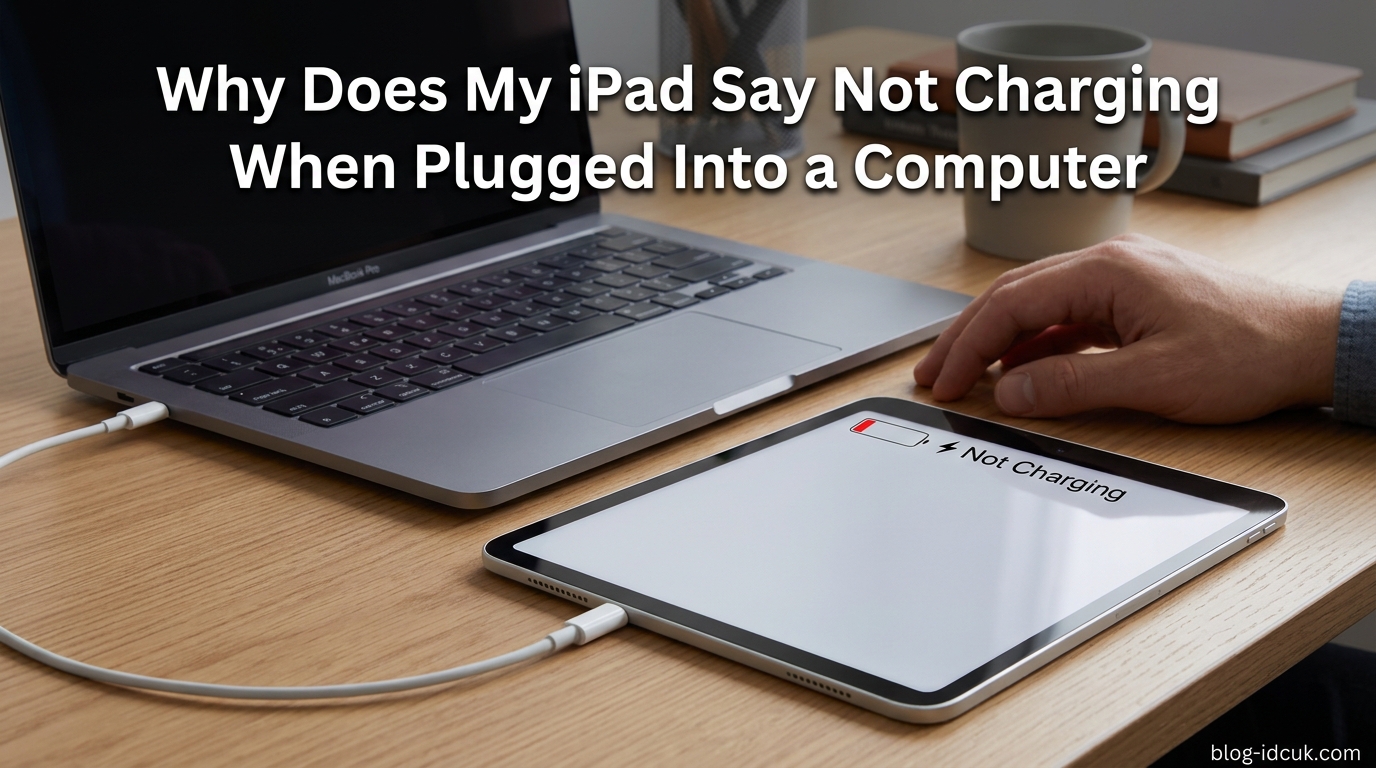
You plug your iPad into your laptop or desktop, glance at the screen, and there it is: the dreaded “Not Charging” message next to the battery icon. It is frustrating, but in most cases your iPad is not broken. The reason is almost always the same: the USB port on your computer does not output enough electrical current to charge the iPad’s battery. iPads need roughly 2.0 to 2.4 amps (10 to 12 watts minimum) to charge properly, while most standard computer USB ports deliver only 0.5 to 1.0 amps (2.5 to 5 watts).
In this guide, we explain exactly why does my iPad say Not Charging when plugged into a computer, which USB ports work best, and the step-by-step fixes you can try right now. We also cover the software bugs, cable damage, and port debris issues that forum users report most often.
Table of Contents
Why Does My iPad Say Not Charging When Plugged Into a Computer?
The “Not Charging” message appears when your iPad detects that the connected power source is delivering less current than the battery needs to charge. A standard USB 2.0 port on a desktop or laptop computer outputs only 0.5 amps (2.5 watts). A USB 3.0 port bumps that up to 0.9 amps (4.5 watts). Neither comes close to the 2.0 to 2.4 amps (10 to 12 watts) that iPad models require for a real charge.
Think of it like trying to fill a swimming pool with a garden hose that is mostly shut off. A tiny trickle of water reaches the pool, but the fill rate is so slow that the system simply reports it as “not filling.” Your iPad makes the same call: it recognizes the low-wattage source and displays “Not Charging” rather than giving you a false expectation.
One important detail many people miss: the iPad may still trickle charge while the screen is asleep, even with the message displayed. Users on Reddit’s r/ipad have confirmed that leaving the iPad plugged into a computer overnight with the screen off can add a small amount of battery percentage. The trade-off is that it may take 8 to 12 hours to gain even 20 percent.
USB Port Types and Their Power Output
Not every USB port is built the same, and knowing the difference matters when you are trying to charge an iPad from a computer.
USB 2.0 ports are the most common on older desktops and budget laptops. They deliver 0.5 amps (2.5 watts), which is far below what an iPad needs. You will almost always see “Not Charging” here.
USB 3.0 ports (often marked with a blue insert or “SS” logo) output 0.9 amps (4.5 watts). Still not enough for an active charge, but slightly better for trickle charging while the iPad sleeps.
USB-C ports on modern laptops can output significantly more power, often 1.5 to 3.0 amps (15 watts or more). Some newer Macs and Windows laptops with USB-C Thunderbolt ports can actually charge an iPad, especially a USB-C iPad Pro, at a usable rate.
High-power or charging ports on certain desktops and monitors are labeled with a battery or lightning bolt icon. These are designed specifically to deliver 1.5 to 2.1 amps and may keep your iPad charging, though slowly.
Powered USB hubs can also help. Apple’s own support documentation suggests trying a powered hub if your computer ports are not delivering enough current. The key is that the hub draws wall power rather than relying solely on the computer’s bus.
How to Make Your iPad Charge From a Computer in 2026?
If you want to charge your iPad from a computer rather than a wall adapter, follow these steps to maximize the chance of success.
Step 1: Use the back ports on a desktop. Front panel USB ports on desktop PCs often run through internal headers that deliver less power. The ports directly on the motherboard at the back of the case tend to provide more consistent current.
Step 2: Skip keyboard and monitor USB ports. USB ports built into keyboards, mice, and non-powered monitors almost always output 0.5 amps or less. They are designed for data peripherals, not charging tablets.
Step 3: Plug into a powered USB hub. A powered hub that connects to a wall outlet can supply more amps than a bare computer port. This is one of the few reliable ways to charge an iPad from a desktop setup.
Step 4: Put the iPad screen to sleep. Even when “Not Charging” is displayed, the iPad may slowly gain battery while the screen is off. Lock the screen and leave the iPad alone for an hour or two to test whether trickle charging is happening.
Step 5: Try a USB-C port if available. If your computer has USB-C or Thunderbolt 3/4 ports, use a USB-C to Lightning or USB-C to USB-C cable. These ports can deliver 15 watts or more, which is enough to charge most iPad models at a slow but real rate.
Step 6: Close battery-draining apps. If the iPad is actively running games, video, or GPS, it may drain faster than the computer port can supply. Close everything and turn down screen brightness to give the trickle charge a fighting chance.
Quick Fixes When Your iPad Says Not Charging
If switching ports does not solve the problem, the issue may not be the computer at all. Work through these quick fixes before assuming hardware failure.
Try a different cable. A damaged Lightning or USB-C cable can look perfectly fine on the outside while internally broken. Reddit users in r/techsupport frequently report that swapping cables fixed their “Not Charging” problem immediately. Use an Apple-certified (MFi) cable or a known-good third-party cable.
Clean the charging port. Pocket lint, dust, and debris are the number one cause of charging issues according to forum users. Shine a flashlight into the port and look for packed fuzz. Gently remove it with a wooden toothpick or a clean, dry toothbrush. Never use metal objects like needles, which can short the pins.
Use the wall adapter that came with the iPad. The simplest test is to plug the iPad into the original Apple wall adapter and a wall outlet. If it charges normally there but not from the computer, you have confirmed the issue is the low-wattage USB port, not the iPad.
Force restart the iPad. Software glitches can cause the iPad to misreport charging status. For iPads without a Home button: press and quickly release the volume up button, then volume down, then press and hold the top button until the Apple logo appears. For iPads with a Home button: press and hold both the Home button and the top button until you see the Apple logo.
Check for a damaged cable at the connector end. Fraying near the Lightning or USB-C connector is not always visible. Bend the cable gently near the tip while connected. If the charging icon flickers on and off, the cable’s internal wires are broken and the cable must be replaced.
When Software or Hardware Is the Real Problem?
Sometimes “Not Charging” has nothing to do with the USB port output. Forum users on Reddit have flagged a few scenarios that go beyond the standard troubleshooting.
iPadOS update bugs. Multiple users report that iPadOS updates have caused charging recognition problems where the iPad refuses to charge even from a proper wall adapter. If the problem started immediately after an update, try a force restart first. If that fails, a factory reset or a visit to Apple Support may be necessary.
Deeply discharged battery. If your iPad battery has been completely drained for days or weeks, it may not respond immediately when plugged in. Forum users report success by leaving the iPad plugged into the original Apple wall adapter for 1 to 3 days without touching it. The battery slowly recovers enough to accept a normal charge.
Loose USB-C port on iPad Pro. Several iPad Pro owners report that the USB-C port becomes physically loose over time, causing intermittent charging. If the cable wiggles noticeably when plugged in, or if holding the cable at a specific angle makes it charge, the port connector may be worn or damaged and require professional repair.
Cold temperature. Lithium-ion batteries refuse to charge when they are too cold. If your iPad has been in a cold car or a chilly room, let it warm to room temperature before expecting a charge. Some users report that gentle warming with a hairdryer on a low setting helped, but use extreme caution to avoid overheating the battery.
Identifying a damaged charging cable. Look for discoloration or melting at the connector, exposed wires near the strain relief, a connector that feels loose in the port, or intermittent charging when the cable is moved. Any of these signs means it is time to replace the cable with a new MFi-certified unit.
FAQs
How to allow iPad to charge when plugged into computer?
To charge your iPad from a computer, use a back USB port on a desktop (not the front panel), plug into a powered USB hub, or use a USB-C port if available. Close all apps and put the iPad screen to sleep so the trickle charge can actually add battery percentage. A standard USB 2.0 port will rarely charge an iPad while the screen is on.
Why does my iPad only charge when connected to the computer?
If your iPad charges from the computer but not from a wall adapter, the wall adapter may be underpowered (such as a 5W iPhone brick) or damaged, or the cable used with the wall adapter may be faulty. Try the iPad’s original 20W or higher power adapter with a known-good cable. A wall adapter delivering less than 10 watts will often trigger the Not Charging message.
Why won’t my iPad charge from a USB port?
Most USB ports on computers output only 0.5 to 0.9 amps, while iPads need at least 2.0 amps (10 watts) to charge. The iPad detects the low current and displays Not Charging instead of the lightning bolt icon. Try a high-power USB port, a powered USB hub, or switch to a wall adapter rated for 20 watts or higher.
How to fix an iPad that says it’s charging but it’s not?
If the iPad shows the charging icon but the battery percentage does not climb, the cable or adapter may be damaged, the charging port may be clogged with lint, or a software glitch may be misreporting status. Clean the port with a wooden toothpick, try a different MFi-certified cable and a 20W or higher wall adapter, and force restart the iPad to clear any software bugs.
Wrapping Up
The short answer to why does my iPad say Not Charging when plugged into a computer is simple: computer USB ports deliver too little amperage. iPads want 2.0 amps or more (10 to 12 watts), and most computer ports top out at 0.5 to 0.9 amps. Switch to a wall adapter rated 20 watts or higher, use the original cable, and clean the charging port if problems persist.
If none of the fixes above work and your iPad still refuses to charge from any power source, the next step is to book an appointment with Apple Support or an authorized service provider. Hardware issues like a worn USB-C port or a degraded battery require professional diagnosis that no software trick can solve.