
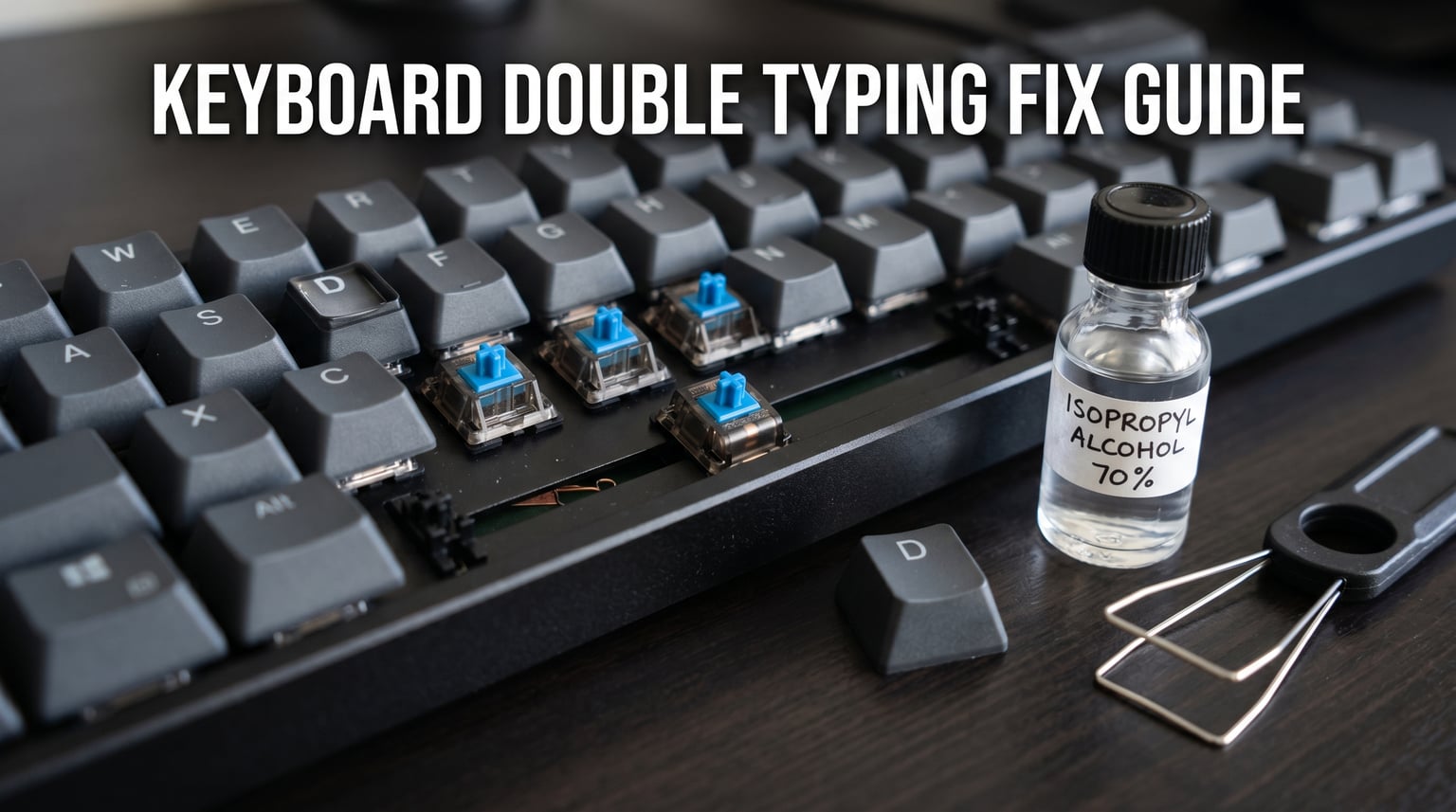
You press a key once, and two identical letters appear on your screen. Sound familiar? If your mechanical keyboard types some letters twice, you are dealing with one of the most common and frustrating issues mechanical keyboard owners face. The good news is that the vast majority of cases are fixable without buying a new keyboard.
Mechanical keyboard double typing (also called key chattering) occurs when a single keypress registers multiple times due to dust interference, worn switches, incorrect software settings, or electrical connection issues. The most frequent fix is cleaning the affected switch with isopropyl alcohol, while other solutions include adjusting your repeat delay settings, updating drivers, or replacing a faulty switch entirely.
In this guide, our team breaks down every possible cause and walks you through each fix step by step. Whether you are on Windows, macOS, or Linux, we cover the specific settings and tools you need. We also draw on real user experiences from forums like r/MechanicalKeyboards and Linus Tech Tips to give you fixes that have actually worked for real people.
By the end, you will know exactly why your keyboard is acting up, how to diagnose whether it is a hardware or software problem, and which fix to try first. Let us get your keyboard typing cleanly again.
Table of Contents
What Is Key Chattering and Why Does It Cause Double Typing?
Key chattering is the phenomenon where a single physical keypress on a mechanical keyboard registers as two or more inputs. It is the technical term behind what most people simply call “double typing.” When you type the letter “A” once and see “AA” on screen, chattering is the culprit.
To understand why this happens, it helps to know how a mechanical switch works. Every mechanical switch contains two small metal contacts inside a housing. When you press a key, a stem pushes these contacts together, completing an electrical circuit that tells the keyboard controller a key was pressed. When you release the key, the contacts separate.
In a perfectly functioning switch, the contacts come together cleanly once. But in reality, metal contacts physically bounce microscopically when they meet. This bouncing can cause the controller to interpret the press as multiple quick presses rather than one. To prevent this, keyboards use something called debounce time.
What Is Debounce Time?
Debounce time is a delay measured in milliseconds that a keyboard controller waits before registering a second press of the same key. Most keyboards set this between 5ms and 20ms. During this window, any additional signals from the same key are ignored as noise.
If the debounce time is set too low, physical contact bounce slips through and registers as a second keystroke. If it is set too high, the keyboard feels sluggish and unresponsive during fast typing. Some keyboards and custom firmware like QMK let you adjust this value manually. Finding the right balance is part of preventing double typing while keeping the keyboard feeling snappy.
Chattering vs. Ghost Typing: What Is the Difference?
People sometimes confuse key chattering with ghost typing, but they are different problems. Chattering means one key you pressed registers multiple times. Ghost typing (or ghosting) means keys you did not press appear on screen, or keys you did press are missed entirely when multiple keys are held simultaneously. Ghosting is typically a matrix or n-key rollover limitation, while chattering is a switch-level or software-level issue.
If your keyboard types letters you never touched, that is ghosting. If it repeats letters you pressed once, that is chattering. This guide focuses on the chattering problem, which is far more common in mechanical keyboards.
Common Causes: Why Does My Mechanical Keyboard Type Some Letters Twice?
Understanding why your mechanical keyboard types some letters twice starts with narrowing down the root cause. There are seven primary culprits, ranging from simple software misconfigurations to physical switch degradation. Let us go through each one.
1. Dust and Debris Buildup Inside the Switch
This is the number one cause of key chattering. Dust, pet hair, dead skin cells, and food crumbs work their way into the gaps around your keycaps and settle inside the switch housing. Once inside, this debris interferes with the metal contacts, causing them to connect inconsistently.
The result is erratic electrical signals that the keyboard controller may interpret as multiple presses. Forum users on r/MechanicalKeyboards consistently report that cleaning the affected switch with isopropyl alcohol resolves chattering in the majority of cases. The spacebar and frequently used letter keys like E, A, S, and I are the most commonly affected because they accumulate debris faster.
2. Worn or Defective Switches
Mechanical switches are rated for tens of millions of keypresses. Cherry MX switches are rated for 100 million actuations, while some budget switches may start degrading after 20 to 50 million. If you type heavily or game competitively, individual switches can wear out faster than the rest.
When the internal metal leaf contacts wear down or lose their spring tension, they fail to make clean contact. This produces the same bouncing effect as debris interference. A worn switch will chatter consistently on the same key, no matter how many times you clean it. The only fix is replacement.
3. Incorrect Repeat Delay and Repeat Rate Settings
Your operating system controls how quickly a held key repeats and how long you must hold it before repeating begins. These settings are called Repeat Delay and Repeat Rate on Windows. If your Repeat Delay is set too short or your Repeat Rate is set too fast, a brief hesitation during a normal keypress can trigger a duplicate character.
This issue often affects every key on the keyboard rather than just one or two. If all your keys are double typing, this is one of the first things to check. A quick adjustment in your keyboard properties can resolve it in under a minute.
4. Outdated or Corrupt Keyboard Drivers
Keyboard drivers are the software bridge between your hardware and operating system. Outdated, corrupted, or conflicting drivers can cause the OS to misinterpret signals from the keyboard, leading to doubled inputs. This is especially common after a Windows update or when switching a keyboard between different USB ports.
Gaming keyboards that use proprietary software, such as Razer Synapse, Corsair iCUE, or Logitech G HUB, can also experience chattering if the software is buggy or running an outdated version. Checking for driver and software updates is a quick but often overlooked fix.
5. Low Debounce Time Settings
Some keyboards, especially custom builds and enthusiast models, allow you to configure debounce time through firmware. If you or a previous owner set the debounce time aggressively low (below 5ms) to reduce input lag, the keyboard may start registering contact bounce as legitimate presses.
This setting is found in QMK Configurator, VIA, Vial, or proprietary software depending on your keyboard. If you experience chattering across multiple keys after changing debounce settings, raising the value by 5 to 10ms typically resolves it immediately.
6. Wireless Keyboard Battery and Interference Issues
If you are using a wireless or Bluetooth mechanical keyboard, low battery voltage can cause the keyboard to send inconsistent signals. As battery power drops, the microcontroller may struggle to process inputs cleanly, resulting in doubled or missed characters.
Additionally, wireless keyboards operating on 2.4GHz can experience signal interference from nearby devices like routers, USB 3.0 cables, or other wireless peripherals. Forum data shows that wireless models are more prone to double typing than wired keyboards, with users of the Logitech G915 and various Keychron wireless models reporting higher rates of chattering issues.
7. USB Connection and Port Problems
A loose, damaged, or low-quality USB cable can cause intermittent signal drops. When the connection briefly cuts out and reconnects during a keypress, the keyboard may resend the input, producing a doubled character. Similarly, using a USB hub or a port that does not deliver enough power can cause the same issue.
Try plugging your keyboard directly into a different USB port on your motherboard or computer. Avoid USB hubs, front panel ports on some cases, and ports near USB 3.0 devices that can cause interference. This simple step fixes chattering for a surprising number of users.
How to Diagnose the Problem: A Step-by-Step Checklist
Before diving into fixes, you need to determine whether your double typing is a hardware issue, a software issue, or something else entirely. This diagnostic checklist will help you isolate the problem quickly so you apply the right fix the first time.
Step 1: Is It One Key or All Keys?
Pay attention to which keys are double typing. If only one or two specific keys are affected, you are almost certainly dealing with a hardware problem in those individual switches. Dust, wear, or a defective switch is the likely cause.
If every key on the keyboard double types, the issue is software-related. Check your repeat rate settings, drivers, debounce time, or try the keyboard on another computer to confirm.
Step 2: Is It Wired or Wireless?
For wireless keyboards, try the keyboard in wired mode if possible. If the chattering stops when wired, the issue is related to Bluetooth or wireless connectivity, battery, or interference. If it persists in wired mode, proceed with hardware diagnosis.
For wired keyboards, test with a different USB cable and a different USB port. If the problem disappears with a new cable, your cable was the culprit.
Step 3: Test on Another Computer
Plug your keyboard into a completely different computer. If the chattering continues on the second machine, the problem is with the keyboard hardware. If it stops, the problem is with your original computer’s software, settings, or drivers.
This is the single most definitive test for isolating hardware from software causes. It takes two minutes and saves you from wasting time on the wrong fixes.
Step 4: Use a Key Testing Tool
Free online tools like keyboardtester.com or software like Aqua Key Test let you visualize exactly which keys register multiple presses. Press each key once and watch the tool. Keys that light up twice with a single press are chattering. This confirms which switches need attention.
These tools also help you track whether your fixes are working. Run a test before and after each fix to measure improvement.
Software Fixes: Adjusting Settings and Drivers
If your diagnosis points to a software cause, these fixes will resolve the majority of double typing issues. Start with the simplest solution and work your way down the list.
Fix 1: Adjust Repeat Delay and Repeat Rate on Windows 10 and 11
Windows gives you direct control over how your keyboard handles key repetition. Here is how to adjust these settings:
Press the Windows key, type “Control Panel,” and open it. Click on “Hardware and Sound,” then “Devices and Printers,” and finally “Keyboard.” In the Keyboard Properties window, you will see two sliders: Repeat Delay and Repeat Rate.
Move the Repeat Delay slider toward “Long” to increase the time before a held key starts repeating. Move the Repeat Rate slider toward “Slow” to reduce how quickly repeated characters appear. Click “Apply” and test in the text box provided. Adjust until double typing stops.
For most users, setting Repeat Delay to one notch above the shortest setting and Repeat Rate to medium resolves the issue without making the keyboard feel sluggish.
Fix 2: Adjust Keyboard Settings on macOS
On a Mac, open System Settings and navigate to “Keyboard.” You will find two sliders: Key Repeat Rate and Delay Until Repeat.
Set Key Repeat Rate to “Slow” or one notch above slow. Set Delay Until Repeat to “Long” or one notch shorter. This mirrors the Windows adjustment and prevents brief hesitations from triggering duplicate characters.
Test by typing in a document. If double typing persists, the issue is likely not software-related on macOS, and you should move to hardware fixes.
Fix 3: Linux Keyboard Settings (xset and libinput)
Most competitors skip Linux entirely, but Linux users experience double typing too. On X11-based systems, use the xset command to adjust repeat delay and rate.
Open a terminal and run: xset r rate 400 25. The first number (400) is the delay in milliseconds before repeat starts. The second number (25) is the repeat rate in characters per second. Increase the delay or decrease the rate if keys double type.
To make this persistent, add the command to your .xprofile or .xinitrc file. On Wayland-based systems using libinput, you may need to create a custom configuration file in /etc/X11/xorg.conf.d/ or use your desktop environment’s keyboard settings panel.
Fix 4: Enable Filter Keys on Windows
Filter Keys is an accessibility feature that tells Windows to ignore brief or repeated keystrokes. Enabling it can directly suppress double typing. Go to Settings, then Accessibility, then Keyboard. Turn on Filter Keys.
Click on “Filter Keys” to access advanced settings. Enable “Ignore quick keystrokes” and adjust the minimum duration for a keystroke to be recognized. Start with the default setting and test. This is a workaround rather than a fix, but it eliminates the symptom effectively.
Keep in mind that Filter Keys can make the keyboard feel less responsive for fast typists and gamers. Use it as a diagnostic tool or temporary solution while you address the root cause.
Fix 5: Update or Reinstall Keyboard Drivers
Right-click the Start button and select “Device Manager.” Expand the “Keyboards” section. Right-click your keyboard and select “Uninstall device.” Restart your computer, and Windows will automatically reinstall a fresh driver.
If you use a gaming keyboard with proprietary software, open that software and check for updates. Razer Synapse, Corsair iCUE, Logitech G HUB, and similar tools frequently release patches that address input bugs. Download the latest version from the manufacturer’s website rather than relying on an older installed version.
Fix 6: Update Keyboard Firmware
Many modern mechanical keyboards support firmware updates that fix bugs including chattering. Check your manufacturer’s website or software for firmware update tools. Keychron, Razer, Corsair, and Glorious all offer firmware updaters.
For custom keyboards running QMK or VIA, check the QMK Firmware repository for updates. A firmware bug in debounce handling was identified and fixed in certain QMK versions, so updating may resolve persistent chattering on custom builds.
Fix 7: Registry Adjustment for Repeat Delay (Advanced)
For advanced Windows users, the registry offers finer control over keyboard repeat settings than the Control Panel. Press Windows + R, type “regedit,” and navigate to HKEY_CURRENT_USERControl PanelAccessibilityKeyboard Response.
Look for the following values: AutoRepeatDelay (default 500ms), AutoRepeatRate (default 250ms), and BounceTime (default 0ms). Increasing AutoRepeatDelay to 600-800ms and setting BounceTime to 200ms can filter out chattering at the OS level. Always back up the registry before making changes.
After editing, log out and back in or restart for changes to take effect. This is a powerful fix for software-related chattering but requires comfort with registry editing.
Hardware Fixes: Cleaning and Switch Replacement
When software fixes do not resolve the problem, the issue is physical. These hardware fixes address the most common mechanical causes of key chattering. Start with cleaning before moving to switch replacement.
Fix 1: Clean with Compressed Air
This is the easiest hardware fix and should be your first step. Hold the keyboard upside down or at a steep angle. Use a can of compressed air with the straw attachment to blow air directly into the gaps around the affected keycaps.
Short, sharp bursts work better than a continuous stream. Press the affected key repeatedly while blowing air to dislodge any debris caught between the contacts. Test the key afterward. If chattering is reduced but not eliminated, move on to the alcohol cleaning method.
Fix 2: Isopropyl Alcohol Cleaning Method
This is the fix that forum users recommend most frequently and the one with the highest success rate. You will need 90% or higher isopropyl alcohol and a few minutes.
Step 1: Unplug the keyboard or turn it off if wireless. Step 2: Remove the keycap from the affected switch using a keycap puller. Step 3: Press and hold the switch stem down to expose the internal contacts. Step 4: Apply two to three drops of isopropyl alcohol directly into the switch housing.
Step 5: Press the key rapidly 50 to 100 times to work the alcohol around the internal components. The liquid dissolves grime and the rapid pressing scrapes the contacts clean. Step 6: Let the keyboard sit for 15 to 30 minutes to allow all alcohol to evaporate completely before reconnecting.
Real users on Linus Tech Tips and r/MechanicalKeyboards report that this method resolves chattering in approximately 70 to 80% of single-key cases. It is cheap, fast, and should be tried before any switch replacement.
Fix 3: Deep Clean by Removing Keycaps
For persistent issues, remove all keycaps and clean the keyboard plate and switch exteriors. Use compressed air to clear the entire plate, then wipe switch housings with a microfiber cloth lightly dampened with isopropyl alcohol.
While keycaps are off, soak plastic keycaps in warm soapy water for 30 minutes, rinse, and dry completely overnight. This removes oils and grime that can work their way into switches over time. Never soak PBT keycaps with legends that may fade or ABS keycaps with aggressive dyes.
Fix 4: Replace a Hot-Swappable Switch
If cleaning does not fix the chattering and only one or two keys are affected, the switch itself is likely worn or defective. If your keyboard supports hot-swapping (meaning you can remove and replace switches without soldering), this is a straightforward fix.
Use a switch puller to gently remove the faulty switch. Note the orientation of the switch pins. Insert a replacement switch of the same type, pressing firmly until it clicks into place. Make sure both metal pins are straight before inserting to avoid bending them.
Many keyboards come with spare switches in the box. If you do not have spares, individual switches are inexpensive and widely available. Match the switch type (Cherry MX Red, Gateron Brown, etc.) for consistent feel.
Fix 5: Soldered Switch Replacement Overview
If your keyboard does not support hot-swapping, replacing a switch requires desoldering. This is more involved but entirely doable for anyone comfortable with a soldering iron.
You will need a soldering iron, solder sucker or desoldering braid, and a replacement switch. Open the keyboard case, desolder both pins of the faulty switch, remove it, insert the new switch, and solder both pins. Test the key before reassembling the case.
If you are not comfortable soldering, consider whether the cost of professional repair or a new keyboard makes more sense. For budget keyboards, replacement may be more economical.
Fix 6: Check USB Cable and Port
Sometimes the keyboard is fine and the cable is the problem. Inspect the USB cable for kinks, fraying, or damage at the connector ends. Try a different USB cable of the same type. For keyboards with detachable cables, this is a quick test.
Also try different USB ports. Plug directly into the motherboard’s rear USB ports rather than front panel ports or hubs. USB 2.0 ports are often more stable for keyboards than USB 3.0 ports, which can generate interference on lower-quality cables.
How to Prevent Double Typing from Coming Back
Once you fix the chattering, you want to keep it from returning. These prevention tips will extend the life of your switches and keep your keyboard typing cleanly.
Clean Your Keyboard Regularly
Make cleaning a monthly habit. Remove keycaps every two to three months and use compressed air on the plate and switches. For heavy typists or households with pets, consider cleaning every month. A few minutes of maintenance prevents hours of troubleshooting later.
Avoid Eating and Drinking Near Your Keyboard
Food crumbs and liquid spills are the top causes of premature switch failure. If you must eat at your desk, use a keyboard cover or keep food on a separate surface. Even small particles from snacks can work their way into switches over weeks and months.
Choose the Right Switch Type
Some switch types are more resistant to chattering than others. Linear switches like Cherry MX Reds have fewer contact points and tend to be slightly more durable in our experience. Tactile and clicky switches have more complex mechanisms with additional contact surfaces that can degrade.
When buying a new keyboard, consider brands with strong quality control. Cherry MX, Gateron, and Kailh switches from reputable keyboard manufacturers tend to have more consistent lifespans. Forum data suggests that budget switches from unknown brands fail at higher rates.
Keep Firmware and Software Updated
Manufacturers release firmware updates to fix bugs, including input processing issues. Check for updates every few months, especially after operating system updates. Keep proprietary software like Razer Synapse or Corsair iCUE current.
When to Replace vs. Repair Your Keyboard
If a single switch is chattering and your keyboard is under a year old, try cleaning first, then contact the manufacturer about warranty replacement. Most mechanical keyboards come with one to two year warranties covering defective switches.
If multiple switches are failing on a keyboard more than three years old, replacement may be more cost-effective than individual repairs. Quality mechanical keyboards should last five to ten years with proper maintenance. If yours is chattering across many keys after two years, it may indicate broader quality issues.
FAQs
How to fix double typing on a mechanical keyboard?
Start by cleaning the affected switch with isopropyl alcohol (90% or higher). Remove the keycap, apply a few drops into the switch, press it 50-100 times, and let it dry for 30 minutes. If that fails, check your keyboard repeat delay settings in Control Panel, update your drivers, and test on another computer to isolate the cause. For a worn switch, replace it if your keyboard is hot-swappable.
Why do my mechanical keyboard keys keep repeating?
Keys repeat or double type because of dust debris inside the switch, worn switch contacts, incorrect repeat rate settings in your OS, low debounce time, outdated drivers, or USB connection issues. If only specific keys repeat, the cause is usually hardware (dust or a worn switch). If all keys repeat, check your software settings first.
How to fix double keys?
To fix double typing keys, first try cleaning with compressed air, then isopropyl alcohol. Adjust your keyboard repeat delay to a longer setting in Windows Control Panel or macOS System Settings. Update your keyboard drivers and firmware. If the problem persists on one key, replace the switch if your keyboard supports hot-swapping.
How to fix keyboard spamming one letter?
If one key is spamming repeatedly, the switch likely has debris or is worn out. Unplug the keyboard, remove the keycap, and clean the switch with isopropyl alcohol. If cleaning does not work and the key still spams, the switch needs replacement. Also test the keyboard on another computer to rule out a software issue.
Can a dirty keyboard cause double typing?
Yes, dust and debris inside a mechanical switch are the most common cause of double typing. Particles interfere with the metal contacts, causing inconsistent electrical signals that register as multiple keypresses. Cleaning the switch with compressed air or isopropyl alcohol resolves this in most cases.
Is key chattering covered under warranty?
Most mechanical keyboard warranties (typically 1-2 years) cover defective switches, which includes persistent chattering that cleaning cannot fix. Contact the manufacturer with proof of purchase. Some brands like Keychron, Corsair, and Ducky are known for honoring switch defects within the warranty period.
Conclusion
Double typing on a mechanical keyboard is annoying, but it is rarely a reason to throw away your keyboard. The problem almost always traces back to one of a handful of causes: debris in the switch, a worn switch, incorrect software settings, outdated drivers, or connection issues.
Start with the simplest fix first. Clean the affected switch with isopropyl alcohol, adjust your repeat delay settings, and test on another computer. These three steps resolve the majority of cases. If the issue is a single worn switch, replacement is straightforward on hot-swappable keyboards and manageable on soldered ones.
When you understand why your mechanical keyboard types some letters twice, you gain the ability to fix it quickly and prevent it from returning. Regular cleaning, proper settings, and quality switches keep your keyboard performing reliably for years. Bookmark this guide so you have it ready the next time a key starts acting up.