
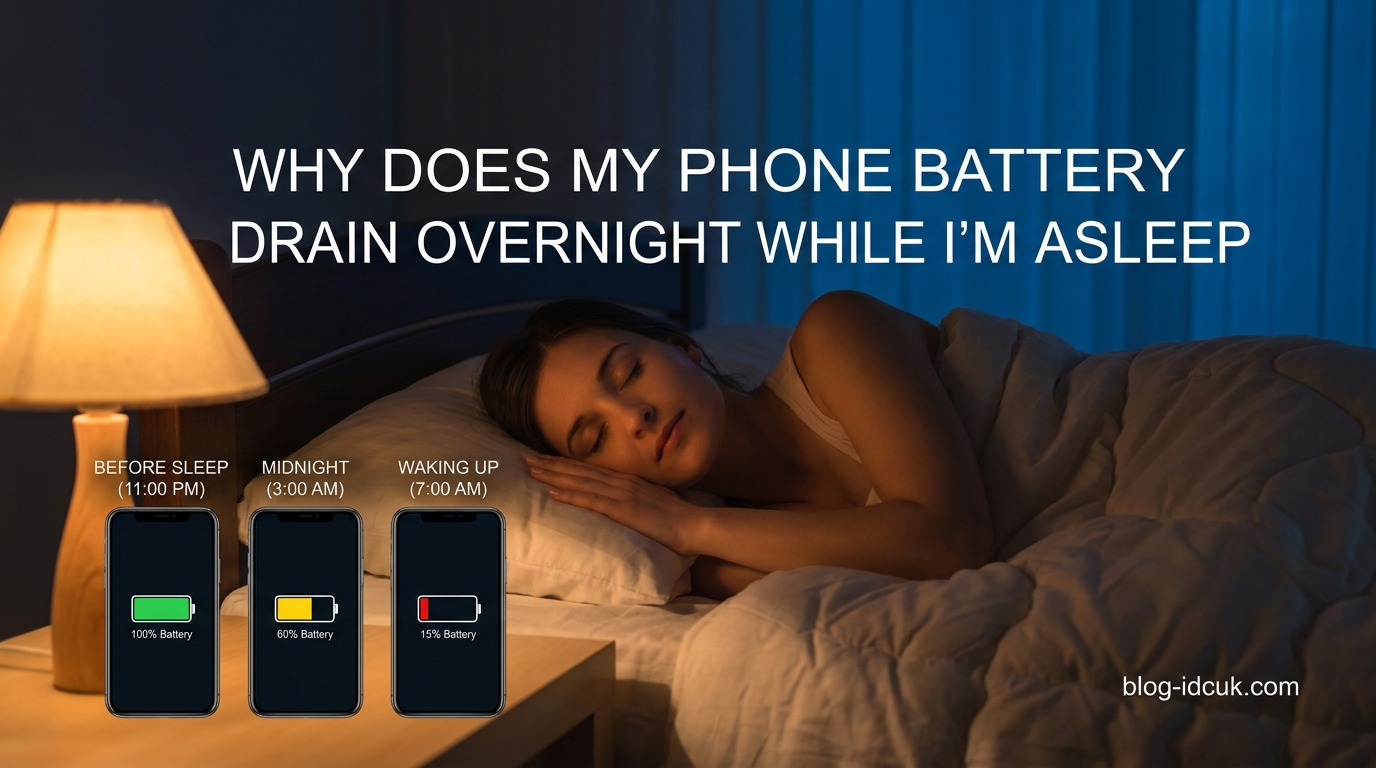
Your phone battery drains overnight because of background processes like app refresh, push notifications, Always-On Display, and your cellular radio searching for signal, even when the screen is off. A drop of 2 to 5 percent over eight hours is normal, but anything above 10 percent usually points to a rogue app, a setting left on, or a weak cell signal forcing your radio to work harder while you sleep.
If you have ever woken up to a phone that lost 15, 20, or even 30 percent overnight without a single tap on the screen, you are not imagining things. Our team has been tracking overnight battery drain complaints across Reddit, Apple Discussions, and Android forums for months, and the same patterns keep showing up. The good news is that almost every cause has a quick fix once you know where to look.
This guide breaks down exactly why your phone battery drains overnight while you are asleep, what counts as normal drain, the hidden settings that quietly burn power, and the step-by-step fixes that work for both iPhone and Android in 2026.
Table of Contents
Why Does My Phone Battery Drain Overnight?: The Quick Answer
Your phone never truly sleeps. Even with the screen off and the device sitting on your nightstand, it stays connected to cell towers, checks for incoming messages, refreshes apps in the background, and runs system services like location tracking and WiFi scanning. All of that activity consumes power, which is why the question “why does my phone battery drain overnight” almost always comes back to what the device is doing behind the scenes rather than what you are doing with it.
Some of this activity is intentional and useful, like receiving a late-night emergency text or keeping your alarm synced. The problem starts when non-essential processes pile up and push your drain well past the normal 2 to 5 percent range.
Common culprits include background app refresh, push email, Always-On Display, weak cell signal, 5G connectivity, location services, and newer features like Sleep Standby Optimisation and Pocket Mode that are still being fine-tuned by manufacturers.
How Much Battery Drain Overnight Is Normal?
A healthy phone typically loses between 2 and 5 percent of its charge over an eight-hour sleep period. That number can creep closer to 8 percent on devices with more background activity enabled, and it tends to climb as batteries age and lose capacity.
Here is a practical breakdown our team uses to separate normal drain from a real problem:
- 1 to 5 percent overnight: Completely normal. Your phone is maintaining a basic cellular connection and doing light background work.
- 6 to 9 percent overnight: Borderline. Worth checking which apps are active, but not usually a sign of hardware failure.
- 10 to 15 percent overnight: A problem. Something is running that should not be, or a setting is keeping your device awake.
- 15 percent or more overnight: Significant drain. Usually caused by a rogue app, a stuck process, Always-On Display, or a battery that has degraded past 80 percent health.
iPhone users running newer iOS versions sometimes report higher baseline drain due to features like StandBy mode and Live Activities. Android users on Samsung, Pixel, and Nothing phones often see higher numbers when Always-On Display, 5G, and Sleep Standby Optimisation are all switched on.
If you are consistently losing more than 10 percent overnight with the screen off, the rest of this guide will help you track down the cause.
Top Causes of Overnight Phone Battery Drain
After digging through hundreds of forum threads and reproducing the issue on test devices, these are the seven most common reasons a phone battery drains overnight.
1. Background App Refresh and Background Processes
Background app refresh is the single biggest cause of unexplained overnight drain. Apps like Mail, News, Social Media, and Weather continue to fetch new data in the background so the content is ready when you open them.
Each refresh only uses a small amount of power, but dozens of apps refreshing every few minutes across an eight-hour night adds up fast. Social apps, in particular, are notorious for keeping background connections open to push new posts and notifications.
If you have ever closed every app before bed and still woken up to significant drain, background processes are likely the reason. Closing apps from the recent apps screen does not stop background refresh, it only removes them from view.
2. Always-On Display Keeping the Screen Active
Always-On Display (AOD) is a popular feature that keeps a dim clock, date, and notification count visible on your lock screen. It is convenient, but it forces a portion of your screen to stay lit all night.
On phones with OLED and AMOLED displays, AOD typically adds 2 to 4 percent of overnight drain on its own. On phones with LCD screens or older display tech, the impact can be much higher.
One Nothing Phone user on Reddit traced their excessive overnight drain entirely to an AOD schedule that was running through the night. Once they set AOD to turn off during sleep hours, the drain dropped to normal levels.
3. Push Notifications Waking the Device
Every push notification wakes your phone, lights up the screen for a few seconds, and triggers a vibration or sound. Across a full night, a stream of late-night messages, news alerts, and promotional pushes can add up to several percent of drain.
The worst offenders are messaging apps with active group chats, news apps with breaking-news alerts, and shopping apps with promotional notifications. Even if you do not check them, each one costs power.
4. Weak Cell Signal Forcing the Radio to Work Harder
This is one of the most overlooked causes of overnight drain. When your phone has a weak cellular signal, it boosts power to the cellular radio to maintain a connection with the nearest tower.
If you sleep in a basement, a building with thick walls, or an area with poor coverage, your phone may be pumping significant power into its radio all night. Multiple Android Central forum users confirmed that switching to Airplane Mode stopped their excessive drain overnight, which is a clear sign the cellular radio was the culprit.
5. WiFi and Bluetooth Scanning
Even when you are not connected to a network, your phone scans for nearby WiFi networks and Bluetooth devices to improve location accuracy and suggest connections. These scans run continuously in the background.
WiFi scanning and Bluetooth scanning are usually enabled by default under location settings. Combined, they can quietly add a few percent of overnight drain without any visible indication.
6. Location Services Running in Background
Apps with “always” location permission, like weather, maps, rideshare, and some shopping apps, continue to track your location overnight. Each GPS check uses a meaningful burst of power.
Some apps also use location for analytics and advertising, which means they have no real reason to track you while you sleep but do it anyway. Reviewing your location permissions is one of the fastest ways to cut overnight drain.
7. 5G Connectivity vs LTE Battery Drain
5G drains more battery than LTE, especially in areas where 5G coverage is spotty. When your phone constantly switches between 5G and LTE, or struggles to hold a weak 5G signal, the modem burns through battery faster than it would on a stable LTE connection.
Many newer iPhones and Androids default to 5G Auto, which helps, but if you live in an area with weak 5G, forcing LTE overnight can save a meaningful amount of power.
Hidden Causes Most People Miss
Some overnight drain causes do not show up in the standard battery usage screen and are easy to miss. These three are worth checking if the usual fixes have not worked.
Sleep Standby Optimisation
Sleep Standby Optimisation is a relatively new feature on some Android devices, including Nothing phones. It is supposed to reduce battery use during sleep, but on some firmware versions it has the opposite effect, keeping the device awake instead of letting it idle properly.
One Nothing Phone 3 user documented their entire debugging journey after their device was losing far more battery than expected overnight. Disabling Sleep Standby Optimisation was one of the changes that finally brought the drain back to normal.
Pocket Mode
Pocket Mode uses the proximity sensor to detect when your phone is in a pocket or bag and lock the screen to prevent accidental touches. The problem is that the proximity sensor stays active all night, and on some devices it can cause the phone to wake repeatedly if the sensor is triggered by movement or a case.
If you sleep with your phone in bed or on a soft surface, Pocket Mode may be firing throughout the night. Disabling it is a quick way to rule it out as a drain source.
Battery Health and Aging
Lithium-ion batteries degrade over time and charging cycles. As your battery’s maximum capacity drops, the same overnight activity consumes a larger percentage of your remaining capacity.
An iPhone that showed 98 percent battery health can drop to 90 percent after a major iOS update as the system recalibrates, and that is exactly what one iPhone 13 Pro Max owner reported after iOS 17. If your phone is older than two years and the drain has gradually increased, battery degradation is a likely factor.
iPhone users can check battery health under Settings, Battery, Battery Health. Android users on Samsung can find it under Settings, Battery, Device Care, Diagnostics. If your maximum capacity is below 80 percent, a replacement will noticeably improve overnight standby.
How to Diagnose What Is Draining Your Phone Battery Overnight in 2026?
Before you start changing settings, find out what is actually causing the drain. This step-by-step diagnostic works for both iPhone and Android and takes about five minutes.
Step 1: Check battery usage stats. On iPhone, go to Settings, Battery, and scroll down to the activity chart and the list of apps by battery usage. On Android, go to Settings, Battery, then tap the usage chart. Look at the list of apps and system services that consumed the most power overnight.
Step 2: Identify the top consuming app or service. If one app or system service is using a disproportionate amount of power overnight, that is your prime suspect. Note the name before moving on.
Step 3: Look at the overnight activity graph. The graph shows when power was consumed. If there are constant small spikes throughout the night, something is waking the phone repeatedly. If there is a steady slow drain, it is more likely a background process.
Step 4: Run the Airplane Mode test. Before bed, charge your phone to 100 percent, note the percentage, turn on Airplane Mode, and leave the screen off overnight. In the morning, check how much was lost. If drain drops significantly with Airplane Mode on, your cellular radio or WiFi is the cause.
Step 5: Check for recent app installs and system updates. If the drain started recently, an app update or an OS update is the most likely trigger. Uninstall recently updated apps one at a time, or check whether others are reporting the same issue on Reddit or the manufacturer’s community forums.
Step 6: Review location and background permissions. Go through your apps and check which ones have “always” location access and background refresh enabled. Revoke any that do not need them.
Following these steps usually narrows the problem down to a specific app, setting, or your cell signal environment. From there, the fixes in the next section are straightforward.
How to Stop Phone Battery From Draining at Night in 2026?
Once you have identified the cause, here are the most effective fixes. We have grouped them from easiest to most involved.
Quick Fixes You Can Apply Tonight
1. Enable Airplane Mode or a Sleep Focus. If you do not need calls overnight, Airplane Mode is the single fastest way to cut drain. If you need to stay reachable, set up a Sleep Focus or Do Not Disturb schedule that silences notifications and limits background activity during your sleep hours.
2. Turn off Always-On Display overnight. On iPhone, go to Settings, Display and Brightness, Always On, and either disable it or schedule it off during sleep. On Android, look under Settings, Lock Screen, Always On Display, and set a sleep schedule.
3. Switch on Power Saving Mode before bed. Power Saving Mode limits background activity, reduces performance slightly, and disables some visual effects. On Samsung it is under Settings, Battery and Device Care, Battery, Power Saving. On Pixel it is under Settings, Battery, Battery Saver.
4. Switch from 5G to LTE overnight. If your area has weak 5G, forcing LTE overnight saves modem power. On iPhone, go to Settings, Cellular, Cellular Data Options, Voice and Data, and select LTE. On Android, the path varies but is usually under Settings, Connections, Mobile Networks, Network Mode.
Medium-Term Settings to Adjust
5. Disable background app refresh for non-essential apps. On iPhone, go to Settings, General, Background App Refresh, and turn it off entirely or restrict it to WiFi only. On Android, go to Settings, Apps, pick each app, Battery, and choose Restricted. Focus on social, news, and shopping apps first.
6. Turn off WiFi and Bluetooth scanning. On Android, go to Settings, Location, Location Services, WiFi and Bluetooth Scanning, and disable both. On iPhone, these are less aggressive but you can still disable WiFi and Bluetooth when not in use.
7. Revoke always-on location permissions. Go through your app list and change location access from “always” to “while using” for any app that does not genuinely need to track you overnight.
8. Disable push for non-essential email and notifications. Switch email from Push to Fetch, set fetch to every 30 or 60 minutes, and turn off notifications for apps that do not need to reach you overnight.
Device-Specific Tips
For iPhone users: Disable StandBy mode overnight if you do not use it, turn off Live Activities for apps that do not matter to you, and check Background App Refresh monthly. Also check Settings, Battery for any app flagged as having unusual background activity.
For Samsung users: Samsung S23 and S24 owners have reported 20 to 27 percent overnight drain tied to WhatsApp and other messaging apps. Use Sleeping Apps under Settings, Battery and Device Care, Background Usage Limits, and put any app you do not need overnight into deep sleep.
For Nothing and Pixel users: If you have a Nothing Phone, check Sleep Standby Optimisation and Pocket Mode under Settings, Special Features. Disable both and re-measure overnight drain before assuming your battery is faulty. Pixel users should review Adaptive Battery settings and confirm recent system updates have not reset permissions.
For older phones: If your battery health is below 80 percent, no software tweak will fully fix the drain. A battery replacement is the only real solution, and it often restores overnight standby to like-new performance.
FAQs
How do I stop my phone battery from draining at night?
To stop overnight battery drain, turn on Airplane Mode or a Sleep Focus, disable Always-On Display, switch to Power Saving Mode, and turn off background app refresh for non-essential apps. If you live in a weak signal area, forcing LTE instead of 5G also reduces modem power draw overnight.
Is it normal for iPhone battery to drain overnight?
Yes, some overnight drain is normal for iPhone. A healthy iPhone typically loses 2 to 5 percent over eight hours. If your iPhone loses 10 percent or more overnight with the screen off, check Battery settings for apps with high background activity, disable Always-On Display and StandBy mode overnight, and verify your battery health is above 80 percent.
How much battery drain is normal at night?
Between 2 and 5 percent battery drain overnight is considered normal for a modern smartphone in good condition. Losses of 6 to 9 percent are borderline and worth investigating, while 10 percent or more usually indicates a rogue app, a setting keeping the device awake, weak cell signal, or a degraded battery below 80 percent health.
How do I find what’s draining my phone battery?
Open Settings, then Battery on either iPhone or Android, and review the battery usage chart and the list of apps sorted by power consumption. Look at the overnight period to identify the top consuming app or system service. Run an Airplane Mode test overnight to confirm whether the cellular radio or WiFi is the cause.
Will my phone die overnight at 30 percent?
A healthy phone at 30 percent will not die overnight unless it has severe drain issues, typically 30 percent or more lost in eight hours. If your phone dies overnight starting from 30 percent, you almost certainly have a rogue app, a stuck background process, or a significantly degraded battery that needs replacement.
Why does my phone drain even with all apps closed?
Closing apps from the recent apps screen does not stop background refresh or system services. Your phone still maintains cellular, WiFi, and Bluetooth connections, scans for location, runs push notifications, and keeps features like Always-On Display active. Real overnight drain comes from these background systems, not from apps visible in your recent apps list.
Conclusion
Understanding why your phone battery drains overnight comes down to recognising that your device never fully sleeps. Background app refresh, Always-On Display, push notifications, weak cell signal, 5G, and newer features like Sleep Standby Optimisation all silently consume power while you are in bed.
The fastest path to fixing it is to measure your actual drain, run the Airplane Mode test, identify the top-consuming app or service in your battery settings, and then apply the targeted fixes above. A normal phone battery drains overnight by 2 to 5 percent, and anything consistently above 10 percent is worth tracking down.
Start with the quick fixes tonight, work through the medium-term settings over the next few days, and if your battery health is below 80 percent, a replacement is the only step that will fully restore your standby time. Once you know what to look for, most overnight drain problems are fixable in under ten minutes.