
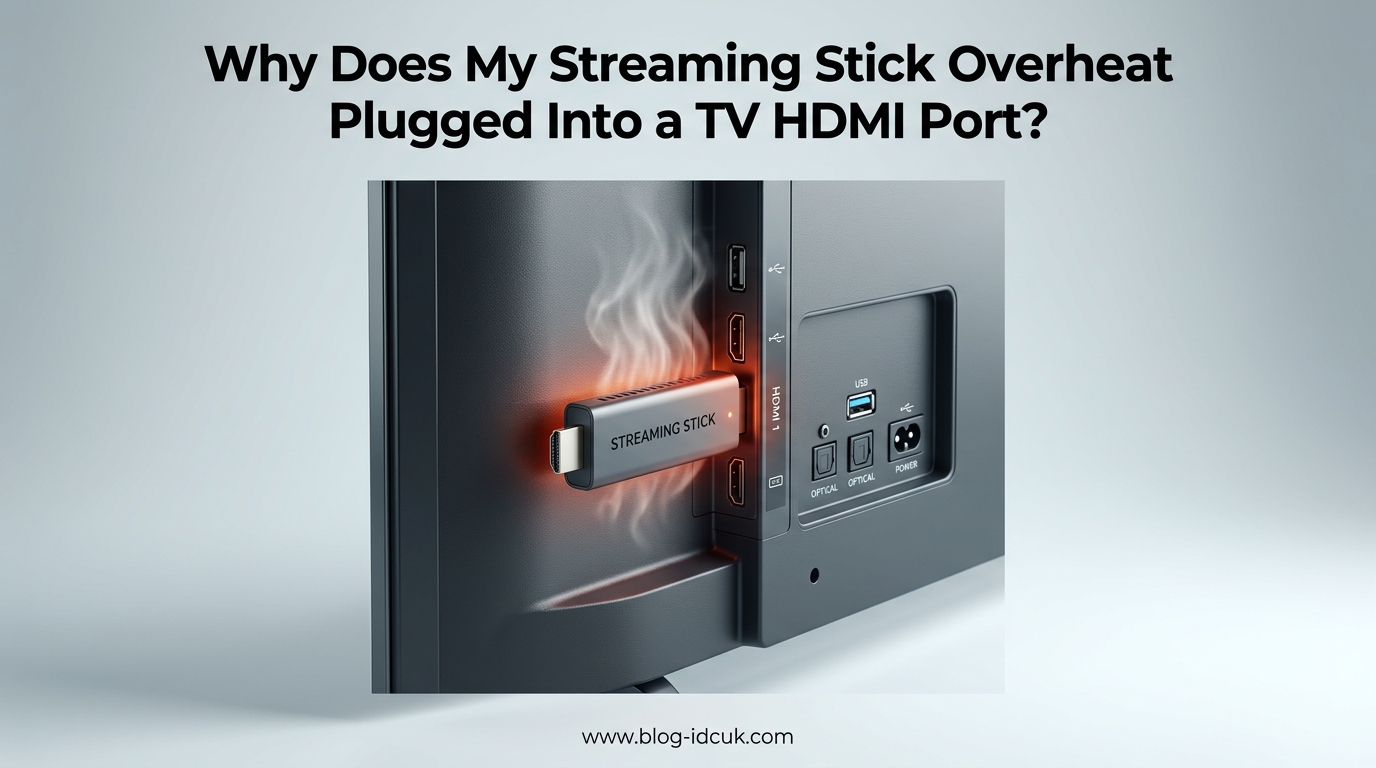
Your streaming stick overheats when plugged directly into a TV HDMI port because the TV’s chassis conducts heat straight into the stick, the tight space behind the TV traps that heat with zero airflow, and many TV USB ports deliver inconsistent power that forces the stick’s processor to work harder. The combination of conducted heat, poor ventilation, and under-voltage creates a thermal bottleneck that triggers overheating warnings, lag, and automatic restarts during long viewing sessions.
If you have ever been halfway through a movie only to see a red light blinking or an “Your device is overheating” message pop up on screen, you already know how frustrating this problem is. I have dealt with this exact issue across multiple Roku Streaming Sticks, Fire TV Sticks, and Chromecast devices over the years, and the pattern is always the same.
The good news is that this is one of the most fixable problems in home streaming. Once you understand why the heat builds up, the solutions are straightforward. In this guide, I will break down the exact causes of streaming stick overheating in HDMI ports, the warning signs to watch for, and the steps you can take right now to cool things down and keep them that way.
Table of Contents
Why Does My Streaming Stick Overheat Plugged Into a TV HDMI Port? The Root Cause
There is no single reason your streaming stick overheats in a TV HDMI port. Instead, it is a combination of three overlapping factors that compound each other. Understanding all three is the key to fixing the problem permanently.
Thermal Conductivity From the TV Chassis
Your television is not just a screen. It is a large electronic device with its own internal heat generating components, including LED backlight arrays, power supply boards, and image processing chips. During operation, the metal chassis and internal frame of the TV heat up significantly.
When you plug a streaming stick directly into an HDMI port on the back of the TV, that stick makes direct metal-to-metal contact with the TV’s internal structure. Heat from the TV conducts through the HDMI connector and into the body of your streaming stick. The longer the TV runs, the more heat transfers. No competitor article I have found explains this clearly, but it is the primary reason a stick plugged into HDMI runs hotter than the same stick sitting on a table.
Modern TVs, especially larger models and budget brands with less internal shielding, can push significant heat out through the HDMI port area. If your TV has been running for an hour or more, the back panel near the HDMI slots can feel warm to the touch. That warmth is not staying in the TV. It is transferring directly into your streaming device.
Zero Airflow Behind the TV
The second factor is airflow, or rather the complete lack of it. Streaming sticks are designed with the assumption that air can circulate around them. When plugged flush into an HDMI port, the stick sits sandwiched between the back of the TV and the wall, often in a recessed slot surrounded by plastic and metal.
This is the worst possible thermal environment. There is no convection to carry heat away. The stick’s own internal heat, combined with the heat conducted from the TV, has nowhere to go. It just builds and builds until the processor hits its thermal throttle limit.
Insufficient Power From TV USB Ports
Many people power their streaming stick from a USB port on the TV itself. This seems convenient, but it creates a hidden overheating problem. TV USB ports are typically designed for occasional use, like reading a flash drive or powering a small dongle. They are not built for sustained power delivery to a device that streams 4K HDR content for hours.
When a TV USB port delivers inconsistent or low voltage, the streaming stick’s internal power regulation circuitry has to work harder to maintain stable operation. That extra work generates additional heat inside an already hot environment. It is a compounding problem that many users never connect to their overheating issues.
Signs Your Streaming Stick Is Overheating
Catching overheating early can prevent performance drops and potential long-term damage. Here are the warning signs I have seen across dozens of devices and user reports.
The Red Light Warning
On Roku devices, a solid or blinking red light is the most obvious indicator. This LED turns red when the internal temperature sensor detects that the device has exceeded its safe operating range. If you see this light, the stick is actively overheating and needs attention immediately.
The Overheating Message
Many streaming sticks display an on-screen warning message that says something like “Your device is overheating” or shows a temperature warning icon. This message is triggered by the same internal temperature sensor as the red light. When you see it, the device is asking you to take action before it shuts itself down.
Lag, Buffering, and Stuttering
Before the warning messages appear, you will often notice performance degradation. Menus become sluggish, video starts stuttering or buffering more than usual, and apps take longer to load. This is thermal throttling in action. The stick’s processor reduces its clock speed to lower heat output, which directly impacts performance.
One Reddit user described it perfectly: after about an hour of viewing, the stick feels hot to the touch, the picture starts stuttering, and menus get noticeably slow. This is the classic thermal throttling pattern, and it means your device is running too hot.
Automatic Restarts and App Closures
In more severe cases, the stick may close apps on its own or restart completely. This is a protective measure. The device is shutting down non-essential processes or rebooting entirely to prevent heat damage to its internal components. If this happens during a movie, you have a serious overheating problem that needs immediate attention.
TV USB Power vs Wall Adapter: Why Power Source Matters
The power source you use for your streaming stick has a direct impact on how much heat the device generates. This is one of the most overlooked causes of overheating, and switching power sources is one of the easiest fixes available.
The Problem With TV USB Power
TV USB ports have significant limitations for streaming devices. Most TV USB ports deliver between 500mA and 900mA at 5 volts, which is barely enough for basic operation. Streaming sticks, especially when processing 4K HDR content, need consistent power delivery of at least 1A or more.
When the TV USB port cannot deliver enough current, several things happen. The stick’s voltage regulator works overtime to compensate, generating extra heat. The processor may throttle performance to reduce power draw. And in some cases, the stick may draw power in irregular bursts that cause additional thermal stress on internal components.
Additionally, many TV USB ports power down when the TV goes into standby or off. This means your stick reboots every time you turn the TV back on, which forces full processor load during startup and generates a spike of heat in an already warm environment.
Why a Wall Adapter Solves the Problem
The wall adapter that comes with your streaming stick is specifically designed for that device. It delivers clean, consistent power at the correct voltage and current rating. Using the original wall adapter eliminates the power-related heat issues entirely.
When powered from a wall outlet, the stick’s internal voltage regulator operates within its designed parameters. The processor gets steady power and does not need to compensate for undervoltage. Background operations run smoothly. The only heat generated is from the stick’s own processing, not from fighting an inadequate power source.
Users on the r/Roku subreddit consistently report that switching from TV USB power to the included wall adapter reduces operating temperature noticeably. It is one of the simplest and most effective changes you can make.
Quick Comparison
TV USB power: convenient, but inconsistent voltage, lower current, generates extra heat, may power down with TV. Wall adapter: slightly less convenient, but steady power, correct current specification, less heat, always-on operation. For preventing overheating, the wall adapter wins every time.
Why HDMI Ports Trap Heat Against Your TV
The physical design of HDMI ports on the back of TVs creates a perfect storm for heat buildup. Understanding this geometry helps explain why the HDMI extender solution works so well.
The Recessed Port Problem
Most TV HDMI ports are recessed into a plastic or metal housing on the back panel. When you plug a streaming stick in directly, the stick body sits inside or immediately adjacent to this recessed area. The stick is effectively inside a small enclosed space with walls on multiple sides.
In this position, the stick cannot dissipate heat through convection. Warm air cannot rise away from the device because it is blocked by the TV body above and the wall behind. The only heat escape path is through the HDMI connector itself, which is also the path bringing heat in from the TV. It is a thermal dead end.
Soundbar and Enclosed Cabinet Compounding
If your TV is mounted above a soundbar, inside an entertainment cabinet, or against a wall with minimal clearance, the problem gets worse. A soundbar generates its own heat, which rises directly toward the HDMI port area where your stick is plugged in. An enclosed cabinet traps all the heat from every device in the space.
One forum user reported that their Roku stick overheated every time when plugged into their soundbar’s HDMI port. The soundbar’s own heat output, combined with the tight mounting space, created temperatures that triggered the overheating warning within minutes of starting a stream.
Thermal Conductivity Explained Simply
Here is the science in plain terms. Metal is an excellent conductor of heat. The HDMI connector on your streaming stick is metal. The HDMI port on your TV connects to internal metal traces and ground planes that are part of the TV’s thermal management system. When you plug the stick in, you are thermally bonding the stick to the TV’s heat output.
This is why the same streaming stick can run cool when connected via an HDMI extender cable but hot when plugged in directly. The extender cable breaks the thermal bond by adding a length of cable between the stick and the TV’s hot HDMI port. The stick can then sit in open air where it was designed to operate.
Immediate Steps When Your Streaming Stick Overheats
If your streaming stick is overheating right now, follow these steps in order. These are the same troubleshooting steps that Roku support and community experts recommend, refined from years of user reports and testing.
Step 1: Unplug the stick immediately. Do not wait for the warning to go away on its own. Disconnect the streaming stick from the HDMI port and the power source. Let it sit for at least 10 to 15 minutes in a cool, shaded area. This is not optional. Continued operation at high temperatures can damage internal components.
Step 2: Check how you are powering the stick. If you are using a TV USB port, stop. Switch to the wall adapter that came with the device. If you lost the original adapter, use a quality USB power adapter rated for at least 5V and 1A output. Using an underpowered adapter will recreate the same problem.
Step 3: Try a different HDMI port. Not all HDMI ports on a TV run at the same temperature. Ports on the side panel often run cooler than ports on the back because they have more airflow. Ports near ventilation grilles may also be cooler. Try each available port and see if the overheating improves.
Step 4: Install an HDMI extender. This is the single most effective fix for HDMI-related overheating. An HDMI extender is a short flexible cable, typically 6 to 12 inches, that connects between the TV’s HDMI port and the streaming stick. It moves the stick away from the hot TV chassis and into open air where it can cool properly.
Roku offers a free HDMI extender to customers who request one through their support page. If you use a Roku Streaming Stick, this program is worth taking advantage of. Third-party HDMI extenders are inexpensive and work with Fire TV Sticks and Chromecast devices too.
Step 5: Remove nearby heat sources. If the stick is mounted behind a soundbar, above a receiver, or inside an enclosed cabinet, relocate it. Even with an extender, placing the stick next to another heat-generating device will keep temperatures elevated.
Step 6: Close background apps and update firmware. After cooling the stick and improving its physical setup, check for software issues. Close any apps running in the background that you are not actively using. Check for firmware updates, as manufacturers sometimes release patches that optimize power management and reduce heat output.
Prevention Tips: How to Keep Your Streaming Stick Cool
Once you have fixed the immediate overheating problem, these prevention tips will keep your streaming stick running cool for the long haul. I recommend implementing all of them, not just one or two.
Always Use an HDMI Extender
This is the number one prevention measure. An HDMI extender breaks the thermal connection between your TV and your streaming stick, and it moves the stick into open air where convection can do its job. Every streaming device manufacturer recommends this, and user reports across forums confirm it works.
If your stick did not come with an extender, they are widely available for a few dollars. Look for a short, flexible HDMI extension cable, ideally 6 to 8 inches. Avoid rigid extenders, as flexibility lets you position the stick for maximum airflow.
Power From the Wall, Not the TV
Always use the included wall adapter instead of the TV USB port. This eliminates power-related heat generation and ensures your stick gets consistent, clean voltage. It also means your stick stays powered on between viewing sessions, which allows background updates and reduces the thermal spike of cold starts.
Keep Firmware Updated
Firmware updates often include power management improvements and thermal optimization patches. Manufacturers monitor overheating reports and release updates that reduce processor load during idle periods and optimize 4K HDR streaming for lower power consumption. Check for updates monthly and install them promptly.
Close Background Apps
Streaming sticks have limited RAM and processing power. When multiple apps remain open in the background, the processor stays active even when you are only watching one stream. This extra load generates unnecessary heat. Make a habit of closing apps when you finish using them, especially after long viewing sessions.
Avoid Enclosed Spaces
If your TV is inside an entertainment center, make sure there is adequate ventilation around the entire setup. Enclosed cabinets can trap heat from the TV, soundbar, receiver, and streaming stick all at once. If possible, leave the back of the cabinet open or install small ventilation fans to improve air circulation.
Take Breaks During 4K HDR Sessions
4K HDR content demands significantly more processing power than standard HD streaming. The processor works harder, generates more heat, and the stick reaches higher temperatures faster. If you are planning a long 4K viewing session, consider taking a short break every couple of hours to let the device cool down.
Long-Term Damage From Repeated Overheating
This is a topic that no competitor article covers, but it matters a lot. Repeated overheating does not just cause temporary lag. It can permanently reduce the lifespan of your streaming stick.
Component Degradation From Heat Cycles
Every time a streaming stick overheats and cools down, its internal components go through a thermal cycle. These cycles cause microscopic expansion and contraction in solder joints, circuit board traces, and processor packaging. Over time, repeated thermal cycling weakens these connections and can lead to intermittent failures or complete device death.
The processor itself is also vulnerable. Sustained high temperatures accelerate electromigration, a process where electrons gradually damage the microscopic pathways inside the chip. This is a slow, cumulative effect, but over months or years of repeated overheating, it degrades processor performance and reliability.
Reduced Device Lifespan
A streaming stick that consistently overheats will likely fail sooner than one that operates within its designed temperature range. Based on user reports and manufacturer expectations, a well-maintained streaming stick should last 3 to 5 years. A stick that regularly hits thermal warning temperatures may have its lifespan cut to 1 to 2 years.
The signs of heat-related degradation include more frequent crashes, slower boot times, Wi-Fi connectivity issues, and eventual failure to boot at all. If your stick has been overheating regularly for months and starts showing these symptoms, replacement is likely more cost-effective than continued troubleshooting.
When to Replace vs Repair
If you have tried all the fixes in this article and your stick still overheats, the internal thermal padding or processor may already be degraded. At that point, a replacement device is the most reliable solution. The good news is that newer streaming sticks are designed with better thermal management, and using the prevention tips in this guide with a new device should keep it running cool for years.
FAQs
How to keep Roku Streaming Stick from overheating?
Use an HDMI extender to move the stick away from the TV chassis, power it from the included wall adapter instead of the TV USB port, keep firmware updated, close background apps, and ensure adequate airflow behind the TV. Roku also offers a free HDMI extender through their support page that solves overheating for most users.
Which HDMI port is best for Roku?
Side-facing HDMI ports are generally better than rear-facing ports because they have more airflow and less direct contact with the TV’s hottest internal components. If all ports are on the back, choose one near the edge of the port cluster or near a ventilation grille where heat can escape more easily.
What is the average lifespan of a Roku stick?
A well-maintained Roku Streaming Stick typically lasts 3 to 5 years. Sticks that regularly overheat may only last 1 to 2 years due to thermal degradation of internal components. Using an HDMI extender and wall power adapter can significantly extend the device lifespan.
Why does my now TV stick keep overheating?
NOW TV sticks, like other streaming sticks, overheat due to a combination of conducted heat from the TV HDMI port, poor airflow in tight spaces, and insufficient power from TV USB ports. Using an HDMI extender, switching to a wall power adapter, and ensuring proper ventilation behind the TV will resolve most overheating issues.
Conclusion
Understanding why your streaming stick overheats when plugged into a TV HDMI port comes down to three factors: conducted heat from the TV chassis, zero airflow in the tight space behind the TV, and insufficient power from TV USB ports. Each of these contributes to a thermal environment that the stick was never designed to handle.
The fixes are straightforward and proven. Install an HDMI extender to break the thermal bond with your TV. Power the stick from a wall adapter instead of the TV USB port. Keep firmware updated and close background apps. Ensure adequate ventilation around your entertainment setup. These changes will eliminate overheating for the vast majority of users.
If you are still seeing overheating warnings after implementing all of these fixes, your stick may already have heat-related degradation. In that case, replacing the device and applying these prevention tips from day one will give you a cool, reliable streaming experience for years to come.