
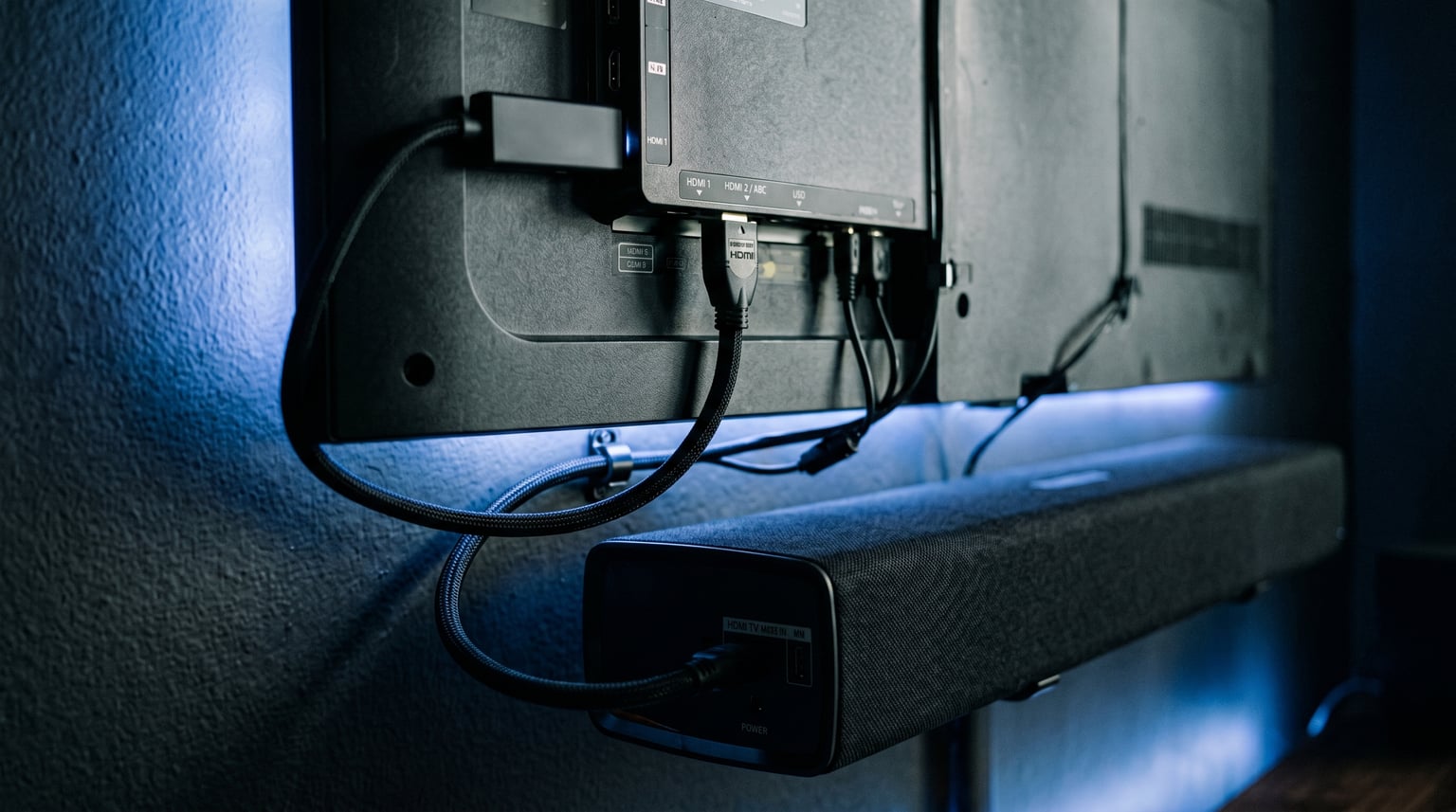
You plug in your Fire TV Stick, fire it up, and instead of the home screen you get a black screen. The soundbar is pumping out audio, but the picture is gone. Sound familiar? This is one of the most frustrating issues Fire TV owners face, especially when a soundbar sits in the HDMI chain between the stick and the TV.
The good news is that a Fire TV Stick black screen with a soundbar in the HDMI chain is almost always fixable at home. In most cases, the problem comes down to an HDMI handshake failure, a resolution mismatch, or an HDMI-CEC conflict between your devices. I have dealt with this exact scenario multiple times across different TV and soundbar setups, and the fixes are surprisingly consistent.
This guide walks you through every troubleshooting step in order of effectiveness. I will start with the quickest fixes, explain exactly why the black screen happens, and cover soundbar-specific solutions that most generic guides skip. By the end, you should have your picture back.
Table of Contents
Quick Fix: The 60-Second Solution
If you want the fastest possible fix, try this sequence before reading anything else. These steps resolve the Fire TV Stick black screen soundbar HDMI issue for the majority of users:
- Unplug your Fire TV Stick from power (not just the HDMI port). Leave it unplugged for at least 30 seconds.
- Power off your TV and soundbar completely. Do not just put them in standby. Pull the plug or flip the wall switch.
- Power everything back on in this order: TV first, then soundbar, then Fire TV Stick. Wait 10 seconds between each device.
- Set your TV to the correct HDMI input and wait for the Fire TV logo to appear.
- If you still see a black screen, press and hold the Up and Rewind buttons on your Fire TV remote simultaneously for 5 seconds. This forces the Fire TV to cycle through display resolutions until one works.
That last step is the secret weapon. The Up + Rewind shortcut forces a resolution change, and it fixes the black screen issue more often than any other single action. If this quick fix did not work, keep reading for the full troubleshooting guide.
Why Your Fire TV Stick Shows a Black Screen (But Sound Works)
Understanding why this happens makes the fixes make a lot more sense. When your Fire TV Stick boots, it goes through a process called an HDMI handshake. This is a negotiation between the Fire TV, any intermediate devices (like your soundbar or AV receiver), and your TV.
During this handshake, the devices agree on resolution, refresh rate, color depth, and copy protection standards. If any device in the chain disagrees on these settings, the video signal gets dropped. The result is a black screen.
The HDMI Handshake Explained
The HDMI handshake happens every time a device in the chain powers on or switches states. Your Fire TV essentially asks the TV, “What resolutions do you support?” The TV responds with its capabilities, and the Fire TV picks the best match.
When a soundbar sits between them, the Fire TV has to negotiate with the soundbar first, and then the soundbar negotiates with the TV. This three-way conversation creates more opportunities for failure. If the soundbar only supports 4K at 30Hz but your TV and Fire TV try to establish a 4K 60Hz signal, the handshake fails and you get a black screen.
HDCP: The Copy Protection Layer
HDCP (High-bandwidth Digital Content Protection) adds another layer of complexity. This copy protection protocol verifies that every device in the HDMI chain is authorized to receive protected content. If your soundbar does not support the same HDCP version as your Fire TV Stick (typically HDCP 2.2 for 4K content), the video signal gets blocked.
This is why you might hear sound but see no picture. Audio often passes through using a simpler protocol that does not require HDCP authentication, while the video signal gets shut down by the copy protection check.
Why the Soundbar Makes Everything Harder
Without a soundbar, the Fire TV talks directly to the TV. One connection, one handshake, one set of negotiations. Add a soundbar and you now have two HDMI handshakes that both need to succeed. Any inconsistency between what the soundbar reports and what the TV actually supports will break the video signal.
This is also why your Fire TV Stick might work perfectly when plugged directly into the TV but goes black when routed through the soundbar. The soundbar introduces an extra layer of negotiation that can fail silently.
How to Fix a Fire TV Stick Black Screen With a Soundbar: Step-by-Step
Now let us walk through every fix in detail. I have ordered these from simplest to most drastic, so work through them in sequence. Most black screen issues get resolved within the first three steps.
Step 1: Power Cycle Everything (Do This First)
A proper power cycle clears stuck HDMI handshake states and forces all devices to renegotiate from scratch. This single fix resolves more Fire TV Stick black screen issues than anything else.
The key detail most guides miss is boot order. When a soundbar is in the HDMI chain, the order in which devices power on matters enormously. Here is the correct sequence:
- Unplug all three devices from power: your Fire TV Stick, your soundbar, and your TV.
- Wait a full 30 seconds. This gives capacitors time to discharge and clears any cached handshake data.
- Plug in your TV first and power it on. Wait until it fully boots to the home screen or last input.
- Plug in your soundbar next and power it on. Wait 10 seconds for it to initialize.
- Plug in your Fire TV Stick last. It will boot and attempt the HDMI handshake with both devices already awake and ready.
- Switch your TV to the correct HDMI input and wait.
This boot order works because the TV and soundbar are already in their ready states when the Fire TV starts negotiating. If the Fire TV boots first and finds no devices listening, it may default to an incompatible resolution and never retry the handshake properly.
Step 2: Check Your HDMI Connections and Cables
If the power cycle did not work, the next step is to physically inspect and reseat every HDMI connection in the chain. A loose or partially seated cable can cause intermittent black screen issues that look like software problems.
Start by unplugging and replugging every HDMI cable at both ends. Make sure each connection clicks firmly into place. While you are doing this, check for any bent pins, damaged connectors, or frayed cables.
Next, try a different HDMI port on your TV. Multiple Reddit users in the r/fireTV and r/Soundbars communities report that their Fire TV Stick works on one HDMI port but shows a black screen on another. This is often because some ports support different HDMI versions or HDCP levels. Ports labeled ARC or eARC sometimes behave differently with passthrough devices.
If you are using HDMI passthrough on your soundbar (Fire TV connects to soundbar, soundbar connects to TV), check that the soundbar’s HDMI input is labeled ARC or eARC compatible. Using the wrong port on the soundbar is a common cause of black screen issues.
Finally, consider the cable quality. A cable that works fine for 1080p may fail at 4K HDR. If you have a Fire TV Stick 4K, make sure every cable in the chain is rated for HDMI 2.0 or higher with HDCP 2.2 support. I have seen cases where swapping a single old cable fixed the entire issue.
Step 3: Force a Resolution Change With the Up + Rewind Shortcut
This is the fix that Amazon does not document prominently but every Fire TV owner should know. If your Fire TV is outputting a resolution your TV or soundbar cannot handle, you get a black screen. The Up + Rewind shortcut lets you force a different resolution without being able to see the menu.
Here is exactly how to use it:
- Make sure your Fire TV Stick is powered on and your TV is set to the correct HDMI input (even though the screen is black).
- Press and hold the Up direction button and the Rewind button on your Fire TV remote at the same time.
- Hold both buttons for about 5 seconds, then release.
- Wait. The Fire TV will cycle through available resolutions (1080p 60Hz, 1080p 50Hz, 720p, etc.), pausing for about 10 seconds on each one.
- When a resolution appears that displays correctly on your screen, press the Select button (the center circle button) on your remote to confirm and keep that setting.
If you do not press Select, the Fire TV will move on to the next resolution after the 10-second pause. This shortcut is especially useful when a soundbar limits the resolutions available in the HDMI chain. Forcing the Fire TV down to 1080p or 720p can bypass the incompatibility entirely.
This also works for HDR-related black screens. If HDR content causes a black screen but SDR works fine, the issue is likely that your soundbar does not pass through HDR metadata correctly. You can go to Settings > Display & Sounds > Display > Dynamic Range Settings and set it to “SDR” as a workaround.
Step 4: Adjust HDMI-CEC and Display Settings
HDMI-CEC (Consumer Electronics Control) lets your devices talk to each other over HDMI for features like one-touch power on and volume control through the TV remote. It is also a frequent cause of black screen issues when multiple devices in the chain have CEC enabled.
When your TV, soundbar, and Fire TV all have CEC turned on, they can send conflicting commands that disrupt the HDMI handshake. One device might tell another to switch inputs or enter standby at the wrong moment, causing a black screen.
To Disable HDMI-CEC on Your Fire TV:
- Go to Settings > Display & Sounds > HDMI-CEC Device Control.
- Turn HDMI-CEC Device Control to Off.
You should also check your TV’s CEC settings. On Samsung TVs, it is called Anynet+. On LG TVs, it is called SIMPLINK. On Sony TVs, it is called Bravia Sync. Try disabling CEC on the TV and soundbar as well, then test whether the black screen issue resolves.
While you are in the Fire TV settings, also check the display resolution. Go to Settings > Display & Sounds > Display > Video Resolution and manually set it to match your TV’s native resolution. Leaving it on “Auto” can cause the Fire TV to pick a resolution your soundbar cannot handle.
Also check the Color Depth and HDR settings in the same menu. If your soundbar does not support HDR passthrough, turning HDR off on the Fire TV can eliminate the black screen.
Step 5: Factory Reset as a Last Resort
If none of the above steps worked, a factory reset clears all settings and starts fresh. This is particularly effective if the black screen started after a Fire OS update that may have changed display settings or introduced a bug.
There are two ways to factory reset a Fire TV Stick:
Method A: Using the Fire TV Menu (If You Can See It)
- Go to Settings > My Fire TV > Reset to Factory Defaults.
- Confirm by selecting Reset.
- Wait for the device to reset and reboot. This takes about 5 to 10 minutes.
Method B: Using the Remote (When Screen Is Black)
If you cannot see the menu, use this button combination on your Fire TV remote:
- Press and hold the Right direction button and the Back button simultaneously.
- Hold for at least 10 seconds until a reset confirmation screen appears (if your screen is working by that point) or the device reboots.
- Alternatively, press and hold the Back button and the Menu button (the hamburger icon) simultaneously for 10 seconds.
After the reset, you will need to go through the initial setup again, including signing into your Amazon account and reconnecting to Wi-Fi. This is also a good opportunity to reconnect your soundbar with a clean HDMI handshake from the start.
Soundbar-Specific Fixes: When the HDMI Chain Is the Problem
The steps above cover general Fire TV black screen troubleshooting. But when a soundbar is specifically in the HDMI chain, there are additional fixes worth trying. These address the root cause of why the soundbar disrupts the video signal.
Use an Optical Audio Cable Instead of HDMI
This is the single most effective soundbar-specific workaround, and it is something most troubleshooting guides bury or skip entirely. The Reddit community has confirmed this fix works repeatedly.
Instead of routing the Fire TV through the soundbar via HDMI, connect the Fire TV Stick directly to the TV and run an optical audio cable from the TV to the soundbar. This eliminates the soundbar from the HDMI chain entirely.
Without the soundbar in the HDMI path, the Fire TV only needs to negotiate with the TV. This removes the three-way handshake problem and eliminates HDCP conflicts. You still get audio through the soundbar, but it travels over the optical connection instead of HDMI.
The downside is that optical audio does not support the newest surround sound formats like Dolby Atmos over TrueHD. But if you just want sound and a working picture, this is the most reliable fix available.
Understand ARC vs eARC Compatibility
If you are using HDMI ARC (Audio Return Channel) or eARC (Enhanced ARC) to connect your soundbar, compatibility issues can cause black screens. ARC was designed for audio to travel from the TV back to the soundbar, but some soundbars also use this path for video passthrough.
Check your soundbar’s documentation for its ARC/eARC capabilities. If your soundbar only supports ARC (not eARC), it may not handle 4K HDR passthrough correctly. In this case, connect the Fire TV directly to the TV and use ARC only for audio return.
If your soundbar does support eARC, make sure both the TV and soundbar have eARC enabled in their settings. A mismatch between ARC and eARC settings on connected devices can silently break the video signal.
Test With a Direct TV Connection
Before spending hours troubleshooting, do a quick diagnostic test. Unplug the Fire TV Stick from the soundbar and plug it directly into the TV. If the picture comes back immediately, you have confirmed that the soundbar is the problem.
This test takes two minutes and tells you exactly where the issue lies. If direct TV connection works, you know to focus on soundbar-specific fixes rather than general Fire TV troubleshooting.
Turn Off CEC on Individual Devices
CEC conflicts are even more likely when three devices are in the chain. Try disabling CEC on just the soundbar while leaving it on for the TV and Fire TV. Sometimes the soundbar’s CEC implementation sends rogue commands that disrupt the handshake.
If that does not help, try disabling CEC on all three devices. You lose the convenience of one-touch control, but you gain a stable picture. For many users, that trade-off is worth it.
How to Prevent the Black Screen From Coming Back
Once you have fixed the issue, a few habits can prevent it from recurring:
- Keep your Fire TV firmware updated. Go to Settings > My Fire TV > About > Check for Updates regularly. Amazon frequently releases patches for HDMI compatibility issues.
- Use the OEM power adapter. Many black screen issues come from underpowered Fire TV Sticks. Use the wall adapter that came with the device, not a USB port on the TV or soundbar. Low power can cause the HDMI signal to drop intermittently.
- Lock your display resolution. Instead of leaving video resolution on Auto, set it manually to your TV’s native resolution. This prevents the Fire TV from switching resolutions that break the handshake.
- Disable HDR if your soundbar cannot handle it. If HDR content consistently causes black screens, turn off HDR in the Fire TV display settings. SDR content will play without issues.
- Follow the correct boot order. Always power on your TV first, then the soundbar, then the Fire TV Stick. Make this a habit, especially after power outages.
FAQs
Why is my TV screen black but I hear sound?
This happens when the HDMI video signal fails but the audio signal continues. The most common cause is an HDMI handshake failure between your Fire TV, soundbar, and TV. The devices cannot agree on resolution or copy protection settings, so the video gets blocked while audio passes through. Try the Up + Rewind button shortcut on your Fire TV remote to force a resolution change, or power cycle all devices in the correct boot order (TV first, then soundbar, then Fire TV).
How to get Fire Stick to work with soundbar?
The most reliable method is to connect your Fire TV Stick directly to the TV and use an optical audio cable from the TV to the soundbar. This removes the soundbar from the HDMI chain and eliminates handshake conflicts. If you must use HDMI passthrough through the soundbar, make sure all cables support HDMI 2.0 and HDCP 2.2, disable HDMI-CEC on the soundbar, and follow the correct boot order: TV first, soundbar second, Fire TV last.
Is my HDMI cable causing the Fire Stick black screen?
It can be. Cables rated for 1080p may fail when carrying 4K HDR signals through a soundbar. Check that every HDMI cable in your chain supports HDMI 2.0 or higher with HDCP 2.2. Also try switching to a different HDMI port on your TV, as some ports support different HDMI versions. Reseating cables firmly at both ends is a simple step that fixes many intermittent black screen issues.
How to reset Amazon Fire Stick black screen?
If you can see the menu, go to Settings u0026gt; My Fire TV u0026gt; Reset to Factory Defaults. If the screen is black, press and hold the Right and Back buttons on your remote for 10 seconds. Alternatively, hold the Back and Menu buttons together for 10 seconds. The factory reset clears all display settings and forces a fresh HDMI handshake on the next boot. You will need to sign in to your Amazon account again afterward.
Why does my Fire TV show black screen after a firmware update?
Firmware updates can change display settings, HDR defaults, or HDMI-CEC behavior, which may break the handshake with your soundbar. After an update, power cycle all devices in the correct order (TV first, then soundbar, then Fire TV). Use the Up + Rewind shortcut to force a compatible resolution. If the issue persists, a factory reset will clear whatever the update changed and start fresh.
Conclusion
A Fire TV Stick black screen with a soundbar in the HDMI chain is almost always a handshake or resolution issue, not a broken device. Start with the 60-second quick fix, paying special attention to the boot order and the Up + Rewind resolution shortcut. Those two steps alone solve the problem for most users.
If the quick fix fails, work through the full troubleshooting guide step by step. And if you want the most bulletproof solution, switch to an optical audio cable and connect the Fire TV directly to the TV. It bypasses the entire handshake problem.
If nothing in this guide resolves your issue, your Fire TV Stick may have a hardware fault. Contact Amazon support for a warranty replacement, especially if the device is still under the one-year limited warranty.