
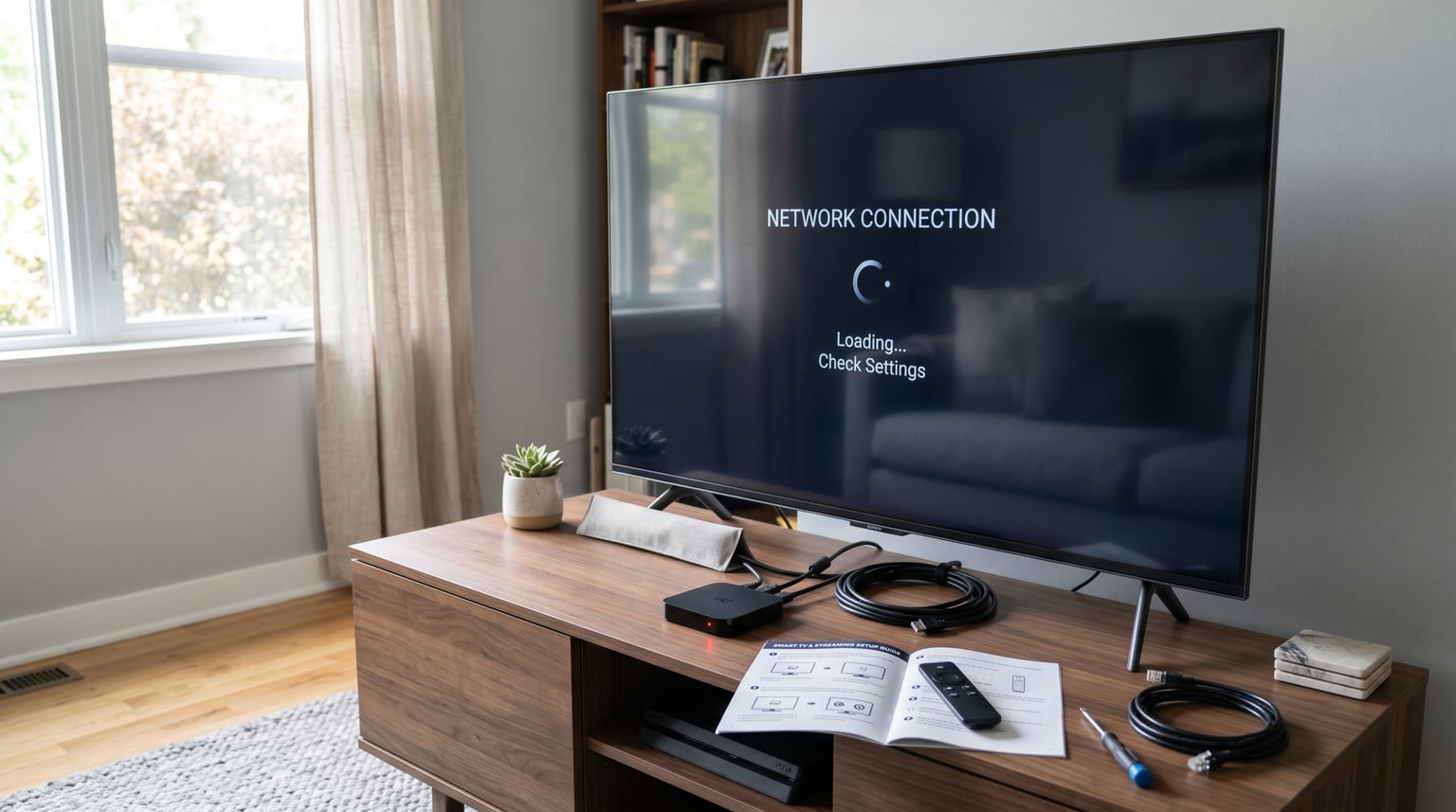
You press a button on your Roku, Fire Stick, or Apple TV remote, and your TV just sits there on the wrong input. If you are wondering why your TV will not switch inputs automatically with your streaming device, you are dealing with one of the most common home theater frustrations out there. We hear this complaint constantly, and the good news is that the fix is almost always straightforward.
The technology responsible for automatic input switching is called HDMI-CEC, and when it stops working, the cause is typically a disabled setting, a firmware glitch, or a device conflict somewhere in your HDMI chain. Once you understand how CEC works and where it breaks down, getting your TV to switch inputs automatically becomes a matter of checking a few specific settings.
In this guide, we will walk through exactly why your TV will not switch inputs automatically with your streaming device, what HDMI-CEC does behind the scenes, and the step-by-step fixes that work across Samsung, LG, Sony, Vizio, and TCL TVs paired with every major streaming stick.
Table of Contents
What Is HDMI-CEC and How Does It Control Input Switching
HDMI-CEC stands for Consumer Electronics Control. It is a feature built into the HDMI standard that allows devices connected through HDMI cables to send control commands to each other. When you turn on a streaming stick, it uses the CEC channel to send a message to your TV that says, “I just powered on, switch to my input.”
This is the same technology that lets your streaming device remote control your TV power and volume. Every streaming device that supports automatic input switching, from the Roku Streaming Stick to the Apple TV to the NVIDIA Shield, depends on HDMI-CEC to tell the TV to change sources.
Here is the catch: HDMI-CEC has to be enabled on both ends. Your TV needs to be listening for CEC commands, and your streaming device needs to be sending them. If either side has CEC turned off, the switching signal goes nowhere and your TV stays on whatever input it was already on.
The technology itself is part of the HDMI specification, so virtually every TV and streaming device made in the last decade supports it. The problem is that manufacturers give it different names, bury it deep in settings menus, and sometimes ship it disabled by default. That combination is why so many people end up searching for answers to this exact problem.
Why Won’t My TV Switch Inputs Automatically With My Streaming Device
If your TV is not switching inputs when you turn on your streaming device, the problem falls into one of six common categories. We have tested each of these scenarios across multiple TV and streaming device combinations, and these are the culprits that come up again and again.
HDMI-CEC Is Disabled on Your TV
This is the single most common cause. Many TVs ship with HDMI-CEC turned off out of the box. Others have it enabled initially but disable it after a firmware update or factory reset. Samsung, LG, Sony, and Vizio all use different names for the feature, which we will cover in the brand-specific section, but the result is the same: your streaming device sends the switching command and the TV ignores it completely.
HDMI-CEC Is Disabled on Your Streaming Device
The reverse scenario is equally common. Your TV might have CEC enabled, but the streaming device itself has its CEC feature turned off in its own settings. Roku calls this “1-touch play.” Fire TV calls it “CEC control.” Apple TV calls it “Control TVs and Receivers.” If any of these are disabled, the streaming device never sends the input-switching command in the first place.
AV Receivers and Soundbars Are Intercepting the Signal
If your streaming device plugs into an AV receiver or soundbar before reaching the TV, the CEC signal chain gets more complicated. The receiver sits between the streaming stick and the TV, and it has to relay the CEC commands correctly. We have seen reports on the r/hometheater subreddit where a Yamaha receiver worked perfectly for months and then suddenly stopped passing CEC signals after a firmware update.
One NVIDIA Shield user found that unplugging every HDMI device except the Shield from their receiver completely fixed the auto-switching problem. When multiple CEC-enabled devices connect through the same receiver, they can flood the CEC bus with conflicting commands and prevent the TV from responding to any of them.
Firmware Updates Broke CEC Functionality
This is a pain point that comes up constantly in forum discussions, and it is particularly frustrating because it is not your fault. LG WebOS updates have repeatedly broken HDMI-CEC on OLED TVs, including models like the C1 and C5. Samsung firmware patches have caused TVs to start switching inputs randomly even when no external devices were powered on. Sony Bravia updates have quietly disabled CEC on specific HDMI ports.
If your auto-switching worked fine for months and then suddenly stopped, check whether a firmware update rolled out around the same time. This is one of the first things our team looks for when diagnosing CEC issues, and it explains a surprising number of cases.
Multiple HDMI Devices Are Creating CEC Conflicts
CEC was designed for relatively simple setups. When you have a streaming stick, a game console, a soundbar, and a cable box all sending CEC commands through the same HDMI chain, they start interfering with each other. A PlayStation 5 might tell the TV to switch inputs when it enters sleep mode. A Nintendo Switch might only trigger auto-switching during sleep mode transitions rather than active gameplay, as one LG OLED C5 owner reported in a forum thread.
The more CEC devices you have connected, the higher the probability of conflicts. This is why isolation testing, which we cover in the troubleshooting section, is one of the most effective diagnostic tools available.
HDMI Cable or Port Problems
Not all HDMI cables carry CEC signals reliably. Older cables, cheap unbranded cables, and cables longer than 15 feet can degrade the CEC data line to the point where commands arrive corrupted or not at all. Similarly, some HDMI ports on older TVs do not fully implement the CEC standard. If you have exhausted the settings-based fixes, swapping cables and ports is the next logical step.
How to Enable HDMI-CEC on Your TV
Enabling HDMI-CEC is the single most effective fix for automatic input switching problems. The challenge is that every TV brand calls it something different and buries it in a different settings menu. Here is the quick reference for what HDMI-CEC is called by each manufacturer, followed by step-by-step instructions for the most common brands.
Samsung: Anynet+ (HDMI-CEC)
LG: SIMPLINK (HDMI-CEC)
Sony: Bravia Sync
Vizio: CEC Control
TCL (Roku TV): Control other devices
TCL (Google TV): HDMI-CEC
Hisense: HDMI CEC
Enabling Anynet+ on Samsung TVs
Press the Home button on your Samsung remote. Navigate to Settings, then General, then External Device Manager. Toggle Anynet+ (HDMI-CEC) to On. Samsung also recommends enabling the sub-options called Auto Turn Off and Receive Power On for full CEC functionality. If you are using a standard IR remote rather than a Smart Remote, the navigation path and available options may differ slightly, so check your TV manual for the exact menu structure.
Enabling SIMPLINK on LG TVs
Press the Settings button on your LG Magic Remote. Go to All Settings, then Connection, then HDMI Device Settings. Turn on SIMPLINK (HDMI-CEC). On LG TVs running WebOS 23 and later, you may find this under Settings, then General, then Devices, then External Devices, then HDMI Settings. Make sure both Auto Power Sync and Input Auto Switch are enabled, as these sub-settings control the actual input-switching behavior.
Enabling Bravia Sync on Sony TVs
Press the Home button and go to Settings. Navigate to Channels and Inputs, then External Inputs, then BRAVIA Sync settings. Turn on BRAVIA Sync Control. Then enable the sub-options for Device auto power off and TV auto power on. Sony TVs also offer a per-device CEC toggle that you can access by selecting the specific HDMI input and pressing the settings button on your remote.
Enabling CEC on Vizio TVs
Press the Menu button and select System. Scroll to CEC and set it to Enabled. On newer Vizio models, this may be located under Inputs, then CEC Settings. After enabling CEC, run the Device Discovery feature if your TV has one, as this forces the TV to scan for and register all connected CEC devices. If CEC remains unreliable, try disabling the System Standby Control sub-option while keeping the main CEC toggle on.
Enabling CEC on Your Streaming Device
Enabling CEC on the TV is only half the solution. Your streaming device also needs to be configured to send the input-switching commands. Here is where to find the setting on each major platform.
Roku: Go to Settings, then System, then Control other devices. Turn on 1-touch play. When this is enabled, pressing any button on your Roku remote while the device is active sends a CEC signal telling the TV to switch to that input.
Fire TV: Go to Settings, then Display and Sounds, then HDMI CEC Device Control. Turn it on. Some Fire TV Stick models also require configuring CEC in the Equipment Control menu during initial setup, so if auto-switching stopped working after a software update, try re-running that setup.
Apple TV: Go to Settings, then Remotes and Devices, then Volume Control. Make sure Control TVs and Receivers is turned on. Apple TV supports CEC natively and is generally one of the more reliable streaming devices for automatic input switching across different TV brands.
NVIDIA Shield: Go to Settings, then Display and Sound, then Advanced. Enable HDMI-CEC. The Shield has strong CEC support, but forum users report that conflicts with older Denon and Yamaha receivers can still cause switching issues.
Chromecast with Google TV: Go to Settings, then System, then HDMI-CEC. Toggle it on. Chromecast has a known quirk where it sometimes fails to switch inputs when casting from a phone, even though the physical remote triggers switching correctly. This is a software issue on Google’s side.
Step-by-Step Troubleshooting: How to Fix HDMI-CEC and Auto Input Switching
If you have enabled CEC on both your TV and your streaming device and automatic input switching still does not work, follow these steps in order. Our team has tested this exact sequence across dozens of setups, and it resolves the vast majority of CEC problems without needing any technical expertise.
Step 1: Confirm CEC is enabled on both devices. Double-check the settings on both your TV and your streaming device. It is remarkably easy to enable CEC on the TV side and then forget to turn on the equivalent setting on the streaming stick. If either side has CEC off, the switching command will never make it through.
Step 2: Power cycle every HDMI device. Turn off and unplug your TV, streaming device, soundbar, and any AV receivers. Wait at least 60 seconds. Plug them back in and power on the TV first, then the receiver if you have one, then the streaming device. This forces all devices to re-establish the CEC handshake from a clean state.
Step 3: Try a different HDMI port. Move your streaming device to a different HDMI port on the TV. On some TVs, only certain ports fully support CEC. Try ports labeled HDMI 1, 2, or 3. Interestingly, while ARC and eARC ports support CEC, they sometimes prioritize audio device traffic over streaming device signals, so a non-ARC port may actually work better for auto-switching.
Step 4: Check for firmware updates on both devices. Look for available software updates on your TV and streaming device. This is a double-edged sword since updates sometimes introduce new CEC bugs, but manufacturers also release patches to fix known CEC issues. LG in particular has issued multiple WebOS updates specifically targeting HDMI-CEC stability problems.
Step 5: Isolate conflicting devices one at a time. Unplug every HDMI device except your TV and your streaming stick. Test whether auto-switching now works. If it does, reconnect your other devices one at a time, testing after each addition. When auto-switching breaks again, the last device you plugged in is the culprit. This isolation method was the exact fix that resolved an NVIDIA Shield user’s weeks-long CEC problem on r/hometheater.
Step 6: Swap the HDMI cable. Replace the cable connecting your streaming device with a high-speed HDMI cable rated for 18 Gbps or higher. Ultra-cheap cables and cables longer than 15 feet are notorious for unreliable CEC signal transmission. The cable that came with your streaming device is usually fine, but third-party replacement cables under a few dollars often cut corners on the CEC pin wiring.
Step 7: Perform a full CEC reset. As a last resort, disable CEC on your TV and every connected HDMI device. Power cycle everything for 60 seconds. Then re-enable CEC on the TV first, followed by each device one at a time with a test after each. This clears corrupted CEC state data that can accumulate over months of use and cause persistent switching failures.
Brand-Specific Fixes and Known Issues
Different TV brands have unique quirks when it comes to HDMI-CEC and automatic input switching. Here is what our testing and forum research have revealed about each major manufacturer.
Samsung TVs and Anynet+ Behavior
Samsung’s Anynet+ implementation is generally solid, but it has a few quirks worth knowing about. One issue Samsung owners frequently encounter is that Anynet+ can cause the TV to switch inputs on its own even when no external device is turned on. Samsung’s official troubleshooting guidance distinguishes between IR remotes and Smart Remotes. With an older IR remote, you may need to enter a specific code sequence to disable auto-switching. With a Smart Remote, you can toggle Anynet+ directly in the External Device Manager menu.
If random switching is driving you crazy, try disabling the Auto Turn Off sub-option while keeping Anynet+ itself enabled. This prevents connected devices from sending power-state changes that trigger unwanted input switches.
LG TVs and WebOS CEC Problems
LG OLED and NanoCell TVs running WebOS are frequent subjects in HDMI-CEC complaint threads. The SIMPLINK feature works well in principle but has been broken by multiple WebOS updates over the years. Users on r/LGOLED report that CEC simply stops working after a system update, sometimes for weeks before a patch is released.
One user with an LG C1 and a Yamaha RX-V383BL receiver reported that CEC worked flawlessly for months and then suddenly stopped, with the receiver no longer responding to TV power commands. The fix in that case was a full CEC reset on both the TV and the receiver. If you own an LG TV, check the LG support forum for your specific model number to see if a CEC stability patch has been released.
Sony TVs and Bravia Sync Limitations
Sony’s Bravia Sync is reliable overall, but it has a limitation that catches people off guard. Some Sony TVs only support CEC auto-switching on specific HDMI ports. If your streaming device is connected to a port that does not fully support Bravia Sync, auto-switching will fail regardless of your settings. Check your TV’s manual to identify which HDMI ports have full CEC support, and move your streaming device to one of those ports if needed.
Vizio TVs and CEC Control
Vizio TVs have a straightforward CEC toggle in the System menu, but Vizio users on forums frequently report that the TV switches inputs on its own when CEC is enabled. The root cause is usually a connected device, such as a cable box or older game console, that sends periodic CEC wake signals. The fix is to disable CEC on the specific devices you do not want triggering auto-switches while keeping it enabled for your streaming stick.
Streaming Device and Gaming Console Behavior Differences
Not all devices handle CEC the same way. Understanding these differences can save you significant troubleshooting time, especially if you have a mix of streaming sticks and gaming consoles connected to the same TV.
Roku devices are generally reliable with CEC. The 1-touch play feature triggers input switching when you press any button on the Roku remote. However, if your Roku is in screensaver mode and you press a button on the TV remote instead of the Roku remote, the input will not switch. Also, power your Roku from a wall adapter rather than the TV’s USB port, since low power can cause intermittent CEC failures.
Fire TV Sticks have decent CEC support but sometimes lose the setting after software updates. If your Fire Stick stopped switching inputs after an update, go to Settings, then Display and Sounds, then HDMI CEC Device Control to confirm it is still on. A hard reboot, unplugging the stick for 30 seconds, fixes most Fire Stick CEC glitches.
Apple TV is arguably the most reliable streaming device for CEC auto-switching. The Control TVs and Receivers feature works consistently across Samsung, LG, Sony, and Vizio TVs. If Apple TV CEC fails, the problem is almost certainly on the TV side rather than the Apple TV side.
Gaming consoles behave differently from streaming devices. PlayStation 5 and Xbox Series X often revert the TV to the previous input when powered off, but they do not always trigger a switch when powered on. The Nintendo Switch has particularly unusual CEC behavior, with some LG TV owners reporting it only triggers auto-switching during sleep mode transitions rather than when actively turned on. These differences are important to understand if your TV seems to switch inputs at random times.
When Your TV Keeps Switching Inputs On Its Own
Sometimes the problem is the exact opposite of what we have been discussing: your TV keeps switching to the wrong input without you doing anything. This is also a CEC issue, just in reverse. A connected device is sending intermittent CEC wake or switching signals even when you are not actively using it.
The most common culprits are gaming consoles in sleep mode, streaming devices that periodically check for updates, and AV receivers that send status polling commands. To diagnose the problem, unplug HDMI devices one at a time until the random switching stops. Once you identify the device responsible, either disable its Auto Power On CEC feature or turn off CEC for that specific device in your TV’s CEC device list.
Samsung TVs let you disable Anynet+ for individual devices rather than turning it off globally, which is helpful if one streaming stick is causing all the trouble. LG and Sony TVs offer similar per-device CEC controls in their settings menus.
FAQs
How do I make my TV automatically switch to HDMI?
Enable HDMI-CEC on your TV (called Anynet+ on Samsung, SIMPLINK on LG, Bravia Sync on Sony, or CEC on Vizio). Then enable the 1-Touch Play or Auto Input Change sub-setting in the same menu. Finally, make sure CEC is also turned on in your streaming device settings, such as 1-touch play on Roku or HDMI CEC Device Control on Fire TV.
Why isn’t my TV switching inputs?
The most common reason is that HDMI-CEC is disabled on either your TV or your streaming device. Other causes include using an HDMI port that does not support CEC, an AV receiver blocking the CEC signal, outdated firmware with CEC bugs, or multiple connected devices sending conflicting CEC commands that prevent the TV from responding.
How do I get my Roku to switch TV inputs automatically?
Go to Settings u0026gt; System u0026gt; Control other devices on your Roku and enable 1-touch play. Then confirm HDMI-CEC is enabled on your TV (Anynet+ on Samsung, SIMPLINK on LG, Bravia Sync on Sony). Power your Roku from a wall adapter rather than the TV USB port, as low power can cause intermittent CEC failures.
Why is my Fire Stick not switching inputs?
Go to Settings u0026gt; Display and Sounds u0026gt; HDMI CEC Device Control on your Fire Stick and confirm it is turned on. Fire Sticks frequently lose their CEC setting after software updates, so if the toggle is already on, unplug the Fire Stick for 30 seconds and plug it back in to force a hard reboot. Also verify CEC is enabled on your TV.
Why does my TV keep switching HDMI on its own?
A connected device is sending intermittent CEC wake signals, usually a gaming console in sleep mode, a streaming device checking for updates, or an AV receiver sending polling commands. Unplug HDMI devices one at a time to identify the culprit, then disable that device’s Auto Power On CEC feature or turn off CEC for that specific device in your TV’s CEC device list.
How do I reset HDMI CEC on my TV?
Disable CEC on your TV and every connected HDMI device. Unplug everything for 60 seconds. Reconnect and power on the TV first, then each device one at a time. Re-enable CEC on the TV first, then on each device. This clears corrupted CEC state data and forces all devices to re-establish clean CEC communication from scratch.
Conclusion
If your TV will not switch inputs automatically with your streaming device, the fix almost always comes down to HDMI-CEC. Enable it on both your TV and your streaming device, make sure you are using a CEC-compatible HDMI port, update your firmware, and isolate any conflicting devices one at a time using the troubleshooting steps above. The technology is imperfect and firmware updates occasionally break things, but once you get the CEC chain configured correctly across all your devices, automatic input switching becomes one of those quality-of-life features you will not want to live without.