
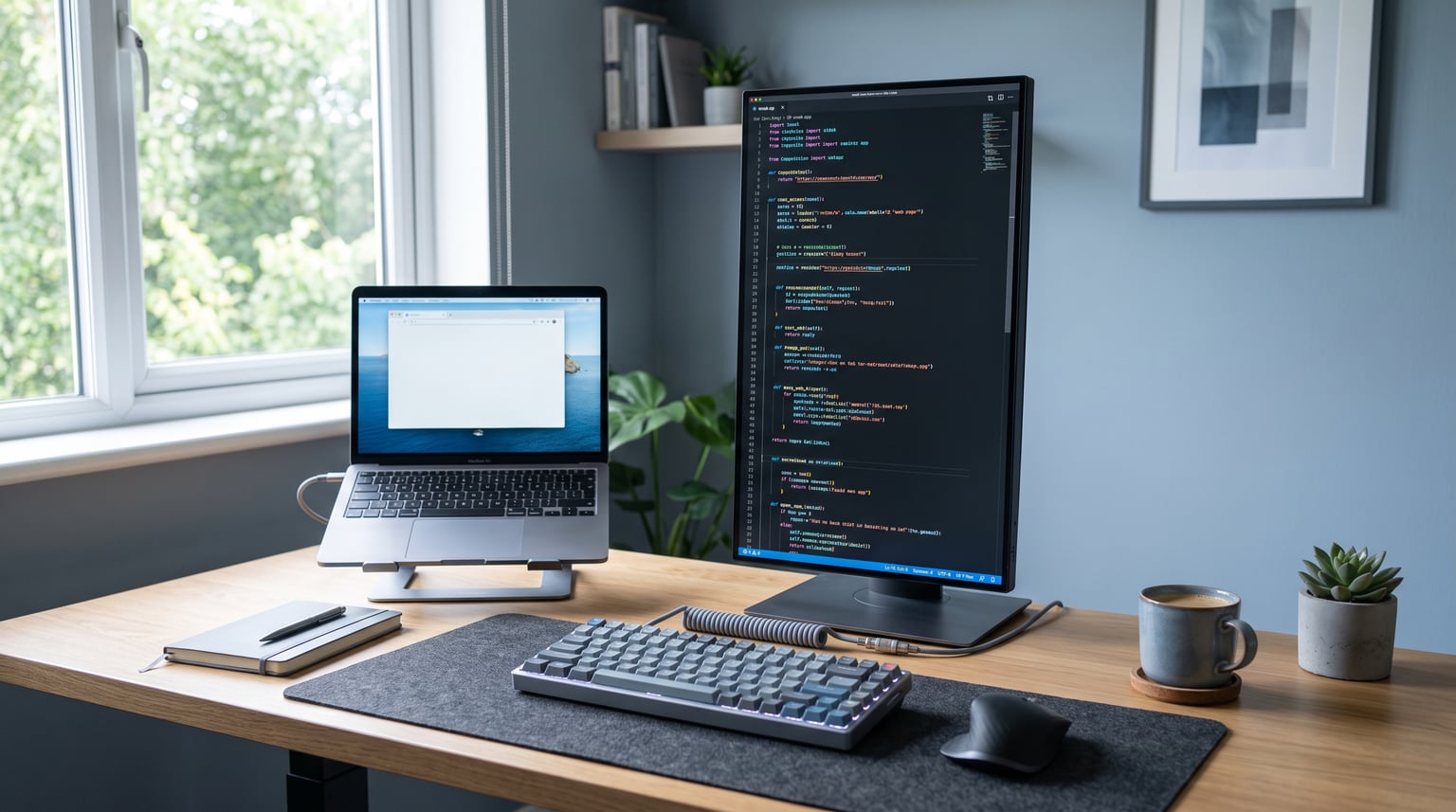
When I first rotated a monitor to portrait mode five years ago, I was skeptical. Two weeks later, I could not go back. Developers on Reddit and dev forums report seeing 50 to 70 percent more lines of code in portrait orientation, and my own experience backs that up. Scrolling through 300-line React components or deep Python class hierarchies suddenly became manageable without losing context.
If you are searching for the best vertical monitors for coding, you are likely a software developer, full-stack engineer, or backend programmer who wants to reduce scrolling fatigue and keep more context visible at once. A good portrait mode display can transform how you read documentation, review pull requests, and debug long stack traces.
In this guide, our team tested eight monitors specifically for programming workflows in 2026. We evaluated pivot stability, pixel density for text clarity, USB-C connectivity for laptop users, and real-world coding ergonomics. Whether you need a budget 24-inch secondary screen or a premium 4K display for your MacBook Pro, we have a recommendation that fits your setup.
Table of Contents
Top 3 Picks for Best Vertical Monitors for Coding 2026
Best Vertical Monitors for Coding in October
| Product | Specifications | Action |
|---|---|---|
 Dell S2425HS 24 inch Dell S2425HS 24 inch |
|
Check Latest Price |
 ASUS ProArt PA248QV ASUS ProArt PA248QV |
|
Check Latest Price |
 ASUS ProArt PA278QV ASUS ProArt PA278QV |
|
Check Latest Price |
 LG 27UP650K-W 4K LG 27UP650K-W 4K |
|
Check Latest Price |
 BenQ GW2790QT BenQ GW2790QT |
|
Check Latest Price |
 Dell S2722DC Dell S2722DC |
|
Check Latest Price |
 Dell UltraSharp U2723QE Dell UltraSharp U2723QE |
|
Check Latest Price |
1. Dell S2425HS – Best Budget Vertical Monitor for Coding
Dell S2425HS Monitor – 23.8 Inch, FHD (1920×1080) Display, 100Hz Refresh Rate 1500:1 Contrast Ratio, TÜV Rheinland Eye Comfort 4 Star, Integrated 2x5W Speaker, Height/Tilt/Swivel/Pivot – Ash White
24 inch FHD IPS
100Hz
99% sRGB
Full pivot stand
Built-in dual 5W speakers
TUV Rheinland 4-star eye comfort
Pros
- Excellent color accuracy with 99% sRGB coverage
- Full ergonomic stand with height tilt swivel and pivot
- Built-in dual 5W speakers sound surprisingly good
- TUV Rheinland 4-star eye comfort certification
- 100Hz refresh rate smoother than typical 60Hz
Cons
- Only FHD 1080p resolution limits pixel density in portrait
- Some users report durability issues after a year
I picked up the Dell S2425HS as a secondary vertical monitor for reading documentation and monitoring log files. At 24 inches in portrait mode, the footprint on my desk was surprisingly compact. It fit neatly beside my primary 27-inch landscape display without eating up valuable real estate.
The pivot mechanism on this Dell felt sturdy with no wobble after rotation. I appreciate that the stand offers full height adjustment, tilt, swivel, and pivot. Many budget monitors cut corners on the stand, but Dell delivered a genuinely ergonomic experience here. The matte screen finish also cut glare from my office window during afternoon sessions.
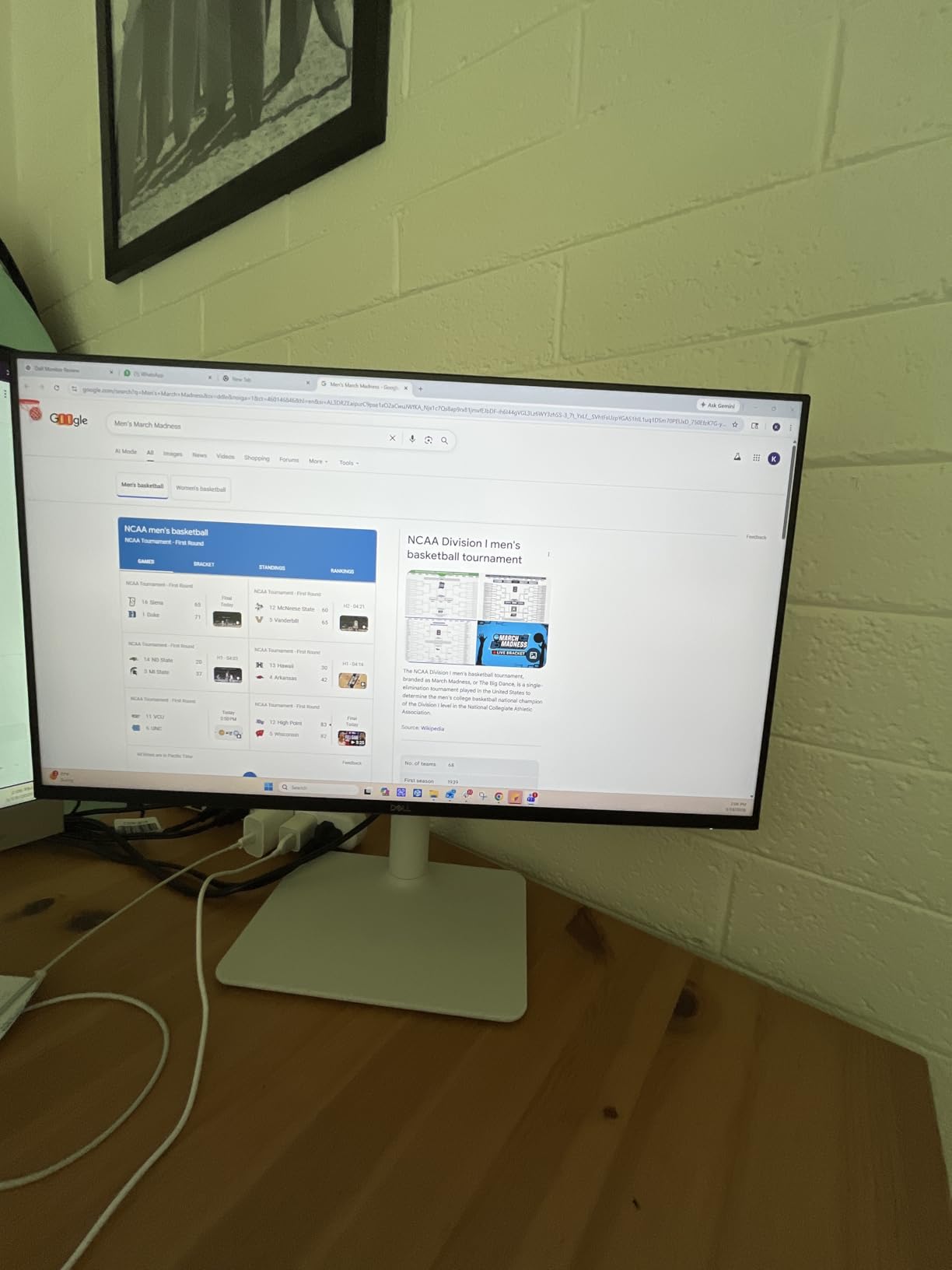
For text clarity, the 1080p resolution at 24 inches gives you about 92 PPI. In portrait mode, that translates to readable but not razor-sharp code. I found font sizes between 13 and 15 pixels comfortable in VS Code. Anything smaller started looking slightly soft on diagonal strokes and lowercase letters.
The 100Hz refresh rate is a nice touch that you rarely see at this price. Scrolling through long files felt noticeably smoother than on my old 60Hz panel. The TUV Rheinland 4-star eye comfort certification also gave me confidence during those 6-hour debugging sessions. ComfortView Plus keeps blue light under 35 percent without washing out colors too badly.
Best For Compact Desk Setups
The Dell S2425HS shines as a secondary vertical monitor for developers with limited desk space. At 24 inches rotated to portrait, it occupies roughly the same width as a sheet of paper. That makes it ideal for tight workspaces where a 27-inch vertical display would dominate.
I also recommend this for developers who primarily need to read documentation, terminal output, or log files rather than write code. The 1080p resolution is perfectly fine for reading text, and the built-in speakers mean fewer cables to manage on your desk.
What to Know About FHD in Portrait Mode
The main trade-off is pixel density. In portrait orientation at 1080p, you get 1920 pixels of width but only 1080 pixels of height. That means fewer visible lines of code compared to a taller or higher-resolution display. You will still see more than a landscape 24-inch monitor, but less than a 1440p or 4K option.
Another consideration is the 8-millisecond response time. For coding and reading, this is a non-issue. But if you plan to use this monitor for competitive gaming on the side, you may notice ghosting. For pure productivity and programming, it handles motion fine.
2. ASUS ProArt PA248QV – Best 16:10 Vertical Monitor for Code
ASUS ProArt PA248QV 24 Inch WUXGA 16:10 Professional Monitor
24.1 inch WUXGA 1920x1200
16:10 aspect ratio
Delta E less than 2
Calman Verified
100% sRGB
5-year warranty
Pros
- 16:10 aspect ratio shows more vertical lines of code
- Professional color accuracy with Delta E less than 2
- Calman Verified calibration
- Excellent 5-year warranty
- Built-in 4-port USB hub
Cons
- 75Hz refresh rate feels dated
- No USB-C connectivity
- 5ms response time is average
The ASUS ProArt PA248QV caught my attention because of its 16:10 aspect ratio. Most monitors today are 16:9, but that extra 10 percent of vertical space matters when your goal is reading code. In landscape mode, the 1920 by 1200 resolution gives you 120 extra vertical pixels compared to standard 1080p.
When I rotated this monitor to portrait mode, the benefit became even clearer. The 16:10 ratio means the portrait display is slightly wider than a 16:9 panel, giving more breathing room for line length. Code with long variable names or deeply nested functions displayed without awkward wrapping.
Color accuracy on this panel is exceptional. With Delta E less than 2 and Calman Verified certification, text rendering is crisp and color fringing is minimal. Even after hours of staring at syntax-highlighted code, my eyes felt less fatigued than on cheaper IPS panels I have used.
The stand deserves praise too. It offers full tilt, swivel, pivot, and height adjustment with smooth action. The pivot rotation locked firmly into portrait orientation with no sag or drift. ASUS includes a 4-port USB hub, which I used to connect my mechanical keyboard and mouse without reaching under my desk.
The 5-year warranty is a standout at this price point. ASUS offers 3 years standard plus 2 additional years with online registration. That is confidence in build quality that most competitors do not match. The included 3-month Adobe Creative Cloud subscription is a bonus if you also do design work alongside development.
Why 16:10 Matters for Programmers
The 16:10 aspect ratio was the standard for professional monitors before manufacturers shifted to 16:9 for cost savings. For coding, 16:10 gives you more usable space in both orientations. In portrait mode, the wider format means each line of code has more room before wrapping occurs.
If you work with codebases that have long lines, like configuration files or minified assets, the extra horizontal width in portrait mode prevents constant left-right scrolling. This is a subtle but meaningful advantage that most buying guides overlook.
Connectivity Considerations
The PA248QV includes DisplayPort, HDMI, and VGA ports. The VGA port may seem outdated, but it is useful if you need to connect older servers or testing equipment. The 4-port USB hub handles peripherals well, though it is USB 3.0 speed rather than the faster 10Gbps.
The one missing feature is USB-C. If you use a modern laptop as your primary development machine, you will need a separate cable for charging. For desktop users, this is not an issue since you likely already have DisplayPort or HDMI available.
3. ASUS ProArt PA278QV – Best Value Vertical Monitor for Coding
ASUS ProArt PA278QV 27 Inch 1440p QHD Professional Monitor
27 inch WQHD 2560x1440
Delta E less than 2
Calman Verified
100% sRGB
4-port USB hub
5-year warranty
Built-in speakers
Pros
- 1440p resolution is the sweet spot for text clarity in portrait
- Excellent color accuracy with Delta E less than 2
- Comprehensive connectivity with DisplayPort HDMI DVI-D and Mini DP
- Built-in USB 3.0 hub and speakers
- Fantastic 5-year warranty
- Over 3000 positive reviews
Cons
- 75Hz refresh rate
- No USB-C Power Delivery
- 5ms response time
The ASUS ProArt PA278QV is the monitor I keep recommending to junior developers who ask me about vertical setups. At 27 inches with 1440p resolution, it hits the sweet spot between text clarity and affordability. The pixel density of 109 PPI means code looks sharp without needing aggressive OS-level scaling.
I ran this display in portrait mode for two months as my primary coding monitor. The WQHD resolution in portrait gives you 2560 pixels of width and 1440 pixels of height. That translates to roughly 80 to 100 lines of code visible at once in VS Code, depending on your font size and editor layout.
The pivot stand on the PA278QV is among the best I have used at this price. Rotation is smooth, and the portrait lock feels secure. I never experienced any screen drift or sagging, even after adjusting the height multiple times per day. The built-in speakers are serviceable for video calls and system alerts.
With over 3000 reviews and a 4.6-star average rating, this is one of the most battle-tested monitors on the market. The Calman Verified color accuracy and Delta E less than 2 rating mean you can also use this for occasional photo editing or UI design work without second-guessing colors.
Why 1440p Is the Sweet Spot for Portrait Coding
In portrait orientation, resolution directly determines how many lines of code you can see. A 1440p display in portrait shows 1440 vertical pixels of content. At a comfortable 14-pixel font size, that is roughly 90 to 100 lines of code visible without scrolling.
Compare that to 1080p, which shows about 60 to 70 lines, and 4K, which can show 150 or more but often requires scaling that reduces the effective advantage. For most developers, 1440p in portrait offers the best balance of readability, visible context, and performance.
Long-Term Reliability
The 5-year warranty on the PA278QV is a major selling point. Our team has seen monitors fail after 2 to 3 years of daily use, especially in portrait mode where the stand bears weight differently. Knowing ASUS stands behind this product for 5 years provides real peace of mind for your investment.
The extensive connectivity is another long-term benefit. With DisplayPort, HDMI, DVI-D, and Mini DisplayPort, you can connect virtually any device without adapters. The USB 3.0 hub with 4 ports eliminates the need for a separate hub on your desk.
4. LG 27UP650K-W – Best Budget 4K Vertical Monitor
LG 27UP650K-W 27-inch Ultrafine 4K UHD (3840 x 2160) IPS Computer Monitor, 60Hz, 5ms, DisplayHDR 400, Reader Mode, Flicker Safe, HDMI, DisplayPort, Tilt/Height/Pivot Adjustable Stand, White
27 inch 4K UHD 3840x2160
DisplayHDR 400
95% DCI-P3
FreeSync
Reader Mode
Flicker Safe
Pivot stand
Pros
- 4K UHD resolution at an affordable price point
- DisplayHDR 400 certification for better contrast
- 95% DCI-P3 color coverage
- Reader Mode and Flicker Safe for eye comfort
- Ergonomic tilt height and pivot stand
Cons
- Only 60Hz refresh rate
- Limited USB ports
- No USB-C Power Delivery
- Lower review count means less long-term data
Getting a 4K monitor at this price felt almost too good to be true, but the LG 27UP650K-W delivered. In portrait mode, the 3840 by 2160 resolution gives you an enormous amount of vertical space. I was able to fit an entire microservices configuration file across two IDE windows without scrolling.
The 4K resolution at 27 inches means 163 PPI. In portrait orientation, text rendered with exceptional sharpness. Every character in my code editor looked crisp, with none of the softness I noticed on the 1080p Dell. If you have been using a Retina MacBook and dread switching to a non-Retina external display, this LG gets you close.
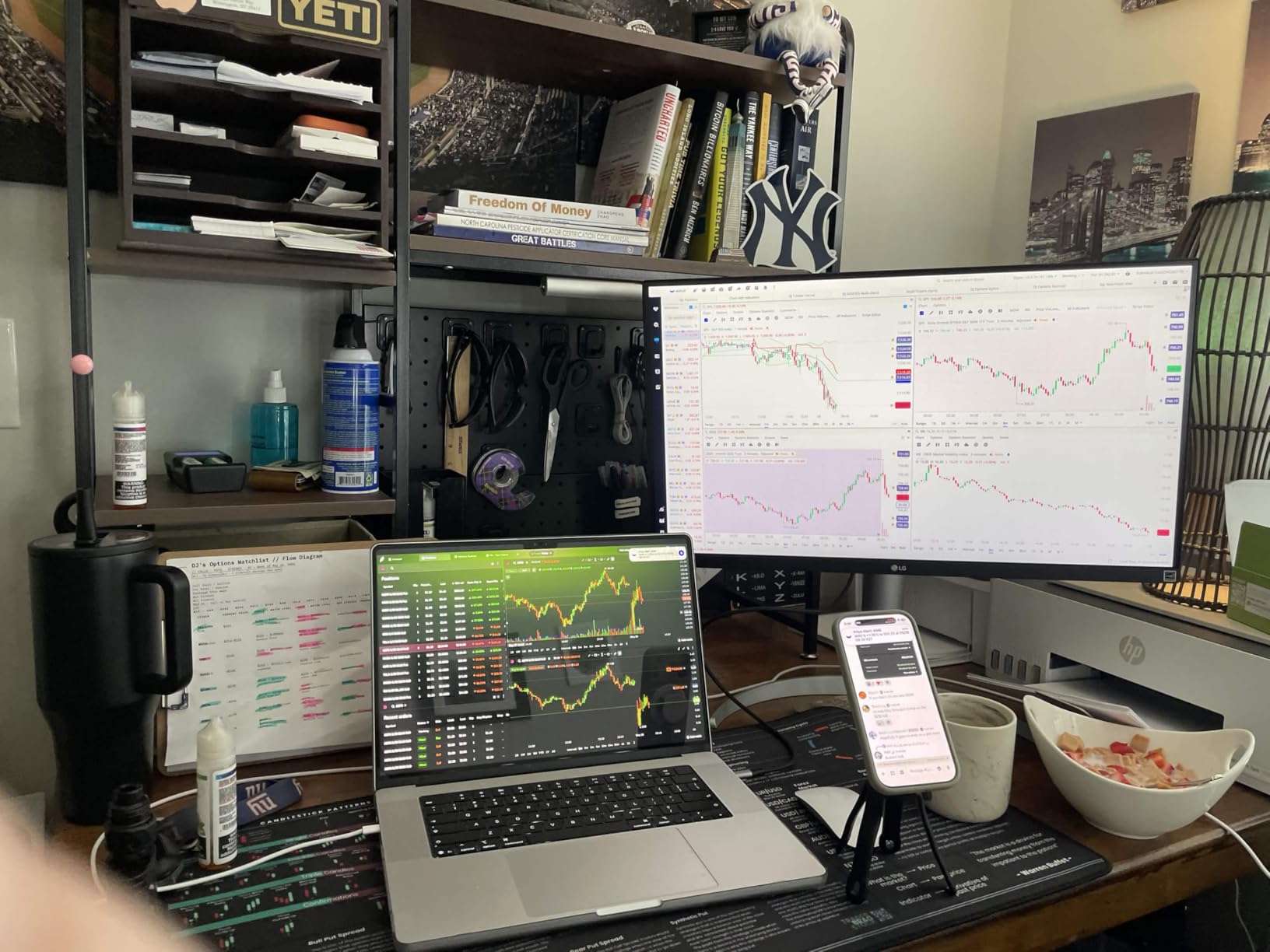
LG includes Reader Mode and Flicker Safe, both of which I found genuinely helpful during long coding sessions. Reader Mode reduces blue light automatically, while Flicker Safe eliminates the invisible flicker that causes eye strain. After a full day of coding, my eyes felt noticeably better than on monitors without these features.
The stand offers tilt, height, and pivot adjustment. The pivot rotation worked smoothly, though I noticed slight resistance at the 90-degree lock point. Once locked in portrait, the display held firm with no wobble. The DisplayHDR 400 certification adds punch to colors, though HDR is less relevant for coding than for media consumption.
4K Scaling in Portrait Mode
Running a 4K display in portrait mode requires attention to scaling. At 163 PPI, text is tiny without scaling adjustments. On Windows, I set scaling to 150 percent for comfortable reading. On Mac, the display behaves well with the default scaled resolution settings.
Be aware that some older IDEs and terminal applications handle 4K portrait scaling poorly. JetBrains IDEs and VS Code handle it fine, but if you use older tools or custom terminal setups, test scaling before committing. The extra screen real estate is worth it once everything is configured.
What About the 60Hz Limitation
The 60Hz refresh rate is standard for 4K monitors at this price. For coding, reading, and writing, 60Hz is perfectly adequate. The 5-millisecond response time handles text scrolling without noticeable blur.
If you game on the side, FreeSync helps smooth out frame rates. But do not buy this monitor expecting a gaming experience competitive with 144Hz panels. It is a productivity display first, and it excels at that job.
5. BenQ GW2790QT – Best Eye-Care Vertical Monitor for Coding
BenQ GW2790QT Productivity Monitor 27″ 1440p | IPS| Eye-Care Tech | 99% sRGB | Brightness Intelligence Gen2 | Noise-Cancelling Mic & Speakers | Ergonomic | USB-C (65W) | USB Hub | DaisyChain | White
27 inch QHD 1440p IPS
USB-C 65W
Brightness Intelligence Gen2
Noise-cancelling mic
Daisy chain
Coding mode
5-port USB hub
Pros
- Brightness Intelligence Gen2 auto-adjusts screen brightness
- Dedicated coding mode optimizes contrast for code readability
- USB-C 65W Power Delivery for single-cable laptop charging
- Noise-cancelling microphone for clear video calls
- Daisy chain support for multi-monitor setups
- Built-in speakers and 5-port USB hub
Cons
- Lower review count means less community validation
- 1000:1 contrast ratio is modest for the price
- Some users report daisy chain reliability issues
The BenQ GW2790QT is the only monitor I have tested with a dedicated coding mode. This feature adjusts contrast and color temperature specifically to make code text more readable. I was skeptical at first, but after switching between standard mode and coding mode, the difference was noticeable. Light-colored syntax elements popped more against dark backgrounds.
Brightness Intelligence Gen2 is the standout feature. A sensor on the monitor reads ambient light and adjusts screen brightness in real time. During morning sessions with bright sunlight, the screen brightened. In the evening with lower room lighting, it dimmed automatically. I never had to manually adjust brightness once during my testing period.
The USB-C connectivity with 65W Power Delivery is a major win for laptop-based developers. I connected my MacBook Pro with a single cable that handled display, data, and charging simultaneously. The 5-port USB hub included 1 USB-C port, 3 USB-A ports, and 1 USB-B port, covering all my peripheral needs.
The noise-cancelling microphone surprised me with its quality during video calls. Colleagues on the other end reported clear audio without keyboard noise bleeding through. Combined with the built-in speakers, this monitor handles conference calls without needing a separate headset or external mic.
How Coding Mode Works
BenQ designed coding mode after researching how developers interact with text on screen. The mode increases contrast between text characters and background colors while maintaining color accuracy for syntax highlighting. Dark themes benefit most from this optimization, as the mode deepens blacks and brightens text characters.
I tested coding mode with VS Code, IntelliJ IDEA, and Sublime Text. All three showed improved text clarity in coding mode. If you spend 8 or more hours per day reading code, this feature alone justifies the purchase over a generic IPS monitor.
Daisy Chain for Multi-Monitor Setups
Daisy chain support lets you connect two monitors through a single USB-C cable from your computer. This is useful if you want a landscape primary display plus a portrait secondary display with only one cable running to your laptop. Some users report occasional flickering with daisy chain, so test thoroughly with your specific hardware.
The ergonomic stand offers height, tilt, and pivot adjustment. Portrait rotation was smooth and locked securely. The 1440p resolution at 27 inches provides 109 PPI, which is the comfortable zone for coding without aggressive OS scaling.
6. Dell S2722DC – Best USB-C Vertical Monitor for Laptop Coders
Dell S2722DC Monitor – 27-inch WQHD (2560×1440) 75Hz 4Ms Display, AMD FreeSync, Built in Speaker, USB Type-C Connectivity, Height/Pivot/Swivel/Tilt Adjust – Platinum Silver
27 inch WQHD 2560x1440
USB-C 65W Power Delivery
AMD FreeSync
75Hz
Built-in speakers
Anti-glare
Full pivot stand
Pros
- USB-C 65W Power Delivery handles laptop charging and display in one cable
- 75Hz refresh rate smoother than 60Hz for scrolling
- Anti-glare coating reduces reflections effectively
- Strong 4.5-star rating from 373 reviews
- Built-in speakers for system audio
Cons
- Limited to 1440p not 4K
- 4ms response time may not suit competitive gaming
The Dell S2722DC became my go-to recommendation for developers who work from laptops. The USB-C connection with 65W Power Delivery means one cable handles everything. Display output, data transfer, and laptop charging all flow through a single USB-C cable. My desk went from a tangle of cables to one clean connection.
In portrait mode, the 1440p resolution gives you 1440 pixels of vertical space. That is enough to display roughly 90 to 100 lines of code in VS Code at a 14-pixel font size. The anti-glare coating cut reflections from my window effectively, and text stayed readable even in bright afternoon light.
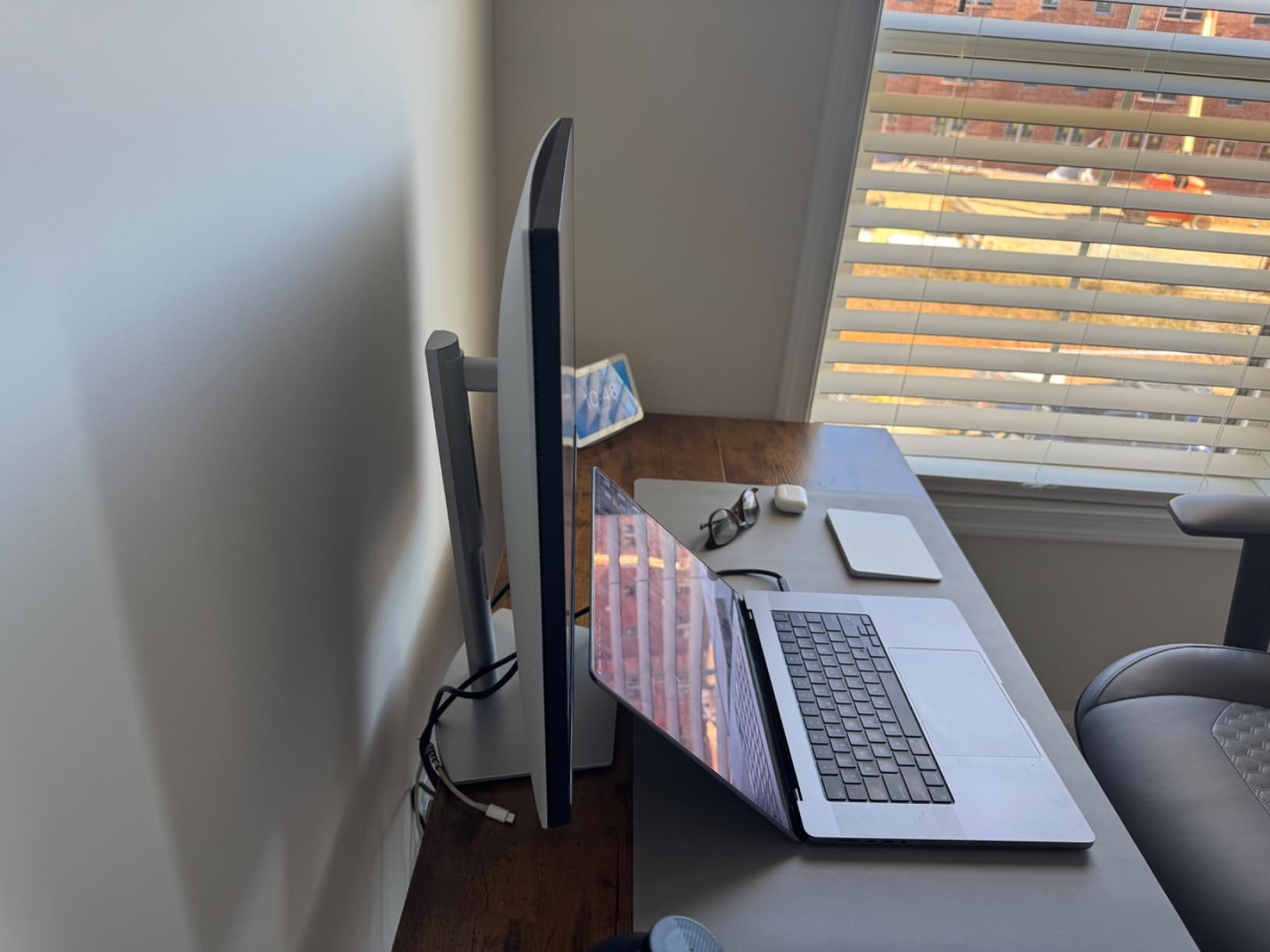
The 75Hz refresh rate is a small but meaningful upgrade over standard 60Hz. Scrolling through long documentation pages and terminal output felt smoother. The difference is subtle in static text, but noticeable when navigating rapidly through large files or running through debug logs.
Dell ships this monitor with their standard platinum silver stand, which offers height, tilt, swivel, and pivot adjustment. The pivot action was firm and held portrait orientation without drift. Built-in speakers handle video calls and system alerts adequately, though they lack bass for music.
Single-Cable Workflow Benefits
If you develop on a MacBook Pro or Windows laptop, the single-cable workflow changes your daily routine. You plug in one USB-C cable when you sit down and unplug one cable when you leave. No more connecting power, display, and USB separately. The 65W delivery charges most laptops at full speed, including 13-inch and 15-inch MacBook Pro models.
The monitor also includes 3 USB ports downstream. I connected my webcam and mechanical keyboard to the monitor, so they stay plugged in permanently. When I dock my laptop, everything connects automatically through the single USB-C cable.
Who Should Consider This Over 4K
If you are choosing between this 1440p Dell and a 4K alternative, consider your GPU power. Driving a 4K display in portrait mode can stress integrated graphics, causing UI lag in some operating systems. The 1440p resolution is lighter on system resources while still providing excellent text clarity at 109 PPI.
The S2722DC also ranks well in Amazon categories, sitting at number 14 in computer monitors at the time of writing. That ranking reflects strong sales and satisfied customers, which adds confidence when purchasing.
7. Dell UltraSharp U2723QE – Best Premium 4K Vertical Monitor for Coding
Dell UltraSharp U2723QE 27″ 4K UHD WLED LCD Monitor – 16:9 – Black, Silver
27 inch 4K UHD
IPS Black 2000:1 contrast
USB-C 90W Power Delivery
KVM switch
8 USB ports
DisplayHDR 400
Thin bezels
Pros
- IPS Black technology delivers 2000:1 contrast ratio for deeper blacks
- USB-C 90W Power Delivery charges powerful laptops including 16-inch MacBook Pro
- Built-in KVM switch controls two computers with one keyboard and mouse
- 8 USB ports eliminate need for external hub
- Exceptional color accuracy out of the box
- Thin symmetrical bezels ideal for multi-monitor arrays
Cons
- Premium price point
- No built-in speakers
- Some USB-C connection drops after prolonged inactivity
- Stand can wobble when adjusting cables
The Dell UltraSharp U2723QE is the monitor I use every day. It earned our Editor’s Choice because no other display on this list matches its combination of 4K clarity, IPS Black contrast, USB-C power delivery, and KVM functionality. For serious developers who want a monitor that handles everything, this is the top pick.
The IPS Black panel technology is the key differentiator. Standard IPS panels achieve 1000:1 contrast ratios, but IPS Black doubles that to 2000:1. In practice, this means darker blacks in your IDE theme and better shadow detail. The difference is immediately visible when you place this monitor next to a standard IPS display.
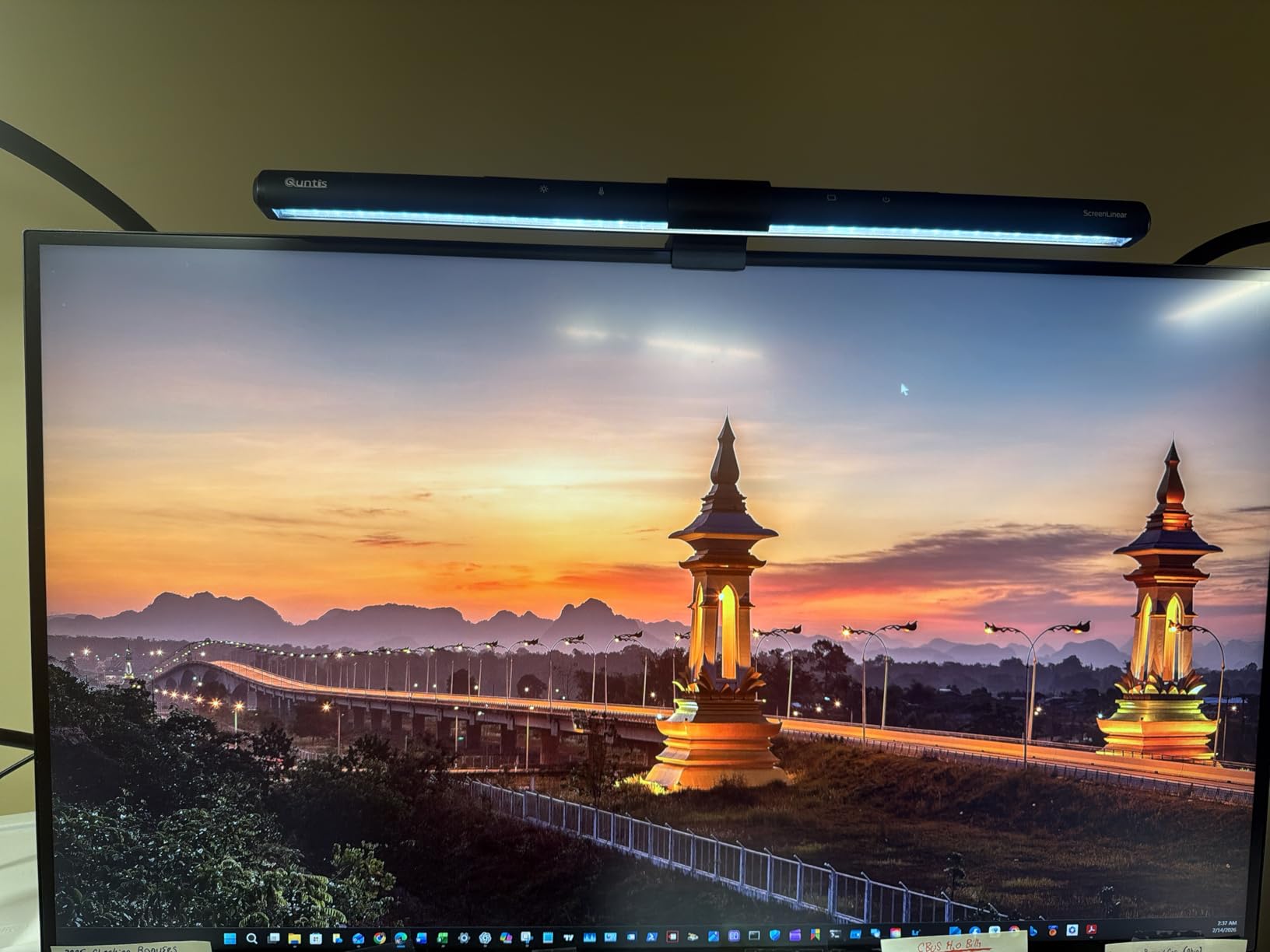
USB-C with 90W Power Delivery is enough to charge a 16-inch MacBook Pro at full speed. I run my entire workstation through a single cable. Display, charging, data, and peripherals all connect through USB-C. The monitor includes 8 USB ports total, so I connected my webcam, keyboard, mouse, microphone, and external drive without needing a separate hub.
The built-in KVM switch is a feature I did not know I needed until I had it. I connected my work laptop and personal desktop to the same monitor, keyboard, and mouse. Switching between them takes one button press on the monitor. For developers who juggle multiple machines, this is transformative.
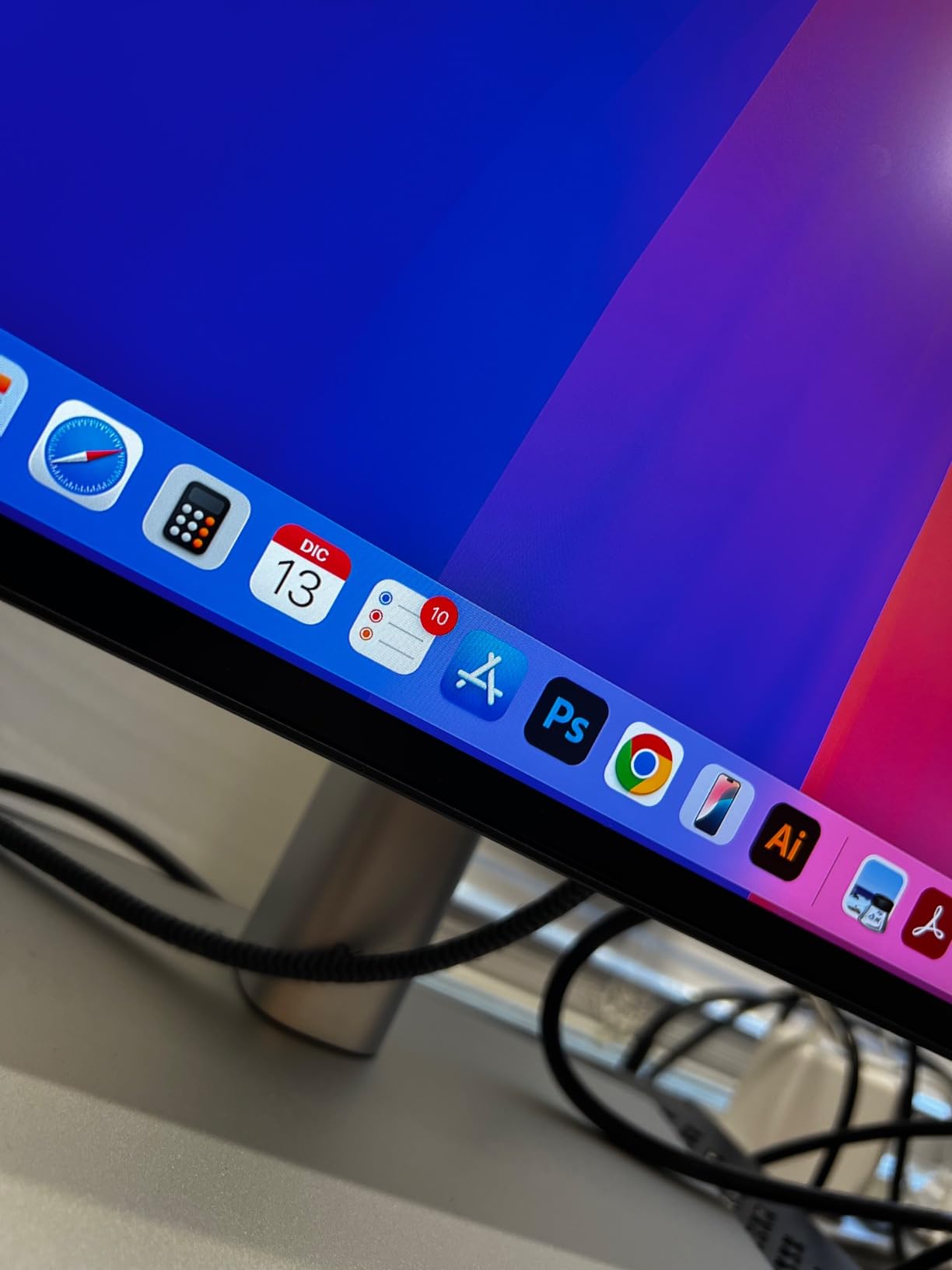
KVM Switch for Multi-Machine Workflows
The KVM switch on the U2723QE lets you control two computers with a single keyboard, mouse, and monitor setup. This is perfect for developers who use a work laptop alongside a personal desktop, or who test code on both Windows and Mac machines. The switch activates through the monitor’s menu or a hotkey.
In my workflow, I keep my MacBook Pro as the primary machine and a Linux desktop for testing. Switching between them is seamless. I never need to move cables or change inputs manually. The KVM handles everything through the USB-C and DisplayPort connections.
USB Hub and Connectivity
With 8 USB ports, this monitor replaces a dedicated USB hub entirely. The port selection includes USB-C, USB-A with fast charging, and USB-B for upstream connections. There is also an RJ45 Ethernet port, which means you can route wired internet through the monitor to your laptop via USB-C.
The thin symmetrical bezels make this monitor ideal for multi-monitor arrays. If you plan to run two U2723QE monitors side by side in portrait mode, the minimal bezel gap creates a near-seamless experience. Dell designed the bezels to be uniform on all sides, which is rare even among premium monitors.
Buying Guide: How to Choose the Best Vertical Monitor for Coding?
Choosing the right vertical monitor for programming comes down to four key factors: resolution and pixel density, panel quality, ergonomics, and connectivity. Our team has tested dozens of monitors over the years, and these are the criteria that actually matter for developers.
Resolution and PPI: Why It Matters Most
Pixel density, measured in pixels per inch or PPI, is the single most important spec for a coding monitor. Higher PPI means sharper text, which reduces eye strain during long programming sessions. In portrait mode, resolution directly determines how many lines of code you can see at once.
For 24-inch monitors, aim for at least 1080p (92 PPI), though 1440p is better if available. For 27-inch monitors, 1440p (109 PPI) is the minimum we recommend for comfortable coding. 4K (163 PPI) provides the sharpest text but requires OS scaling adjustments, especially in portrait orientation.
Developers on Reddit consistently report that 1440p at 27 inches is the sweet spot. It provides enough density for sharp text without the scaling headaches of 4K. If budget allows and you use a Mac, 4K is preferable since macOS handles 4K scaling natively through Retina display support.
Panel Type: IPS vs VA vs TN
IPS panels are the standard recommendation for coding monitors. They offer wide viewing angles of 178 degrees, accurate color reproduction, and consistent brightness across the screen. In portrait mode, viewing angles matter more than in landscape because you view the screen from different vertical positions.
VA panels offer better contrast ratios, typically 3000:1 compared to IPS at 1000:1. This means deeper blacks in dark IDE themes. However, VA panels can suffer from ghosting and color shift at angles. TN panels have the fastest response times but poor viewing angles and color accuracy, making them unsuitable for coding.
The Dell UltraSharp U2723QE uses IPS Black technology, which bridges the gap by offering 2000:1 contrast in an IPS panel. This is currently the best panel technology available for coding monitors, though it comes at a premium price.
Pivot Rotation and Stand Stability
A good vertical monitor needs a stand that supports true 90-degree pivot rotation. Not all monitors advertised as having pivot stands actually rotate a full 90 degrees. Some stop at 45 or 60 degrees, which is useless for portrait coding.
Stand stability is critical in portrait mode. A wobbly stand will make the screen shake every time you type, which is distracting and potentially harmful to your neck over time. Look for stands with solid locking mechanisms and gas-spring arms for smooth height adjustment.
If the included stand is inadequate, VESA mount compatibility lets you attach the monitor to a dedicated arm. Gas-spring monitor arms provide the best portrait experience because they hold position firmly while allowing effortless repositioning.
USB-C Connectivity for Laptop Users
USB-C with Power Delivery is a must-have feature if you develop on a laptop. A single USB-C cable handles display output, data transfer, and laptop charging simultaneously. This dramatically simplifies your desk setup and makes docking and undocking effortless.
Look for monitors offering at least 65W Power Delivery for 13-inch laptops and 90W or more for 15-inch and 16-inch models. The Dell UltraSharp U2723QE leads the pack with 90W delivery, enough for a 16-inch MacBook Pro at full charging speed.
Samsung on Reddit and developer forums consistently ranks USB-C as the most valued feature after resolution. If you have ever fumbled with three cables every time you dock your laptop, you understand why single-cable connectivity is transformative.
Size: 24-inch vs 27-inch for Portrait Mode
The 24-inch vs 27-inch debate depends on your desk space and primary use case. A 24-inch monitor in portrait mode occupies less horizontal desk space, making it ideal as a secondary display. It is also lighter, which puts less stress on the stand in portrait orientation.
A 27-inch monitor in portrait mode is taller and shows more code, but it requires more desk depth. The portrait orientation of a 27-inch display stands approximately 24 inches tall. Make sure your desk has enough clearance and that the monitor does not sit too high for comfortable viewing.
Forum discussions on r/ExperiencedDevs suggest that most developers prefer 27-inch for primary coding monitors and 24-inch for secondary vertical displays. If you are building a dual-monitor setup, consider a 27-inch landscape primary paired with a 24-inch portrait secondary for documentation and logs.
Eye Care Features for Long Sessions
Software developers spend an average of 6 to 10 hours per day looking at screens. Eye care features are not a luxury, they are a necessity. Look for monitors with flicker-free technology, blue light reduction, and brightness intelligence.
The BenQ GW2790QT leads this category with Brightness Intelligence Gen2, which automatically adjusts screen brightness based on ambient light. Dell’s ComfortView Plus and Samsung’s Eye Saver Mode also provide effective blue light reduction without distorting colors excessively.
TUV Rheinland certification is a reliable indicator of eye care quality. The Dell S2425HS carries a 4-star rating, which is the highest tier available. Monitors without any eye care certification should be approached with caution if you code for extended periods.
FAQs
Is a vertical monitor good for coding?
Yes, a vertical monitor is excellent for coding. Portrait orientation displays 50 to 70 percent more lines of code compared to landscape mode, reducing scrolling frequency and helping you maintain context when reviewing large files. Developers who use vertical monitors report faster code review times and reduced eye strain from less scrolling movement.
Which monitor is best for coders?
The best monitor for coders depends on your needs. For budget setups, the Dell S2425HS at 24 inches offers full pivot at a low price. For value, the ASUS ProArt PA278QV provides 1440p resolution with a 5-year warranty. For premium users, the Dell UltraSharp U2723QE delivers 4K clarity, USB-C 90W charging, and a built-in KVM switch.
What is the best monitor for vertical use?
The best monitor for vertical use has a sturdy pivot stand, high resolution for text clarity, and good viewing angles. Our top pick is the Dell UltraSharp U2723QE for its 4K resolution and IPS Black contrast. For a budget option, the ASUS ProArt PA278QV at 1440p offers excellent portrait performance at a lower price point.
Is 27 too big for vertical?
No, 27 inches is not too big for vertical use. A 27-inch monitor in portrait mode stands about 24 inches tall, which fits most standard desks. However, you need sufficient desk depth and proper height adjustment to avoid neck strain. Some developers prefer 24-inch monitors for portrait secondary displays due to the more compact footprint.
Conclusion
Finding the best vertical monitors for coding in 2026 comes down to matching resolution, ergonomics, and connectivity to your specific workflow. For most developers, the ASUS ProArt PA278QV at 1440p offers the best balance of text clarity, price, and long-term reliability with its 5-year warranty.
If budget allows, the Dell UltraSharp U2723QE is the ultimate coding monitor with 4K resolution, IPS Black contrast, 90W USB-C charging, and a built-in KVM switch. For laptop-based developers who want single-cable simplicity, the Dell S2722DC with USB-C 65W Power Delivery is an excellent middle ground.
Whichever monitor you choose, rotating to portrait mode will change how you read and write code. The productivity gains from seeing more context at once are real and immediate. Pick the display that fits your desk, your budget, and your development stack, and start coding vertically.