
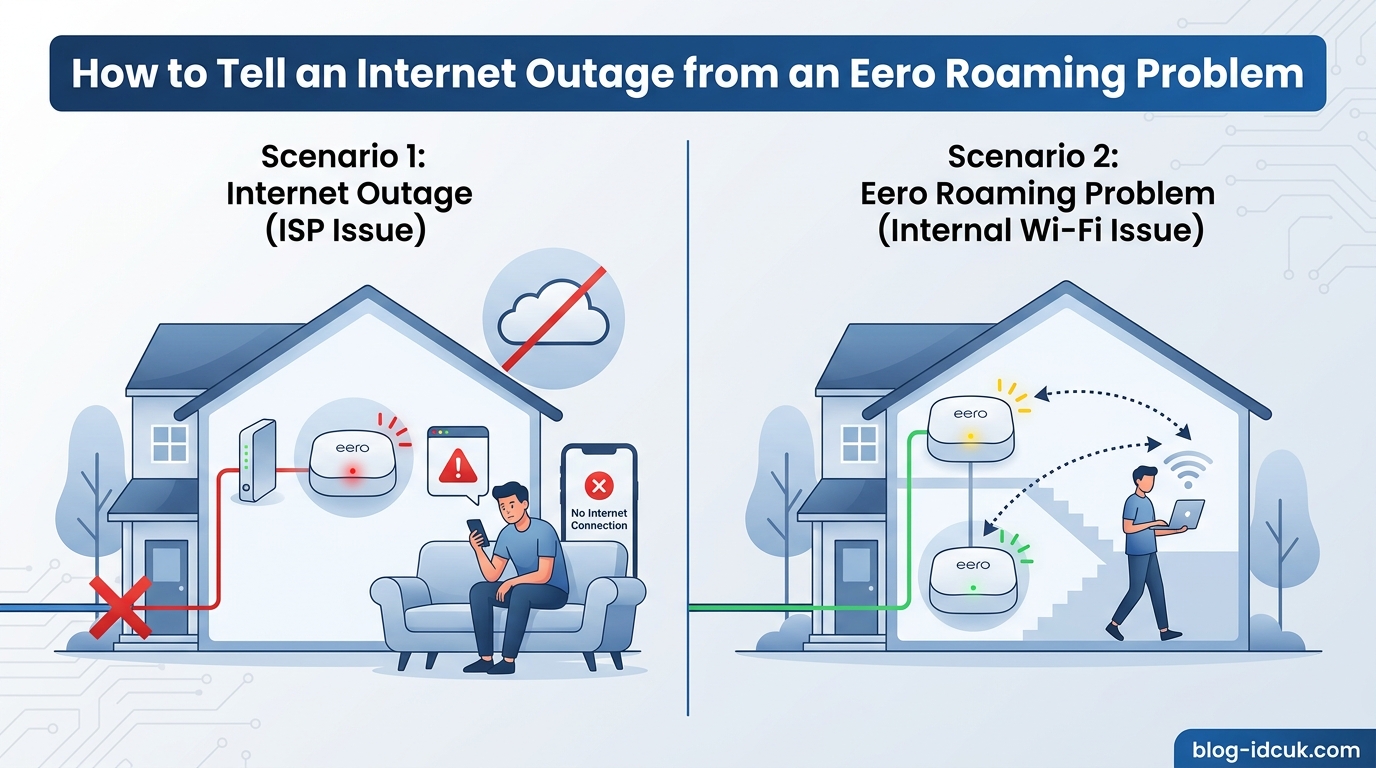
When your WiFi drops, the first question on your mind is simple: is this an internet outage from my ISP, or is my eero mesh system misbehaving? Knowing how to tell an internet outage from an eero roaming problem saves you hours of frustration because the two issues require completely different fixes. An internet outage means your ISP service is down and only your provider can restore it. An eero roaming problem means your mesh WiFi is failing to hand your devices between nodes cleanly, even though the internet itself is fine.
In this guide, I’ll walk you through the exact diagnostic steps I use when my own network misbehaves. You’ll get a side-by-side symptom comparison, a numbered decision tree, and clear guidance on who to call when. Most troubleshooting guides treat both problems as one blob. This one separates them so you can stop guessing.
Table of Contents
Quick Diagnostic Overview: The 30-Second Test
The fastest way to know how to tell an internet outage from an eero roaming problem comes down to one question: does your eero gateway itself have internet access? Open the eero app on your phone and look at the network status screen. If your gateway eero shows offline with a red LED, you’re dealing with an ISP-side outage or WAN failure. If the gateway shows online but specific devices keep dropping WiFi as you move around your home, that’s an eero roaming problem inside the mesh.
Here’s the core distinction in plain terms:
- Internet outage (ISP-side): Your ISP lost service. Every device on every eero node loses connectivity at the same time. The eero app shows your network as offline.
- Eero roaming problem (mesh-side): Your ISP is fine. Your gateway eero has internet. But devices fail to hand off cleanly between eero nodes, or one specific node drops its wired or wireless backhaul. Some devices stay connected while others don’t.
If you want the shortest possible test, plug a laptop directly into your modem with an Ethernet cable. If the laptop gets internet, your ISP is fine and the problem lives in your eero setup. If the laptop has no internet, call your ISP.
What Is an Internet Outage?
An internet outage is a complete loss of connectivity between your home and your ISP’s network. During an outage, no device on your eero system can reach the internet, regardless of which node it’s connected to. The eero gateway itself loses its WAN (Wide Area Network) connection, which is the upstream link from your modem to your ISP.
Common Causes of an Internet Outage
ISP outages happen for several reasons. The most common is a physical fault somewhere between your home and the provider’s core network: a cut fiber line, a damaged copper pair, a failed optical network terminal (ONT), or a neighborhood equipment failure. Planned maintenance can also knock you offline, usually with a 24 to 48-hour notice from your ISP.
Local issues on your side can also trigger an outage. A failing modem, a loose or damaged Ethernet cable between the modem and the eero gateway, or a modem that needs to be re-authenticated after a long downtime all qualify. These look identical to a true ISP outage from inside your home because the symptom is the same: zero connectivity for every device.
Symptoms of an Internet Outage
An internet outage produces consistent, predictable symptoms:
- Red LED on the gateway eero: Solid or blinking red means the gateway has no WAN connection. This is the single most reliable indicator of an outage.
- Eero app shows the network as offline: The home screen displays a banner stating your network is disconnected, with a “diagnose” or “troubleshoot” option.
- Every device loses connectivity simultaneously: Phones, laptops, smart TVs, smart home devices all drop at the same time.
- Cellular works fine on phones: If your phone falls back to cellular and gets data, that confirms the issue is inside your home network, not your phone itself.
- No timing pattern (or a strict one): True outages often happen at fixed times (planned maintenance windows) or with no discernable pattern (random fiber cuts). If you see drops at exactly 10am daily, that’s a strong signal of ISP-side maintenance or capacity issues.
How to Verify an ISP Outage?
Before calling your ISP, check their outage map or status page. Most major providers now publish real-time outage information online. You can also check independent sites like Downdetector for crowd-reported outages in your area. Search “Twitter” for your ISP’s handle plus “outage” to see what other customers are reporting in real time.
When you call, the support agent can pull up line stats from your modem and tell you whether the signal looks healthy on their end. If the line stats are bad, the outage is theirs to fix. If the line stats are clean but you still have no connectivity, the problem is somewhere between the modem and your eero.
What Is an Eero Roaming Problem?
An eero roaming problem is a failure of your mesh WiFi system to maintain stable connections as devices move between nodes, or between a node and your wired devices. During a roaming issue, your ISP and your gateway eero both have working internet. The trouble is inside the mesh: a node loses its backhaul, a device can’t hand off to a closer node, or your eero network can’t resolve a DHCP lease renewal.
Roaming problems are specific to mesh systems. They show up when you walk from one room to another and your phone fails to switch from a distant eero to a closer one. They also appear when one specific node drops offline while the rest of the network stays up.
Common Causes of an Eero Roaming Problem
Roaming problems usually trace back to one of three root causes. First, band steering failures, where your eero tries to push a device to the 5GHz or 6GHz band but the device clings to 2.4GHz due to driver quirks. Second, wireless backhaul instability, where two eero nodes can’t maintain a stable wireless link between themselves, often due to placement, interference, or distance. Third, firmware mismatch, where some nodes run an older firmware version than the gateway, causing them to drop offline until they catch up.
Other common causes include double NAT situations (when your ISP’s modem-router combo and your eero both try to do network address translation), node placement that creates interference (microwaves, baby monitors, thick walls), and eero Secure filtering that blocks legitimate traffic. Each of these creates a roaming problem without affecting the underlying internet connection.
Symptoms of an Eero Roaming Problem
Roaming problems look different from outages. Watch for these patterns:
- Gateway eero LED is solid white or blue: A healthy gateway light means it has WAN connectivity. If the gateway looks fine, the problem isn’t an outage.
- Eero app shows the network as online: The home screen shows your network status as connected. Individual nodes may show as offline.
- Only some devices drop: Phones and laptops lose WiFi while smart home devices on a different node stay connected, or vice versa.
- Drops happen when you move: Your phone disconnects when you walk from the living room to the bedroom, or your laptop loses WiFi when you carry it upstairs.
- Devices reconnect quickly: After a 5 to 30 second drop, devices often reconnect on their own without any ISP intervention.
- One specific node shows offline in the app: The eero app’s device list shows a child node as disconnected while the gateway and other nodes stay online.
- Random timing: Drops happen unpredictably rather than at fixed times, often correlating with movement or interference events.
Why Eero Roaming Problems Are Tricky to Diagnose
The eero app sometimes shows incorrect offline status even when your network is healthy. Users on Reddit’s r/eero community report the app displaying devices as disconnected when they’re actually functional and online. This is why a quick app check isn’t enough on its own; you need to verify with an actual device behavior test.
Another complication: some users report that wired devices connected via Ethernet to a child eero node stay perfectly online while WiFi devices on the same node drop. This is a clear signal of a wireless backhaul or roaming issue rather than an outage, because the wired link bypasses the WiFi problem.
Side-by-Side Comparison: Internet Outage vs Eero Roaming Problem
This is the core of how to tell an internet outage from an eero roaming problem. Match your symptoms against the table below. The first column shows a symptom; the second and third columns show whether that symptom points to an outage or a roaming problem.
Symptom comparison at a glance:
- Gateway eero LED red, blinking red, or no light: Internet outage. The gateway has lost its WAN link to the ISP.
- Gateway eero LED solid white or blue: Eero roaming problem. Gateway has internet; the trouble is in the mesh.
- Eero app shows network as offline: Internet outage. Your entire eero system is reporting no upstream connectivity.
- Eero app shows network as online, but one node shows offline: Eero roaming problem. Only a child node is affected.
- All devices drop connectivity at the same moment: Internet outage. Every device loses its path to the internet simultaneously.
- Some devices drop while others stay connected: Eero roaming problem. The mesh is failing for specific devices or nodes.
- Drops happen at fixed times (e.g., 10am daily): Internet outage. ISP maintenance or capacity issues often run on a schedule.
- Drops happen randomly, often when moving around: Eero roaming problem. Movement triggers handoff failures.
- Phone switches to cellular and works fine: Both possible. Cellular is unaffected by either, so this only confirms the issue is home-network-related.
- Wired device connected directly to modem has internet: Eero roaming problem. ISP is fine; the trouble is between modem and eero or inside the mesh.
- Wired device connected directly to modem has no internet: Internet outage. ISP service is down.
LED Indicator Reference Guide
The LED on your eero gateway tells you a lot about what’s happening. Here’s what each pattern means:
- Solid white: Connected to the internet and operating normally. This is the healthy state.
- Solid blue: Booting up or in the process of connecting. Wait two to three minutes.
- Blinking blue: Ready for setup or in soft reset mode.
- Blinking white: Applying a software update. Do not power cycle during this state.
- Solid red: No internet connection. This is your gateway telling you the WAN link is down.
- Blinking red: No internet connection, with the gateway actively retrying. Still an outage signal.
- No light: No power, or the LED has been disabled in the app.
When you see red, that’s your visual confirmation of an outage. When you see solid white but devices misbehave, you’re looking at a roaming problem.
Step-by-Step Diagnosis: How to Tell Which Problem You Have
Follow these steps in order. Stop at the first step that gives you a clear answer.
Step 1: Check the Gateway Eero LED
Look at the LED on your gateway eero (the one connected to your modem via Ethernet). If it’s solid red or blinking red, you have an internet outage. Skip the rest and contact your ISP. If it’s solid white or blue, continue to Step 2.
Step 2: Open the Eero App and Look at Network Status
Open the eero app and check the home screen. If the app shows your network as offline with a red banner, this confirms an outage. If the app shows online but specific devices or nodes show as disconnected, that’s a roaming problem.
Step 3: Check Whether All Devices Are Affected
Pick three devices from different parts of your home: a phone in the living room, a laptop in the bedroom, and a smart speaker in the kitchen. Try to load a webpage or app on each. If all three fail simultaneously, that’s an outage. If one or two work while others fail, that’s a roaming problem.
Step 4: Verify Your ISP Status Externally
Use your phone’s cellular connection (turn off WiFi temporarily) to check your ISP’s outage page or Downdetector. If your ISP is reporting an outage in your area, that confirms the diagnosis. If they show no outage, the problem is likely on your side.
Step 5: Run the Direct-to-Modem Ethernet Test
This is the definitive test. Disconnect the Ethernet cable from your eero gateway and plug it directly into a laptop. Power cycle the modem if needed. Try to load a webpage on the laptop.
- If the laptop gets internet: Your ISP is fine. The problem is between the modem and your eero, or inside your eero mesh. This is a roaming problem or configuration issue.
- If the laptop has no internet: Your ISP is down, or your modem is failing. This is an internet outage. Call your ISP.
Step 6: Identify the Affected Eero Node
If you’ve confirmed a roaming problem, check the eero app’s device list to see which node is offline. A single offline child node points to a backhaul or power issue with that specific eero. Move the affected node closer to the gateway temporarily and see if the connection stabilizes.
Step 7: Check for Firmware Mismatch
In the eero app, go to Settings and look for the firmware version on each node. If one node shows an older version than the others, wait 24 hours for it to auto-update, or restart that node manually to trigger the update. Firmware mismatches cause intermittent drops that look exactly like roaming problems.
What to Do Once You Know Which Problem You Have
For Internet Outages
Power cycle your modem first: unplug it for 60 seconds, plug it back in, wait for it to fully boot (usually 2 to 5 minutes). Then power cycle your eero gateway. If your ISP is having a known outage, there’s nothing more you can do until they fix it. Plug your phone into the eero app’s Hotspot Backup feature if you have it enabled; this temporarily routes your gateway’s internet through your phone’s cellular connection.
Call your ISP if the outage lasts more than 15 minutes. Have your account number and modem MAC address ready. Ask them to check line stats from their end.
For Eero Roaming Problems
Start with a full power cycle of the entire mesh: unplug every eero node for 60 seconds, plug them back in one at a time starting with the gateway, waiting two minutes between each. This resolves the majority of roaming issues caused by stale DHCP leases or temporary mesh glitches.
If drops continue, check for firmware updates in the app. Next, check your node placement: eero nodes should be within 40 to 50 feet of each other in open space, not hidden behind TVs or inside cabinets. If you have an Ethernet run between two locations, enable Ethernet backhaul in the eero app for more stable node-to-node connections.
For persistent issues, check whether you have a double NAT situation. If your ISP’s modem has router features enabled and your eero is also doing routing, disable routing on the ISP modem or put your eero in bridge mode.
Prevention Tips to Reduce Future Confusion
Enable Hotspot Backup in your eero app so you have a cellular fallback when outages hit. Set up notifications in the eero app to alert you when a node goes offline. Check your ISP’s outage notification system and sign up for proactive alerts. Place eero nodes in open, elevated positions to improve mesh backhaul reliability. Use Ethernet backhaul wherever possible, especially for stationary devices like desktop PCs or smart home hubs.
Keep your eero firmware on auto-update so mismatches resolve themselves. Avoid hiding nodes behind TVs or in cabinets, which blocks signal and triggers roaming problems. If you have a modem-router combo from your ISP, ask them to put it in bridge mode to eliminate double NAT.
FAQs
Is eero having issues right now?
To check whether eero itself is having a service issue, visit eero’s official status page or check Downdetector for crowd-reported problems. A platform-wide eero issue would affect all users simultaneously. For your own network, the eero app shows the current status of your gateway and nodes.
Does eero cause internet issues?
Eero does not cause ISP outages, but it can create connectivity symptoms that look like outages. Roaming problems, double NAT, and firmware mismatches all show up as dropped connections even when your ISP is healthy. The eero itself only fails to deliver internet when the upstream WAN link is broken.
How to tell if eero is going bad?
Signs your eero hardware is failing include: frequent drops even after power cycling, the node not appearing in the app, the LED stuck on red for hours, or the device running noticeably hot. If only one node shows these symptoms while others work fine, that node is likely failing and should be replaced.
How to check logs on eero?
Open the eero app, go to the Home screen, tap the menu icon, and select Event Stream (available with eero Plus) or check the Activity tab for recent connection events. The Event Stream shows detailed logs of node offline events, device disconnections, and firmware updates. Without eero Plus, you can see basic offline/online status but not detailed logs.
Why does my eero keep disconnecting?
Common reasons include double NAT from an ISP modem-router combo, poor node placement causing wireless backhaul instability, firmware mismatch between nodes, and band steering issues. Start by power cycling all nodes in order, then check placement and firmware versions. If drops persist, put your ISP modem in bridge mode to eliminate double NAT.
Why is my eero offline but my phone still has service?
Your phone uses cellular data, which is independent of your home WiFi. If your eero shows offline but your phone has full bars of cellular service, that confirms the problem is inside your home network, not with your phone or your cellular provider. Check the gateway eero LED: red means ISP-side outage, white means a mesh or configuration issue.
Conclusion
Learning how to tell an internet outage from an eero roaming problem comes down to watching two signals: the gateway eero LED and the eero app’s network status. Red LED plus offline network means call your ISP. Solid white LED plus online network with specific device drops means troubleshoot your mesh. The direct-to-modem Ethernet test is your definitive tiebreaker when the symptoms are mixed.
Start with the gateway LED, then check the eero app, then verify with the Ethernet test. You’ll have a clear answer within five minutes, and you’ll know exactly who to contact. Save this guide for the next time your WiFi drops; the diagnostic steps work every time.