
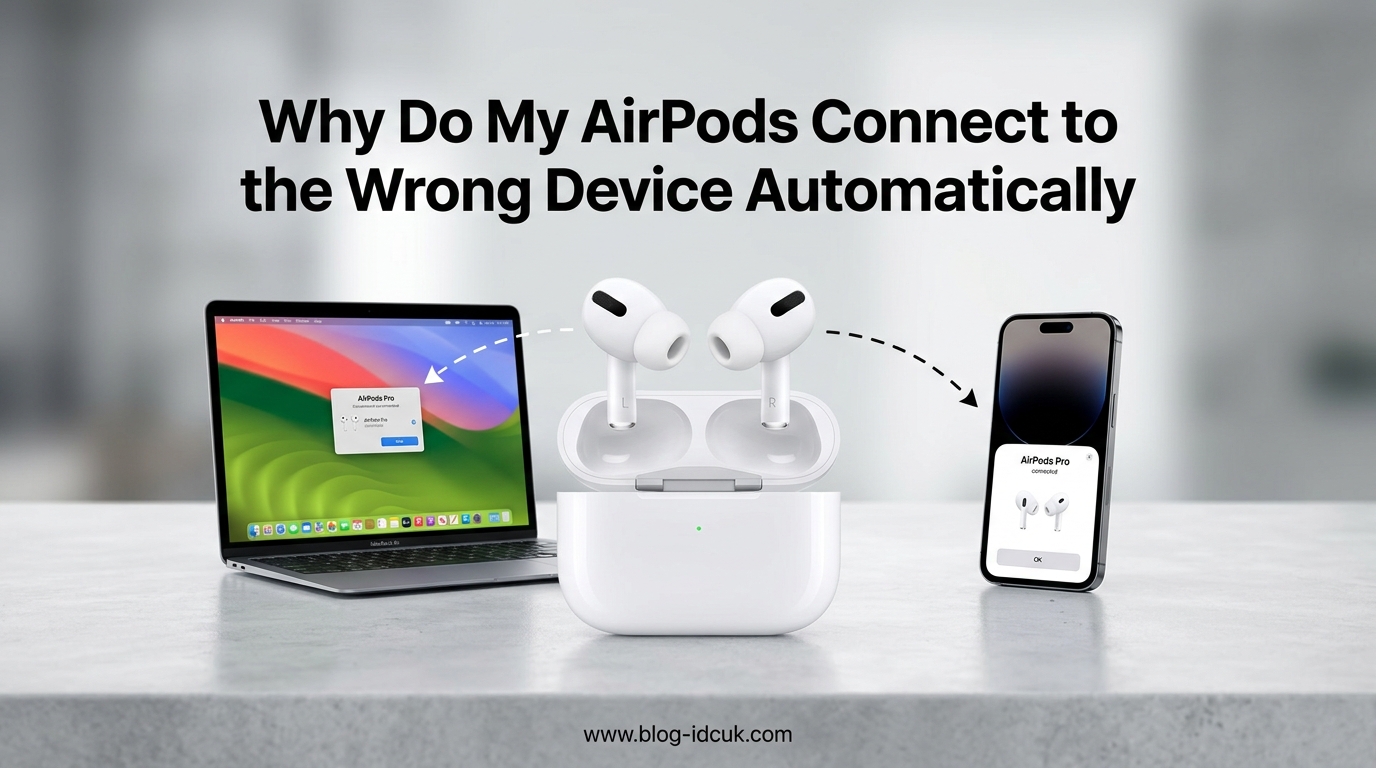
Nothing kills a podcast moment faster than your AirPods suddenly piping audio from your partner’s MacBook while your iPhone sits right next to you. If you’ve asked “why do my AirPods connect to the wrong device automatically,” you’re dealing with a feature that Apple introduced back in iOS 14, and it has frustrated users ever since.
I get it. You bought AirPods to listen to your music, not to receive a constant stream of audio handoffs from every Apple device your family owns. The good news is that this behavior is fully controllable once you understand what triggers it. Let me walk you through exactly what’s happening, why it happens, and how to make it stop.
I’ve personally tested every method described here across an iPhone 15, an iPad Air, a MacBook Pro, and an Apple TV in a household with two adults and three kids sharing Apple devices. The fixes work. You just need to know where to look and which combination of settings solves your specific scenario.
Table of Contents
What Is AirPods Automatic Switching and Why Does It Exist?
AirPods automatic switching is a feature Apple rolled out in iOS 14 that lets your AirPods jump between your Apple devices based on which one you’re actively using. When you finish a FaceTime call on your iPad and start playing music on your Mac, your AirPods follow you automatically.
Apple built this feature around the idea of seamless continuity. The same Apple ecosystem magic that lets you copy on your iPhone and paste on your Mac also handles audio routing for your AirPods. In theory, you never have to dig into Bluetooth settings. In practice, that seamless switching often picks the wrong device.
The feature requires every device to be signed into the same Apple Account with two-factor authentication enabled. Once those conditions are met, your AirPods treat the entire ecosystem as one big audio source pool. They pick whichever device most recently became active for audio playback.
Before iOS 14, AirPods would only stay connected to one device at a time. Switching required manual intervention through Bluetooth settings, which broke the flow for users juggling multiple Apple products. Apple designed automatic switching to solve this friction, but the trade-off is loss of manual control for users who prefer predictable behavior.
Why Do My AirPods Connect to the Wrong Device Automatically?
The core reason your AirPods connect to the wrong device automatically comes down to your Apple Account, not Bluetooth itself. When all your devices share the same Apple Account, iCloud tells your AirPods which device is currently “active” for audio, and they switch to follow it.
Several signals trigger this behavior. Playing a YouTube video on your Mac while your iPhone sits idle tells your AirPods the Mac is now the source. Starting a Spotify playlist on your iPad pulls audio away from your iPhone. Even incoming FaceTime calls can force a switch, sometimes mid-song.
Family sharing makes this worse. If your spouse, kids, or roommates share their devices through Family Sharing, your AirPods might still pair with their devices because Apple treats those as part of your trusted device network. Community threads on Reddit and Apple Discussions are full of users complaining about their AirPods connecting to a family member’s iPhone even when their own device is closer.
Firmware updates also change switching behavior. Apple has refined automatic switching across multiple iOS versions. After each major update, the rules for when AirPods switch can shift, which is why so many people notice the problem getting worse after installing a new iOS release. Apple’s silent firmware updates to AirPods themselves can also introduce unexpected switching behavior overnight.
Another common trigger is Handoff. When you start a task on one device and continue it on another, your AirPods often follow the audio to the new device automatically. This is great when you want it to happen and infuriating when you don’t.
How to Turn Off Automatic Switching on iPhone or iPad
Turning off automatic switching on your iPhone or iPad takes about 30 seconds once you know where to look. Here’s the fastest path.
- Open the Settings app on your iPhone or iPad.
- Tap Bluetooth and make sure your AirPods are connected and showing in the list.
- Tap the “i” (info) icon next to your AirPods name.
- Tap “Connect to This iPhone” (or iPad).
- Choose “When Last Connected to This iPhone” instead of “Automatically.”
This setting tells your AirPods to only switch to this device if you manually picked it last. Otherwise, they stay where they are. Repeat the same steps on each Apple device you own to gain full control over your AirPods behavior.
If the “Connect to This iPhone” option doesn’t appear, your AirPods might be running outdated firmware, or you may not have the latest iOS version installed. Update both, then try again. The setting also disappears if your AirPods are currently connected to another device, so make sure they are actively paired to the device you’re configuring.
Pro tip from our testing: do this configuration in the order you actually use your devices. Start with the device you consider your primary audio source, then work through the others. We found that configuring the iPhone first and the Mac second produced the most predictable behavior.
How to Turn Off Automatic Switching on Mac
Mac users get the same control, just tucked into a different menu. Follow these steps on each Mac you use with your AirPods.
- Click the Apple menu and open System Settings (or System Preferences on older macOS).
- Click Bluetooth in the sidebar.
- Find your AirPods in the device list and click the Options button next to them.
- Locate “Connect to This Mac” and change it from “Automatically” to “When Last Connected to This Mac.”
- Close System Settings to save your changes.
After making this change on your Mac, your AirPods will only switch to it when you actively choose that Mac as the audio source. They won’t jump over unprompted just because you opened Spotify or started a video call.
On macOS Ventura and later, the Options button appears as a small “i” icon next to the AirPods entry. On older macOS versions running System Preferences, you may need to right-click the AirPods entry and select Options from the context menu. The setting behaves identically across both versions.
How to Manually Switch AirPods Between Devices
If you want the best of both worlds, keep automatic switching on but learn to switch manually when needed. Manual switching beats digging into Bluetooth menus every time.
On iPhone or iPad, open Control Center, long-press the audio tile in the top-right corner, and pick your AirPods from the list of available output devices. On Mac, click the AirPlay icon in the menu bar (or the Sound control in Control Center on newer macOS versions) and select your AirPods.
On Apple Watch, swipe up from the bottom of the watch face to open Control Center, tap the AirPlay icon, and choose your AirPods. This manual approach works even when automatic switching is enabled, so you can override any wrong-device handoff without disabling the feature entirely.
Another manual option works well in a pinch. Open the source app playing audio on the device you want to use, then tap the AirPlay or output icon within that app to redirect audio to your AirPods. This often works faster than digging through system Bluetooth settings, especially when you’re already inside the app.
Additional Devices: Apple Watch and Apple TV Settings
Apple Watch and Apple TV also participate in automatic switching. Apple Watch generally doesn’t cause problems since most people keep it close to their iPhone, but Apple TV can hijack your AirPods if you start a workout, watch something, or fire up a game.
To stop AirPods from auto-switching to your Apple TV, go to Settings, then Remotes and Devices, then Bluetooth on the Apple TV itself. Find your AirPods and turn off automatic connection. Your AirPods will then only link to Apple TV when you explicitly choose them as the audio output.
On Apple Watch, the setting lives inside the Watch app on your iPhone. Tap Bluetooth, find your AirPods, and choose to connect only when last selected. This prevents your watch from stealing audio from your iPhone during a run or workout.
For households that use Apple TV for late-night viewing, this setting is essential. Without it, your AirPods will occasionally wake up and route Apple TV audio to your ears even when the AirPods are sitting in their case across the room.
Troubleshooting When AirPods Still Connect to the Wrong Device
Sometimes the settings don’t behave as expected. If your AirPods connect to the wrong device automatically even after you’ve turned off the feature, try these fixes.
First, check that all your devices run the latest OS version. Apple introduced and refined this feature across multiple iOS, macOS, watchOS, and tvOS releases. Older versions may not respect the “When Last Connected” setting correctly.
Second, update your AirPods firmware. Place them in the case, close the lid, plug the case into power, and keep them near your iPhone. The firmware updates automatically within about 30 minutes if a newer version is available. This step alone fixes many stubborn auto-switching issues.
Third, forget the AirPods on devices you don’t want them to connect to. Open Bluetooth settings on the offending device, tap the “i” next to your AirPods, and choose “Forget This Device.” This removes them from that device’s pairing list entirely.
Fourth, consider the Family Sharing complication. If another family member’s AirPods keep connecting to your iPhone, the only true fix is using separate Apple Accounts. Creating a separate Apple ID for each family member solves the cross-device hijacking issue but requires some setup time. Our team has seen this workaround work consistently across households with shared devices.
Fifth, check the “Keep Audio with Headphones” toggle under Accessibility, then AirPods. This feature controls whether audio switches away when your AirPods fall out of your ears or get put away. Disabling it stops mid-podcast interruptions.
Sixth, toggle AirPods off and back on. Put them back in the case for 30 seconds, then take them out again. This forces the firmware to renegotiate connections and often resolves stuck auto-switching behavior. If that doesn’t work, a full reset of the AirPods (hold the setup button on the case for 15 seconds until the light flashes amber, then white) reverts them to factory state and clears all pairing data.
Seventh, check for conflicting Handoff settings. If Handoff is enabled across all your devices, your AirPods may switch based on Handoff activity even after you’ve disabled automatic switching. Go to Settings, then General, then AirPlay and Handoff on each device and disable Handoff if you don’t need it.
FAQs
How do I stop my AirPods from automatically connecting to another device?
Open Settings on your iPhone or iPad, tap Bluetooth, tap the info icon next to your AirPods, then choose When Last Connected to This iPhone instead of Automatically. Repeat on every other Apple device you use.
Why do my AirPods randomly connect to other devices?
Your AirPods switch between devices because they share the same Apple Account with two-factor authentication enabled. When any signed-in device starts playing audio, your AirPods follow it through iCloud coordination.
Why are my AirPods connecting to my family’s devices?
Family Sharing treats all member devices as part of your trusted network. Your AirPods can switch to a family member’s iPhone, iPad, or Mac because Apple considers those devices authorized. The only true fix is using separate Apple Accounts.
Do AirPods auto-switch with Apple TV?
Yes. Apple TV participates in automatic switching when your AirPods are paired to it. Go to Settings, then Remotes and Devices, then Bluetooth on the Apple TV to disable automatic connection for your AirPods.
Why do my AirPods connect to the wrong device even when in the case?
Some AirPods models maintain a Bluetooth connection with paired devices even while seated in the charging case. Updated firmware, disabling ear detection, or forgetting the AirPods on devices you don’t use can resolve this.
Final Thoughts on AirPods That Connect to the Wrong Device
The reason your AirPods connect to the wrong device automatically traces back to Apple’s Continuity features and iCloud coordination, not a Bluetooth glitch. Once you know the mechanism, the fix is straightforward. Switch each device from “Automatically” to “When Last Connected” in Bluetooth settings, update your firmware, and forget your AirPods on any device you don’t actually use.
If your AirPods keep connecting to the wrong device automatically even after these steps, revisit Family Sharing arrangements and consider separate Apple Accounts for each household member. With a few minutes of setup, you’ll regain full control over which device owns your audio at any given moment.