
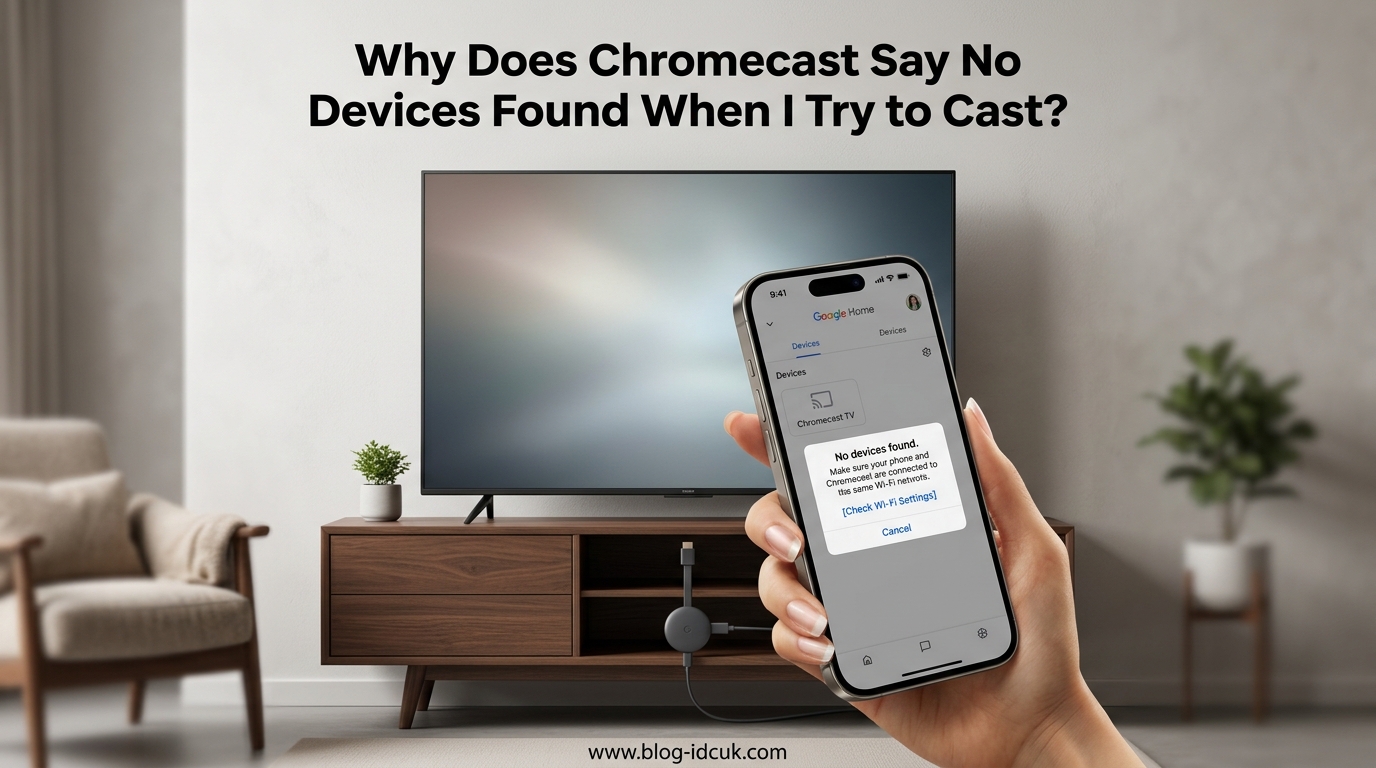
Chromecast says “no devices found” because your casting device (phone, tablet, or computer) and your Chromecast are not on the same Wi-Fi network, or your router is blocking the discovery protocol Chromecast relies on. This is the single most common reason behind the Chromecast no devices found error, and in most cases you can fix it in under five minutes.
Our team has spent hours digging through Google support threads, Reddit discussions, and real user reports to build this guide. We cover everything from the basic Wi-Fi network check to advanced fixes like AP isolation, ISP modem/router combos, and VPN interference. If you want to understand why Chromecast says no devices found when I try to cast and how to solve it for good, you are in the right place.
Below you will find a clear, step-by-step troubleshooting path. We start with the fixes that resolve the issue about 80 percent of the time, then move into deeper network problems that trip up even experienced users.
Table of Contents
What the “No Devices Found” Error Actually Means
The “no devices found” message means your casting device cannot discover your Chromecast on the local network. Chromecast uses a protocol called mDNS (multicast DNS) to announce itself to other devices on your Wi-Fi. When that announcement is blocked or unheard, the cast button finds nothing.
Think of mDNS like a roll call. Your Chromecast shouts “I’m here!” across your local network. Your phone or laptop listens for that shout. If something blocks the shout or your phone is listening on a different network channel, the cast menu stays empty.
Device discovery is essential for casting. Without it, you cannot send videos, music, or your screen from your phone or computer to your TV. The good news is that most fixes target one of three things: getting both devices on the same network, unblocking the discovery protocol, or restarting the devices so they reconnect properly.
Common triggers include switching to a new router, an ISP modem upgrade, connecting to a guest network, a recent firmware update, or even a VPN that silently redirects your traffic away from the local network.
How to Fix Chromecast No Devices Found: Step-by-Step
Follow these steps in order. Most readers solve the problem within the first three. Move to the advanced section only if the basic fixes do not work.
1. Check That Both Devices Are on the Same Wi-Fi Network
This is the number one cause of the Chromecast no devices found error. Your casting device and your Chromecast must be connected to the exact same Wi-Fi network. Not the same internet connection, the same network name (SSID).
Here is how to verify:
On your phone or computer, open Wi-Fi settings and note the exact network name you are connected to. Then open the Google Home app on a phone that is already connected to your Chromecast. Tap your Chromecast device, then tap the gear icon for Settings. Under Device information, look at the Wi-Fi network listed there.
If the two networks do not match, connect your casting device to the same network your Chromecast is using. Then try casting again.
Watch out for guest networks. Many routers broadcast both a main Wi-Fi and a guest network. The guest network is isolated by design, so devices on it cannot see other devices on your main network. If your laptop is on the guest network and your Chromecast is on the main network, they will never find each other.
2. Power Cycle Your Chromecast and Router
A simple reboot fixes a surprising number of discovery issues. Power cycling clears temporary glitches in the mDNS service and forces both devices to reconnect cleanly.
Step 1: Unplug your Chromecast from power. Not just from the TV, from the wall outlet or USB port. Wait 10 seconds.
Step 2: Unplug your router from power. Wait 30 seconds. This gives the router time to fully discharge.
Step 3: Plug your router back in and wait for it to fully boot. This usually takes 1 to 2 minutes. All the lights should be stable.
Step 4: Plug your Chromecast back in and wait for it to connect to Wi-Fi.
Step 5: Restart your phone or computer as well, then try casting again.
This sequence matters. Restarting the router first, then the Chromecast, then your casting device gives each piece of equipment a clean start in the right order.
3. Verify Google Home App Setup
If you just got a new Chromecast or recently reset it, make sure setup completed properly. Open the Google Home app and check whether your Chromecast appears in the device list.
If your Chromecast does not appear in the Google Home app at all, you need to set it up first. The app walks you through connecting it to your Wi-Fi network. Until setup is complete, no other device will be able to find it for casting.
If your Chromecast shows up in Google Home but you still cannot cast from Chrome or another app, the issue is likely on the casting device side. Make sure location services are enabled on your phone, since some Android versions require location access for network discovery.
4. Network Band: Why 2.4GHz vs 5GHz Matters
Many modern routers broadcast two Wi-Fi bands: 2.4GHz and 5GHz. Some routers combine them into one network name, while others split them into two separate names like “MyNetwork” and “MyNetwork_5G.”
Here is why this matters for casting. Chromecast uses mDNS for discovery, and mDNS relies on multicast traffic. On some routers, multicast traffic does not pass between the 2.4GHz and 5GHz bands. So if your Chromecast is connected to the 2.4GHz band and your laptop is on the 5GHz band, they effectively cannot see each other.
If your router splits the bands into separate names, make sure both devices are on the same band. When in doubt, connect both to the 2.4GHz band, which has better range and broader compatibility for discovery protocols.
If your router combines both bands under one name (band steering), the router decides which band each device connects to. This can cause problems if the router puts your Chromecast on 2.4GHz and your phone on 5GHz. Some users solve this by temporarily separating the bands in the router settings, connecting both devices to the same band manually, and testing casting again.
This is a commonly overlooked cause. Multiple Reddit users in the r/Chromecast community reported that band steering was silently separating their devices, and switching to explicit band names fixed the issue immediately.
5. Check for AP Isolation (Wireless Isolation)
AP isolation, also called wireless isolation or client isolation, is a router setting that prevents devices on your Wi-Fi network from communicating with each other. It is commonly used on public networks and guest networks for security. When enabled, your phone and your Chromecast cannot exchange discovery signals.
To check this setting, log in to your router’s admin panel. The address is usually something like 192.168.1.1 or 192.168.0.1. Look for a setting called AP Isolation, Wireless Isolation, Client Isolation, or Layer 2 Isolation. It is often under a Wireless, Security, or Advanced section.
If you find it enabled, turn it off, save the setting, and restart your router. Then try casting again.
This setting is a frequent culprit in office networks, apartment building Wi-Fi, and travel routers. If you do not control the network, ask the network administrator whether AP isolation is enabled.
6. Firewall and Network Settings
Firewalls can block the mDNS traffic that Chromecast needs for discovery. This is especially common on Windows computers with third-party antivirus software or on networks with a hardware firewall.
If you are casting from a Windows PC, check whether your firewall is blocking Chrome. On Windows, go to Windows Security, then Firewall and Network Protection, then Allow an app through firewall. Make sure Google Chrome is allowed on both private and public networks.
If you use third-party security software like Norton, McAfee, or Bitdefender, check its firewall settings as well. Some of these programs have their own firewall that overrides Windows settings.
For Mac users, go to System Settings, then Network, then Firewall. Make sure the firewall is either off or configured to allow incoming connections for Chrome.
On the router side, some routers have a setting that blocks multicast traffic. Look for a setting called Multicast Filter, IGMP Snooping, or Multicast Routing and disable it if present. Multicast traffic is what mDNS uses, so blocking it kills Chromecast discovery.
7. Restart the Device You Are Casting From
If your Chromecast shows up in Google Home on one device but not another, the problem is with the casting device, not the Chromecast. Restart your phone, tablet, or computer and try again.
On Android, also try clearing the cache for the Google Cast framework. Go to Settings, Apps, Google Play Services, Storage, and Clear Cache. Do the same for the app you are trying to cast from, such as YouTube or Netflix.
On Chrome browser, try opening an incognito window and casting from there. If casting works in incognito but not in your normal browser, a browser extension or your browser profile may be the problem. One Reddit user discovered that creating a new user profile in Chrome on Mac immediately restored casting ability, confirming a browser profile corruption issue.
8. ISP Modem/Router Combo Issues
This is the hidden cause that trips up the most people. If your internet service provider (ISP) gave you a combined modem and router unit (often called a gateway), it may have settings that interfere with Chromecast discovery.
The most common problem is band steering done poorly. Some ISP gateways merge the 2.4GHz and 5GHz bands under one name but do not properly route multicast traffic between the bands. This silently breaks Chromecast discovery.
The solution that worked for multiple Reddit users is to put the ISP gateway into bridge mode and use your own separate router. Bridge mode disables the routing functions of the ISP device, turning it into a pure modem. Your own router then handles Wi-Fi, and you have full control over settings like band separation and AP isolation.
To enable bridge mode, you typically need to log in to the ISP gateway’s admin panel and look for a Bridge Mode or IP Passthrough setting. Some ISPs require you to call customer support to enable bridge mode. This is a known fix that forum users found after months of frustration, so do not skip it if basic troubleshooting fails.
Advanced Troubleshooting: When the Basics Do Not Work
If you have tried all the steps above and still see the Chromecast no devices found error, these advanced fixes address less common but well-documented causes.
VPN and Browser Profile Interference
VPN software can interfere with Chromecast discovery even when you think it is disabled. Some VPN apps leave behind network adapters or routing rules that redirect local traffic. If you have a VPN installed, try fully uninstalling it (not just disconnecting) and restart your computer.
On the browser side, corrupted profiles can break casting. We mentioned the incognito test above. If incognito works, try creating a fresh Chrome profile and signing in again. Clearing your DNS cache can also help. On Windows, open Command Prompt and run “ipconfig /flushdns.” On Mac, open Terminal and run “sudo dscacheutil -flushcache” followed by “sudo killall -HUP mDNSResponder.”
OS-Specific Fixes
On Windows 11, some users report that the Network Discovery setting needs to be enabled. Go to Settings, Network and Internet, Advanced Network Settings, then Advanced Sharing Settings. Turn on Network Discovery and File Sharing for your current profile.
On Android, location services must be enabled for casting to work on many devices. Go to Settings, Location, and make sure it is on. Some Android versions also require the Google Play Services app to have location permission.
On iOS, make sure Local Network access is enabled for the app you are casting from. Go to Settings, Privacy, Local Network, and confirm the toggle is on for your casting app.
On Mac, check that your network is set to Private, not Public. Public networks restrict discovery protocols by default.
Factory Reset as a Last Resort
If nothing else works, a factory reset can resolve deep configuration issues on the Chromecast itself. There is a small button on the side or back of most Chromecast devices. Press and hold it for about 25 seconds while the device is plugged in. The LED will start flashing, and the device will reset.
After the reset, set up your Chromecast again using the Google Home app. Make sure to connect it to the correct Wi-Fi network from the start.
Note that a factory reset will not fix network-side problems. If your router is blocking multicast traffic or your ISP gateway has band steering issues, resetting the Chromecast will not help. Reset is a last resort for device-side issues only.
FAQs
Why is my Chromecast not letting me cast?
Your Chromecast is likely not letting you cast because your casting device and the Chromecast are on different Wi-Fi networks, or your router is blocking the mDNS discovery protocol. Make sure both devices are on the same network name, restart both devices, and check that AP isolation is disabled on your router.
Why is Cast not finding devices?
Cast is not finding devices because of one of these reasons: your phone and Chromecast are on different Wi-Fi networks, AP isolation is enabled on your router, multicast traffic is being blocked by a firewall, or an ISP modem/router combo is improperly steering devices between network bands. Start by verifying both devices share the same Wi-Fi network name.
Can you Chromecast to Hisense?
Yes, you can cast to a Hisense TV if it has built-in Chromecast support (common on Hisense Android TV and Google TV models) or if you have a Chromecast device plugged into an HDMI port. Hisense TVs with VIDAA OS do not have built-in Chromecast but can still receive casts via a connected Chromecast dongle.
Which Chromecast is no longer supported?
The first-generation Chromecast (2013) and Chromecast Audio are no longer receiving software updates. The second-generation Chromecast (2015) and Chromecast Ultra still function but have limited ongoing support. Chromecast with Google TV (4K and HD models) remain fully supported as of 2026.
Wrapping Up
Understanding why Chromecast says no devices found when I try to cast comes down to one core principle: your casting device and Chromecast must be able to find each other on the same local network. In most cases, confirming they share the same Wi-Fi network name and restarting both devices solves the problem.
If that does not work, check for AP isolation, firewall blocks, network band separation, and ISP gateway issues. The bridge mode fix for ISP modem/router combos is the hidden solution that many users discover only after months of frustration. Work through the steps in order, and you will get casting working again without replacing any hardware.