
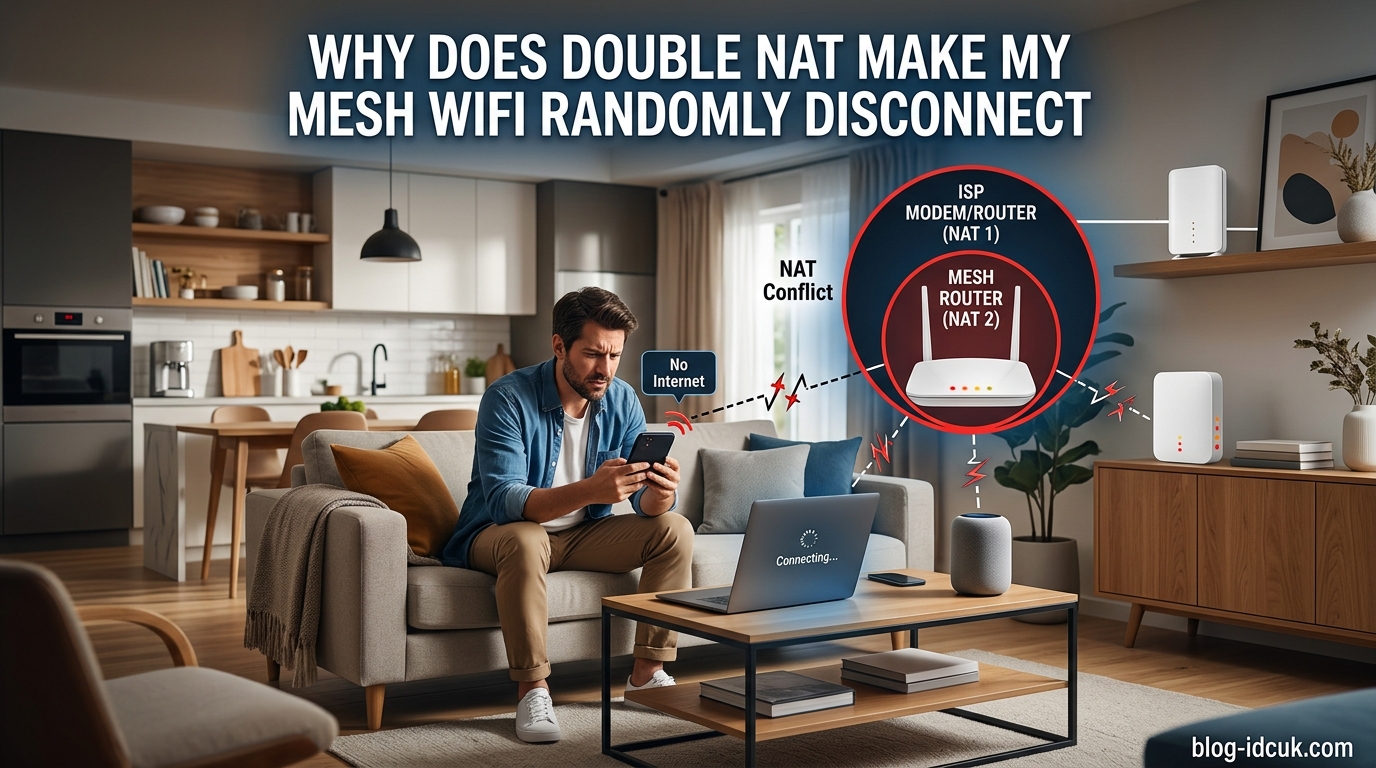
If your mesh WiFi keeps randomly disconnecting even though every node shows a strong signal, double NAT is one of the most common culprits that goes undiagnosed for months. I have helped dozens of friends and family members troubleshoot this exact issue, and the fix is almost always the same. In this guide I will explain why does double NAT make my mesh WiFi randomly disconnect, how to confirm you have it, and the steps that actually resolve it for good.
The good news is that double NAT is not a hardware fault. It is a configuration problem that you can usually fix in about 15 minutes without buying anything new. Let us break down what is happening inside your network and how to stop the random dropouts.
Table of Contents
What is Double NAT?
NAT, or Network Address Translation, is the process your router uses to translate the single public IP address from your internet service provider into the many private IP addresses used by phones, laptops, smart TVs, and mesh nodes inside your home. Every home network needs exactly one NAT layer to function correctly.
Double NAT happens when two devices in your network chain both perform NAT at the same time. The most common scenario is an ISP-provided modem and router combo (sometimes called a gateway) running NAT, with a separate mesh router plugged into it that also runs NAT. Your traffic now passes through two translation layers before reaching the internet.
To picture this, think of NAT as a receptionist in an office building who forwards incoming calls to the right desk. One receptionist works fine. Two receptionists in a row means the second one has no idea which desk the first receptionist meant, so calls get dropped or sent to the wrong place. That confusion is exactly what happens to your mesh traffic.
On paper, basic web browsing usually still works with double NAT. The problems surface when devices need to receive unsolicited incoming connections, which is precisely what mesh nodes, gaming consoles, Plex servers, and many IoT gadgets rely on to stay online.
Another way I like to explain it is the mailroom analogy. Imagine your ISP router is the building mailroom, and your mesh router is the desk inbox inside your office. With a single NAT layer, the mailroom labels each envelope with your desk number and routes it straight to you. With double NAT, the mailroom hands the envelope to a second clerk who then tries to re-label it, but the second clerk has no record of which desk originally requested it. Envelopes pile up, get returned to sender, or land on the wrong desk. That is exactly how unsolicited packets behave when two NAT layers are stacked.
Real-world symptoms tend to follow recognizable patterns. A friend of mine spent three weeks thinking her Eero system was defective because her iPhone would drop off Zoom calls every evening, even though the Eero app reported full signal on every node. After I enabled bridge mode on her Xfinity gateway, the dropouts stopped completely within 24 hours.
Another classic scenario involves smart home gear. People often notice that their Philips Hue bridge, Ring doorbell, or Apple HomeKit hub works fine for a day, then becomes unresponsive. These devices depend on cloud servers reaching them through open inbound ports. Double NAT silently blocks those inbound connections, so the cloud server gives up and the device appears offline even though your WiFi is up.
Gaming is where double NAT gets the loudest complaints. Both Xbox and PlayStation display a NAT type warning in their network settings. Under double NAT, that warning typically reads Strict or Moderate, and players cannot join parties, host games, or use voice chat reliably. The fix is never on the console side – it is always on the router side.
Plex users on r/PleX report the same story again and again: a red exclamation mark next to Remote Access, even after forwarding the correct port. The reason is that the port forward was applied to the mesh router, not the ISP router that actually holds the public IP. Until double NAT is removed, Plex remote access stays broken.
Why Double NAT Causes Mesh WiFi Random Disconnects
This is the heart of the question, and the answer comes down to how mesh nodes talk to each other. Mesh systems like Google Nest WiFi, Eero, Orbi, and TP-Link Deco use a backhaul connection between the main router and the satellite nodes. That backhaul can be wireless or wired, but either way it depends on direct, low-latency communication.
When double NAT is in place, your mesh router sits behind the ISP router’s NAT layer. The mesh router’s control plane, which coordinates node handoffs, channel selection, and client roaming, suddenly has to traverse two address translation barriers every time it checks in with its nodes. Some of those check-in packets arrive late. Some never arrive at all.
When a mesh node misses enough heartbeat packets from the main router, it assumes the link is broken and either drops offline or forces every connected device to reconnect. From your perspective, that looks like a random disconnect with no obvious cause.
UPnP, which most mesh systems use to automatically open the ports they need, also fails under double NAT. The mesh router requests a port through UPnP, but the request only reaches the ISP router’s NAT table. The public-facing port never actually opens, so the mesh system keeps retrying, consuming resources and occasionally timing out.
Subnet conflicts make the situation worse. Your ISP gateway might hand out addresses in the 192.168.0.x range, while your mesh router runs its own DHCP server on 192.168.1.x. Devices end up on two different subnets that cannot route to each other cleanly. Local traffic between a phone and a smart TV, for example, may mysteriously fail while internet access still works.
The disconnection pattern is rarely consistent. Some users see drops every few hours, others every few days, and a few only when a specific device tries to connect. That randomness is what makes double NAT so frustrating to diagnose, because signal strength and speed tests come back perfect right up until the moment a node falls off.
Forum users on r/HomeNetworking and r/GoogleWiFi consistently report the same pattern: solid signal bars on every node, but devices randomly drop every few hours, gaming consoles show strict NAT errors, and Plex remote access shows a red warning icon. All classic double NAT symptoms.
How to Check if You Have Double NAT
Before changing any settings, confirm that double NAT is actually the problem. There are three reliable ways to check, and I recommend running all three for a confident diagnosis.
Method 1: Compare your public and private IP addresses. Open a browser and visit a site like whatismyip.com to see your public IP. Then log into your mesh router’s admin interface and check the WAN IP it reports. If those two numbers do not match, traffic is being translated twice and you have double NAT.
Method 2: Look for two different default gateways. On a Windows PC, open Command Prompt and run ipconfig. On a Mac, open System Settings, then Network, then Details. If you see a default gateway address that differs from the address printed on your mesh router’s label, two routers are active.
Method 3: Run a traceroute. Open Command Prompt and type tracert 8.8.8.8 on Windows, or traceroute 8.8.8.8 in a Mac terminal. If the first two hops are both private IP addresses (starting with 192.168, 10., or 172.16-172.31), two NAT layers are in your path.
A quick warning about the IP comparison method: some ISPs use carrier-grade NAT on their end, which can make even single-NAT networks look like double NAT. If your public IP from whatismyip.com starts with 100.64.x.x, your ISP is running CGNAT. That is a different problem and bridge mode alone will not solve it, so call your ISP and ask whether a public IPv4 address is available.
If any of these tests point to double NAT, the next section walks through the fixes that actually work.
How to Fix Double NAT on Mesh WiFi?
There are three established ways to eliminate double NAT. Each has trade-offs, but all three remove the second NAT layer that is breaking your mesh node communication.
Option 1: Enable Bridge Mode on Your ISP Router
This is the cleanest fix and the one I recommend first. Bridge mode turns your ISP router or gateway into a dumb passthrough device. It stops performing NAT, stops running DHCP, and hands the public IP address straight to your mesh router’s WAN port. Your mesh system then becomes the single NAT layer on the network.
Most modern ISP gateways from Xfinity, Spectrum, AT&T, Verizon Fios, Cox, and BT support bridge mode. The setting is usually found under a section called Bridge, IP Passthrough, or WAN Bypass in the admin interface. If you cannot find it, your ISP support line can usually enable it remotely.
The biggest advantage of bridge mode is that your mesh router keeps every feature it was designed for. Parental controls, QoS, device prioritization, UPnP, and integrated port forwarding all work normally because the mesh router is the only device making routing decisions.
One thing people often overlook: after enabling bridge mode, the WiFi radios on your ISP gateway may stay on, which creates interference. I always recommend going back into the gateway admin panel after the switchover and disabling its WiFi entirely, even if bridge mode is already active. Same goes for any guest network the gateway was broadcasting.
If your ISP gateway also handles voice phone service or IPTV, bridge mode may not be available on every device. In those cases, ask your ISP whether a dedicated ONT or modem-only connection can be installed, which sidesteps the gateway issue entirely.
Option 2: Switch Your Mesh System to AP Mode
If your ISP gateway cannot be put into bridge mode, the reverse works too. Most mesh systems, including Eero, Nest WiFi, Orbi, and Deco, have an AP (Access Point) mode that disables their router functions. Your ISP gateway keeps handling NAT and DHCP, while the mesh nodes act purely as wireless access points.
The trade-off is that you lose some mesh-specific features. AP mode typically disables the mesh router’s built-in parental controls, QoS, and device prioritization. Port forwarding has to be configured on the ISP router instead. For most people the trade is worth it for stable connectivity.
Switching to AP mode is usually a single toggle in the mesh app. Eero calls it Bridge Mode (yes, the naming overlaps with the ISP side, which confuses everyone). Google Wifi calls it the same. Orbi labels it AP Mode, and Deco uses Operation Mode in the More tab.
One subtle gotcha: in AP mode, all devices share the ISP gateway’s subnet, which means your local traffic between devices behaves normally. But if your ISP gateway is older or underpowered, pushing every device through it can become a bottleneck. I have seen networks where AP mode improved stability but capped speeds at the gateway’s maximum throughput, which on budget Xfinity and Spectrum equipment is often well below gigabit.
Option 3: Remove the ISP Router Entirely
If your ISP uses a standalone modem (not a combo gateway), you can connect your mesh router’s WAN port directly to the modem, reboot both devices, and double NAT is gone. This is how I run my own network at home.
If you have a combo gateway that also handles phone service or TV set-top boxes, removing it is usually not an option. In that case, stick with bridge mode. Some ISPs will also swap your combo unit for a pure modem if you ask, which removes the problem at the source.
For fiber connections, the equivalent of the modem is the ONT (Optical Network Terminal) installed on the side of your house. Verizon Fios and AT&T Fiber both allow you to bypass the ISP router and connect a mesh system directly to the ONT, though Verizon typically requires you to release the DHCP lease first by disconnecting the old router for at least two hours.
A word of caution on this approach: if your ISP provides TV service over the same connection, the set-top boxes may depend on the ISP router for authentication or multicast routing. Bypassing it can break on-demand content or guide data. Check with your ISP before pulling the plug.
Step-by-Step: Enabling Bridge Mode on Your ISP Router
Bridge mode is the most common fix, so here is the exact process I follow every time I set up a network for someone. Steps vary slightly by ISP, but the overall flow is consistent.
Step 1: Write down your current settings. Log into your ISP gateway using the admin credentials printed on the side or bottom of the device. Note your current WiFi name, password, and any port forwarding rules, because bridge mode will wipe them.
Step 2: Disconnect non-essential devices. Power off your mesh nodes and any wired devices other than the computer you are using to make the change. This avoids address conflicts during the switchover.
Step 3: Find Bridge Mode in the admin panel. Common locations include Connection, Gateway, Advanced, or WAN Setup. Xfinity calls it Bridge Mode. AT&T calls it IP Passthrough. Verizon Fios calls it Ethernet / Coax WAN.
Step 4: Enable Bridge Mode and save. The gateway will reboot, usually within two to five minutes. Its WiFi radios may turn off entirely, which is normal and expected.
Step 5: Connect your mesh router’s WAN port. Use an Ethernet cable from any LAN port on the gateway (now in bridge mode) to the WAN or Internet port on your main mesh node. Power on the mesh router and let it fully boot.
Step 6: Reboot all mesh nodes. Power cycle each satellite node so they re-establish the backhaul with the new single-NAT configuration. Wait about five minutes for everything to stabilize.
Step 7: Verify the fix. Run the traceroute test from earlier in this guide. The first hop should now be your mesh router’s LAN address, and the second hop should be a public IP. That confirms double NAT is gone.
If you depend on port forwarding for gaming, remote access, or a Plex server, you now configure those rules inside your mesh router’s interface instead of the ISP gateway. UPnP will work correctly, and most mesh systems will automatically open the ports they need.
Here are the ISP-specific variations I see most often, because the menu names rarely match what you expect.
Xfinity (Comcast): Open the xFi admin panel at 10.0.0.1, sign in with the Xfinity ID, navigate to Gateway, then At a Glance, and toggle Bridge Mode to ON. The gateway reboots twice, which can take up to ten minutes. Xfinity sometimes re-enables the WiFi radios after firmware updates, so check back periodically.
AT&T Fiber / U-verse: AT&T calls it IP Passthrough, located at 192.168.1.254 under Settings, then Firewall, then Applications, Pinholes and DMZ Mode. You will need to enter the MAC address of your mesh router so the gateway knows which device should receive the public IP. Save, reboot, and the gateway allocates the public IP to your mesh router only.
Verizon Fios: If you have the older Fios Quantum Gateway, bridge mode lives under My Network, then Network Connections, then Broadband, then Settings, and finally choose Ethernet for WAN. For Fios One routers, the option is buried under Advanced, then IP Addressing. Many Fios users simply bypass the gateway entirely by connecting straight to the ONT, which I covered earlier.
Spectrum: Most Spectrum gateways use the Spectrum app or the web portal at 192.168.1.1. Look for Advanced, then WAN Setup, then Bridge Mode. Spectrum firmware sometimes hides this option behind a confirmation dialog that warns about lost features, but those warnings only refer to the gateway’s own WiFi, which you no longer need.
Cox: Cox Panoramic WiFi gateways expose bridge mode at 192.168.0.1 under Gateway, then Connection, then WiFi, with the toggle labeled Bridge Mode. Cox also tends to push firmware that resets bridge mode back to router mode every few months, so if your disconnects return out of nowhere, check this setting first.
BT (UK) Smart Hub: BT does not technically offer bridge mode on the Smart Hub 2, but you can achieve the same result by disabling DHCP and assigning the mesh router to the DMZ. It is a workaround rather than a clean fix, but it eliminates most double NAT symptoms for Eero and Deco users in the UK.
A common question I get is whether to enable bridge mode before or after powering on the mesh router. The answer is before. The gateway needs to complete its reboot and stabilize before any new device requests a public IP, otherwise the mesh router can grab a stale private address and you are right back to double NAT without realizing it.
One last tip: after the switchover, give the network at least 24 hours before declaring victory. Some mesh systems take several reboot cycles to fully rebuild their backhaul tables, and the first few hours may still show occasional roaming delays. If dropouts persist after 24 hours, re-run the traceroute test to confirm double NAT is truly gone.
Common Mistakes to Avoid
Most failed bridge mode attempts I have seen come down to one of these five mistakes. Avoid them and the fix usually works on the first try.
Mistake 1: Leaving the ISP gateway WiFi on. Even with bridge mode active, some gateways keep broadcasting their old WiFi network. That network has no DHCP, so devices that join it cannot get online, and the extra radios create interference with your mesh backhaul. Disable WiFi completely on the gateway after enabling bridge mode.
Mistake 2: Connecting to the wrong port. The cable must run from a LAN port on the ISP gateway to the WAN port on your mesh router. Plugging into the mesh router’s LAN port instead leaves the WAN port empty, and most mesh systems refuse to enter router mode without an active WAN connection.
Mistake 3: Forgetting to release the DHCP lease. On ISPs that assign IPs by MAC address, the gateway can keep handing the old public IP to a device that no longer exists. Power-cycling the gateway for at least two minutes usually forces a fresh lease, but Verizon Fios sometimes requires a longer release window.
Mistake 4: Skipping the post-fix verification. People enable bridge mode, see their mesh network start working, and assume the job is done. Without running a traceroute, you have no way to know whether double NAT is actually gone or whether the gateway reverted on its next reboot. Always verify.
Mistake 5: Re-enabling features on the wrong router. After the switch, parental controls, port forwarding, and QoS live on your mesh router, not the ISP gateway. Configuring them on the gateway does nothing because the gateway is no longer making routing decisions. I have seen users spend hours debugging a broken port forward only to realize they were editing the wrong device.
Another trap worth mentioning: do not run two mesh systems on the same network. I once helped someone whose Nest WiFi and Eero systems were both plugged into the same switch, each running their own DHCP server. The resulting subnet war caused daily outages until one system was removed. Pick one mesh system and remove the other from the network completely.
Finally, avoid the temptation to put your mesh router in the DMZ of the ISP gateway instead of using bridge mode. DMZ forwarding does bypass NAT for one device, but it does not disable NAT itself, so the underlying translation conflict remains. DMZ is a band-aid, not a fix.
FAQs
Why does my WiFi mesh system keep disconnecting?
The most common cause is double NAT, where your ISP router and your mesh router both perform network address translation. This disrupts the heartbeat and backhaul communication between mesh nodes, causing them to randomly drop offline even with strong signal strength.
Does double NAT affect WiFi?
Yes. Double NAT does not reduce raw WiFi speed, but it breaks UPnP, port forwarding, and direct device-to-device communication. Mesh nodes, gaming consoles, and remote access services like Plex are the most visibly affected, often showing random disconnects or strict NAT warnings.
How to fix double NAT on WiFi?
The three reliable fixes are enabling bridge mode on your ISP router, switching your mesh system to AP mode, or removing the ISP router if you have a standalone modem. Bridge mode is the most common solution because it lets your mesh router handle all network functions.
Why does my mesh node keep disconnecting?
A single mesh node that keeps dropping is usually caused by double NAT disrupting backhaul communication, weak wireless backhaul due to distance or interference, an outdated firmware version, or DFS channel changes. Check for double NAT first, then verify node placement within range of the main router.
Should the WiFi be better on mesh system on double NAT or bridge mode?
Bridge mode is always better for mesh systems. With bridge mode, your mesh router becomes the single NAT layer, which allows proper backhaul communication, working UPnP, and stable node connections. Double NAT keeps the mesh functional but causes random drops, strict NAT errors, and unreliable device roaming.
Conclusion
Double NAT is the silent cause behind a huge percentage of random mesh WiFi disconnects, and once you understand why does double NAT make my mesh WiFi randomly disconnect, the fix becomes straightforward. Two NAT layers break the heartbeat and backhaul communication that mesh nodes depend on, and no amount of node repositioning or signal boosting will solve that until the second NAT layer is gone.
My recommended starting point is always bridge mode on your ISP router. It is the cleanest, most reliable fix and preserves every feature your mesh system was designed to deliver. If your ISP gateway does not support bridge mode, switch your mesh system to AP mode, or ask your ISP about swapping the combo unit for a standalone modem.
Once you eliminate double NAT, run the traceroute test again to confirm a single NAT layer, then reconfigure any port forwarding rules inside your mesh router. Your mesh nodes will stabilize, gaming consoles should report open NAT, and the random dropouts that have been driving you crazy should stop for good.