
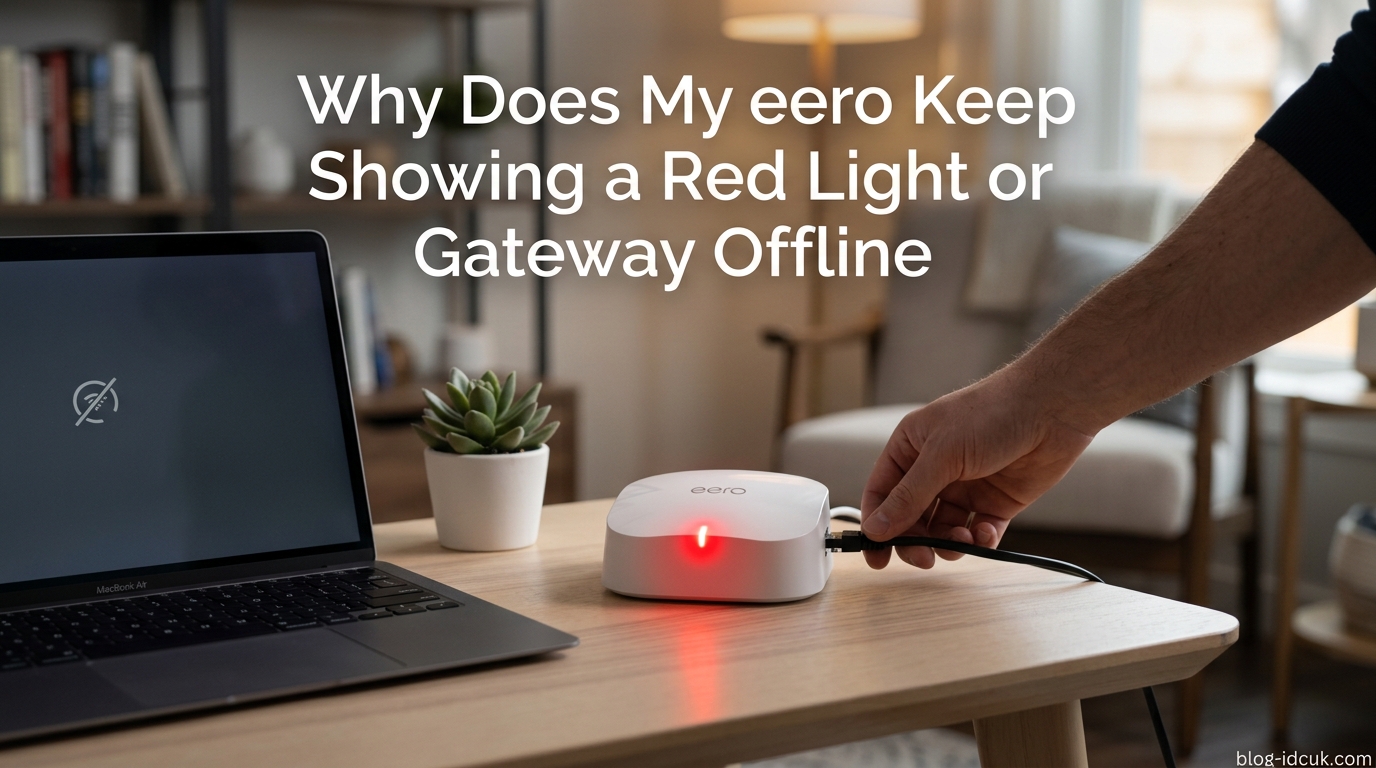
There is nothing more frustrating than glancing at your eero and seeing that ominous red glow staring back at you. If you have been searching for “why does my eero keep showing a red light or gateway offline,” you are dealing with a problem that affects the entire home network at once. Every laptop, phone, smart TV, and doorbell stops working the moment that gateway eero loses its internet connection. I have spent the last several years testing mesh WiFi setups, helping neighbors recover their networks, and reading thousands of community threads on r/eero and the official eero community forum. This guide walks through every common cause of the eero red LED, the exact step-by-step fixes that actually work, and the warning signs that tell you when the hardware itself is dying.
Whether you are running a single eero 6 or a nine-unit wired mesh in a 20,000 square foot property, the underlying cause of the red light is almost always the same breakdown somewhere between your ISP and your primary eero. The good news is that roughly 80 percent of red-light cases are fixable in under 15 minutes without contacting support. The rest usually point to a failing modem, a damaged Ethernet cable, or, in rarer cases, an eero unit that has reached the end of its lifespan.
Table of Contents
The Quick Answer: What a Red eero Light Means
A red LED on your eero means the device has lost its internet connection. The eero cannot reach your modem, your ISP is experiencing an outage, or there is a problem with the Ethernet cable connecting them. Check that your Primary eero is connected to your modem and that your internet service is working. If all eeros show red, the issue is at the modem or ISP level. If only one eero is red, the problem is local to that specific unit.
What the Red LED Actually Tells You About Your Network
The red LED is your eero’s way of saying it has no Wide Area Network (WAN) connection. WAN is the link between your modem and the wider internet provided by your ISP. When that link breaks, the gateway eero (also called the Primary eero) cannot pass traffic to the rest of the mesh, so it flashes red to alert you.
This is different from a WiFi coverage problem. A weak signal between eeros usually shows up as slow speeds or a yellow LED, not red. Red specifically means the upstream internet pipe is cut. Understanding this distinction saves you from wasting time repositioning eeros when the real issue is a disconnected cable or an ISP outage in your area.
Your eero also reports this state to the eero app, where the gateway may show as “offline.” Many users panic when they see “gateway offline” in the app even when the LED is still white. We cover that app-vs-reality discrepancy later in this guide, because it is one of the most common misunderstandings eero owners face.
eero LED Color Reference: What Every Light Means
Before diving deeper into red light causes, it helps to understand every color your eero can display. Many owners confuse one LED state for another, which leads them down the wrong troubleshooting path.
Solid white: Your eero is online and working correctly. This is the goal state. A solid white LED means the unit has both power and a working internet connection.
Blinking white: The eero is booting up or installing a firmware update. This is normal after a power cycle or restart. Wait at least 5 minutes before assuming there is a problem.
Blue (pulsing): The eero is in setup mode or looking for another eero to add to the mesh. You typically only see this during initial installation or when adding a new unit.
Solid red: The eero has lost its internet connection and is not currently trying to reconnect. See the troubleshooting section below.
Blinking red: The eero has lost internet but is actively trying to reconnect. This usually resolves on its own within 10 minutes.
Yellow or orange: The eero is online but a wireless eero elsewhere in the mesh has a weak signal. This points to placement or interference issues, not an internet outage.
No light at all: The eero has no power. Check the power adapter, the outlet, and the power cable. A failed internal power supply can also cause a completely dark LED.
Common Causes of the eero Red Light and Gateway Offline
Before jumping into fixes, it helps to know what is most likely causing the problem. Based on community reports and field experience, these are the recurring culprits behind a red eero LED.
1. ISP outage or service degradation. The single most common cause. Your eero is working fine, but the cable, fiber, or DSL service entering your home is down. Check your ISP’s outage page or a site like Downdetector before touching any hardware.
2. Loose or damaged Ethernet cable. The cable between your modem and Primary eero takes the blame more often than any other physical component. A connector that has wiggled loose, a cable chewed by a pet, or a kinked run behind furniture can all interrupt the WAN link. Swap the cable with a known-good Cat 5e or Cat 6 to test.
3. Modem lockup or modem in bridge mode conflict. Modems, especially ISP-provided combo modem/router units, can lock up silently. They appear powered on but stop passing traffic. If your modem is also a router, running your eero in its default router mode can cause a “double NAT” situation that eventually triggers disconnects.
4. Firmware update in progress or stuck. eero pushes automatic firmware updates overnight. During a 5 to 15 minute update window, the LED can flash red temporarily. If the update stalls, the red light persists. The eero app usually shows an update banner when this is happening.
5. Overheating. eeros stacked in enclosed spaces, sitting in direct sunlight, or buried under clutter can overheat. Several community users specifically report “eero red light and hot to touch” symptoms. Once the unit throttles or shuts down to protect itself, the LED turns red until it cools.
6. Smart home device storming the network. One community user traced a recurring red light to a single unconfigured smart clock that was flooding the local network with DHCP requests. IoT devices that misbehave can effectively take down the gateway eero.
7. Bridge mode misconfiguration. Bridge mode is useful with ISP gateway devices, but if enabled incorrectly it strips routing from the eero and causes random disconnects. Multiple r/eero users have traced nightly red-light episodes to bridge mode settings.
8. Too many eeros causing mesh interference. In large homes with thick plaster walls, owners often stack 8 to 10 eeros. Beyond a certain point the units fight each other for backhaul, and one eero dropping offline causes a cascade. eero recommends spacing units 30 to 50 feet apart.
9. Power supply degradation. The small USB-C or barrel-plug power adapter that came with your eero can degrade over years of continuous use. A failing adapter delivers inconsistent voltage, which causes the eero to reboot randomly and flash red during each reboot cycle.
10. Network switch failure in a wired mesh. If your wired eeros connect through an unmanaged or managed switch, a single failing switch port can drop one eero at a time. Swapping ports on the switch often isolates the issue quickly.
Step-by-Step Troubleshooting: How to Get Your eero Back Online
Work through these steps in order. Roughly four out of five red-light cases resolve within the first three steps. Each step assumes the previous one did not fix the problem.
Step 1: Confirm there is no ISP outage. Open your ISP’s outage map on cellular data, or check Downdetector. If neighbors with the same provider are also down, the issue is outside your home. Wait it out rather than resetting hardware repeatedly.
Step 2: Power cycle the modem first, then the eero. This order matters. Unplug your modem and wait 2 full minutes for capacitors to drain. Plug the modem back in and wait another 5 minutes (10 minutes for fiber ONTs) for it to fully sync. Only then unplug your Primary eero for 30 seconds and reconnect. Wait 3 to 5 minutes for the eero LED to turn solid white.
Step 3: Inspect and reseat the Ethernet cable. Unplug the Ethernet cable from both the modem and the eero. Inspect the connector for bent pins or a crushed latch. Reseat firmly until you hear or feel the click. If the LED stays red, swap in a brand-new Cat 6 cable, even if the old one looks fine. Internal wire damage is invisible.
Step 4: Test the Ethernet cable directly. Disconnect the eero from the cable and plug a laptop directly into the same modem port. If the laptop gets internet, the modem is fine and the issue is the eero. If the laptop also fails, your modem or ISP is the culprit, not the eero.
Step 5: Check the eero app for diagnostic codes. Open the eero app, tap your Primary eero, and look at the connection status. The app often shows the specific failure type: WAN connection failed, no ISP settings detected, DNS resolution error, or cannot reach default router IP. Each message points to a different fix.
Step 6: Verify ISP settings match your provider. If the app shows a WAN failure, navigate to Network Settings, then Advanced, then ISP Settings. Most providers use DHCP, which should be the default. Some fiber and DSL providers require PPPoE with a username and password, or VLAN tagging. Call your ISP to confirm the correct settings.
Step 7: Soft reset the eero. A soft reset (also called a reboot from the app) clears temporary state without wiping your network config. In the eero app, scroll to your gateway eero and tap Restart. If the app itself is offline, unplug only the Primary eero for 30 seconds.
Step 8: Factory reset as a last resort. Hold the reset button on the back of the eero for 15 seconds until the LED flashes red, then release. This wipes all settings, so you will need to set up your network from scratch in the eero app. Only do this if every other step failed and you have ruled out modem, ISP, and cable issues.
ISP Settings Explained: DHCP, PPPoE, Static IP, and VLAN
Many red-light cases trace back to ISP settings that drifted out of sync after a modem replacement, an ISP-side upgrade, or an accidental change in the eero app. Here is what each option means and when to use it.
DHCP (default for most users): Your modem automatically assigns an IP address to the eero. This is the correct setting for roughly 90 percent of cable internet customers. If your eero suddenly went red after months of stability and DHCP is already selected, the problem is almost certainly not your ISP settings.
Static IP: A fixed IP address assigned by your ISP, usually for business plans or specific fiber providers. If you have a static IP, you already know it. Entering the wrong static IP will immediately produce a red WAN error.
PPPoE: Used by many DSL providers and some fiber providers (notably in the UK and parts of Europe). Requires a username and password from your ISP. If these credentials are wrong or your ISP resets them, your eero will show a WAN connection failure.
VLAN tagging: Some fiber providers require traffic to be tagged with a specific VLAN ID (often 10 or 201). If this is missing or wrong, the eero will not establish a WAN connection. Check your ISP’s install documentation or call support for the correct VLAN value.
If you recently changed modems or had a technician visit, double-check these settings first. A new modem from your ISP often defaults to different settings than the old one, which silently breaks the WAN link to your eero.
Blinking Red vs Solid Red: What Is the Difference
The pattern of the red LED matters. A solid red light means the eero has fully given up its internet connection and is not currently trying to reconnect. This usually points to a hard failure: no Ethernet link to the modem, no WAN signal, or a stuck firmware state.
A blinking red light means the eero is actively trying to reconnect. You will often see this during a firmware update, immediately after a power cycle, or when the eero is renegotiating with the modem. Blinking red typically resolves on its own within 10 minutes. If it persists beyond 15 minutes, treat it as a solid red light and start the troubleshooting steps above.
There is also a rare “red light of death” pattern where the eero cycles red, white, and back to red continuously. We cover that scenario in a later section, because it usually signals hardware failure rather than a network issue.
Primary, Wireless, and Wired eero: Different Troubleshooting Paths
Not every red eero is created equal. The fix depends on which eero in your mesh is showing red, because each one connects to the network differently.
If only the Primary (gateway) eero is red: The problem is upstream. Focus on the modem, the Ethernet cable, your ISP settings, and any outage in your area. The other eeros may stay white for a while because they still talk to each other over the mesh, but they have no internet access.
If a wireless eero (no Ethernet, mesh backhaul only) is red: The unit has lost its wireless connection to the Primary. This usually means the eero is too far away, a new obstruction (a mirror, a metal appliance, a fish tank) is blocking signal, or the unit is overheating. Move it closer to another eero temporarily to see if it recovers.
If a wired eero is red: Either the Ethernet cable connecting it back to the network has failed, or the switch it plugs into has rebooted. Community users often report wired eeros “reverting to wireless” when the cable develops a fault. Check the cable and any network switch in the path.
If all eeros are red at once: The Primary eero has lost internet. Fix the Primary first and the rest will recover automatically within a few minutes. You should never need to reset every eero individually.
If one specific eero keeps dropping while others stay solid: This is the classic “one specific eero going offline” pattern from the eero community. The offending unit is usually overheating, has a failing power adapter, or is positioned at the edge of the mesh where interference is worst. Try swapping that specific eero with a known-good one to see if the problem follows the unit or the location.
App Says Offline but LED Is White: The Display Bug
A frequent source of confusion is the eero app reporting a gateway as “offline” while the LED on the unit itself glows solid white. When this happens, your internet is usually still working fine, but the app is failing to communicate with the eero cloud service.
This discrepancy often appears after a firmware update, during ISP DNS changes, or when the eero cloud backend is briefly unreachable. Devices in your home keep working normally because they route through the eero locally, even though the app cannot confirm status.
The fix is straightforward. Force-close the eero app, wait 60 seconds, and reopen it. If the status does not refresh, restart your Primary eero from the app or by unplugging it briefly. In rare cases, the eero cloud service itself has an outage, in which case you simply wait it out. Check status.eero.com for cloud-side issues.
The eero Red Light of Death and Overheating
Some red-light cases do not respond to any troubleshooting because the eero hardware is genuinely failing. The community calls this the “eero red light of death,” and it typically shows up as a persistent red LED that returns within minutes of every reset, even with a known-good modem and cable.
Overheating is the most common root cause of premature eero failure. eeros have no internal fan and rely entirely on passive cooling through their case. Units sitting in enclosed media cabinets, stacked directly on top of other warm electronics, or exposed to direct sun will gradually degrade. The classic symptom is an eero that works perfectly when cold but turns red after 20 to 60 minutes of use as internal temperatures climb.
To diagnose overheating, unplug the eero, let it cool for 30 minutes, and place your hand on the case. If it feels hot enough to be uncomfortable, overheating is likely. Relocate the unit to an open, ventilated spot and see if the red light stops recurring. If the eero still cycles red even when cool and well-ventilated, the internal radio or power supply has likely failed and the unit needs replacement.
Long-term eero owners (3 or more years) often report gradual degradation. A unit that ran flawlessly for years starts dropping offline weekly, then daily. This is normal hardware aging and is not something troubleshooting can fix.
When to Replace Your eero
eero units typically last 4 to 6 years before reliability issues appear. If you have already worked through every troubleshooting step in this guide and the red light keeps coming back, replacement is the practical next step rather than fighting a dying unit.
Signs your eero is failing permanently include red light that returns within minutes of a factory reset, the eero running noticeably hot to the touch even when idle, units that fail to fully boot (LED never reaches solid white), and units that drop offline at the same time every day regardless of network conditions. Any combination of these symptoms points to hardware rather than a network problem.
Before replacing, contact eero support. They can pull your network logs, confirm whether the unit is reporting hardware errors, and in many cases offer a discount on a replacement under warranty or extended support programs. Many users on r/eero report that eero support responds quickly and is more helpful than typical consumer tech support.
Prevention: How to Stop the Red Light Coming Back
Once you fix the immediate issue, a few habits will keep the red light from returning. Most recurring red-light problems stem from preventable conditions rather than random failures.
Ventilation: Give every eero at least 6 inches of clearance on all sides. Never stack them on cable boxes, AV receivers, or other heat-generating gear. Wall-mounting or placing on an open shelf works best.
Quality cabling: Use only Cat 6 or higher Ethernet cables for the run between your modem and Primary eero, and for any wired backhaul runs. Replace flat, thin Ethernet cables with round, shielded ones if you experience intermittent drops.
UPS for modem and eero: A small uninterruptible power supply prevents the brief power blips that leave modems and eeros in inconsistent states. Even a 5-minute runtime UPS will eliminate most post-outage red-light scenarios.
Firmware update windows: If your red lights always happen overnight, eero’s automatic firmware updates are a likely culprit. You cannot fully disable updates, but keeping your app updated and approving pending updates when prompted can reduce surprise reboots.
Periodic reboots: Restarting your Primary eero once a month clears memory fragmentation and temporary state buildup. Some long-term users schedule a monthly reboot as preventive maintenance.
Limit mesh size: For most homes, 3 to 5 eeros is the sweet spot. Going beyond 6 eeros without a wired backhaul frequently causes mesh instability. If you need more coverage, run Ethernet to additional eeros rather than relying purely on wireless mesh.
FAQs
Why is the red light on my eero offline?
A red light on your eero means the device has lost its internet connection. Either the eero cannot reach your modem, your ISP is experiencing an outage, or there is a problem with the Ethernet cable between them. Check that your Primary eero is firmly connected to your modem and that your internet service is working.
Why is my eero going offline randomly?
Random offline episodes are usually caused by a loose Ethernet cable, an overheating eero, a modem that is locking up, a firmware update running in the background, or bridge mode conflicts with an ISP gateway. Smart home devices flooding the network with requests can also take the eero offline. Track the exact time the drops happen to narrow the cause.
How to tell if eero is going bad?
Signs your eero is failing include a red light that returns within minutes of every reset, the unit running hot to the touch, the LED never reaching solid white during boot, drops at the same time daily, and the unit refusing to accept a firmware update. Any combination of these after ruling out modem, cable, and ISP issues points to hardware failure.
How do I get my eero back online?
First check for an ISP outage on Downdetector or your provider’s status page. Then power cycle your modem for 2 minutes, wait for it to fully sync, and only then restart your Primary eero. Reseat or replace the Ethernet cable between the modem and eero. If the eero app shows a specific WAN error, verify your ISP settings (DHCP, PPPoE, or VLAN) match what your provider requires.
Why did my eero randomly go offline after a power outage?
Power outages can leave modems and eeros in an inconsistent state. The eero may take 10 to 15 minutes to fully reconnect as it renegotiates with the modem and re-downloads its configuration. If the red light persists, power cycle the modem first, then the eero, in that order. Firmware can also be re-verifying after a sudden power loss.
Is eero experiencing issues right now?
Check the official eero status page at status.eero.com for known outages, and also check your ISP’s outage map. Most red-light issues trace back to the ISP rather than eero itself. If status.eero.com shows no problems and your ISP confirms service is up, the issue is almost certainly local to your modem, cable, or eero hardware.
What is the lifespan of an eero router?
Most eero units last 4 to 6 years before reliability issues appear. Long-term owners frequently report gradual degradation after year 3, with units dropping offline more often even when nothing else has changed. If your eero is over 4 years old and the red light keeps returning despite full troubleshooting, replacement is usually more cost-effective than continued troubleshooting.
Can I use my eero while the gateway is offline?
No. When the Primary (gateway) eero is offline, the entire mesh loses internet access even though individual devices may still show a WiFi connection. Devices can talk to each other locally in some cases, but no traffic will reach the internet until the gateway eero reconnects to your modem and ISP.
Final Thoughts on the eero Red Light
The question of “why does my eero keep showing a red light or gateway offline” almost always has a simple answer once you work through the troubleshooting order: ISP outage, modem or Ethernet problem, firmware update, overheating, or, in rarer cases, failing hardware. Start with the modem and cable before touching the eero itself, because those two components cause more red lights than every other factor combined.
If your eero is over four years old and the red light returns no matter what you try, it is time to consider replacing the unit rather than fighting it. Mesh WiFi hardware does age, and a new gateway eero will often restore the rock-solid stability you had when you first installed the system. For persistent issues that none of these steps resolve, contact eero support, who can pull your network logs and identify whether a specific unit is reporting hardware faults. Once you do get back online, a small UPS, good ventilation, and quality cabling will keep that LED solid white for months at a time.