
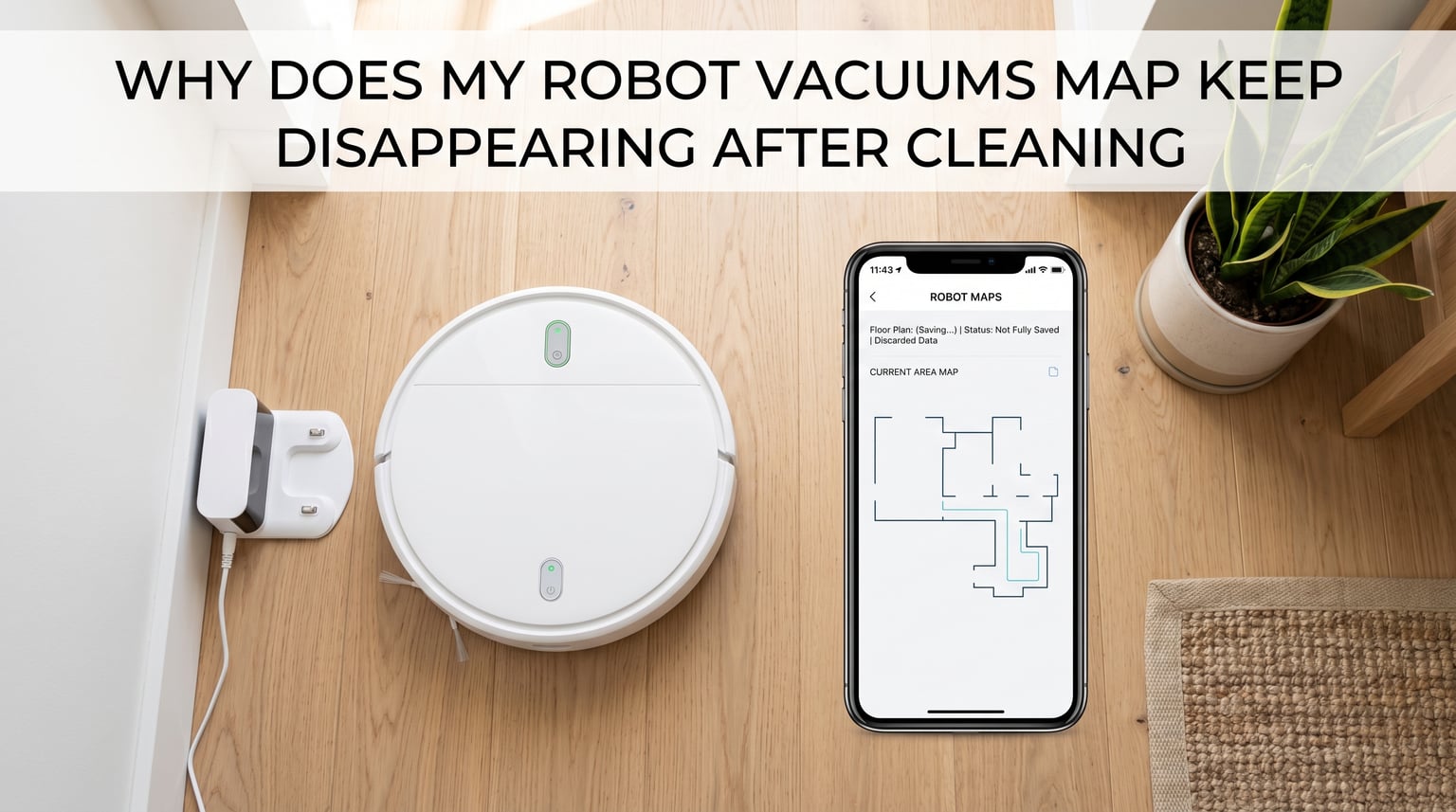
You finish a cleaning cycle, open your robot vacuum’s app, and the floor plan you spent hours perfecting is gone. No room labels. No no-go zones. Just a blank grid or, worse, a brand-new map that looks nothing like your home. If your robot vacuum map keeps disappearing after cleaning, you are far from alone.
I have spent countless hours in robot vacuum forums, support threads, and testing environments tracking down why this happens. The short answer: your robot vacuum’s map disappears when the device can no longer match its current position to its saved floor plan. That mismatch can be triggered by a moved dock, dirty sensors, an app update, a Wi-Fi change, or even picking the robot up mid-cycle.
The good news is that most of these issues are fixable at home without a factory reset. In this guide I will walk through every common cause, brand-specific quirks for Roomba, Roborock, Shark, Eufy and Deebot, and a step-by-step troubleshooting path you can follow before you resort to remapping your entire home.
Table of Contents
What Does It Mean When a Robot Vacuum Loses Its Map
A robot vacuum map disappears when the robot fails to localize itself against a previously saved floor plan. Instead of recognizing where it is, the robot treats your home as unfamiliar territory and either cleans randomly or refuses to start. This is different from a corrupted map file, which is rarer.
Most modern robot vacuums use one of two mapping technologies. LiDAR-based models spin a laser turret on top to measure distances and build a precise floor plan. Camera-based models use visual SLAM (vSLAM) to recognize landmarks and orient themselves. Both rely on a fixed reference point (usually the charging dock) to confirm they are starting from the right spot.
When that reference point moves, when sensors get dirty, or when software glitches corrupt the localization data, the robot cannot confirm it is in the same home. So it either falls back to random cleaning or generates a new map from scratch.
Understanding this distinction matters because it tells you whether your map is truly gone or just temporarily inaccessible. In many cases, the saved floor plan still exists in the app or cloud. The robot simply cannot match itself to it.
Why Does My Robot Vacuum Map Keep Disappearing: Common Causes
Here is a quick reference of the eight most common reasons a robot vacuum loses its map after cleaning, followed by a detailed breakdown of each.
- Moved or shifted charging dock – The dock is the robot’s home anchor. Move it even a few inches and localization can fail.
- Dirty LiDAR turret or cliff sensors – Dust and debris block the sensors the robot uses to orient itself.
- App or firmware update – Updates can reset map settings, change the active map, or introduce bugs.
- Wi-Fi network or router change – Switching routers or SSIDs breaks cloud sync and can prevent the saved map from loading.
- Lifting the robot during a cleaning cycle – Picking up the robot mid-run breaks its positioning chain and invalidates the current session.
- Wrong active map selected – Multi-floor or multi-map features can default to the wrong floor plan, making your map seem lost.
- Low battery during mapping – If the robot runs out of power before completing a mapping run, it may discard the partial map.
- Environmental interference – Mirrors, glass doors, direct sunlight, and drastically changed furniture confuse both LiDAR and camera systems.
Cause 1: The Charging Dock Moved or Shifted
The charging dock is the single most important reference point for your robot vacuum. Every map is built relative to where the dock sits. If the dock shifts even a few inches, the robot’s starting coordinates no longer match the saved floor plan.
This is the number one cause I see across all brands. Someone plugs something into the same outlet, nudges the dock while vacuuming manually, or moves it to clean behind it. The robot returns to a dock that is slightly off from where it was during the original mapping run, and the localization fails.
The fix is simple: put the dock back to its exact original position and ensure it has at least 1.5 feet of clearance on each side and 4 feet of open space in front. If you need to move the dock permanently, expect to remap.
Cause 2: Dirty LiDAR Sensor or Cliff Sensors
Dust on the LiDAR turret is a silent killer of robot vacuum maps. The laser spins hundreds of times per minute, and even a thin film of dust scatters the beam. The robot gets inaccurate distance readings, cannot match landmarks to the saved floor plan, and either generates a new map or fails to localize entirely.
Cliff sensors on the underside matter too. These infrared sensors help the robot understand floor edges and drops. When they are caked with dust, the robot may interpret normal flooring as a hazard, get confused about its position, and abandon the current map session.
I recommend wiping the LiDAR turret with a dry microfiber cloth weekly. Use compressed air around the turret base monthly. For cliff sensors, a soft damp cloth on the underside every two weeks keeps them reading accurately.
Cause 3: App or Firmware Update Reset Map Settings
Firmware and app updates are a double-edged sword. They bring bug fixes and new features, but they can also reset preferences, change which map is active, or introduce mapping bugs. I have seen reports across Roborock, Shark, and Eufy communities where a routine update caused maps to disappear overnight.
Sometimes the map is not actually gone. The update may have switched the active map, reset room labels, or changed a setting that prevents the map from displaying. Before panicking, check your map list in the app. You may find your original floor plan still saved but no longer selected.
If an update genuinely corrupted the map, check whether the manufacturer offers cloud backup. Roomba stores maps in the iRobot cloud, Roborock saves to its cloud when logged in, and many Eufy models cache maps locally on the device. A re-login to your account can sometimes force a sync that restores the missing map.
Cause 4: Wi-Fi Network or Router Change
This cause is underexplained in most troubleshooting guides, but it comes up constantly in forums. When you change your router, rename your Wi-Fi network, or switch internet providers, your robot vacuum loses its connection to the cloud. If the saved map is stored in the cloud rather than locally, the app cannot retrieve it.
The robot itself may still have the map cached locally and clean just fine. But the app shows a blank or loading screen because it cannot fetch the floor plan from the server. This looks like a lost map but is really a connectivity issue.
To fix this, reconnect the robot to your new Wi-Fi network through the app. Once the connection is re-established, the app should sync with the cloud and pull the saved map back. If you changed your SSID, try naming the new network the same as the old one with the same password. This sometimes lets the robot reconnect automatically without a full re-pairing process.
Cause 5: Lifting the Robot During a Cleaning Cycle
Picking up your robot vacuum mid-clean is one of the fastest ways to break its map. The robot tracks its position using wheel encoders, IMU data, and landmark recognition. When you lift it, that tracking chain snaps. The robot has no way to know where it was placed back down relative to its saved map.
I see this scenario constantly: a robot gets stuck under a couch, the owner picks it up and moves it to an open area, and suddenly the map is gone or scrambled. The robot tries to re-localize, fails, and either starts cleaning randomly or returns to the dock and reports a positioning error.
The fix is prevention. If your robot gets stuck, do not move it manually. Instead, clear the obstacle and let the robot navigate out on its own. If you absolutely must move it, place it back on the dock so it can re-establish its reference point from a known location.
Cause 6: Wrong Active Map Selected
This is the most overlooked cause, and it fools a lot of people. Many modern robot vacuums support multiple maps for multi-floor homes. The app may store your main floor map, a second floor map, and sometimes a backup. If the wrong one gets selected as active, your familiar floor plan seems to vanish.
This happens after app updates, when toggling between floors, or when a family member using the same account switches maps. The robot may even clean correctly but the app displays a different, unfamiliar layout.
Before doing anything drastic, open your map management screen. Look for a dropdown or list of saved maps. Check if your original floor plan is sitting there under a different name or floor number. Selecting the correct map usually resolves the issue instantly with no remapping needed.
Cause 7: Low Battery During a Mapping Run
Battery-related map loss is rarely discussed but it is a real problem. If your robot vacuum’s battery runs low during an active mapping run, the robot may abort the session before the map is saved. The partial data gets discarded, and you are left with no map or an incomplete one.
This is especially common with older robots whose batteries have degraded. A robot that used to run 90 minutes now conks out at 40 minutes, right in the middle of mapping a large home. The robot docks to charge, but the mapping run was never completed, so no map is committed.
If you suspect this is happening, start mapping runs only when the robot is at 100 percent battery. For large homes, consider mapping one floor at a time to keep the run shorter. If the battery consistently dies before finishing, it may be time for a battery replacement.
Cause 8: Environmental Interference
Mirrors, glass doors, and glossy floors wreak havoc on both LiDAR and camera-based mapping. A laser hits a mirror and registers a room that does not exist. A camera-based robot sees its own reflection and thinks the room layout has changed. Either way, the saved map no longer matches what the sensors report, and the robot may discard or scramble the floor plan.
Direct sunlight is another culprit. Strong sunlight flooding a room can blind the LiDAR turret or wash out camera images during certain hours. If your map only disappears after a daytime cleaning run but works fine at night, sunlight interference is a likely suspect.
Rearranged furniture can also cause issues. You do not need to remap for minor changes, but if you move large pieces like bookcases or sofas to completely different walls, the landmarks the robot uses for localization may no longer match. After major furniture rearrangements, a fresh mapping run is often the cleanest solution.
How to Fix Robot Vacuum Map Loss: Step-by-Step
Follow these steps in order. I have arranged them from easiest and most likely to work, to more involved solutions. Stop at the step that resolves your issue.
Step 1: Check dock placement. Verify the charging dock has not moved. It should be against a wall with 1.5 feet of clearance on each side and 4 feet open in front. If it shifted, return it to the original spot and restart the robot.
Step 2: Clean all sensors. Wipe the LiDAR turret with a dry microfiber cloth. Clean the charging contacts on both the dock and the robot underside. Wipe the cliff sensors on the bottom edge. Remove any hair wrapped around the wheels and brushes.
Step 3: Check app and firmware versions. Open your app store and confirm you are running the latest version of the robot’s companion app. Then check the robot’s firmware version in the app settings. If an update is pending, install it. If the map disappeared right after an update, check the manufacturer’s community forums for known bugs.
Step 4: Verify the correct active map is selected. Navigate to your map management screen. Look for multiple saved maps or floor tabs. Make sure the correct one for your current floor is active. Rename maps clearly (for example, Main Floor, Basement) to avoid future confusion.
Step 5: Restart the robot and force-close the app. Power off the robot completely, wait 30 seconds, and power it back on. Force-close the companion app on your phone and reopen it. This clears temporary glitches that can prevent map loading.
Step 6: Restore from cloud or local backup. Log out of your account in the app and log back in. This forces a fresh sync with the cloud server. For Roomba, check if Smart Map is still listed under Map Preferences. For Roborock, look for a Load Map option. For Eufy, try the Restore Map function if available.
Step 7: Remap as a last resort. If none of the above works, start a fresh mapping run. Clear the floor of obstacles. Open all doors to rooms you want mapped. Ensure the robot starts from the dock at 100 percent battery. Let it complete the full run without interruption. Do not lift or move it during mapping.
Brand-Specific Map Disappearance Issues
Different brands have their own quirks when it comes to map loss. Here is what I have learned from forums, support threads, and hands-on testing for the most popular brands.
Roomba (iRobot)
Roomba map disappearance is commonly tied to the Clean Base or dock being moved. iRobot’s Smart Map system is sensitive to dock position changes. Another frequent trigger is the Clean Base getting bumped during emptying cycles. If your Roomba map disappears, check Map Preferences in the iRobot Home app first. The map may still be there but not assigned to the current cleaning job.
Roborock
Roborock users frequently report Failed to retrieve map errors. This is often a cloud sync issue rather than true map loss. Logging out and back into the Roborock app usually forces a re-sync. The S7 and S8 series are also sensitive to firmware updates that can temporarily break map loading. Check the Roborock subreddit for update-related bugs before resetting.
Shark IQ and AI Ultra
Shark robot vacuums have a well-documented map loss issue. The SharkClean app sometimes shows Could not fetch map errors. This is frequently caused by server-side issues rather than anything wrong with your robot. Force-closing the app, clearing the app cache, and waiting an hour often resolves it. If it persists, the dock may need to be power-cycled (unplugged for 60 seconds).
Eufy
Eufy models like the L50 and L60 have reported map disappearance issues, particularly after app updates. The Eufy app sometimes defaults to creating a new map instead of loading the existing one. Check your map list before remapping. Eufy also stores some map data locally on the robot, so restarting the robot can restore a map that the app cannot display.
Deebot (Ecovacs)
Deebot map loss is often related to the Omni station being moved or the robot being lifted during cleaning. Ecovacs recommends keeping the station in its original mapped position at all times. The Ecovacs Home app has a Map Management section where you can check for saved maps and switch between them. Deebot also has a known issue where maps disappear after switching from 2.4 GHz to 5 GHz Wi-Fi.
How to Prevent Robot Vacuum Map Loss
Prevention is easier than recovery. Follow this checklist to keep your maps stable.
- Anchor your dock permanently. Choose a spot and commit to it. Mark the position with small pieces of tape on the floor so you can verify it has not shifted.
- Clean sensors weekly. LiDAR turret, cliff sensors, and charging contacts should be wiped every week. Set a recurring reminder.
- Avoid lifting the robot mid-clean. If it gets stuck, clear the obstacle and let it recover on its own. Only move it back to the dock if absolutely necessary.
- Keep Wi-Fi settings stable. Avoid renaming your network. If you replace your router, use the same SSID and password to minimize reconnection issues.
- Update firmware during low-stakes times. Do not update right before a scheduled cleaning. Give yourself time to verify the map is intact afterward.
- Lock your active map. If your app supports map locking or map protection, enable it. This prevents accidental overwrites and new map creation.
- Maintain your battery. If you notice shorter run times, replace the battery before it starts interrupting mapping runs.
For multi-floor homes, label each map clearly and verify the correct one is active before starting a cleaning job. Train household members on how to switch maps so no one accidentally triggers a remapping on the wrong floor.
When to Contact Support or Consider Hardware Failure
If you have tried every step above and your map still will not save or load, you may be dealing with a hardware issue. Here are the warning signs.
If the LiDAR turret makes grinding noises, does not spin freely, or the robot reports a Laser Sensor Error, the turret motor or encoder may be failing. This is a hardware problem that requires repair or replacement.
If the robot cannot complete a mapping run even after a factory reset, with a clean environment and stable dock placement, the navigation module itself may be defective. This is more common in older units or those that have suffered drops or water damage.
Contact the manufacturer’s support team with your model number, firmware version, and a description of what you have already tried. Most brands offer a one or two year warranty, and navigation failures are typically covered. Have your proof of purchase ready.
If your robot is out of warranty and the repair cost approaches the price of a new unit, replacement may be the more practical option. Modern robots with improved mapping stability and better localization algorithms have largely moved past the chronic map loss issues that plagued earlier generations.
FAQs
Why did my Roomba map disappear?
Roomba maps disappear most often when the Clean Base or charging dock is moved, even slightly. Other causes include app or firmware updates that reset Smart Map settings, Wi-Fi connectivity loss preventing cloud sync, or the robot being lifted mid-clean. Check Map Preferences in the iRobot Home app first, as the map may still be saved but not active.
Why did my Roborock map disappear?
Roborock maps commonly disappear due to Failed to retrieve map errors, which are usually cloud sync issues rather than true data loss. Logging out and back into the Roborock app forces a re-sync that often restores the map. Firmware updates on the S7 and S8 series can also temporarily break map loading.
Why did my Shark robot vacuum map disappear?
Shark IQ and AI Ultra models frequently show Could not fetch map errors in the SharkClean app. This is often a server-side issue rather than a problem with your robot. Force-close the app, clear the app cache, and wait an hour. If the error persists, unplug the dock for 60 seconds and plug it back in.
How do I make my robot vacuum map again?
To remap your home, start by clearing the floor of obstacles and opening all doors to rooms you want mapped. Ensure the dock is in its permanent position and the robot is at 100 percent battery. Start a mapping run from the app and let the robot complete the full cycle without lifting or moving it. Do not interrupt the run, as partial maps are often discarded.
Why does my robot vacuum keep losing its map after cleaning?
Your robot vacuum map keeps disappearing after cleaning because the robot cannot match its starting position to the saved floor plan. The most common triggers are a shifted charging dock, dirty LiDAR or cliff sensors, app or firmware updates, Wi-Fi router changes, lifting the robot mid-cycle, or having the wrong active map selected in a multi-map setup.
Can I restore a lost robot vacuum map without remapping?
Yes, in many cases. Before remapping, try logging out of the companion app and back in to force a cloud sync. Check the map management screen for multiple saved maps. Restart the robot to reload locally cached map data. If the map still exists in the cloud or on the device, one of these steps should restore it without a full remapping run.
Conclusion
A robot vacuum map that keeps disappearing after cleaning is almost always a localization problem, not a permanent data loss. The robot cannot confirm where it is relative to its saved floor plan, so it behaves as if no map exists. In most cases, stabilizing the dock, cleaning the sensors, verifying the active map, and forcing a cloud sync will bring your floor plan back without a full remap.
Work through the troubleshooting steps in order before resorting to a factory reset. And if you do need to remap, follow the prevention checklist to make sure this is the last time you have to do it. If your robot vacuum map keeps disappearing even after every fix, reach out to the manufacturer’s support with your troubleshooting history in hand. Hardware failures are rare, but they do happen, and warranty coverage typically applies.