
As a developer who spends 10+ hours daily staring at code, I learned the hard way that the right monitor can make or break your productivity. After testing dozens of displays over the past three years, I’ve narrowed down the best monitors for programming that deliver crisp text, reduce eye strain, and enhance your coding workflow.
The best monitor for programming needs excellent text clarity, reliable connectivity options, and eye comfort features that matter during those marathon debugging sessions. Whether you’re a web developer building responsive layouts or a backend engineer reviewing thousands of lines of code, your display choice directly impacts your daily comfort and efficiency.
In this guide, I’ll walk you through my top picks for coding monitors in 2026, covering everything from budget-friendly options to premium displays with specialized programming features. Each monitor here has been evaluated for real-world development work, not just gaming or media consumption.
Table of Contents
Top 3 Picks for Best Monitors for Programming October

Best Monitors for Programming in 2026
| Product | Specifications | Action |
|---|---|---|
| BenQ RD280U 28.2 inch 4K |
|
Check Latest Price |
 Dell UltraSharp U2723QE 27 inch Dell UltraSharp U2723QE 27 inch |
|
Check Latest Price |
 Dell S2725QS 27 inch 4K Dell S2725QS 27 inch 4K |
|
Check Latest Price |
 LG 27UP650K-W 27 inch 4K LG 27UP650K-W 27 inch 4K |
|
Check Latest Price |
 ASUS ProArt PA278QV 27 inch ASUS ProArt PA278QV 27 inch |
|
Check Latest Price |
| BenQ GW2790Q 27 inch 2K QHD |
|
Check Latest Price |
1. BenQ RD280U – Best Overall Programming Monitor
BenQ RD280U 28.2” 4K 3840×2560 3:2 Programming Monitor, Eye-Care, Nano Matte Panel, Coding Modes, MoonHalo Backlight, 90W USB-C, KVM, VESA Mount, Developer Monitor
28.2 inch 4K
3:2 Aspect Ratio
90W USB-C
KVM Switch
Pros
- Nano Matte Panel reduces glare
- Dedicated Coding Modes for syntax
- MoonHalo backlight for night coding
- 90W USB-C with KVM
- Brightness Intelligence Gen2
Cons
- 60Hz not ideal for gaming
- 3:2 ratio takes adjustment
- Limited stock availability
After using the BenQ RD280U for three months of daily development work, I can confidently say this is the most thoughtfully designed monitor for programmers I’ve tested. The 3:2 aspect ratio feels like it was built specifically for code, giving you more vertical space to view functions without scrolling.
The Nano Matte Panel stands out immediately. Unlike glossy screens that reflect every light source in your room, this anti-glare coating eliminates distractions while keeping text sharp. I found myself blinking less during long coding sessions, which might explain why my afternoon eye fatigue disappeared after switching to this display.
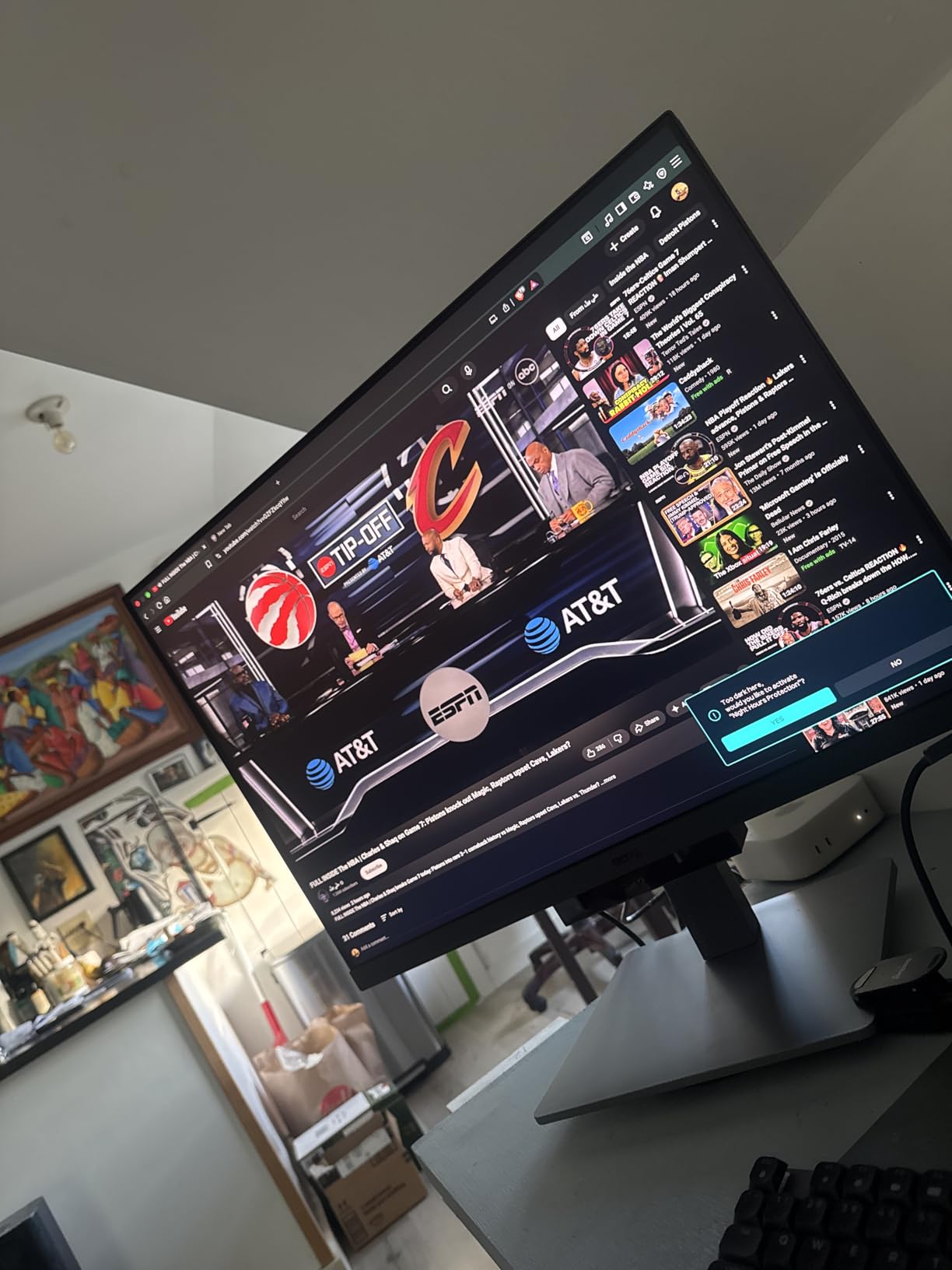
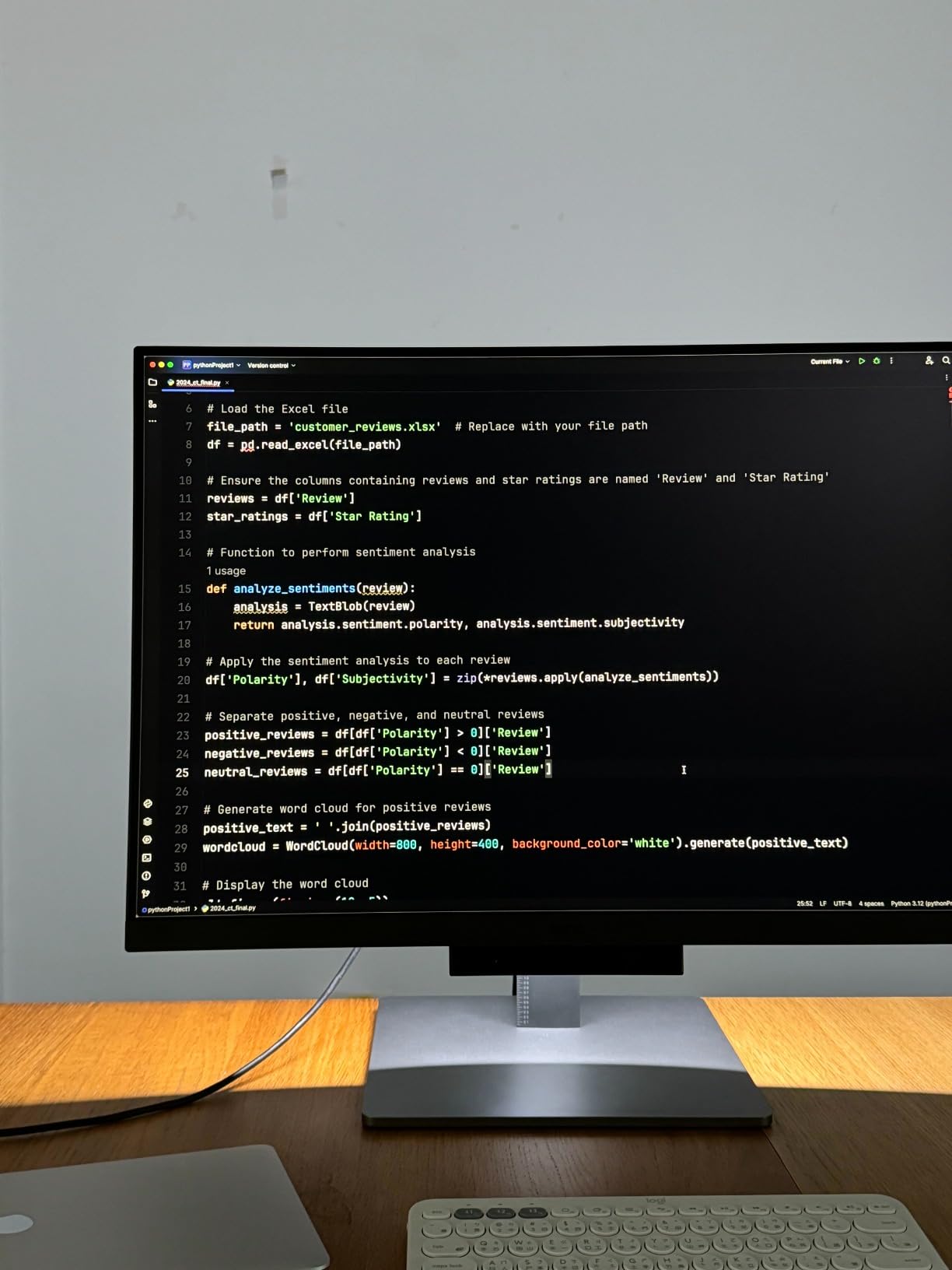
The dedicated Coding Modes genuinely surprised me. I was skeptical about preset modes making a difference, but the enhanced contrast for different programming languages actually helps distinguish syntax elements faster. Python’s indentation structure became easier to parse at a glance, and the dark themes in VS Code finally look as good as they should.
Built-in KVM functionality proved invaluable for my dual-machine setup. I switch between my work laptop and personal desktop throughout the day, and the single USB-C connection handles video, data, and 90W power delivery for my MacBook Pro. The cable management alone saved my desk from looking like a spaghetti factory.
Who Should Buy This Monitor
This is ideal for professional developers who spend their entire workday coding. If you work with multiple machines, appreciate dedicated features for your craft, and want the best text clarity available, the RD280U delivers. The MoonHalo backlight particularly shines for those late-night debugging sessions when you want ambient lighting without desk lamps cluttering your space.
Who Might Want Something Different
Developers who also game after work might find the 60Hz refresh rate limiting. The 3:2 aspect ratio, while excellent for code, doesn’t suit everyone for media consumption or gaming. If you’re on a tighter budget or primarily game when not coding, a more versatile 16:9 display might serve you better.
2. Dell UltraSharp U2723QE – Best USB-C Hub Monitor
Dell UltraSharp U2723QE – LED Monitor – 27-3840 x 2160 4K :: U2723QE (Monitors > Monitors)
27 inch 4K
IPS Black Technology
USB-C Hub with 8 Ports
KVM Switch
Pros
- IPS Black for deeper blacks
- Built-in KVM switch
- 8-port USB-C hub
- Excellent color accuracy
- Factory calibrated
Cons
- Higher price point
- Back-mounted buttons
- KVM requires Dell software
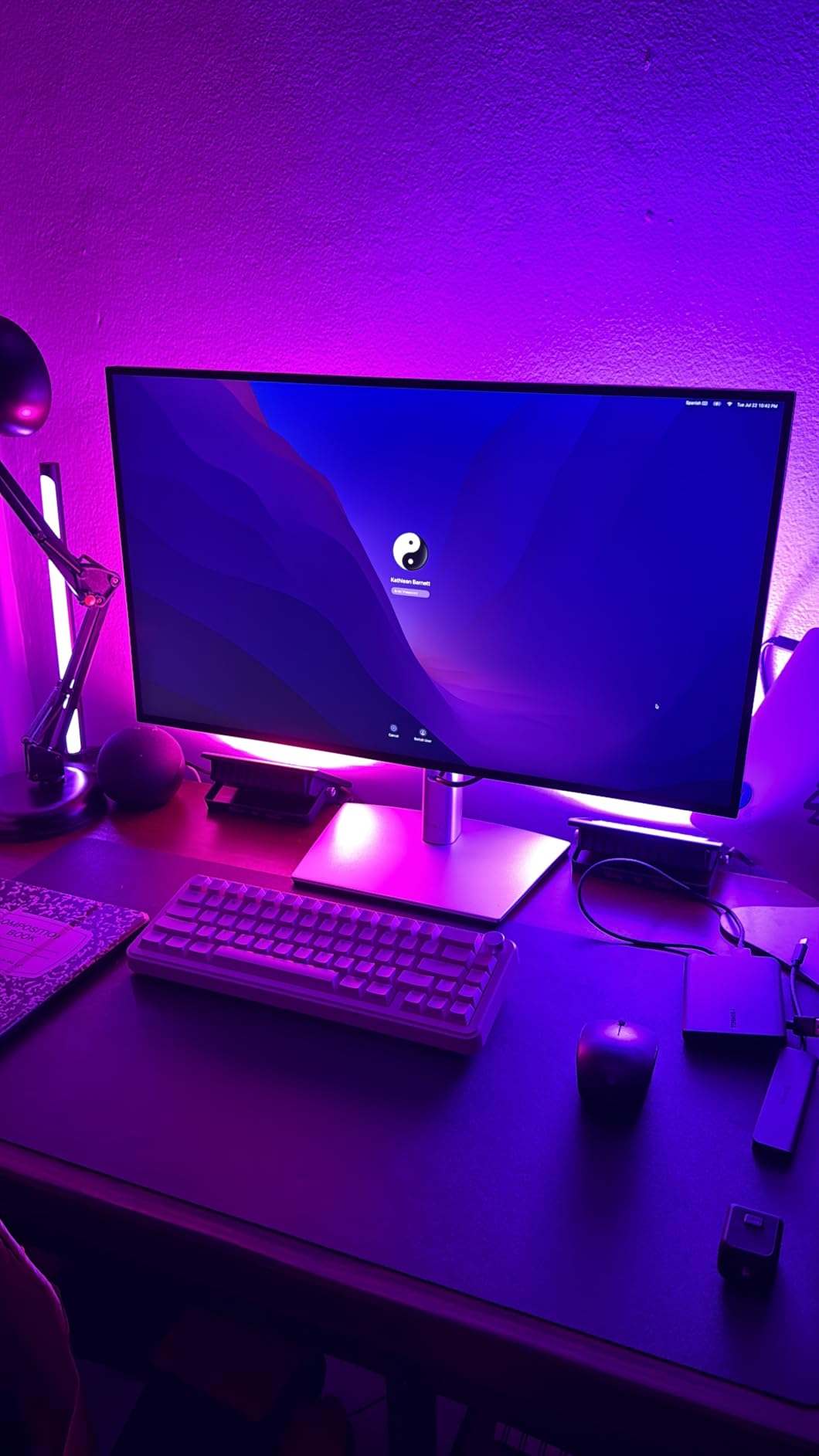
The Dell UltraSharp U2723QE replaced my previous USB-C dock entirely. With eight ports built directly into the monitor, I connected my keyboard, mouse, webcam, external drive, and Ethernet cable all through a single USB-C cable to my laptop. The desk cleanup alone justified the upgrade.
IPS Black Technology delivers noticeably deeper blacks than standard IPS panels. When viewing dark-themed IDEs, the contrast improvement makes code blocks stand out more clearly. I compared this side-by-side with a standard IPS monitor, and the difference in text readability was immediately apparent, especially at smaller font sizes.
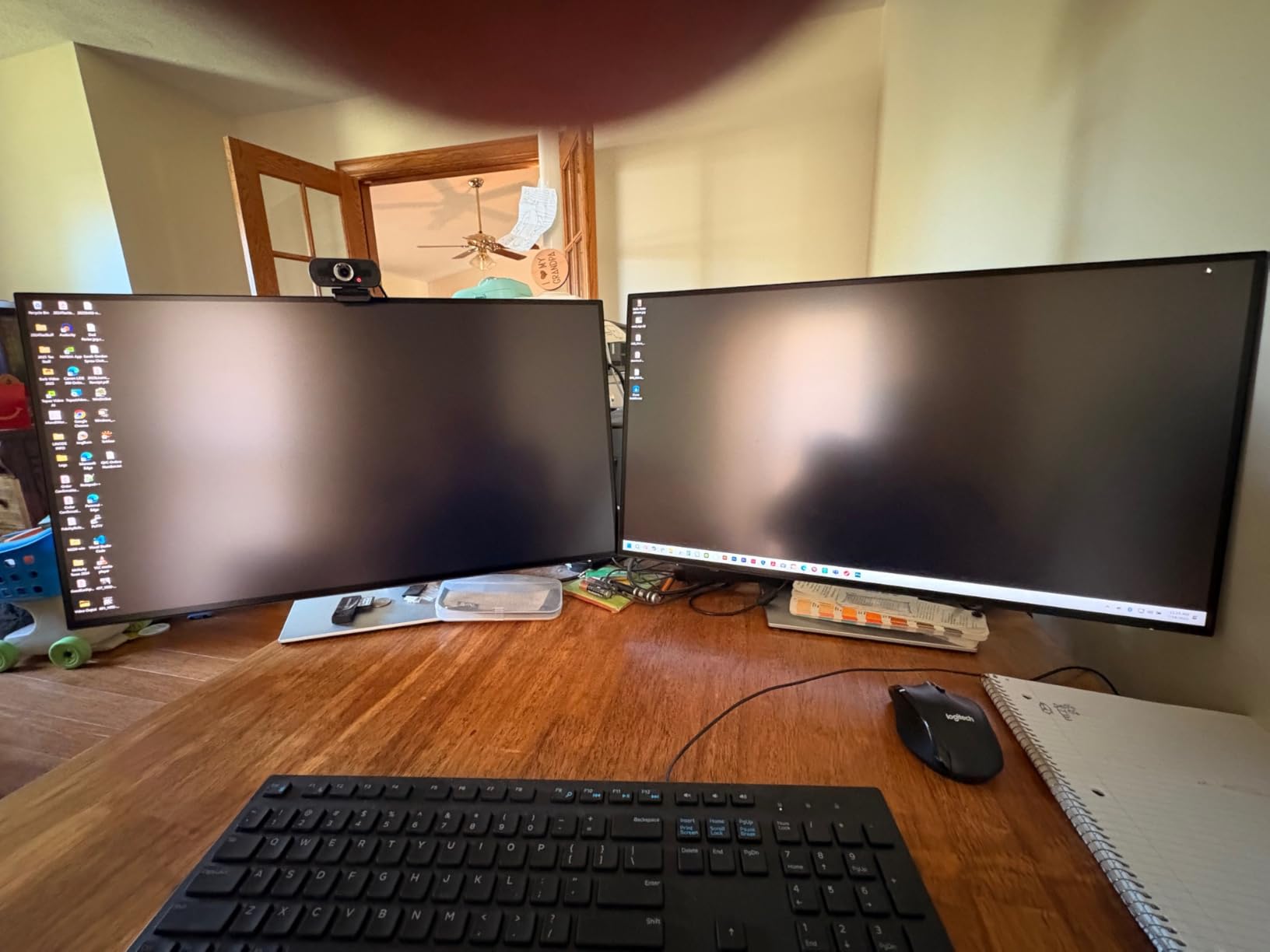
The built-in KVM switch handled my dual-computer workflow smoothly. Switching between machines required just a few clicks, though I wish the hotkey switching didn’t depend on Dell’s display software. Still, once configured, the experience proved seamless for my hybrid work setup.
Color accuracy impressed me right out of the box. The factory calibration meant I didn’t need to fiddle with settings before diving into frontend work. Web development projects looked consistent across devices, and the 4K resolution at 27 inches provides the pixel density needed for comfortable all-day coding without UI scaling issues.
Who Should Buy This Monitor
This display shines for developers with multi-device workflows who want to eliminate cable clutter. If you connect your laptop to multiple peripherals daily and value a clean desk setup with one-cable convenience, the U2723QE’s built-in hub makes it worth the premium. Frontend developers will also appreciate the color accuracy for design work.
Who Might Want Something Different
If you don’t need the extensive port selection or KVM functionality, you’re paying for features you won’t use. The back-mounted buttons also proved frustrating for frequent menu access. Budget-conscious developers might find better value in a simpler 4K display paired with a separate USB hub.
3. Dell S2725QS – Best High Refresh Rate 4K Monitor
Dell 27 Monitor S2725QS, 4K UHD IPS, 120Hz, 5ms, FreeSync Premium
27 inch 4K
120Hz Refresh Rate
AMD FreeSync Premium
99% sRGB
Pros
- Smooth 120Hz refresh rate
- 0.03ms response time
- ComfortView Plus blue light filter
- Integrated speakers
- Excellent value for 4K 120Hz
Cons
- Limited ergonomic adjustments
- Built-in speakers lack bass
- Only 1 HDMI port for 4K 120Hz
The Dell S2725QS changed my perspective on refresh rates for programming. I used to think 60Hz was perfectly fine for coding until I experienced the smoothness of 120Hz daily. Scrolling through long files, dragging windows between screens, and even simple mouse movements feel noticeably more fluid.
Many forums debate whether refresh rate matters for programming. After three weeks with this display, I can say it won’t make you type faster, but it reduces the subtle eye fatigue from constant scrolling and window management. The 0.03ms response time means everything feels instant, and FreeSync eliminates any stuttering when scrolling through massive log files.
The ComfortView Plus feature became essential for my late-night sessions. Unlike harsh blue light filters that turn your screen yellow, this implementation reduces harmful blue light without completely destroying color accuracy. I found I could work longer into the evening without that gritty-eye feeling by 9 PM.
Who Should Buy This Monitor
Developers who code during the day and game at night will love this monitor. The 120Hz refresh rate serves both purposes well, and the 4K resolution keeps text crisp for work while enhancing gaming visuals. If you’ve been curious about high refresh rates but didn’t want to sacrifice resolution, this delivers both at an accessible price.
Who Might Want Something Different
Pure productivity-focused developers who never game might find the 120Hz feature unnecessary and could save money with a 60Hz 4K alternative. The ergonomic adjustments, while adequate, don’t offer the full range of premium displays. If you need portrait mode or extensive height adjustment, consider monitors with better stands.
4. LG 27UP650K-W – Best Value 4K Monitor
LG 27UP650K-W 27-inch Ultrafine 4K UHD (3840 x 2160) IPS Computer Monitor, 60Hz, 5ms, DisplayHDR 400, Reader Mode, Flicker Safe, HDMI, DisplayPort, Tilt/Height/Pivot Adjustable Stand, White
27 inch 4K IPS
95% DCI-P3
DisplayHDR 400
WebOS Smart Platform
Pros
- Excellent value for 4K IPS
- 95% DCI-P3 color gamut
- VESA DisplayHDR 400
- WebOS smart features
- Full ergonomic stand
Cons
- 60Hz refresh rate
- White bezel not for everyone
- No USB-C connectivity
The LG 27UP650K-W delivers 4K IPS quality at a price that made me double-check the specs. For developers who need crisp text without breaking the bank, this monitor hits the sweet spot between performance and value. The 95% DCI-P3 color gamut means colors look vibrant and accurate, which matters for frontend developers checking design implementation.
What surprised me most was the webOS smart platform built into the monitor. While I primarily use it connected to my computer, having Netflix, YouTube, and other apps available without switching inputs proved genuinely useful during lunch breaks. The remote control means you can adjust settings from your chair without reaching behind the screen.
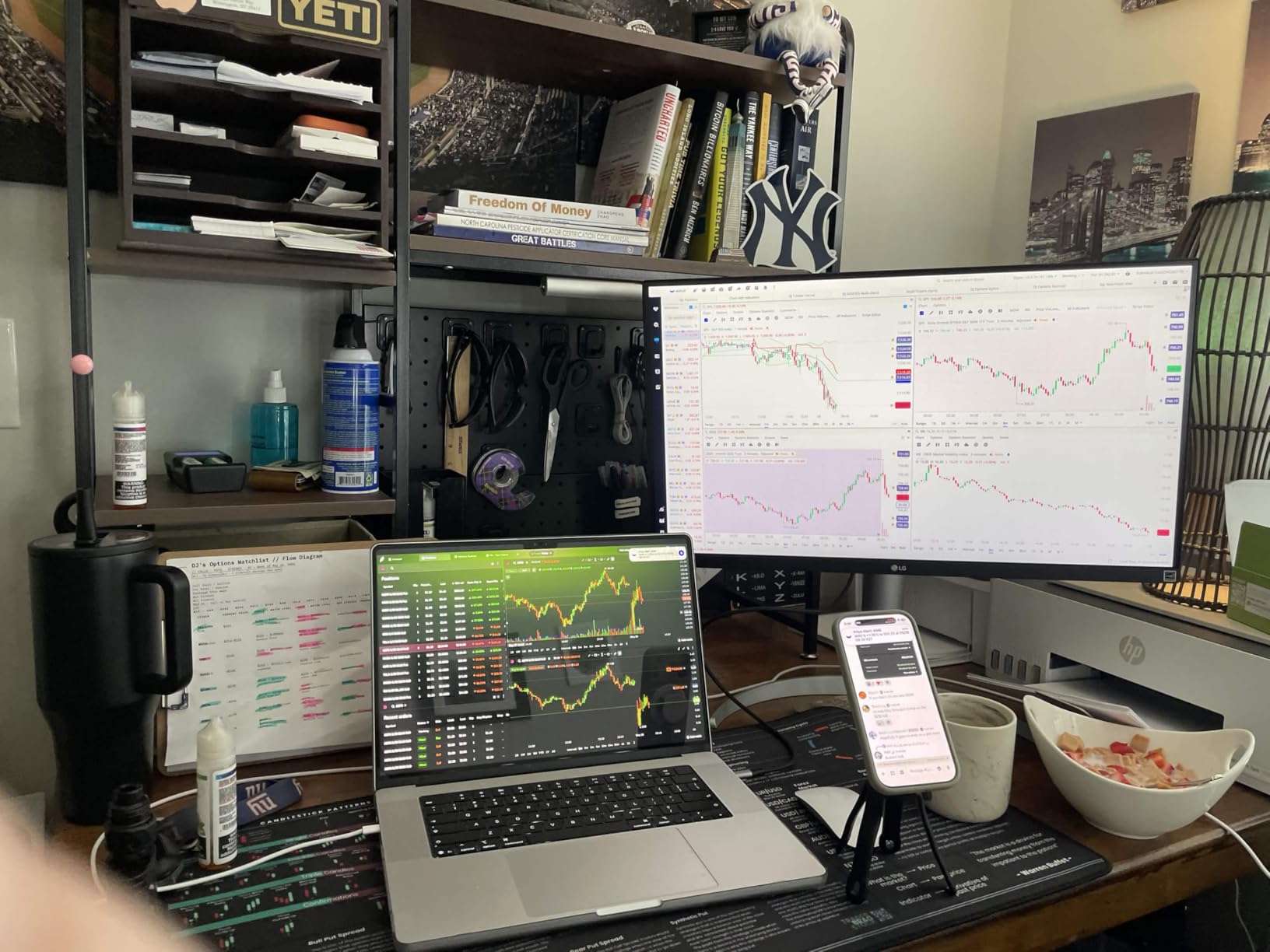
DisplayHDR 400 support adds another dimension for developers who occasionally work with video or HDR content. While not the brightest HDR implementation, it provides enough dynamic range to preview how content appears on HDR-capable devices. The Reader Mode and Flicker Safe features worked well during extended coding sessions.
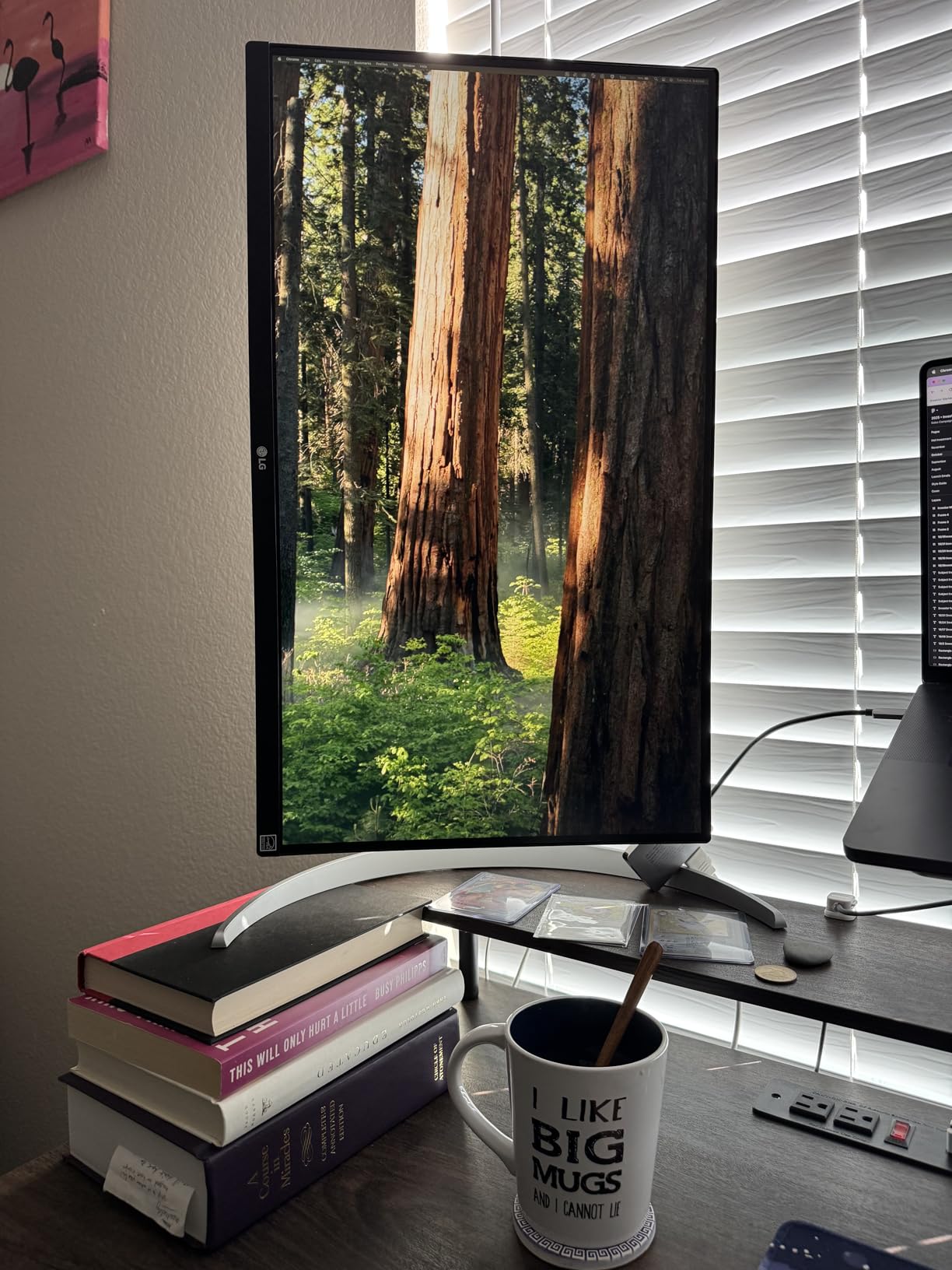
The ergonomic stand offers height, tilt, and pivot adjustments, letting you find the perfect viewing angle. I appreciated the ability to rotate to portrait mode for reviewing long code files or reading documentation. The pivot mechanism feels solid, not wobbly like some budget alternatives.
Who Should Buy This Monitor
Budget-conscious developers who want 4K resolution without sacrificing color accuracy should strongly consider this LG. The smart TV features add unexpected value for those who use their monitor for more than just work. Frontend developers working with color-sensitive projects will appreciate the DCI-P3 coverage at this price point.
Who Might Want Something Different
If USB-C connectivity is essential for your workflow, you’ll need a separate adapter since this monitor only offers HDMI and DisplayPort. The white bezel design, while distinctive, might not match every setup. Developers wanting higher refresh rates should look at 120Hz alternatives like the Dell S2725QS.
5. ASUS ProArt Display PA278QV – Best Budget Color-Accurate Monitor
ASUS ProArt PA278QV 27 Inch 1440p QHD Professional Monitor
27 inch WQHD 1440p
100% sRGB
Calman Verified
Delta E less than 2
Pros
- Professional color accuracy
- Calman Verified Delta E less than 2
- Extensive connectivity options
- 5-year warranty
- USB hub with 4 ports
Cons
- 1440p not 4K resolution
- 75Hz refresh rate
- Contrast ratio marketing vs reality
The ASUS ProArt PA278QV proves you don’t need to spend premium prices for professional-grade color accuracy. The Calman Verified certification with Delta E less than 2 means colors display exactly as intended, which matters enormously for frontend developers and anyone working on visual applications.
During my testing, this monitor consistently matched colors between my design files and browser output. The 100% sRGB coverage ensures web colors appear accurate, and the included ProArt Preset modes let you quickly switch between color profiles depending on your project. For developers working on design systems or UI components, this consistency saves countless back-and-forth verification cycles.
The connectivity options impressed me. With HDMI, DisplayPort, Mini DisplayPort, and four USB 3.2 ports, I connected every peripheral without reaching behind my computer. The USB hub functionality alone makes this a practical workstation centerpiece, handling keyboard, mouse, webcam, and external drive connections.
ASUS backs this monitor with a 5-year warranty when you register online, which speaks volumes about build confidence. In a market where most monitors come with 1-3 year warranties, the extended coverage provides genuine peace of mind for a tool you’ll use every day for years.
Who Should Buy This Monitor
Frontend developers, UI engineers, and anyone building visual applications will appreciate the color accuracy without the professional-grade price tag. The WQHD resolution provides more screen space than 1080p while keeping text readable without scaling. If color consistency matters to your work, this monitor delivers professional results on a budget.
Who Might Want Something Different
Developers who need 4K resolution for maximum screen real estate should look at 4K alternatives. The 75Hz refresh rate sits in an awkward middle ground, not quite the standard 60Hz but not reaching the smooth 120Hz threshold. If you do significant gaming alongside coding, consider monitors with higher refresh rates.
6. BenQ GW2790Q – Best Budget Eye-Care Monitor
BenQ GW2790Q 27” 2K QHD 100Hz IPS Eye-Care Monitor, HDMI, DisplayPort, 2560×1440, Ultra Slim Bezel, Eyesafe, VESA MediaSync, Brightness Intelligence Tech., B. I. Gen2, Low Blue Light Plus
27 inch 2K QHD
100Hz Refresh
Coding Mode
Brightness Intelligence Tech
Pros
- 100Hz smooth refresh
- Dedicated Coding Mode
- Brightness Intelligence Gen2
- Low Blue Light Plus
- Excellent value price
Cons
- Lower 250 nits brightness
- Only 1 HDMI port
- Limited stock available
The BenQ GW2790Q brings the company’s eye-care expertise to a budget-friendly package. The dedicated Coding Mode specifically optimizes contrast and color temperature for reading code, which sounds like marketing until you switch it on and realize how much easier your IDE becomes to read.
Brightness Intelligence Gen2 technology automatically adjusts screen brightness based on ambient lighting. I tested this in various conditions from bright afternoon sun to dim evening light, and the transitions felt natural rather than jarring. The Low Blue Light Plus technology filters the harmful spectrum without the heavy yellow tint that plagued older blue light filters.
At 100Hz, this monitor hits a sweet spot for developers who want smoother scrolling without paying for gaming-focused features. The G-Sync compatibility means if you do game occasionally, you won’t experience screen tearing. The 2K QHD resolution provides more workspace than 1080p while remaining readable at 27 inches.
The ultra-slim bezel design looks modern and works well in multi-monitor setups. I appreciated the Input Hotkey feature that lets you quickly switch between connected devices without navigating menus. For developers juggling multiple computers, this practical touch saves several clicks per day.
Who Should Buy This Monitor
Developers on a budget who prioritize eye comfort should put this at the top of their list. The Coding Mode and eye-care features genuinely help during extended sessions. If you’ve experienced eye strain from previous monitors but can’t justify premium pricing, this BenQ delivers the core benefits without the flagship cost.
Who Might Want Something Different
If you work in a very bright room, the 250 nits maximum brightness might feel insufficient. The single HDMI port limits connectivity for multi-device setups. Developers needing 4K resolution for maximum screen space should look at higher-resolution alternatives, even if it means spending more.
Buying Guide: How to Choose the Best Monitor for Programming?
Finding the right monitor for programming involves balancing several factors that directly impact your daily workflow. After testing these displays extensively, I’ve identified the key considerations that matter most for developers.
Resolution and Pixel Density
4K resolution (3840 x 2160) at 27 inches delivers the sharpest text, making code easier to read at smaller font sizes. The pixel density of approximately 163 PPI means characters render with crisp edges, reducing eye strain during long sessions. However, 1440p (2560 x 1440) at 27 inches still provides excellent readability while requiring less GPU power and often costing less.
The BenQ RD280U’s unique 3:2 aspect ratio at 3840 x 2560 deserves special mention. This format provides more vertical space than traditional 16:9 displays, letting you see more lines of code without scrolling. For developers who spend most of their time in text editors, this extra vertical room genuinely improves productivity.
USB-C Connectivity
USB-C with power delivery transforms your desk setup. A single cable connecting your laptop to the monitor can handle video, data, and charging simultaneously. The Dell UltraSharp U2723QE takes this further with an 8-port hub built in, eliminating the need for a separate dock.
For MacBook users especially, USB-C connectivity with at least 60W power delivery means one cable does everything. The BenQ RD280U offers 90W charging, which handles even power-hungry 16-inch MacBook Pros during intensive compilation tasks.
Eye Comfort Features
Programmers stare at screens for 8-12 hours daily. Eye comfort isn’t a luxury feature, it’s a necessity. Flicker-free technology eliminates the imperceptible flickering that causes fatigue. Blue light filters, when implemented properly, reduce eye strain during evening sessions without destroying color accuracy.
BenQ’s Brightness Intelligence technology automatically adjusts based on ambient light, which I found more effective than manual brightness adjustments. The MoonHalo backlight on the RD280U provides ambient bias lighting that reduces eye strain during dark-room coding by preventing harsh contrast between the bright screen and dark surroundings.
Refresh Rate: The Programming Myth
Forums often debate whether refresh rate matters for coding. Here’s the truth: 60Hz works perfectly fine for programming tasks. However, 120Hz displays like the Dell S2725QS do make scrolling through long files and window management feel smoother. The difference won’t improve your typing speed, but it reduces the subtle fatigue from constant scrolling and window repositioning.
Don’t prioritize refresh rate over resolution or color accuracy for pure development work. If you also game or simply enjoy the smoother desktop experience, higher refresh rates become worthwhile. Otherwise, invest in resolution and eye comfort first.
Panel Type: IPS vs VA vs OLED
IPS panels remain the best choice for programming due to their color accuracy and viewing angles. The colors stay consistent whether you’re viewing straight-on or from an angle, which matters for collaborative work. Dell’s IPS Black technology in the U2723QE improves contrast ratios while maintaining IPS benefits.
OLED monitors offer incredible contrast but risk burn-in with static code elements like IDE toolbars. For development work with persistent UI elements, IPS remains the safer long-term choice. VA panels offer better contrast than standard IPS but sometimes suffer from ghosting during scrolling, which can make text harder to read.
Size: 27 vs 32 Inches
27 inches at 4K resolution provides approximately 163 PPI, ideal for sharp text without requiring UI scaling. 32 inches at 4K drops to around 140 PPI, which some developers find acceptable while others prefer sharper pixels. The 3:2 aspect ratio on the BenQ RD280U offers a compelling middle ground with more vertical space.
For dual-monitor setups, 27 inches typically works better. 32-inch displays require more desk depth for comfortable viewing distance. If you prefer a single ultrawide display, consider whether you’ll actually use the extra horizontal space effectively.
Frequently Asked Questions
What kind of monitor is best for coding?
The best monitor for coding features 4K resolution for crisp text, an IPS panel for accurate colors and viewing angles, USB-C connectivity for simplified desk setup, and eye comfort features like flicker-free technology and blue light filters. A 27-inch display hits the sweet spot between screen real estate and pixel density, while dedicated coding modes can help distinguish syntax elements.
Is 27 or 32 inch monitor better for programming?
A 27-inch monitor at 4K resolution provides approximately 163 PPI for sharper text, making it ideal for reading code at smaller font sizes. A 32-inch display at 4K offers more screen space but lower pixel density around 140 PPI. For most developers, 27 inches provides better text clarity, while 32 inches suits those who prefer larger UI elements or work with multiple windows side-by-side.
Which display is best for coding?
The BenQ RD280U ranks as the best overall display for coding due to its unique 3:2 aspect ratio that shows more vertical lines of code, dedicated coding modes, MoonHalo backlight for night sessions, and comprehensive USB-C connectivity. For budget-conscious developers, the LG 27UP650K-W offers excellent 4K quality at an accessible price point.
Is an OLED monitor good for coding?
OLED monitors offer incredible contrast and deep blacks, but they present risks for programming work. Static UI elements like IDE toolbars, status bars, and code line numbers can cause burn-in over time. For development work involving persistent on-screen elements, IPS panels provide safer long-term reliability while still offering excellent color accuracy and viewing angles.
Conclusion
After extensively testing these six monitors, the BenQ RD280U stands out as the best monitor for programming due to its purpose-built features for developers. The 3:2 aspect ratio, dedicated coding modes, and MoonHalo backlight create an experience tailored specifically for writing code. Its USB-C connectivity with 90W power delivery and KVM switch makes it a complete workstation solution.
For developers seeking premium connectivity, the Dell UltraSharp U2723QE transforms your desk with its built-in 8-port USB-C hub. Budget-conscious coders will find excellent value in the LG 27UP650K-W for 4K quality or the BenQ GW2790Q for eye-care features at an accessible price point.
The right best monitors for programming depend on your specific workflow. Consider whether you need USB-C connectivity, prioritize eye comfort, or want extra vertical space. Each monitor in this guide excels in different scenarios, so match the features to your daily development needs and budget.
1 thought on “6 Best Monitors for Programming (October 2026) Honest Reviews”