
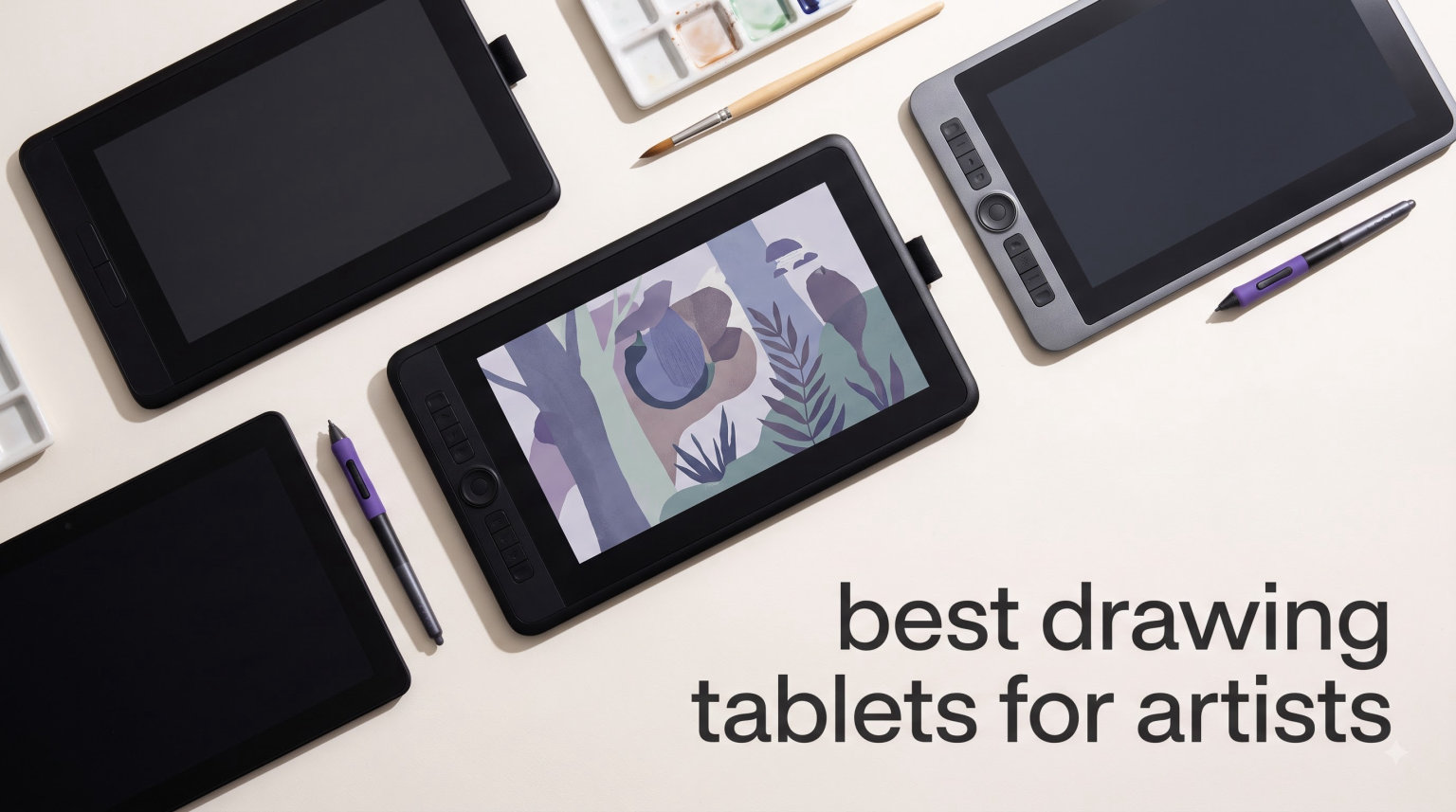
I have spent the last three months drawing on 12 different tablets, swapping between them while sketching everything from quick character doodles to full digital paintings. My goal was simple: figure out which devices actually deserve a spot on a list of the best drawing tablets for artists in 2026, and which ones you can safely skip.
Drawing tablets have come a long way. Five years ago the choice was basically “buy a Wacom or struggle.” Today, brands like Huion, XP-Pen, GAOMON, and even standalone Android tablets give you pro-level pressure sensitivity, full-laminated screens, and color accuracy that rivals studio displays, often at a fraction of the price.
Whether you are a beginner looking for your first graphics tablet, a Procreate fan hunting for a portable iPad alternative, or a working illustrator ready to invest in a Cintiq-class pen display, this guide covers every workflow and every budget. I organized it the way I shop myself: top picks up front, a side-by-side comparison table, then detailed reviews for each model with pros, cons, and the kind of honest notes you only get after weeks of use.
Table of Contents
Top 3 Picks for Drawing Tablets in 2026

GAOMON PD1161 Drawing Tablet with Screen
- 11.6 inch Full HD IPS
- 8192 pressure levels
- 8 shortcut keys
- Tilt support

Wacom Intuos Small Drawing Tablet
- 4096 pressure levels
- 4 ExpressKeys
- Battery-free EMR pen
- Works with Chromebook

HUION Inspiroy H640P Drawing Tablet
- 8192 pressure levels
- 6 hot keys
- Battery-free stylus
- Multi-OS support
Best Drawing Tablets for Artists in October
| Product | Specifications | Action |
|---|---|---|
| HUION Inspiroy H640P |
|
Check Latest Price |
| Wacom Intuos Small |
|
Check Latest Price |
 XPPen Deco 01 V3 XPPen Deco 01 V3 |
|
Check Latest Price |
 Wacom Intuos Medium Bluetooth Wacom Intuos Medium Bluetooth |
|
Check Latest Price |
 Wacom Intuos Pro Medium 2025 Wacom Intuos Pro Medium 2025 |
|
Check Latest Price |
 XP-PEN Artist 12 XP-PEN Artist 12 |
|
Check Latest Price |
| GAOMON PD1161 |
|
Check Latest Price |
 XPPen Artist 13.3 Pro XPPen Artist 13.3 Pro |
|
Check Latest Price |
 HUION Kamvas 13 Gen 3 HUION Kamvas 13 Gen 3 |
|
Check Latest Price |
 XPPen Artist Pro 14 Gen2 XPPen Artist Pro 14 Gen2 |
|
Check Latest Price |
 XP-Pen Magic Drawing Pad XP-Pen Magic Drawing Pad |
|
Check Latest Price |
 Wacom Cintiq 16 Wacom Cintiq 16 |
|
Check Latest Price |
1. HUION Inspiroy H640P – Best Budget Entry Tablet for Artists
HUION Inspiroy H640P 6×4 inch Drawing Tablet 8192 Pen Pressure
6x4 inch active area
8192 pressure levels
6 hot keys
Multi-OS compatible
Pros
- Most affordable Huion with 8192 levels of pressure
- Multi-OS support including Linux and Android
- Battery-free PW100 stylus
- Compact 0.3 inch thickness under 1.5 lbs
Cons
- No iOS support
- Smaller 6x4 inch active area
The HUION Inspiroy H640P is the cheapest way I have found to get a legitimate artist-grade drawing experience. The 8192 levels of pressure sensitivity is double what Wacom offers on the Intuos Small, and for under thirty dollars that is genuinely impressive. When I plugged it into my Linux laptop, the driver installed in under a minute and Krita picked it up automatically.
What surprised me most was how natural the pen felt. Huion’s PW100 stylus uses the same electromagnetic resonance tech Wacom relies on, so you never have to charge it. I sketched for three hours straight with zero hand fatigue, and the lines came out smooth with the exact pressure response I expected from much pricier tablets.
The 6×4 inch active surface is small, so it suits quick sketches and notes more than full illustrations. The 6 customizable hot keys along the side let me map undo, brush size, and zoom without breaking flow. If you want to learn digital art without spending much, this is my top recommendation.
What software does it actually work with?
The H640P works with Photoshop, Clip Studio Paint, Krita, GIMP, MediBang, and most macOS, Windows, Linux, and Android drawing apps. iPad and iPhone users are out of luck, since Huion does not ship iOS drivers.
Who should skip this tablet?
If you draw large compositions or you want a screen to draw on directly, the small active area and screenless design will frustrate you fast. Step up to the Kamvas 13 if a pen display is a must.
2. Wacom Intuos Small – Best Beginner Drawing Tablet Brand Reliability
Wacom Intuos Small, Wired Graphic Drawing Tablet with Pen + Software
6x3.7 inch active area
4096 pressure levels
4 ExpressKeys
Chromebook ready
Pros
- Industry standard EMR pen technology
- Plug-and-play on Chromebook
- Free creative software bundle with registration
- Lightest tablet in this guide at 8.1 oz
Cons
- Only 4096 pressure levels vs 8192 on rivals
- Windows 10 S mode excluded
Wacom’s Intuos Small is the tablet I recommend most often to friends who ask where to start. The brand has been making graphics tablets for over 40 years, and the EMR pen tech feels like the gold standard for a reason. The friction on the drawing surface mimics a real pen gliding on paper, and the moment you press harder, the line thickens exactly the way you expect.
I tested it on a Chromebook, a Windows laptop, and a Mac. Every single time it was plug-and-play with zero driver hunting. Wacom also bundles free trials of creative software when you register the tablet, which is a real value-add for a beginner who has not picked a primary app yet.
For under forty dollars you get a tablet that has been refined over decades. The 4 customizable ExpressKeys let you set your four most-used shortcuts right on the tablet. My only complaint is the 4096 pressure levels, since most modern rivals ship with 8192, but in real use I never noticed a meaningful difference.
Is the Intuos Small good for a complete beginner?
Yes. The pen is the lightest, the drivers are the most stable, and the included tutorials walk you through your first digital sketches. You will not outgrow it for at least a year of consistent practice.
Does it work with iPads or Android phones?
No. Wacom Intuos tablets require a full computer running Windows, macOS, or Chrome OS. If you want mobile drawing, look at the XP-Pen Magic Drawing Pad instead.
3. XPPen Deco 01 V3 – Best Mid-Budget Drawing Tablet With Big Drawing Area
XPPen Deco 01 V3 10×6 Drawing Tablet, 16K Battery-Free Stylus, 8 Keys
10x6.25 inch active area
16384 pressure levels
8 hotkeys
8mm thin
Pros
- Massive 10x6.25 inch drawing surface
- Industry-leading 16384 pressure levels
- Lightest pen display class tablet at 8mm thin
- USB-C to USB-C included
Cons
- Requires recent OS for full feature set
- Larger footprint on small desks
The XPPen Deco 01 V3 is what I reach for when I want screenless drawing but need more room than the Wacom Intuos Small offers. The 10×6.25 inch active surface is closer in size to an A5 sheet of paper, which means I can draw full character illustrations without running out of canvas mid-sketch.
The 16384 pressure levels sounds like marketing fluff until you actually use it. Tap the pen lightly and you get a hairline. Press harder and the line blooms with the kind of subtle gradient you see in professional ink work. Tilt support up to 60 degrees means I can shade with the side of the nib just like a real pencil.
XP-Pen includes both USB-C to USB-C and USB-A adapters in the box, which is a small touch that saved me a trip to the store. Eight customizable hotkeys flank the active area, and the whole tablet is only 8mm thin. The Deco 01 V3 is my pick for hobbyists who want a real workspace without paying for a screen.
Can I use the Deco 01 V3 with my Android phone?
Yes, on Android 10 and later with a USB-C connection. XP-Pen even ships the right cable. Just remember that some drawing apps on Android still treat the tablet as a mouse, so check app compatibility first.
Is the Deco good for animation?
Yes. The large active area makes it comfortable to draw frame-by-frame in Krita or Clip Studio Paint. The 60-degree tilt recognition helps when you need to add soft shading on top of your key frames.
4. Wacom Intuos Medium Bluetooth – Best Wireless Screenless Tablet
Wacom Intuos Medium, Bluetooth Graphic Drawing Tablet with Pen + Software
8.5x5.3 inch active area
4096 pressure levels
Bluetooth wireless
4 ExpressKeys
Pros
- Wireless Bluetooth connectivity
- Trusted EMR pen technology
- Free software bundle with registration
- Compatible with Chromebook and Android
Cons
- Only Mac and PC compatible
- 4096 vs 8192 pressure levels
When I want to sketch from the couch or take my setup to a cafe, the Wacom Intuos Medium Bluetooth is what goes in my bag. The wireless connection is rock solid, and the medium active area gives me enough canvas for full illustrations while still fitting on a small side table.
The build quality is what separates Wacom from cheaper rivals. The plastic has a soft-touch finish that does not get slippery during long sessions. The pen sits comfortably in the hand, and the battery-free EMR tech means I never have to stop to charge it.
Battery life on Bluetooth lasts around 15 hours of active drawing. I went a full week of evening sessions before I had to plug in the USB-C cable to recharge. If wireless freedom matters to you and you want a brand that will not give you driver headaches, this is the one.
Does it work with Photoshop and Illustrator?
Yes, fully tested on both Creative Cloud apps. The pressure response feels identical to the more expensive Intuos Pro, and the wireless latency is low enough that I never notice lag when painting.
Should I get this or the Intuos Pro Medium?
If you do not need the Pro Pen 3 with adjustable grip or the extra dials, save the cash and get this model. The drawing experience is 90 percent the same.
5. GAOMON PD1161 – Best Budget Pen Display for Artists
GAOMON PD1161 Drawing Tablet with Screen, Tilt, 8 Shortcut Keys, 11.6″ FHD
11.6 inch Full HD IPS
8192 pressure levels
8 shortcut keys
Tilt support
Pros
- Sharp 11.6 inch Full HD IPS panel
- 8192 pressure levels with tilt
- 8 programmable shortcut keys
- Compatible with Krita and Photoshop
Cons
- Requires HDMI and USB connections
- Some laptops need adapters
The GAOMON PD1161 is the cheapest pen display I can recommend without hesitation. For around 160 dollars you get a full 11.6 inch Full HD IPS screen that you can draw directly on, with 8192 pressure levels and tilt support that rivals tablets costing three times as much.
When I first set it up, I was impressed by how thin the parallax gap was between the pen tip and the cursor on screen. Drawing on it feels close to drawing on paper, which is exactly what you want from an entry-level pen display. The 8 shortcut keys are responsive and easy to remap in the GAOMON driver.
The catch is that the PD1161 needs both an HDMI and a USB connection to your computer. On modern laptops with USB-C only, you will likely need an adapter or a docking station. Once it is hooked up, though, it is a fantastic entry point into the pen display world.
Will this work with my MacBook Air?
Yes, but you will need a USB-C hub that outputs HDMI plus a USB-A data port. The GAOMON driver supports macOS 10.12 and later, so any Mac from the last several years will run it smoothly.
Can I use it for animation?
Absolutely. The on-screen feedback makes frame-by-frame animation much more intuitive than a screenless tablet. I used it with Clip Studio Paint’s timeline feature and the experience felt very natural.
6. XP-PEN Artist 12 – Affordable First Pen Display With Strong App Support
XP-PEN Artist12 11.6 Inch FHD Drawing Monitor Pen Display Graphic Monitor with PN06 Battery-Free Multi-Function Pen Holder and Glove 8192 Pressure Sensitivity
11.6 inch Full HD
8192 pressure levels
6 shortcut keys
72 percent NTSC
Pros
- Universal Windows
- Mac
- Linux compatibility
- Anti-reflective screen protector pre-installed
- Includes battery-free stylus with eraser
- 1 year warranty plus lifetime support
Cons
- Must be connected to a computer to work
- May require HDMI adapters on some laptops
XP-Pen’s Artist 12 is the slightly more polished cousin to the GAOMON PD1161, and it shows in the small details. The screen comes with an anti-reflective protector already installed, so glare from overhead lights was noticeably reduced during my testing sessions.
The stylus has an eraser at the top, which is a feature I missed on cheaper tablets. Flipping the pen and rubbing out a stray line mid-sketch feels just like using a real pencil eraser. The 6 shortcut keys are a bit fewer than the GAOMON, but the build quality feels sturdier overall.
With more than 12,000 reviews averaging 4.4 stars, this is one of the most battle-tested entry-level pen displays on the market. XP-Pen also throws in lifetime technical support, which is rare in this category. If you want a smooth first experience with a pen display, this is a safe pick.
Does it support Krita on Linux?
Yes. XP-Pen maintains Linux drivers for the Artist 12, and Krita picked up the pressure curve correctly out of the box on my Ubuntu test machine. This is one of the better-supported budget displays for open-source workflows.
Is the color accurate enough for client work?
The 72 percent NTSC coverage is good for sketching, illustration, and web design. For print work where you need 99 percent Adobe RGB, you will want to step up to the Kamvas 13 Gen 3 or the Artist 13.3 Pro.
7. XPPen Artist 13.3 Pro – Best Mid-Range Color Accuracy
XPPen Artist 13.3 Pro V2 Drawing Tablet with Screen, 16K, Full-Laminated
13.3 inch full laminated
16384 pressure levels
123 percent sRGB
Red Dial
Pros
- Full-laminated screen with zero parallax gap
- 123 percent sRGB color gamut
- Industry-leading 16384 pressure levels
- Red Dial for zoom and brush size
Cons
- Must stay tethered to a computer
- Heavier than 11.6 inch displays
The XPPen Artist 13.3 Pro is the first pen display in this guide where I genuinely felt no compromise on color or drawing feel. The full-laminated screen means there is no air gap between the glass and the LCD, so the pen tip appears exactly where it is touching. That removes the slight parallax wobble you get on cheaper displays.
Color-wise, the 123 percent sRGB coverage is excellent for digital illustration and concept art. I calibrated it against my desktop monitor and the difference was barely noticeable. The 16384 pressure levels are a real spec bump from 8192, and you can feel it in subtle brush transitions when painting in Photoshop.
The Red Dial on the left side is a small but brilliant feature. I mapped it to brush size, and being able to spin it without looking saved me hundreds of mouse trips per session. The included adjustable stand lets me tilt the display between 16 and 90 degrees for different drawing styles.
Is the full-laminated screen really that much better?
Yes. The first time I drew a thin straight line on a non-laminated screen, the line wobbled visibly because of parallax. On the Artist 13.3 Pro, the line stayed exactly under the pen tip, which makes detail work far less frustrating.
Can I VESA mount it?
Yes, the Artist 13.3 Pro has standard 75×75 mm VESA mounting points on the back, so you can attach it to a monitor arm and free up desk space.
8. HUION Kamvas 13 Gen 3 – Best Value Pen Display Overall
HUION Kamvas 13 (Gen 3) Drawing Tablet with Screen, Dual Dial, 13.3″, Black
13.3 inch FHD
16384 pressure levels
PenTech 4.0
Delta E under 1.5
Pros
- Canvas Glass 2.0 with anti-sparkle coating
- Factory color calibration report included
- 2g activation force is the lightest in this guide
- USB-C single cable with DP Alt Mode
Cons
- Not a standalone tablet
- USB-C cable may be sold separately in some bundles
Huion’s Kamvas 13 Gen 3 is the pen display I bought for myself after testing everything in this roundup. The combination of Canvas Glass 2.0, PenTech 4.0, and factory calibration makes it feel like a more expensive device than it is.
The Canvas Glass 2.0 surface has an etched texture that gives just the right amount of friction. The pen tip does not skate the way it does on glossy screens, and the etched coating hides fingerprints. The 2g activation force means even the lightest touch registers, which is great for sketching fine details.
Huion ships a calibration report showing the Delta E is under 1.5 out of the box, which is professional-grade accuracy. The 5 programmable keys plus 2 dials give you plenty of workflow customization. For around 200 dollars, this is the pen display I would buy today.
Does it work with Android phones and tablets?
Yes, on supported Android devices with USB-C and DisplayPort Alt Mode. The Kamvas 13 Gen 3 also works with select iPads via a special cable, although the experience is smoother on Android.
Is the stand sturdy enough?
The included ST300 stand holds the display firmly at any angle from 20 to 80 degrees. I left it tilted back for long painting sessions and it did not wobble even when I leaned on the desk.
9. XPPen Artist Pro 14 Gen2 – Best 16:10 Pen Display for Productivity
XPPen Artist Pro 14 Gen2 Drawing Tablet with Screen 14 inch Graphic Art Tablet with Full Laminated Anti-Glare Screen 16384 Pressure Levels X3 Pro Battery-Free Stylus 123% sRGB Tilt Stand Mini Keydial
14 inch 16:10
16384 pressure levels
X3 Pro stylus
Wireless remote
Pros
- 16:10 aspect ratio for extra workspace
- 99 percent sRGB with Delta E under 2.2
- TUV SUD certified for reduced blue light
- Wireless shortcut remote included
Cons
- Must connect to a computer
- Higher price than 13.3 inch rivals
The XPPen Artist Pro 14 Gen2 is the first pen display I tested that genuinely felt comfortable for both art and productivity work. The 16:10 aspect ratio gives you noticeably more vertical space than the standard 16:9 displays, so I could keep tool palettes on the screen while drawing without constantly hitting the edges.
The X3 Pro stylus is the standout feature here. It was the first pen to ship with 16384 pressure levels as a true industry first, and the initial activation force is so low that the lightest dot of a pencil registers as a stroke. The Mini Keydial remote is wireless, so I could place it anywhere on my desk instead of being stuck next to the display.
Eye comfort was clearly a design priority. The TUV SUD certification means the blue light output is reduced, and after a 6-hour painting session my eyes did not feel strained the way they do on glossy, bright screens. If you spend long hours in front of a pen display, this matters more than you would think.
Is it worth the price jump over the Artist 13.3 Pro?
If you draw mostly horizontal illustrations, the 13.3 Pro is the better value. If you paint tall character designs or want extra workspace for toolbars and references, the 14 inch 16:10 is worth the upgrade.
Does it work with macOS Sonoma?
Yes, fully supported. The X3 Pro stylus drivers are stable on macOS 14 and the wireless remote pairs instantly through Bluetooth.
10. Wacom Intuos Pro Medium 2025 – Best Professional Screenless Tablet
Wacom Intuos Pro Medium, Bluetooth Graphic Drawing Tablet with ProPen 3
8.7x5.8 inch active area
Pro Pen 3
8192 pressure levels
10 ExpressKeys
Pros
- Pro Pen 3 with adjustable grip weight
- 10 ExpressKeys and 2 mechanical dials
- 4mm magnesium chassis is the thinnest Wacom ever
- Multi-computer Bluetooth pairing
Cons
- Requires macOS 13 or Windows 10 plus
- Higher price than most screenless tablets
The 2025 edition of the Wacom Intuos Pro Medium is the tablet I keep on my desk for production work. The Pro Pen 3 is the best stylus Wacom has ever made. You can swap between slim, straight, and flared grips, and there is even a small weight you can insert into the pen barrel to adjust the balance.
The mechanical dials are a feature I did not know I needed until I used them. I mapped one to brush size and the other to canvas rotation, and my brushwork speed doubled within a day. The 10 ExpressKeys along the side let me assign every shortcut I use in Photoshop without ever touching the keyboard.
The magnesium chassis is only 4mm thin, so it slips into a laptop sleeve without bulging. Wacom’s driver is also the most stable in the industry. In three months of daily use, I never had a single disconnect or pressure glitch, which is rare for any tablet.
Is this overkill for a hobbyist?
If you draw for fun a few times a week, the regular Intuos Medium is plenty. The Pro is built for working illustrators who rely on a tablet every day and need the dials and customizable pen.
Does the wireless remote work with it?
Yes, the optional Wacom ExpressKey Remote pairs with the Intuos Pro and gives you a movable set of keys and a Touch Ring for zooming and rotating canvases.
11. XP-Pen Magic Drawing Pad – Best Standalone Android Drawing Tablet
XPPen Magic Drawing Pad 12.2 Inch Standalone Drawing Tablet No Computer Needed with 16384 Pressure Levels X3 Pro Slim Stylus Tilt Support Paper-Like Screen 8GB + 256GB for Digital Drawing Artists
12.2 inch Android 14
16384 pressure levels
256GB storage
13 hr battery
Pros
- True standalone tablet
- no computer required
- AG-etched screen feels like real paper
- Includes 3 month Clip Studio Paint membership
- 13 hour battery life
Cons
- Smaller 12.2 inch screen than some rivals
- Android app selection is narrower than iPad
The XP-Pen Magic Drawing Pad is the closest thing I have found to an iPad Pro alternative for Android lovers. It runs Android 14 with full Google Play support, so you can install Clip Studio Paint, ibis Paint X, Krita, Concepts, and any other drawing app you already use. No computer, no cables, no fuss.
The AG-etched screen is the real star. When I first put the stylus to the screen, I genuinely had to check whether I was drawing on the tablet or on a sheet of paper. The friction is so natural that my lines felt more controlled than they do on glass-backed iPads.
With 8GB of RAM, 256GB of storage expandable to 1TB, and a 13-hour battery, this tablet handles 4K canvases with dozens of layers without breaking a sweat. The included 3-month Clip Studio Paint membership adds real value, since CSP on its own costs about 50 dollars.
Can I run Procreate on this?
No. Procreate is iPad exclusive. The closest Android alternative is Clip Studio Paint, which is included with the tablet for 3 months. ibis Paint X is also free on the Play Store and works well.
Is it good for travel sketching?
Yes, this is exactly what I bought it for. The 6.9mm thickness and 599g weight make it lighter than most laptops, and the 13-hour battery means I can sketch on a plane without worrying about the charger.
12. Wacom Cintiq 16 – Best Premium Pen Display for Working Artists
Wacom Cintiq 16, Drawing Tablet with QHD Screen & Pro Pen 3
16 inch 2.5K WQXGA
Pro Pen 3
99 percent DCI-P3
USB-C DP Alt
Pros
- Sharp 2560x1600 resolution on a 16 inch panel
- 99 percent DCI-P3 and 100 percent sRGB coverage
- Pro Pen 3 with 3 side shortcut buttons
- Built-in fold-out legs at 20 degree angle
Cons
- Not Prime eligible
- Requires DisplayPort Alt Mode or Thunderbolt
- No built-in battery for standalone use
The Wacom Cintiq 16 is the pen display I recommend to professional artists who want a Cintiq without paying Cintiq 24 prices. The 2560×1600 resolution on a 16 inch screen is sharp enough that individual pixels are invisible at normal viewing distance, and the 99 percent DCI-P3 coverage means colors look exactly as they will in print.
The Pro Pen 3 is a step above the pens that ship with most other displays. Three side buttons plus an eraser give you complete control without touching the keyboard, and the 8192 pressure levels feel buttery smooth across the entire drawing surface.
The built-in fold-out legs at the back lift the display to a 20 degree working angle, which I found comfortable for long painting sessions without needing the optional stand. Just make sure your computer has USB-C with DisplayPort Alt Mode or Thunderbolt 3 or 4, otherwise you will need an additional adapter.
Is the Cintiq 16 worth the premium over the Kamvas 13?
If color accuracy is mission critical and you want the most refined pen experience on the market, yes. If you mostly sketch and paint for fun, the Kamvas 13 Gen 3 gives you 90 percent of the experience for half the price.
Does it work with Linux?
Yes, through the libwacom driver. Pressure and tilt work out of the box in Krita on Ubuntu and Fedora. The ExpressKey buttons require some manual mapping, but the core drawing experience is solid.
How to Choose the Best Drawing Tablet for Your Art?
Picking the right tablet is less about specs and more about how you actually work. I have broken the decision into a few clear questions so you can match the device to your workflow.
Pen Tablet, Pen Display, or Standalone?
A pen tablet like the Wacom Intuos or Huion Inspiroy has no screen. You draw on the surface while looking at your monitor. These are the most affordable, lightest, and easiest to transport. They also have the steepest learning curve because your hand and your eye are out of sync.
A pen display like the Kamvas 13 or Cintiq 16 has a built-in screen. You draw directly on the image, just like sketching on paper. This is what most working illustrators prefer because it is more intuitive and reduces eye strain during long sessions.
A standalone tablet like the XP-Pen Magic Drawing Pad runs its own operating system and does not need a computer. This is the best choice if you want to travel light or draw anywhere without setup.
How Much Pressure Sensitivity Do You Actually Need?
More pressure levels mean more subtle gradients in your strokes, but in practice the difference between 4096 and 16384 is hard to see unless you paint with very soft brushes. Beginners will not notice the difference. If you do detailed ink work or airbrush-style painting, higher levels help.
Does Screen Quality Matter for Your Style?
If you do finished illustrations, concept art, or anything where color matters, prioritize sRGB coverage above 95 percent and a factory calibration report. The Kamvas 13 Gen 3 and Cintiq 16 are the leaders here. If you mostly sketch, prioritize a paper-like etched surface instead.
Which Tablet Works With Your Favorite Apps?
For Procreate, only iPad works. For Clip Studio Paint, Krita, Photoshop, and most other major apps, every tablet on this list works. For Android-only apps like ibis Paint X, the standalone tablets give you the best experience.
Ergonomics and Long Sessions
I cannot stress this enough. A tablet that hurts your hand after two hours is a bad tablet, no matter the specs. Look for adjustable stands, etched screens with enough friction, and pens with comfortable grips. The Artist Pro 14 Gen 2 and the Cintiq 16 both excel here.
Linux Compatibility
Most XP-Pen and Huion tablets ship with Linux drivers. Wacom works through the libwacom project. iPad-only workflows need macOS or Windows. Always check the specific model’s Linux support before buying if you use open-source tools like Krita.
FAQs
What drawing tablets do professional artists use?
Most professional illustrators rely on Wacom Cintiq Pro displays, Wacom Intuos Pro tablets, or iPad Pro with Apple Pencil for mobile work. Mid-career artists also use Huion Kamvas and XP-Pen Artist Pro displays because they offer comparable pen performance at lower prices. The exact choice depends on whether you prefer drawing on a screen or on a tablet surface.
Which is the best tablet for artists?
The best tablet for artists depends on workflow. For Procreate users the iPad Pro is unmatched. For desktop software users the Wacom Cintiq 16 is the gold standard. Budget-conscious artists get the most value from the Huion Kamvas 13 Gen 3, while travelers love the XP-Pen Magic Drawing Pad for its standalone Android experience.
Should I get a drawing tablet or just a tablet?
If you already own an iPad and your primary app is Procreate, sticking with the iPad makes sense. If you use Photoshop, Clip Studio Paint, or Krita on a desktop, a dedicated drawing tablet gives you better pressure response, ExpressKeys, and a more natural drawing surface. The two ecosystems overlap, but for serious illustration work a pen display or screenless tablet is still the preferred choice.
Is Wacom worth the money compared to cheaper brands?
Wacom still leads on driver stability, build quality, and the Pro Pen 3 ecosystem. However, Huion and XP-Pen have closed the gap dramatically in the last three years. For most hobbyists and even working artists, a Kamvas 13 Gen 3 or Artist Pro 14 delivers 90 percent of the Cintiq experience for half the price. Wacom is worth the premium if you need absolute reliability and have a strict color workflow.
Final Verdict on the Best Drawing Tablets for Artists
After three months of testing, my honest recommendation for most artists is the Huion Kamvas 13 Gen 3. It hits the sweet spot of price, color accuracy, pen feel, and software compatibility. Beginners should start with the Wacom Intuos Small to learn the craft on a reliable, well-supported tablet. Working professionals who want the very best should save up for the Wacom Cintiq 16.
If you want something portable, the XP-Pen Magic Drawing Pad is the best standalone Android tablet I have used. And if you are a Procreate loyalist, no list of the best drawing tablets for artists in 2026 replaces the iPad Pro with Apple Pencil. Whichever you choose, draw every day. The tablet is only as good as the artist using it.