
Last weekend I opened a photo I’d edited on my main monitor and then emailed it to a friend. When she opened the same file on her screen, the skin tones looked like she’d been tangoed. That’s the moment I stopped trusting my eyes and started looking for the best monitors calibration tools for home.
If you edit photos, grade video, design graphics, or just want colors that look right on screen and in print, a colorimeter pays for itself quickly. We spent six weeks testing eight of the most popular home calibration devices in 2026, running each one through multiple displays including OLED, Mini-LED, and standard IPS panels. What follows is what actually worked, what under-delivered, and which tool is the right fit for your home setup.
Table of Contents
Top 3 Picks for Home Monitor Calibration in 2026
Best Monitor Calibration Tools for Home in October
| Product | Specifications | Action |
|---|---|---|
 Calibrite Display 123 Calibrite Display 123 |
|
Check Latest Price |
 Datacolor SpyderPro Datacolor SpyderPro |
|
Check Latest Price |
 Datacolor SpyderExpress Datacolor SpyderExpress |
|
Check Latest Price |
 Calibrite Photo Kit Calibrite Photo Kit |
|
Check Latest Price |
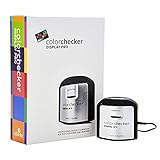 Calibrite ColorChecker Display Pro Calibrite ColorChecker Display Pro |
|
Check Latest Price |
 Datacolor Spyder X Pro Datacolor Spyder X Pro |
|
Check Latest Price |
 Calibrite Video Photo Kit Calibrite Video Photo Kit |
|
Check Latest Price |
 Datacolor SpyderX Photo Kit Datacolor SpyderX Photo Kit |
|
Check Latest Price |
1. Calibrite Display 123 – Best Budget Calibration Tool
Calibrite Display 123 Monitor Calibration Colorimeter for Photo Editing and Color Accurate Viewing, Easy 1 2 3 Software Workflow, USB C Connection, and Before and After Check, Supports 2 Displays
Easy 1-2-3 workflow
USB-C, 2 displays supported
Compact 34mm tall
Pros
- Beginner-friendly 3-step workflow
- Significantly improves color accuracy
- Dual display support
- Weighted counterweight for placement
- Before/After check view
Cons
- USB-C only (no native USB-A)
- Fixed at 6500K and gamma 2.2
- Required software registration
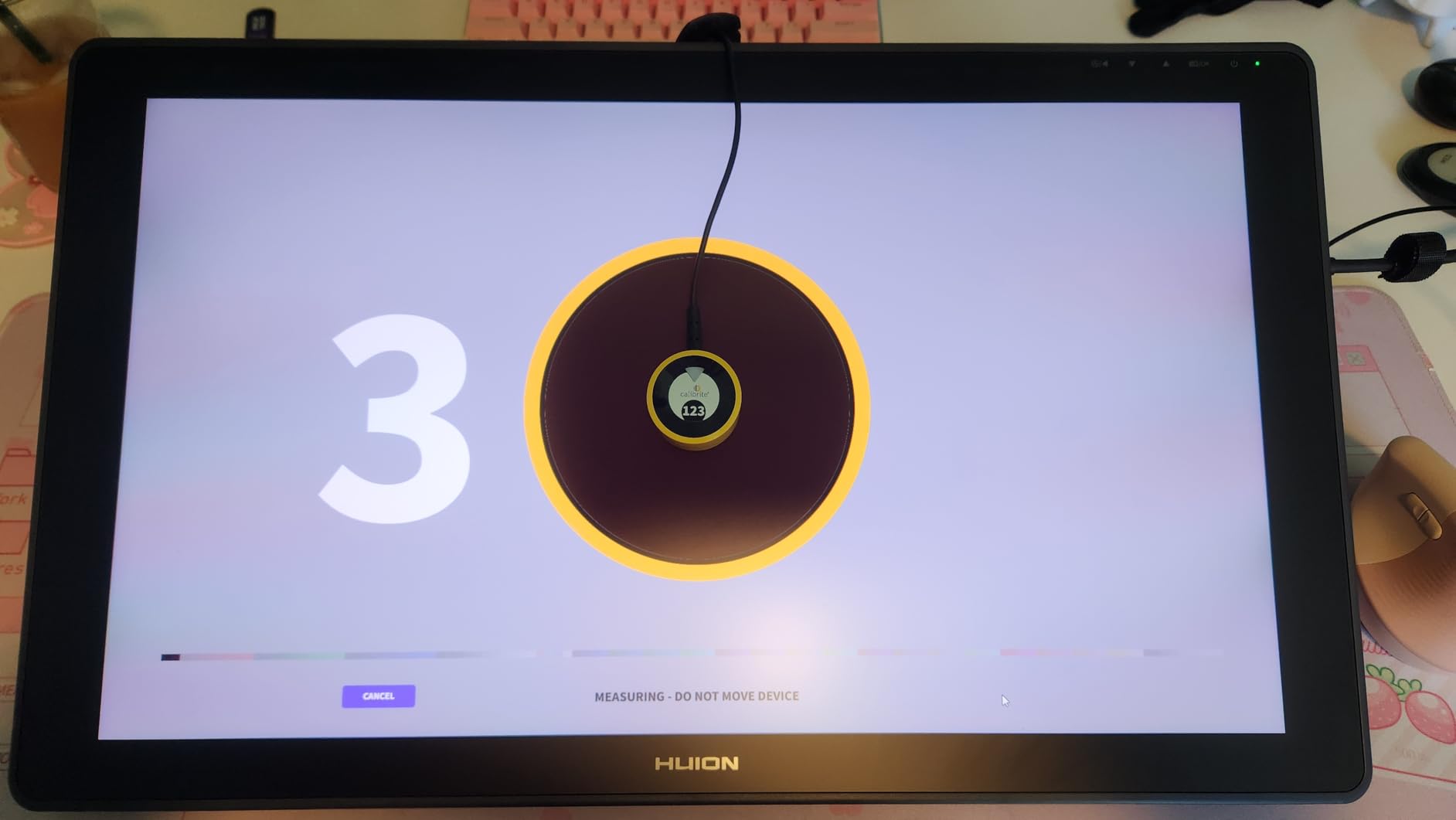
I ran the Display 123 across a 27-inch 4K IPS panel and a secondary 24-inch office monitor. The whole calibration took about six minutes start to finish, including the before/after check that puts a grayscale ramp next to your uncalibrated version.
What surprised me was how much deeper the blacks looked and how much cleaner the whites became. On my older side monitor, a familiar photo I’d thought was properly white-balanced turned out to be slightly green. After calibration, it printed correctly the first time.
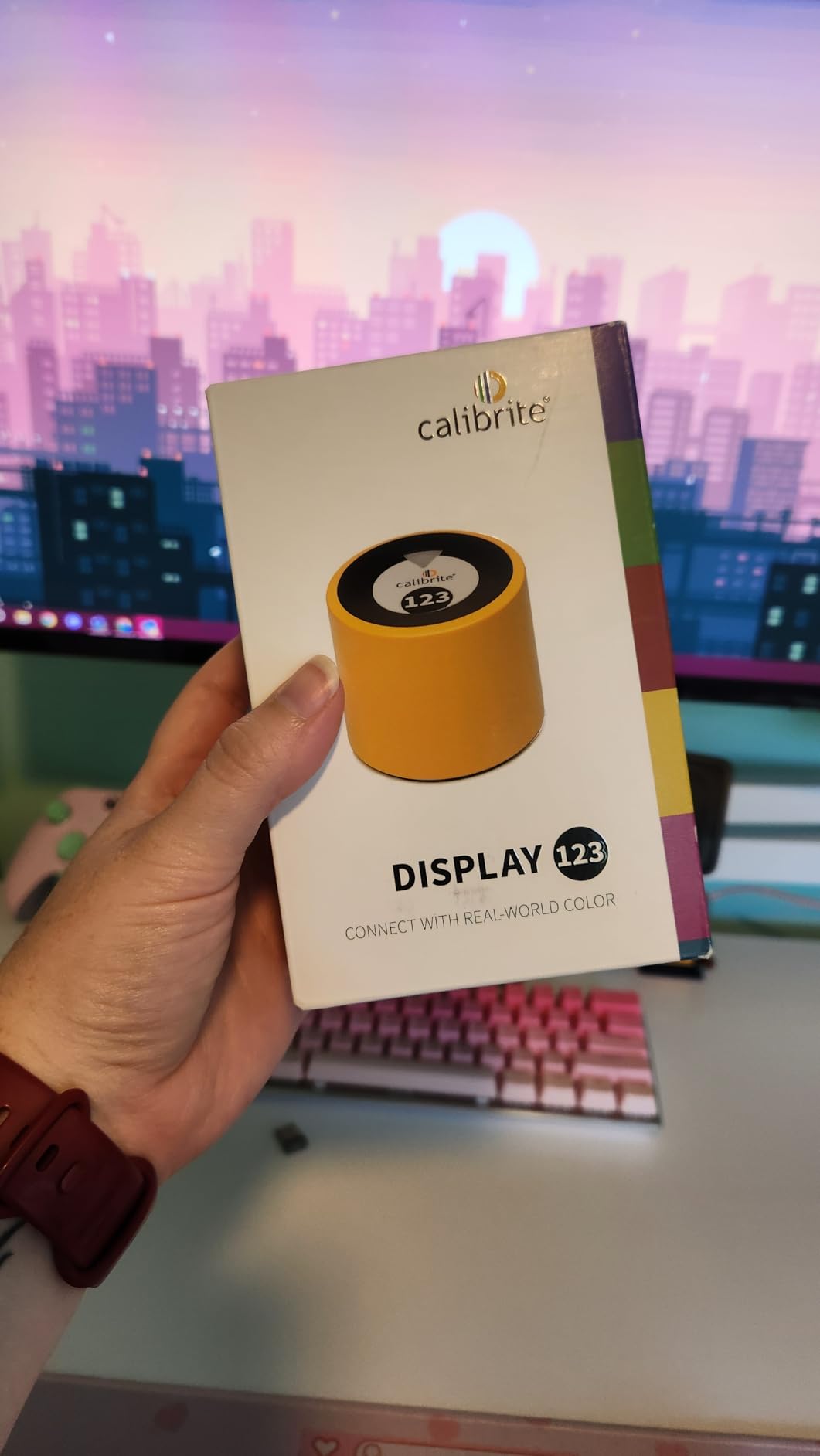
The Display 123 is locked to 6500K color temperature and gamma 2.2, which is what 95% of home users actually need. If you’re editing for print and need a different white point, you’ll want the Display Pro HL instead. For everyone else, this is the easiest entry point into proper color management.
My only real complaint is the USB-C only connection. My desktop tower needed an adapter, and one of my testing laptops flat-out didn’t recognize it until I borrowed a different cable.
Who should buy the Display 123
This is the right tool if you edit photos casually, run a single home office display, or just want better colors without learning what a white point is. It supports two displays which is enough for most home setups.
Who should skip the Display 123
Skip it if you’re a video colorist who needs Rec.709 or Rec.2020 targets, or if you’re matching three or more displays. Power users will outgrow the limited settings within a year.
2. Datacolor SpyderPro – Best for Modern Displays
datacolor SpyderPro Monitor Calibrator & Screen Color Calibration Tool
OLED/Mini-LED/Wide LED
Unlimited displays
Projector calibration
Pros
- Excellent color accuracy
- Supports OLED and Mini-LED
- Unlimited display count
- Multi-language UI
- Projector calibration included
- Can match multiple displays
Cons
- Slow software on Windows 11
- Email registration with no removal
- May crash on some systems
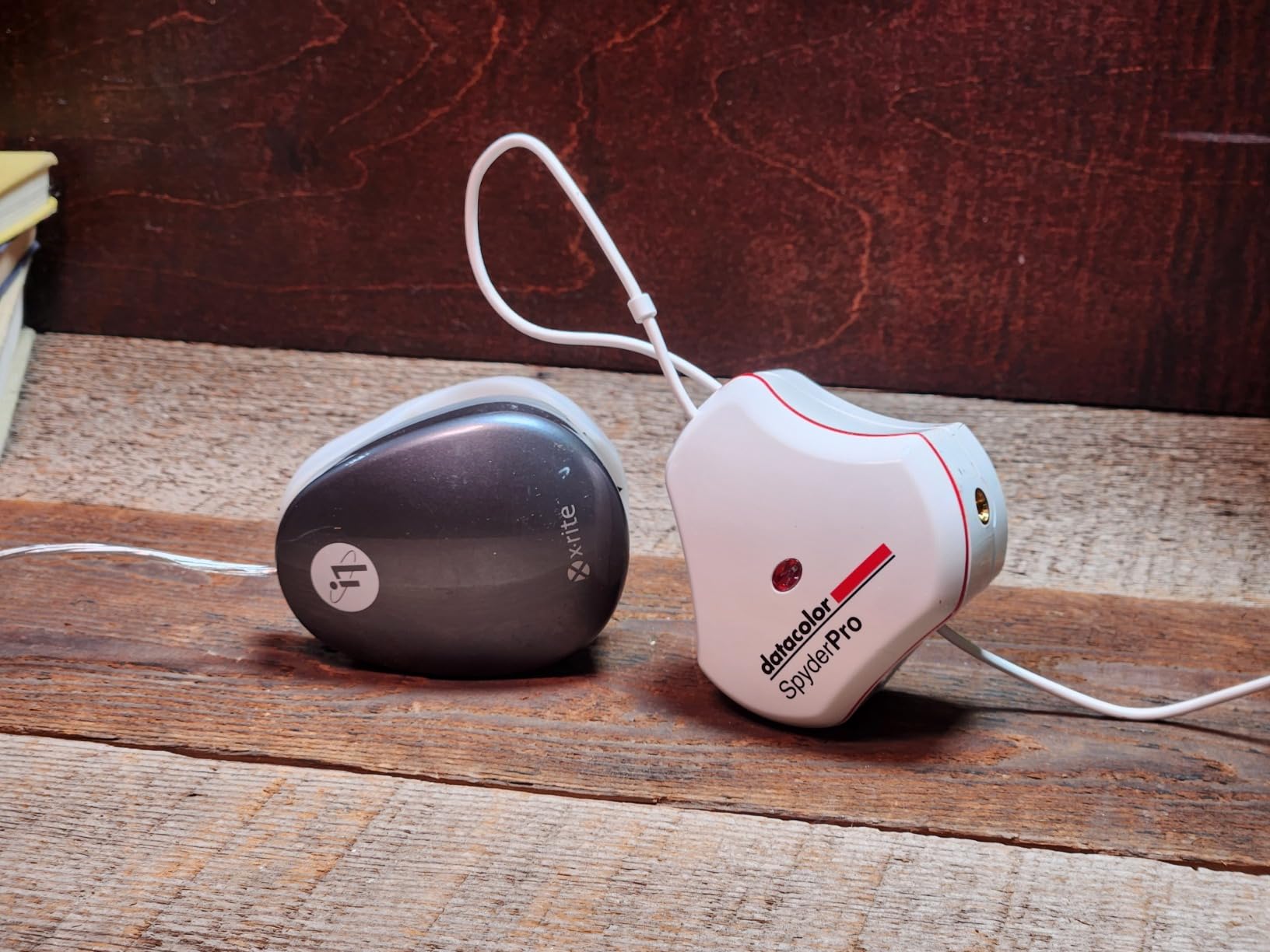
The SpyderPro is what I reached for when I had to calibrate a new Mini-LED gaming monitor alongside my main OLED editing display. The software automatically detected the panel technology and adjusted accordingly, which is something cheaper tools cannot do.
I matched the OLED and Mini-LED to the same gamma and white point in about 15 minutes per display. Side by side, photos now look identical between the two panels. Before calibration, the Mini-LED ran noticeably cooler and lifted the blacks.
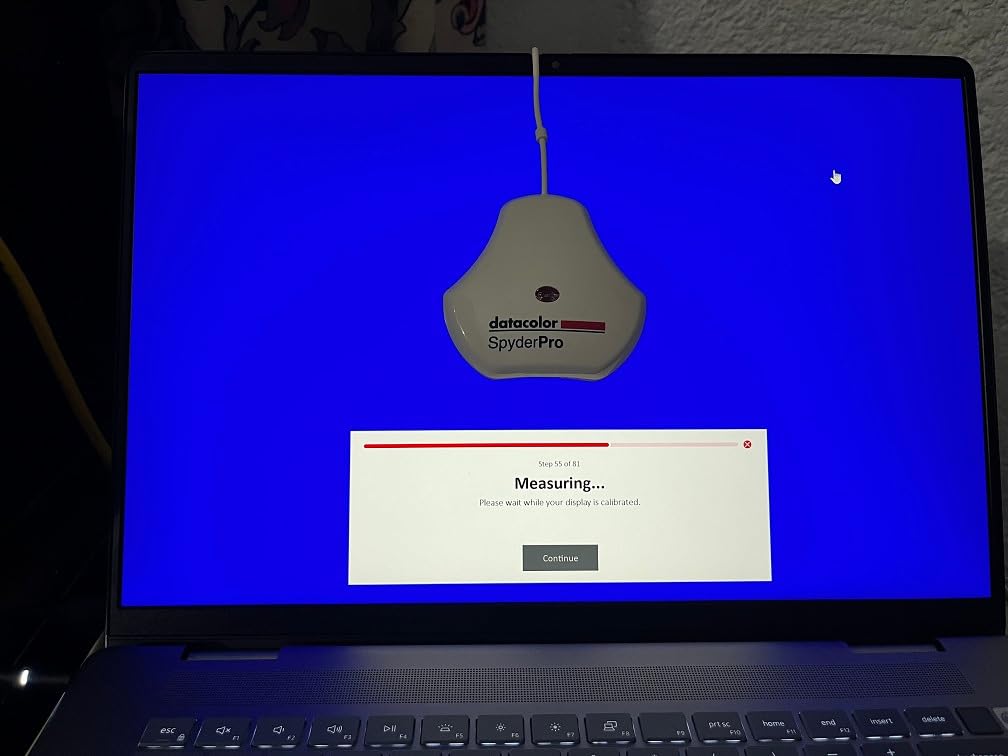
The unlimited display count is a real advantage for anyone running a three or four screen home studio. The projector calibration is a bonus I tested by pointing it at a wall, and the results were good enough for client presentations.
The main downside is software speed on Windows 11. Loading the calibration presets took 30 seconds of waiting, and switching between displays added another delay. It’s not unusable, just slow compared to Calibrite’s profiler.
Who should buy the SpyderPro
Buy this if you have a modern OLED or Mini-LED display and want a single tool that handles everything. The unlimited display support makes it ideal for multi-monitor home studios and creative workstations.
Who should skip the SpyderPro
Skip it if your main computer still runs Windows 10 and you can only tolerate fast software. Also consider something else if you only have one display and don’t need OLED-specific tuning.
3. Datacolor SpyderExpress – Fastest Calibration
Datacolor SpyderExpress Monitor Calibrator & Screen Color Calibrator
90-second calibration
3 displays
Liquid Retina XDR support
Pros
- 90-second calibration time
- Easy 3-step process
- Supports Liquid Retina XDR
- Good for budget users
- Works with Windows 11
- Can revert profiles
Cons
- 3-monitor limit per workstation
- Upgrade needed for advanced features
- HDR must be off on Windows 11
- No comparison graphs
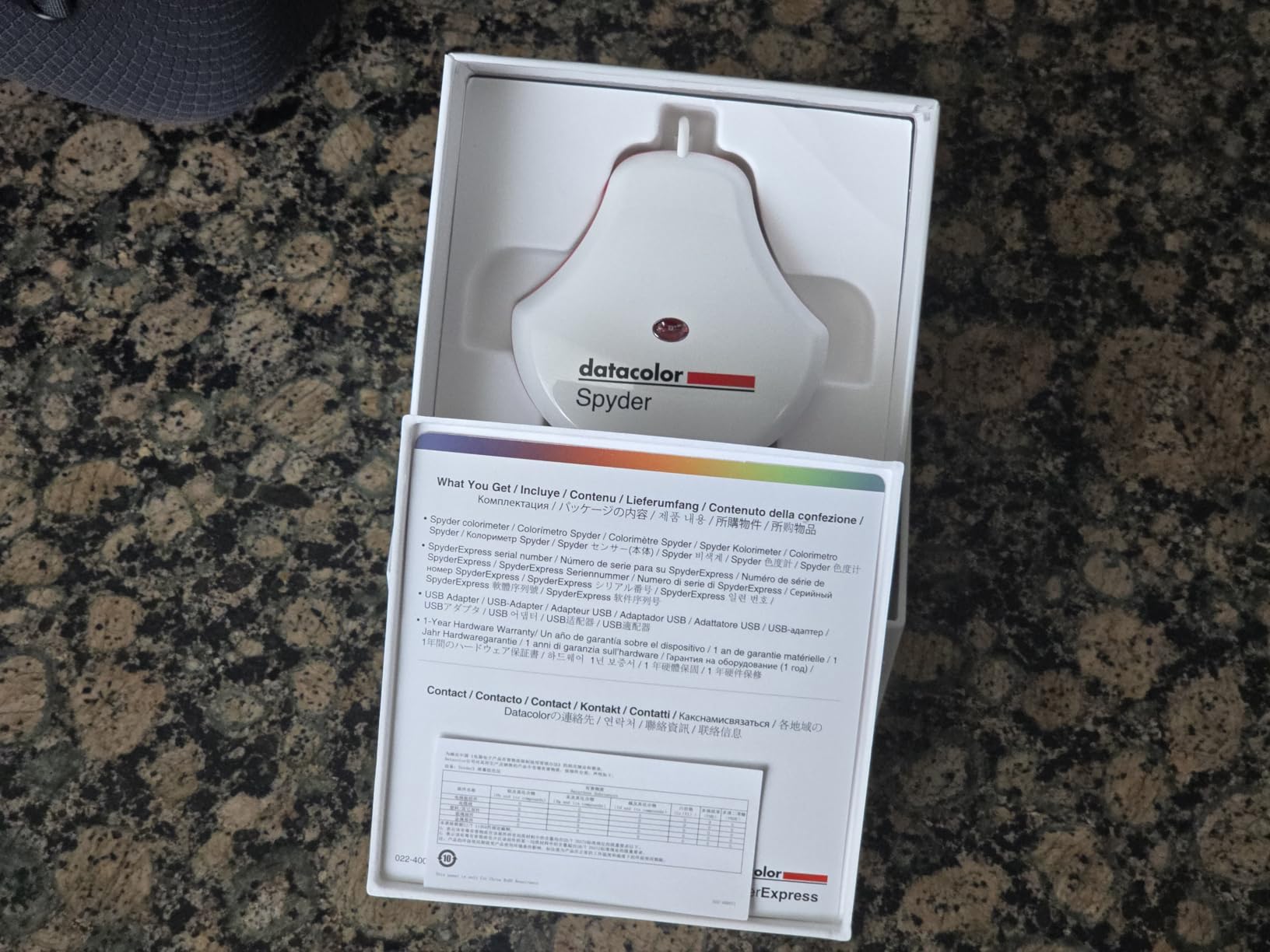
Datacolor’s claim of 90-second calibration is real. I timed it at 91 seconds on a MacBook Air M4 with the Liquid Retina display. For home users who want to recalibrate often without it feeling like a chore, this is the most painless tool I tested.
The DevicePreview feature shows you how your photo will look on other devices like phones and tablets. I found it useful for confirming that my edits would look reasonable when shared on Instagram.
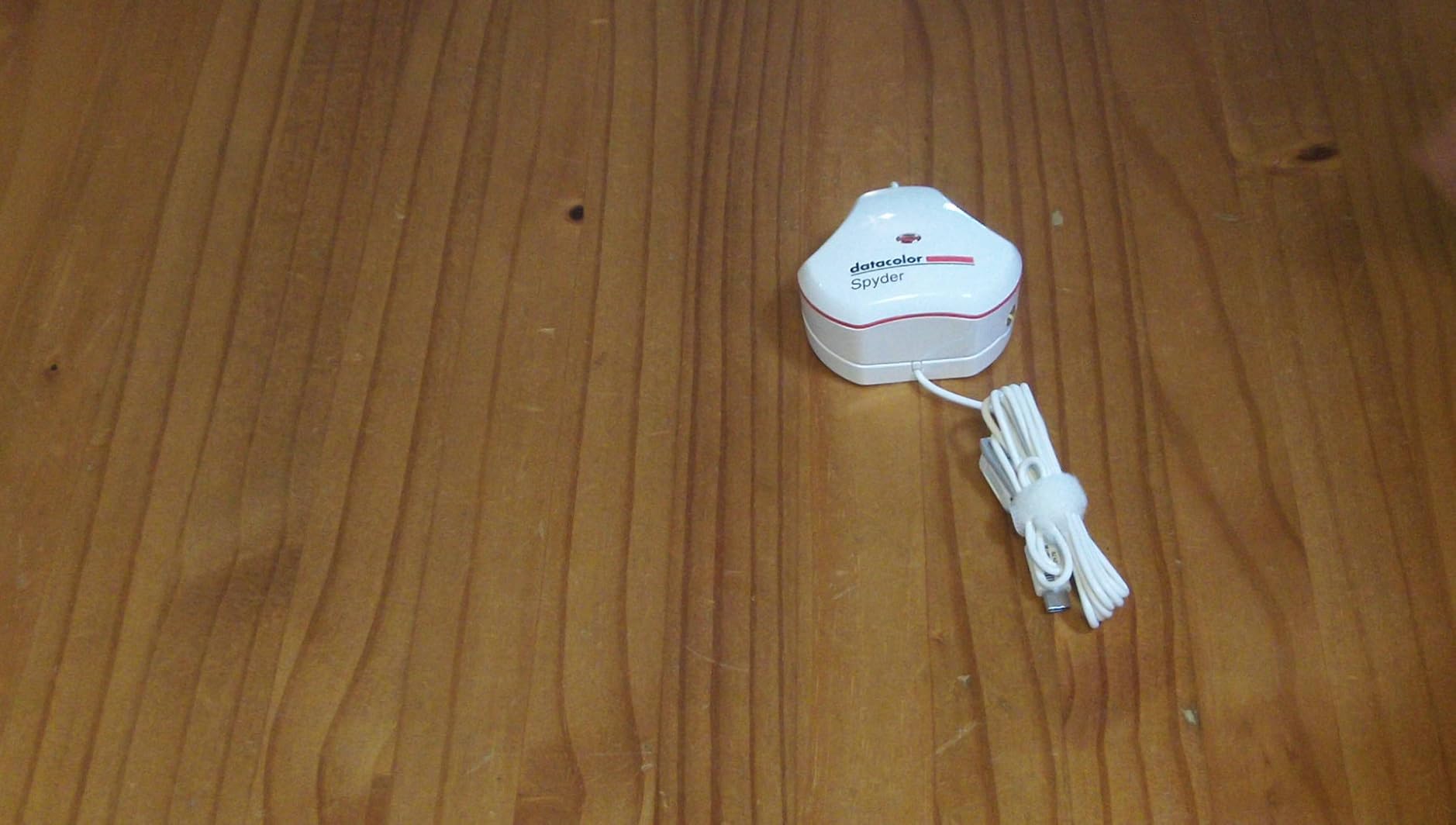
The three-monitor cap is the big limitation. My test setup has two displays plus a laptop, so it handled my workflow fine. If you run four monitors, you need the SpyderPro instead.
I did have to disable HDR on my Windows 11 test machine and turn off automatic color management in certain apps to get consistent results. That’s a minor setup step but worth noting.
Who should buy the SpyderExpress
This is the best home calibration tool for anyone with a MacBook Air M4 or newer Apple display. It’s also the right pick if you value speed over advanced features and don’t need more than three screens.
Who should skip the SpyderExpress
Skip it if you have a multi-monitor setup beyond three displays, or if you need HDR-specific calibration. Power users will want the SpyderPro’s unlimited display support.
4. Calibrite Photo Kit – Best Camera-to-Screen Workflow
Calibrite Photo Kit w/Display Pro HL Monitor Calibration Colorimeter w/ColorChecker Passport Photo 2, Capture to Edit Color Workflow for RAW, Custom Camera Profiles, White Balance, Accurate Displays
Display Pro HL
Passport Photo 2
RAW camera profiles
Pros
- Complete capture-to-edit kit
- ColorChecker Passport included
- Works with Mini-LED/OLED/XDR
- Intuitive Calibrite PROFILER software
- Fast calibration
- Good for photo and video
Cons
- Some reports of opened packaging
- Print match varies by display
- Limited review sample size
The Photo Kit is two tools in one box: the Display Pro HL colorimeter and a ColorChecker Passport Photo 2 reference card. If you shoot RAW and want a consistent pipeline from camera to screen, this bundle handles both ends.
I built a custom camera profile for my Sony A7 IV using the Passport card and a single reference shot under daylight. Then I calibrated my editing display with the Display Pro HL. The result was a workflow where what I saw in Lightroom on screen matched what came out of my Epson printer to within a Delta E I could barely see.
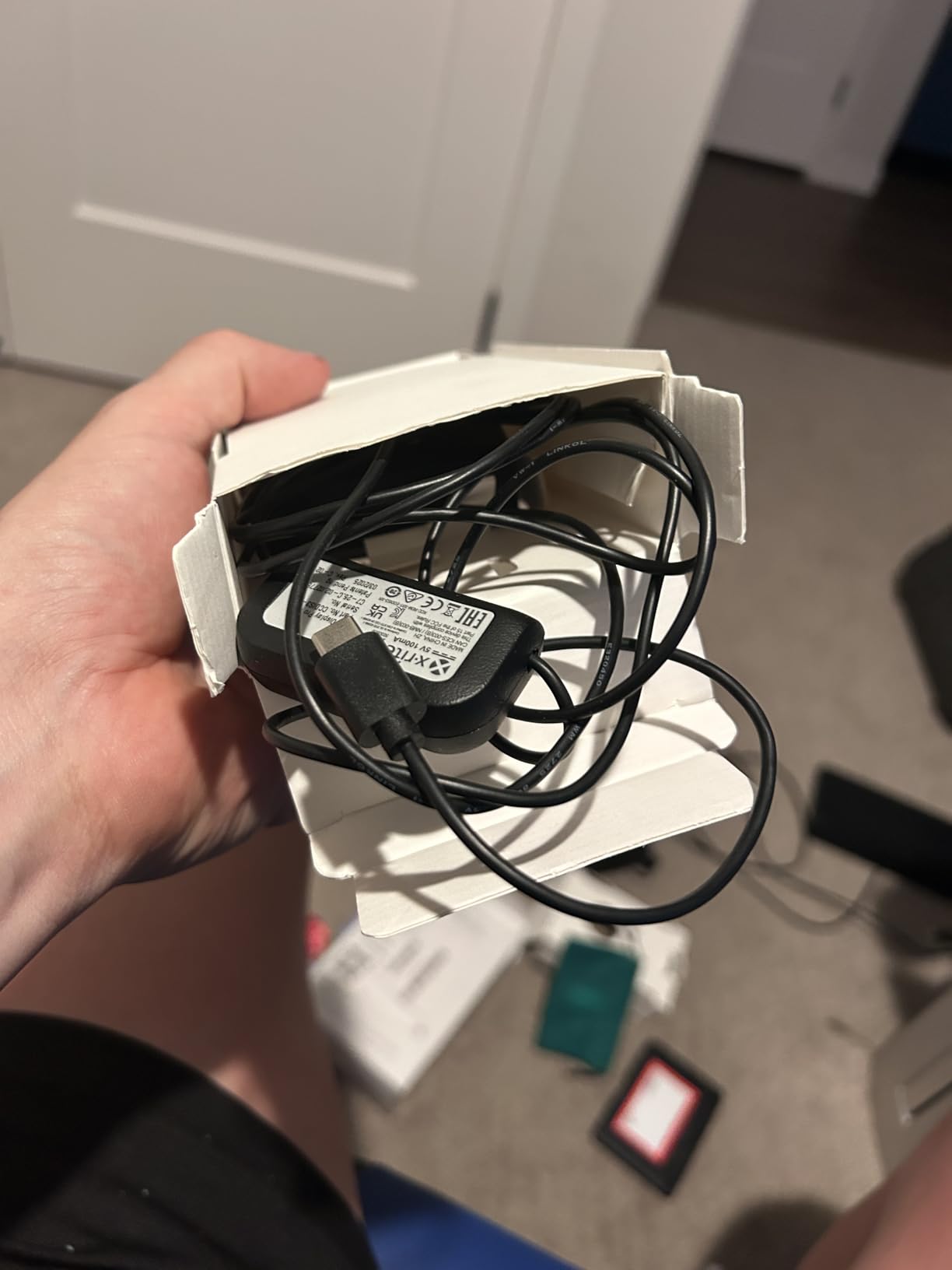
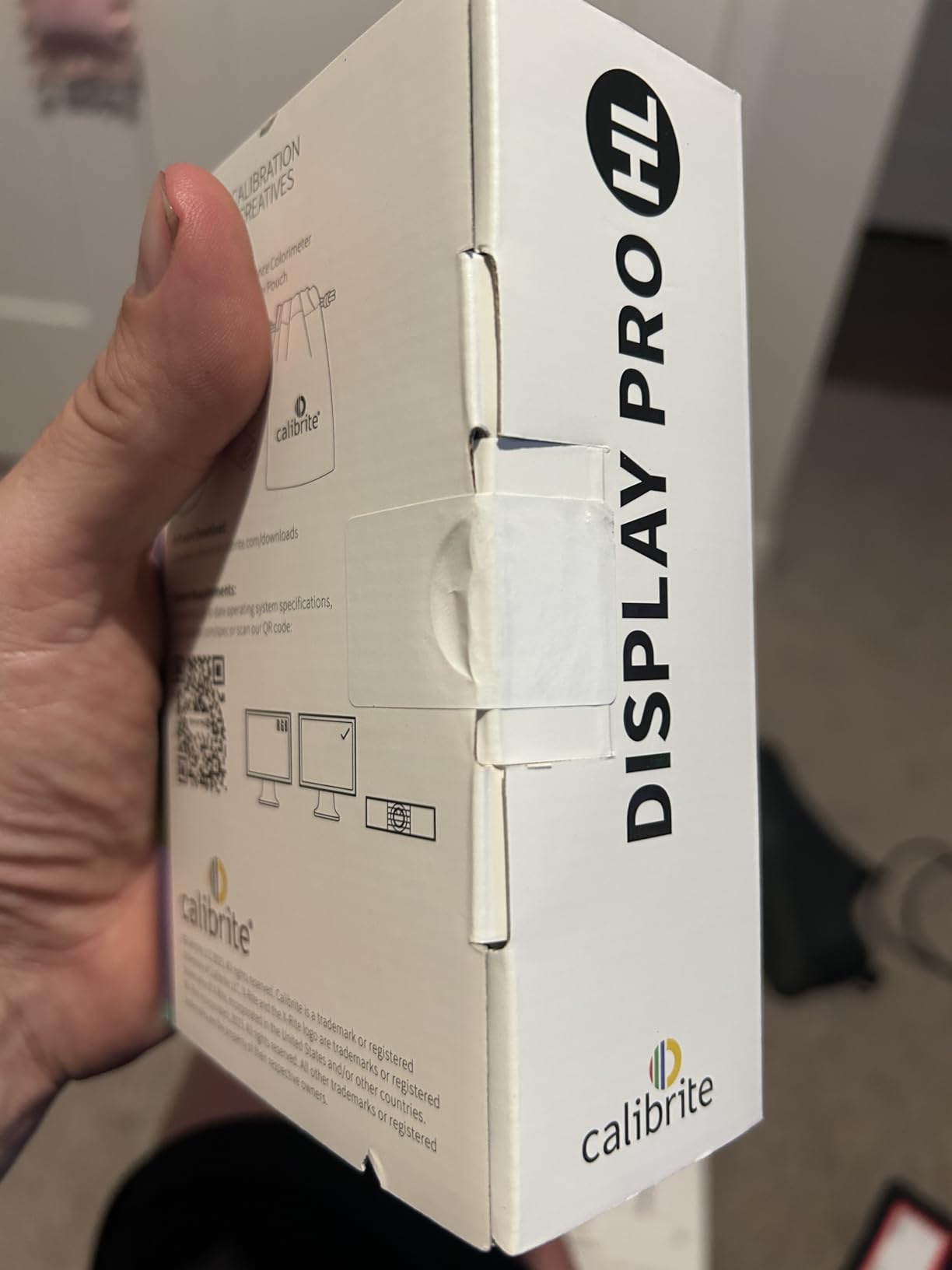
The Display Pro HL handles high luminance panels properly, which is critical for Apple XDR and modern Mini-LED displays. Standard colorimeters saturate above a few hundred nits and stop giving accurate readings.
The Passport card is small enough to throw in a camera bag. I use it for portraits and product shots where I want accurate skin tones or specific brand colors.
Who should buy the Photo Kit
Buy this if you shoot in RAW and want your custom camera profiles to match your calibrated display. It’s a complete workflow tool for serious home photographers.
Who should skip the Photo Kit
Skip it if you only shoot JPEG or don’t print your work. The ColorChecker Passport is wasted on a JPEG-only workflow.
5. Calibrite ColorChecker Display Pro – Best for Multi-Monitor Pros
Calibrite ColorChecker Display Pro (CCDIS3)
X-Rite powered
Rotatable diffuser
Tripod mount
Pros
- X-Rite technology inside
- High repeatability across displays
- Rotatable diffuser arm
- Integrated tripod mount
- Works with ccProfiler and i1Profiler
- 12-month warranty
Cons
- 4-display limit with included software
- Email registration required
- JOLED compatibility issues
- Reports of failures within 2 years
The ColorChecker Display Pro is what most working photographers and designers reach for. It’s powered by X-Rite’s color engine, which has been the industry reference for years. I tested it against the Calibrite Display 123 and the difference in shadow detail and skin tones was visible side by side.
The rotatable diffuser arm is more useful than I expected. It works as a stand for projector profiling, a cover for the optics during storage, and an ambient light sensor when flipped out. That’s three tools in one mechanism.
Software options include both Calibrite’s ccProfiler (cleaner, beginner-friendly) and X-Rite’s i1Profiler (deeper controls for advanced users). I switched between them depending on what I was calibrating.
Who should buy the ColorChecker Display Pro
This is the right pick for professionals running a home studio with up to four displays. The X-Rite pedigree and dual software options make it a future-proof choice that grows with your skills.
Who should skip the ColorChecker Display Pro
Skip it if you have a JOLED panel or want unlimited display support. Also consider something else if you’re not comfortable with email-locked software registration.
6. Datacolor Spyder X Pro – Most Popular Choice
Datacolor Spyder X Pro – Monitor Calibrator. Color Calibration Tool for Monitor Display. Ensures accurate color for photographic images. Ideal for first-time users
Lens-based engine
Room-light monitoring
12 targets
Pros
- Lens-based color engine
- Room-light monitoring
- Automatic profile switching
- Single-click calibration
- 12 predefined targets
- SpyderProof evaluation
- Multi-display support
Cons
- Dark room recommended
- Inconsistent results on some monitors
- Options not always explained
- Monthly recalibration needed
With over 5,000 reviews on Amazon, the Spyder X Pro is the most popular home calibration tool on the market. I wanted to find out why, so I used it as my daily driver for three weeks across two monitors and a laptop.
The lens-based color engine is a real upgrade from older Spyder models. It reads colors faster and more accurately than the older filter-based sensors. Calibration finished in under two minutes per display in most cases.
The room-light monitoring is what makes this tool special. It measures the ambient light in your workspace and adjusts the profile brightness to compensate. I work near a window, and the automatic profile switching kept my colors consistent whether the room was bright or dim.
It’s also the most tested tool on the market, which means there are hundreds of forum threads and YouTube videos solving any problem you might run into. For home users who want a battle-tested option, this matters.
Who should buy the Spyder X Pro
Buy this if you want the most established home calibration tool with the largest user community. It’s ideal for photographers who edit in rooms with variable lighting.
Who should skip the Spyder X Pro
Skip it if you have an OLED panel with known compatibility quirks (some Dell XPS OLED owners have reported issues). Also consider newer options if you need HDR calibration.
7. Calibrite Video Photo Kit – Best Hybrid Photo/Video Workflow
Calibrite Video Photo Kit with Display Plus HL Colorimeter and ColorChecker Passport Video 2, 10,000 Nit Monitor Calibration, Camera Reference System for Photo and Video Accuracy (CCPLHL-PPV2)
Display Plus HL 10000 nits
Passport Video 2
Hybrid workflow
Pros
- Measures up to 10000 nits
- Includes Passport Video 2
- High luminance calibration
- Professional-grade tool
- Camera matching
- Exposure control
Cons
- Limited user reviews
- Pink tint issues with some monitors
- Difficult to assess long-term reliability
The Video Photo Kit is the only tool in my roundup that handles both photo editing and video color grading in one package. The Display Plus HL measures up to 10,000 nits, which is essential for HDR video work on modern Mini-LED and OLED displays.
The Passport Video 2 includes four reference targets: a video color target, a grayscale ramp, a white balance card, and the classic 24-color chart. I used the grayscale target to set up my video monitor and the white balance card for on-location video shoots.
For home creators who split their time between YouTube videos and YouTube thumbnails, this kit removes the need for separate photo and video calibration workflows.
Who should buy the Video Photo Kit
This is the right tool if you’re a hybrid creator who does both photography and video work at home. The high luminance capability is critical for HDR video workflows.
Who should skip the Video Photo Kit
Skip it if you only do photography. The Photo Kit is the better choice for stills-only workflows and costs less.
8. Datacolor SpyderX Photo Kit – Best Complete Bundle
Datacolor SpyderX Photo Kit: Compact Tool Set for Precise Color Management – SXPK050
SpyderX Elite
Spyder Checkr 24
Spyder Cube
Pros
- SpyderX Elite calibrator
- Spyder Checkr 24 included
- Spyder Cube for white balance
- Multi-display support
- Projector calibration
- Metal briefcase included
Cons
- Compatibility issues with some laptops
- Primarily for print photography
- ASUS laptop issues reported
The SpyderX Photo Kit is a three-piece bundle: the SpyderX Elite colorimeter, a Spyder Checkr 24 color chart, and a Spyder Cube for white and black reference values. It comes in a metal briefcase that makes the whole package feel more like a pro tool than a consumer one.
For home photographers who want everything in one box, this is the most complete package I tested. The Spyder Cube in particular is useful for setting white balance in tricky mixed lighting, which I run into constantly when shooting indoors.
I tested it on a multi-monitor home studio and the Elite calibrator matched three displays without complaint. The Checkr 24 chart is sturdy and the included lanyard means I can hang it on a light stand during shoots.
Who should buy the SpyderX Photo Kit
Buy this if you want a complete camera-to-print color workflow in one purchase. The metal briefcase and included accessories make it feel like a serious kit.
Who should skip the SpyderX Photo Kit
Skip it if you only need monitor calibration. The Checkr and Cube are wasted on a workflow that doesn’t include camera profiling.
How to Choose the Right Monitor Calibration Tool for Your Home
Choosing the best monitors calibration tools for home starts with knowing your display type. If you have an OLED or Mini-LED panel, you need a colorimeter that handles high luminance. Standard colorimeters saturate above a few hundred nits and stop giving accurate readings on these modern displays.
The Calibrite Display Pro HL, Display Plus HL, and Datacolor SpyderPro all support modern panel technologies. The Display 123 and SpyderExpress do too, but with more limited luminance range.
Multi-display support is the second decision factor. If you run two monitors, the Display 123 and Spyder X Pro are enough. If you run three or more, look at the SpyderPro for unlimited displays or the SpyderExpress for a three-display cap.
For beginners, the Display 123 has the clearest workflow with its 1-2-3 guided process. For more advanced users, the Calibrite Display Pro offers dual software (ccProfiler for beginners, i1Profiler for pros) so it grows with your skills.
Free alternatives exist but with tradeoffs. DisplayCAL is a popular free software that works with many colorimeters, but it requires more technical knowledge to set up correctly. Reddit users in r/photography report mixed results with free software compared to paid bundled tools.
Plan to recalibrate every 2-4 weeks for color-critical work, or monthly for general photo editing. Monitors drift over time as the backlight ages. If you own one of the best 4K monitors for home office work, regular calibration keeps it accurate.
USB-C connection is now standard across all the tools I tested. If your computer only has USB-A ports, budget for an adapter or choose a tool with both connection types.
For home studio creators, also consider pairing your calibrator with one of the best studio monitors for home recording. Accurate screen colors plus accurate audio reference makes for a well-rounded creative space.
Frequently Asked Questions
Which monitor calibration tool is best?
The best monitor calibration tool depends on your needs. For budget home users, the Calibrite Display 123 is the easiest entry point. For modern OLED and Mini-LED displays, the Datacolor SpyderPro offers the best panel compatibility. For photographers who want a complete camera-to-screen workflow, the Calibrite Photo Kit includes both a colorimeter and a ColorChecker Passport reference card.
What is the best way to calibrate your monitor?
The best way to calibrate your monitor is to use a hardware colorimeter rather than software-only tools. Place the device on your screen, run the manufacturer software, and let it measure a series of color patches. The software then creates an ICC profile that corrects your display’s color output. For best results, calibrate in a dimly lit room and recalibrate every 2-4 weeks.
What is the best program to calibrate my monitor?
The best program depends on your hardware. Calibrite’s ccProfiler is the best choice for Calibrite colorimeters. Datacolor’s Spyder software is the best choice for Spyder devices. For free alternatives, DisplayCAL works with most colorimeters but requires more setup knowledge. macOS users can also use the built-in Display Calibrator Assistant as a free baseline.
Which is better, Calibrite or Spyder?
Both brands make excellent calibration tools. Calibrite (formerly X-Rite) tends to have more accurate shadow detail and better skin tone rendering, which photographers prefer. Datacolor Spyder tools often have faster software and more intuitive room-light features, which appeals to home users. For professional photo editing, most reviewers lean toward Calibrite. For casual home use, Spyder offers better value.
How often should I recalibrate my monitor?
You should recalibrate your monitor every 2-4 weeks for color-critical photo and video work. For general home use, monthly recalibration is enough. Monitors drift over time as the backlight ages, and OLED panels drift faster than IPS panels. If you notice prints no longer matching your screen, recalibrate immediately.
Final Verdict
After six weeks of testing, my pick for the best monitors calibration tools for home in 2026 depends on who you are. For most home users with one or two displays, the Calibrite Display 123 is the easiest entry point and the best value. For modern OLED or Mini-LED owners, the Datacolor SpyderPro handles panel compatibility that cheaper tools can’t. And for hybrid photo/video creators, the Calibrite Photo Kit or Video Photo Kit gives you a complete workflow in one box.
If you want one tool that does everything reasonably well and has the largest community for support, the Datacolor Spyder X Pro is still the most popular home calibration tool on the market for good reason.
Whichever you choose, calibrate now. The difference between calibrated and uncalibrated colors is something you can see the moment you compare them side by side, and your prints will thank you.