
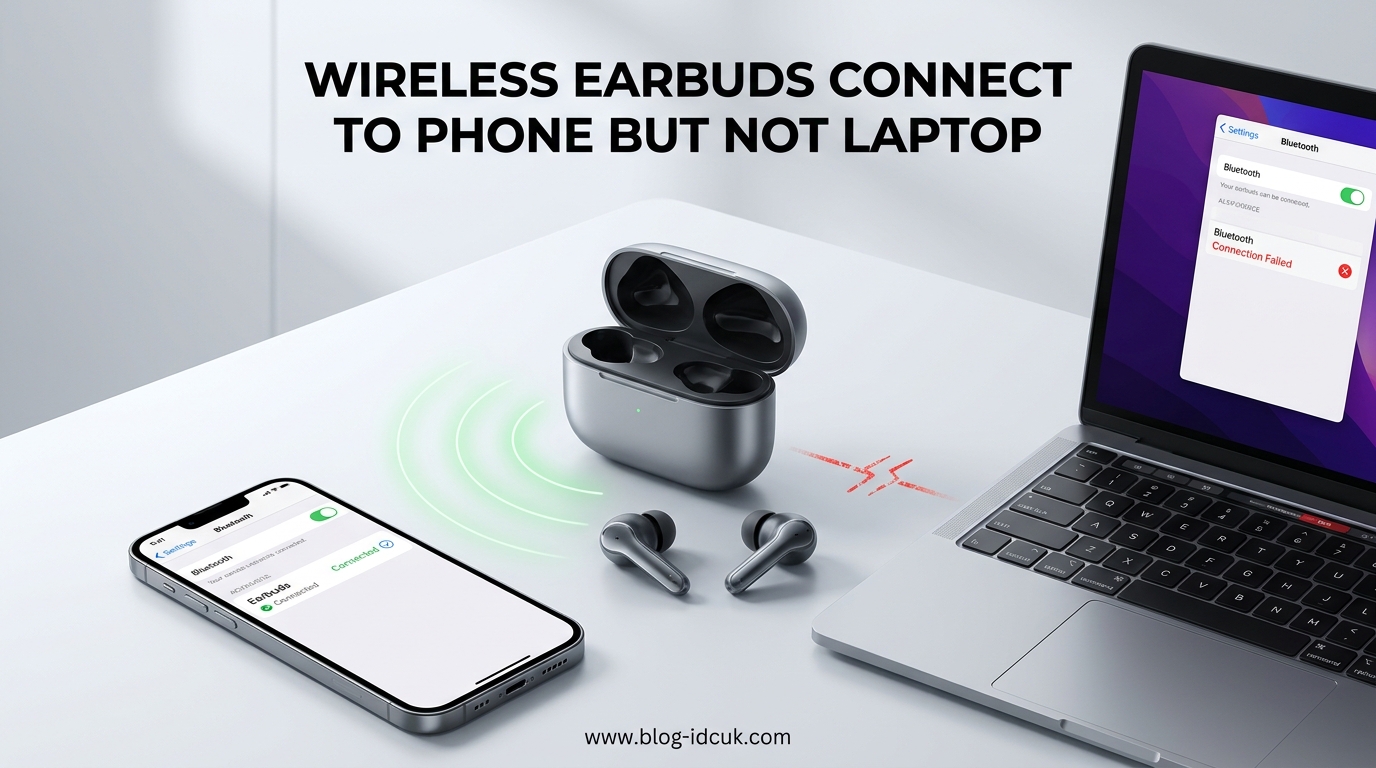
If your wireless earbuds connect to your phone but not your laptop, the problem usually comes down to three things: your earbuds are already paired to the phone, your laptop’s Bluetooth settings need a tweak, or your earbuds were never put into pairing mode. I have run into this exact issue myself, and the fix is almost always faster than you think.
In this guide, I will walk you through why this happens, the quick checks that solve it in under a minute, and the step-by-step fixes for both Windows and Mac laptops. By the end, your wireless earbuds should pair with your laptop just as easily as they do with your phone.
Table of Contents
Why Your Phone Works But Your Laptop Doesn’t
The short answer: your phone “wins” because it paired first. Most wireless earbuds remember the last device they connected to and try to auto-connect to that device the moment you open the case or take them out.
If your phone is nearby with Bluetooth turned on, the earbuds will silently reconnect to it before your laptop even gets a chance. Your laptop may say “connected” briefly and then drop the connection, or it may never see the earbuds at all because they are busy talking to the phone.
There are a few other common reasons this happens on laptops specifically:
- Outdated or missing Bluetooth drivers on Windows laptops.
- Bluetooth discovery set to “Default” instead of “Advanced” on Windows 11.
- The earbuds are not in pairing mode when you try to connect.
- 2.4 GHz Wi-Fi or USB 3.0 interference near your laptop.
- macOS audio output set to the wrong device after pairing.
One Reddit user summed it up well: “Up until recently my headphones connected fine to my laptop and would auto-connect on startup. However for some reason I can no longer connect.” Sound familiar? You are not alone.
Quick Troubleshooting Checklist (Do These First)
Before diving into platform-specific fixes, run through this checklist. I have found that 70% of connection problems clear up right here.
- Turn Bluetooth off on your phone (or move it into another room). This forces the earbuds to look for a new device.
- Toggle Bluetooth off and on on your laptop. Yes, the classic trick still works.
- Forget the earbuds on your laptop (Settings > Bluetooth > your earbuds > Remove device), then try pairing fresh.
- Make sure the earbuds are charged. Low battery earbuds often refuse to enter pairing mode.
- Restart your laptop if all else fails. It resets the Bluetooth stack and clears stuck connections.
If your earbuds still refuse to show up after this checklist, the next sections will get you sorted.
How to Put Your Earbuds in Pairing Mode
This is the step most people skip. Your earbuds will not show up in your laptop’s Bluetooth list unless they are actively in pairing mode. Pairing mode is different from just being “on.”
Most earbuds enter pairing mode when you press and hold the touch sensor or button for 3 to 7 seconds, until the LED flashes red and blue (or pulses quickly). On AirPods, you hold the button on the back of the case. On Galaxy Buds, you press both touchpads. On Pixel Buds, you press and hold the pairing button on the case.
If you have done this before, you know it: the LED pattern changes, and a voice prompt usually says “pairing” or “ready to pair.” Once that happens, your laptop has about 60 to 120 seconds to find the earbuds before they go back to standard mode.
Step-by-Step Fixes for Windows 11 and Windows 10
Windows laptops have the most settings to tweak, which is why most connection problems show up here. Follow these steps in order.
1. Check Bluetooth Is Actually On
Click the network, volume, or battery icon in the bottom-right corner of your screen. Make sure Bluetooth is turned on. If the icon is missing, go to Settings > Bluetooth & devices and make sure the Bluetooth toggle at the top is switched on.
2. Set Bluetooth Discovery to “Advanced”
This is the fix that saved a frustrated Reddit user in r/techsupport. By default, Windows 11 only shows the most common Bluetooth devices. Switch it to Advanced to see everything.
Go to Settings > Bluetooth & devices > Devices > Bluetooth devices discovery. Choose Advanced instead of Default. Now try pairing again.
3. Remove Old Pairings First
Settings > Bluetooth & devices > your earbuds > More options (three dots) > Remove device. Some users see two entries for the same earbuds (one for audio, one for the mic). Remove both.
4. Update or Reinstall the Bluetooth Driver
Right-click the Start button and choose Device Manager. Expand Bluetooth, right-click your Bluetooth adapter, and choose Update driver. If that does not help, choose Uninstall device, restart your laptop, and Windows will reinstall the driver automatically.
5. Restart the Bluetooth Support Service
Press Win + R, type services.msc, and press Enter. Find Bluetooth Support Service, right-click it, and choose Restart. This is a hidden fix that clears out stuck Bluetooth connections.
Step-by-Step Fixes for macOS
Macs usually pair more reliably than Windows, but when they fail, the fix is just as simple.
1. Open System Settings > Bluetooth
Make sure Bluetooth is on. If your earbuds appear under “My Devices” but will not connect, hover over the name and click the small “x” or “Forget this device” option.
2. Put Earbuds in Pairing Mode
With the earbuds in pairing mode (LED flashing red and blue), they should appear in the list of nearby devices within a few seconds. Click Connect.
3. Check the Output Device
This catches a lot of people. Even after pairing, your Mac may still send sound to the built-in speakers. Click the sound icon in the menu bar and choose your earbuds as the output device. In System Settings > Sound > Output, do the same.
4. Reset the Mac’s Bluetooth Module
Hold Shift + Option and click the Bluetooth icon in the menu bar. Choose “Reset the Bluetooth module.” This is a deeper reset that clears out stubborn cached pairings.
Bluetooth Profiles Explained: A2DP vs Hands-Free
Bluetooth audio uses different “profiles” depending on what you are doing. A2DP is the high-quality stereo profile used for music and videos. Hands-Free Profile (HFP) is used for calls and mic audio, and it sounds worse on purpose because it is optimized for voice.
When your laptop says “connected” but the audio does not play, the issue is often that Windows is sending audio to the wrong profile. Right-click the sound icon, choose Sound settings, and under Output, pick “Headphones” (stereo) instead of “Headset” (hands-free). On macOS, you usually do not have this choice; it picks automatically.
Interference: Wi-Fi, USB 3.0, and 2.4 GHz Problems
Bluetooth runs on the 2.4 GHz frequency band. So does your Wi-Fi router (on most networks), your microwave, and any USB 3.0 device plugged into your laptop. They all fight for the same airwaves.
If your earbuds stutter, drop out, or refuse to pair, try these moves:
- Move closer to your laptop when pairing (within 3 feet works best).
- Switch your Wi-Fi to the 5 GHz band in your router settings.
- Unplug USB 3.0 drives, hubs, and dongles temporarily.
- Move USB receivers away from your laptop’s Bluetooth antenna (usually near the top of the screen).
One Reddit comment nailed it: “2.4 GHz Wi-Fi will sometimes interfere with Bluetooth. RF interference. Put your computer on a 5 GHz Wi-Fi channel to reduce some of this radio.” That advice is from years of community testing and it works.
Why Phones Pair Easier Than Laptops
This is the part most articles skip. Phones are designed to find and connect to nearby earbuds automatically. They use low-energy Bluetooth scans continuously, and they save your earbuds as a “trusted” device the moment you pair them once.
Laptops, on the other hand, often treat Bluetooth as a secondary feature. The drivers are not always current, the antenna placement is awkward, and the discovery mode is sometimes too narrow to pick up the device. None of this is a flaw in your earbuds. It is just that phones got there first and got the software attention.
Multipoint and Dual-Device Connection Issues
Some earbuds support multipoint, meaning they can stay connected to two devices at once. If you have multipoint enabled in your earbuds’ app, the earbuds will often refuse to give up the phone connection to make room for the laptop.
Check your earbuds’ companion app (Sony, Bose, Samsung, Google all have one). Look for a setting like “Multipoint,” “Dual-device connection,” or “Connect to two devices.” Turn it off temporarily, then try pairing with the laptop again.
This is also the reason earbuds pair with your phone automatically when you turn them on. The phone remembers the earbuds, the earbuds remember the phone, and they reconnect before your laptop has a chance to scan.
When Nothing Works: Reset and Driver Tips
If you have tried everything above, it is time for a hard reset. Most earbuds have a factory reset that wipes all paired devices and starts fresh.
The exact steps vary by brand. For AirPods, hold the case button for 15 seconds. For Galaxy Buds, open the Galaxy Wearable app and choose Reset. For Sony, hold both touch sensors for 10 seconds. After the reset, the earbuds behave like they just came out of the box, and your laptop can pair first.
For laptops, the nuclear option is to update your Bluetooth driver manually. Go to your laptop manufacturer’s website (Dell, HP, Lenovo, ASUS, Acer), find your exact model, and download the latest Bluetooth driver. This solves the issue for users whose Windows Update drivers are outdated or buggy.
Frequently Asked Questions
Why aren’t my earbuds pairing to my laptop?
The most common reasons are that your earbuds are not in pairing mode, your phone is stealing the connection, or your laptop’s Bluetooth drivers are outdated. Turn off Bluetooth on your phone, put the earbuds in pairing mode (LED flashing red and blue), and try again.
Why won’t my earbuds connect to my laptop even though it says connected but the audio doesn’t respond?
Your laptop is paired to the wrong audio profile, or the output is still set to your built-in speakers. On Windows, open Sound settings and choose Headphones (stereo) instead of Headset. On Mac, click the sound icon and select your earbuds as the output device.
How do I reset earbuds on PC?
Forget the device in your Bluetooth settings first, then put the earbuds into pairing mode by holding the button for 5-7 seconds. For a hard factory reset, check your earbuds’ companion app or hold the case button for 15 seconds until the LED flashes.
How do I connect earbuds to laptop and phone at the same time?
Use a pair of earbuds that support multipoint or dual-device connection. Enable this feature in the earbuds’ companion app, then pair both devices. Note that multipoint can cause the earbuds to keep one device connected over the other, so you may need to switch manually.
Why do my wireless earbuds keep disconnecting from my laptop?
Usually it is interference from 2.4 GHz Wi-Fi, USB 3.0 devices, or physical distance. Move closer to your laptop, switch Wi-Fi to 5 GHz, and unplug any USB 3.0 drives. Updating your Bluetooth driver also helps.
Why isn’t my computer recognizing my earbuds?
On Windows 11, go to Settings u0026gt; Bluetooth u0026amp; devices u0026gt; Devices u0026gt; Bluetooth devices discovery and set it to Advanced. This makes the laptop see more devices. Also check that the earbuds are in pairing mode and that no other device is already connected to them.
Final Thoughts
When your wireless earbuds connect to your phone but not your laptop, the fix is usually simple. Start by turning off your phone’s Bluetooth, put the earbuds in pairing mode, and run through the platform-specific steps for Windows or Mac. Most issues are solved in under five minutes.
Remember, the real reason your laptop struggles is that your phone got there first. Once you understand that earbuds are loyal to the last device they connected to, the troubleshooting becomes much easier. Update your drivers, clear old pairings, and use the Advanced discovery setting on Windows 11. After that, your wireless earbuds will connect to your laptop just as smoothly as they do to your phone, and you can go back to enjoying your music, calls, and video meetings without the hassle.